How to Fix Roborock Vacuum Saying ‘Internal Error’ or Laser Blocked
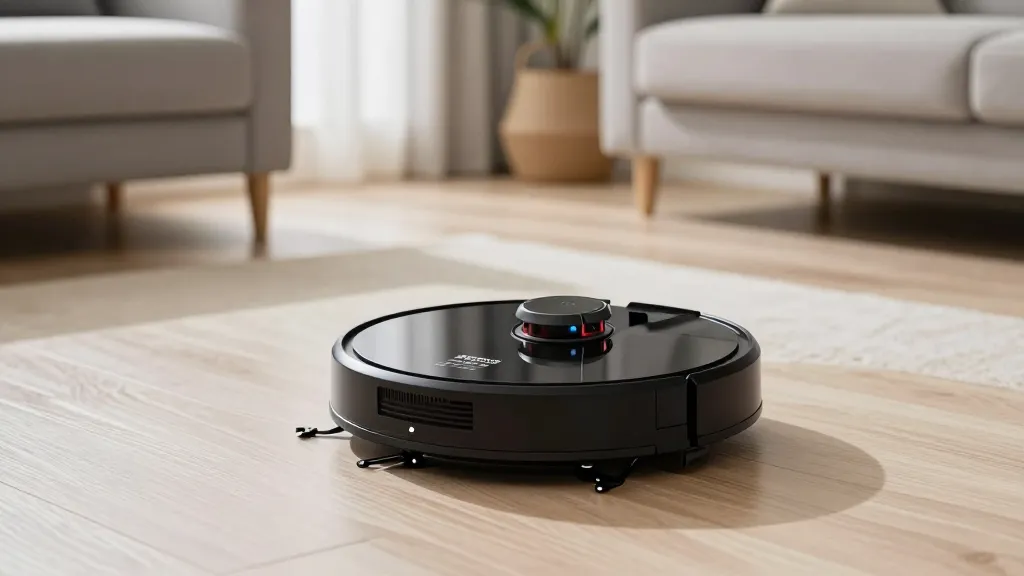
If your Roborock vacuum is displaying an 'Internal Error' or 'Laser Blocked' message, it can be frustrating to see your cleaning device malfunction. These error codes often signal issues with the vacuum's sensors or internal systems, disrupting your routine. This article provides a clear, step-by-step guide to help you resolve these common Roborock vacuum errors without needing professional assistance. By following the troubleshooting steps outlined here, you can identify and fix the problem efficiently. The article covers everything from basic checks to advanced solutions, ensuring you have the tools to restore your Roborock vacuum's performance. Whether you're a homeowner or a tech-savvy individual, this guide is designed to help you address these issues confidently and effectively.
Understanding the Error Messages
When your Roborock vacuum displays an 'Internal Error' or 'Laser Blocked' message, it indicates a system issue that requires attention. These errors can disrupt the vacuum’s operation and, if ignored, may lead to long-term damage. Understanding the meaning behind each error and their causes is crucial for effective troubleshooting.
What Is an 'Internal Error'?
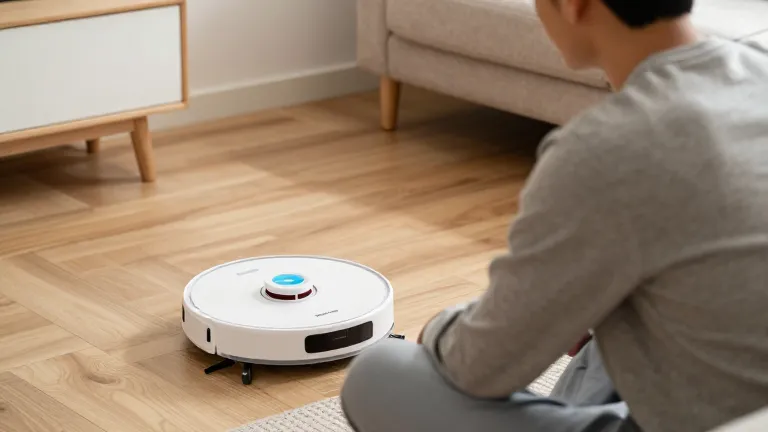
The 'Internal Error' message typically signifies a malfunction within the vacuum’s internal systems, such as software glitches or hardware issues. This error can occur due to corrupted firmware, overheating, or electrical problems. It often prevents the vacuum from starting or operating correctly, requiring a reset or deeper investigation.
What Does 'Laser Blocked' Mean?
The 'Laser Blocked' error suggests that the vacuum’s LiDAR sensor is obstructed, preventing it from scanning the environment accurately. This can happen when dust, hair, or debris blocks the sensor, or when objects are placed in its path. The error usually halts navigation and cleaning, making it essential to clear the sensor promptly.
Why These Errors Occur
Both errors can arise from similar factors, such as environmental obstructions, software malfunctions, or physical damage. The 'Internal Error' may stem from internal software issues or hardware failures, while 'Laser Blocked' is often due to physical blockages. Addressing these errors quickly is vital to prevent further complications and ensure the vacuum functions optimally.
Basic Troubleshooting Steps
Basic troubleshooting steps are essential for resolving common Roborock vacuum issues. Starting with simple actions like restarting the device or checking the environment can often eliminate the problem without requiring advanced tools or technical knowledge.
- Restart the Roborock Vacuum
- Check the Environment for Obstacles
- Verify Power and Battery Level
Restart the Roborock Vacuum
Restarting the Roborock vacuum is a straightforward yet effective method to resolve many issues. Power off the device, wait for 30 seconds, and then turn it back on. This process clears temporary glitches and can reset the system to normal operation. Make sure to use the power button or the Roborock app to initiate the restart.
Check the Environment for Obstacles
Before operating the Roborock vacuum, ensure the environment is free of obstacles. Remove any objects, cords, or debris that might block the robot’s movement or interfere with its sensors. A cluttered space can lead to navigation errors or sensor blockages, which may trigger the 'Laser Blocked' message. Allow the vacuum at least 10 feet of clear space to move around freely.
Verify Power and Battery Level
A low battery or unstable power source can cause the Roborock vacuum to malfunction. Check the battery level through the app or the device’s display and ensure it is fully charged before use. If the vacuum is connected to a power strip or docking station, verify that the connection is secure and the power supply is stable. A weak power source can lead to unexpected shutdowns or error messages.
Cleaning the LiDAR Sensor
The LiDAR sensor is crucial for the Roborock vacuum's navigation and mapping capabilities. If it becomes dirty or blocked, it can trigger error messages like 'Laser Blocked' or 'Internal Error'. Proper cleaning of this sensor is essential to restore its functionality and prevent further issues.
Locating the LiDAR Sensor
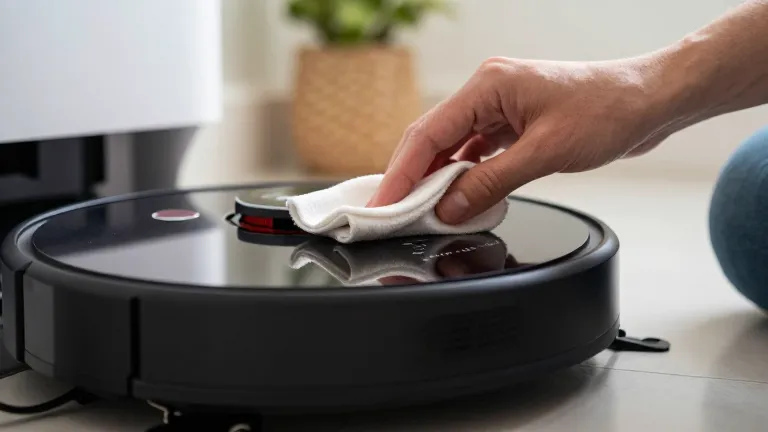
The LiDAR sensor is typically located on the front or top of the Roborock vacuum, depending on the model. It is a small, circular or square component with a clear or semi-transparent surface. This sensor emits laser beams to detect obstacles and map the cleaning area. Identifying its location is the first step in resolving any related error.
Cleaning the Sensor Without Damage
To clean the LiDAR sensor, use a soft, dry cloth or a small brush to gently remove dust and debris. Avoid using water or any liquid cleaning agents, as these can damage the sensor or cause internal short circuits. A microfiber cloth is ideal for wiping the surface, while a soft brush can be used to clear any fine particles lodged in the sensor's housing.
When to Re-Check the Sensor
After cleaning, allow the sensor to dry completely before using the vacuum again. If the error persists, re-check the sensor for any remaining debris or damage. It's important to inspect the area regularly, especially in environments with high dust or pet hair, to ensure the LiDAR remains clear and functional.
Resetting the Roborock Vacuum
Resetting your Roborock vacuum can help resolve persistent 'Internal Error' or 'Laser Blocked' issues. This process can be done through the Roborock app or by using the physical reset button. Understanding the difference between a simple reset and a factory reset is important to ensure your vacuum functions correctly after the process.
- Open the Roborock app and navigate to the device settings.
- Select the reset option and follow the on-screen instructions.
- Locate the physical reset button on the vacuum and press it for 10 seconds.
- Wait for the vacuum to reboot and reconnect to the app.
Reset via Roborock App
Resetting via the Roborock app is a straightforward method to address minor software glitches. This process does not erase your device settings or map data, making it ideal for quick fixes. Ensure your vacuum is connected to Wi-Fi and the app is updated to the latest version for the best results.
Reset Using the Physical Button
Using the physical reset button provides an alternative way to reset your Roborock vacuum, especially if the app is not responding. This method can be particularly useful if you're experiencing connectivity issues or if the vacuum is unresponsive. Remember to hold the button for at least 10 seconds to ensure the reset is completed.
What to Expect After a Reset
After a reset, your Roborock vacuum may take several minutes to reboot and reconnect to the app. During this time, avoid moving or interfering with the vacuum to prevent any disruptions. If the vacuum does not respond or the error persists, consider checking for firmware updates or contacting customer support for further assistance.
Advanced Fixes and When to Seek Help
If basic troubleshooting steps fail to resolve the 'Internal Error' or 'Laser Blocked' issue, it may be due to software or firmware problems. Checking for firmware updates is a crucial step in resolving these errors, as outdated software can cause unexpected behavior. Additionally, if the vacuum continues to malfunction despite your efforts, it's important to know when to seek professional assistance to prevent further damage.
Check for Firmware Updates
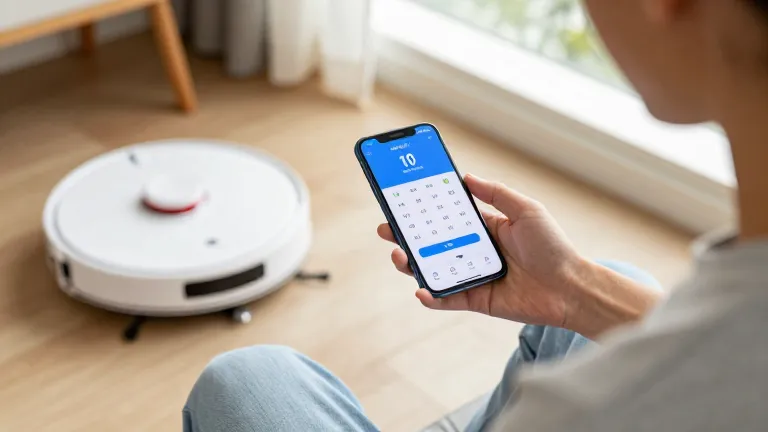
To check for firmware updates, open the Roborock app and navigate to the device settings. The app will notify you if a new firmware version is available. Updating the firmware can resolve bugs and improve the vacuum's performance. Ensure your device is connected to Wi-Fi and has sufficient battery power before initiating the update.
When to Contact Customer Support
If the error persists after trying all basic and advanced troubleshooting steps, it's time to contact Roborock customer support. Their team can provide guidance on more complex issues or determine if a hardware replacement is necessary. It's important to provide detailed information about the error, including when it started and any steps you've already taken. This will help support representatives diagnose the issue more effectively.
Avoiding Further Damage to the Vacuum
To avoid further damage, do not attempt to open the vacuum or tamper with internal components unless instructed by a professional. Mishandling the device can void the warranty or cause additional problems. Always follow the manufacturer's guidelines for maintenance and repair. If the vacuum is still under warranty, contact customer support before attempting any advanced fixes to ensure your rights are protected.
Frequently Asked Questions
What should I do if my Roborock vacuum keeps showing 'Internal Error'?
If your Roborock vacuum keeps showing 'Internal Error', start by restarting the device and checking for firmware updates. If the issue persists, reset the vacuum through the app or contact customer support for further assistance.
Can I fix the 'Laser Blocked' error by cleaning the LiDAR sensor?
Yes, the 'Laser Blocked' error is often caused by a dirty LiDAR sensor. Clean the sensor gently using a soft cloth or brush, and ensure no debris is blocking the laser. Re-check the sensor after cleaning.
How do I reset my Roborock vacuum through the app?
To reset your Roborock vacuum via the app, open the app, select your device, and navigate to the settings or support section. Look for a 'Reset' option and follow the on-screen instructions.
What should I do if my Roborock vacuum still has issues after cleaning the LiDAR sensor?
If the problem continues after cleaning the LiDAR sensor, try a full reset of the vacuum. If the issue remains, contact Roborock customer support for further troubleshooting and assistance.
Next Steps for Roborock Vacuum Maintenance
Regular maintenance, such as cleaning the LiDAR sensor and resetting the device, can resolve many common Roborock vacuum errors. If issues persist, seeking professional support is the best course of action.
By following these steps, you can effectively address 'Internal Error' and 'Laser Blocked' issues on your Roborock vacuum. Always ensure the environment is clear and the device is properly maintained for optimal performance.