
How to Fix Mac Stuck on Apple Logo Loading Bar
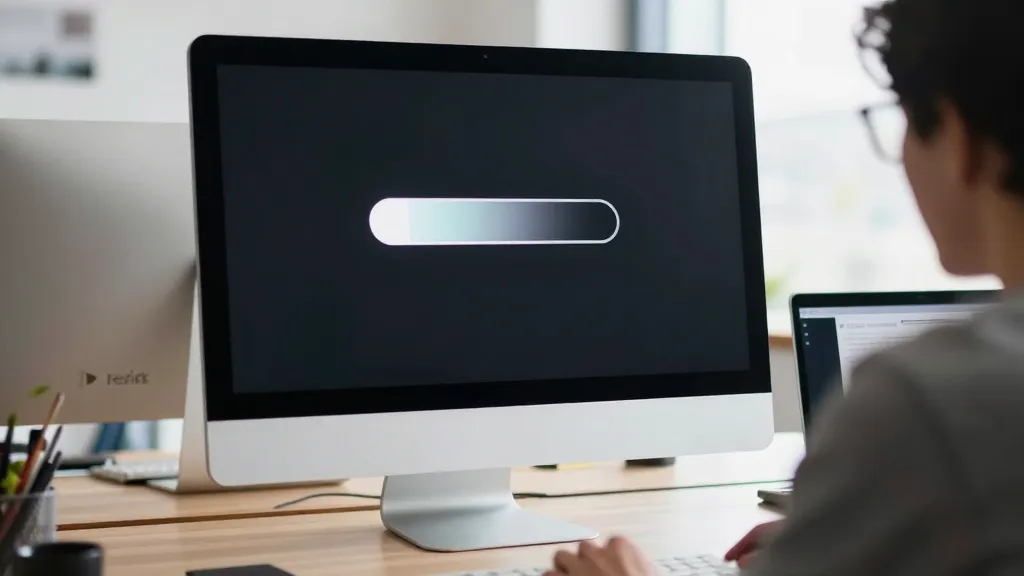
If your Mac is stuck on the Apple logo loading bar during startup, it can be frustrating and disruptive, especially if you rely on your device for work or daily tasks. This issue often indicates a problem with the operating system or hardware that prevents the Mac from booting properly. The main keyword here is 'How to Fix Mac Stuck on Apple Logo Loading Bar,' and this article provides a comprehensive guide to help you resolve the issue without needing professional assistance.
The Apple logo loading bar appears when your Mac is trying to start up, but if it remains stuck for an extended period, it signals a deeper problem. This guide walks you through practical troubleshooting steps, from simple restarts to advanced recovery methods, ensuring you can get your Mac back to normal operation.
Whether you're a home user or an office worker, understanding the causes and solutions for this issue is essential. By following the steps outlined in this article, you can address common boot problems and prevent future issues, helping you keep your Mac running smoothly.
Understanding the Apple Logo Loading Bar Issue
The Apple logo loading bar is a common indicator during macOS startup. It appears briefly as the system initializes and is part of the normal boot process. However, if the bar remains frozen and the Mac fails to reach the login screen, it signals an underlying issue that requires troubleshooting.
What Does the Apple Logo Loading Bar Mean?
The Apple logo loading bar is a visual cue that macOS is booting up. It typically appears for a few seconds as the system loads essential components. This bar is part of the startup sequence and is designed to provide feedback on the progress of the boot process. While it is normal for the bar to appear briefly, its prolonged presence indicates a potential problem.
When Is It a Problem?
The Apple logo loading bar becomes a problem when it remains stuck and the Mac does not proceed to the login screen. This can happen due to software glitches, corrupted system files, or hardware issues. If the bar is frozen for more than a few seconds, it may indicate a deeper issue that requires intervention. Common causes include incomplete updates, disk errors, or conflicts with startup items. Identifying the root cause is essential for resolving the issue effectively.
Troubleshooting Steps to Resolve the Issue
The first step in resolving a Mac stuck on the Apple logo loading bar is to try basic troubleshooting methods. These include restarting the device, using Safe Mode, and accessing Recovery Mode. These steps can help identify and resolve common issues without requiring advanced technical knowledge.
- Restart Your Mac
- Use Safe Mode
- Check for macOS Updates
- Restart in Recovery Mode
How to Restart Your Mac
If your Mac is stuck on the Apple logo loading bar, the simplest solution is to restart the device. To do this, press and hold the power button until the Mac turns off, then press it again to power on. This can clear temporary glitches that may be causing the issue.
What Is Safe Mode and How to Use It?
Safe Mode is a diagnostic mode that starts macOS with a minimal set of files and drivers, which can help identify if third-party software or startup items are causing the problem. To boot into Safe Mode, restart your Mac and immediately press and hold the Shift key until the login screen appears. Once in Safe Mode, check if the issue persists to determine if software conflicts are the root cause.
How to Access Recovery Mode
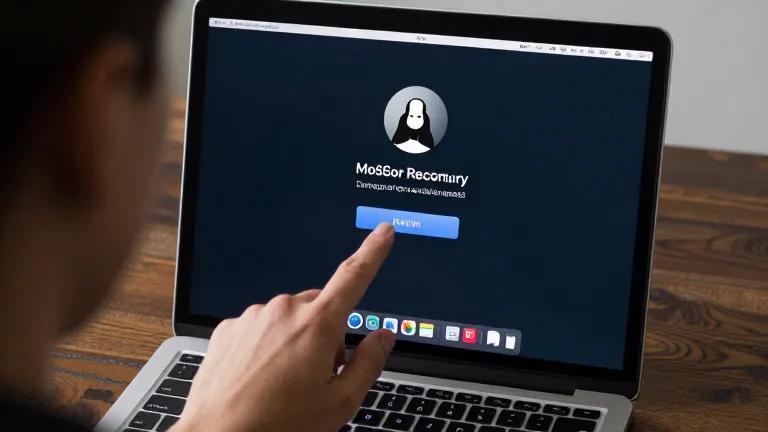
To access Recovery Mode, restart your Mac and immediately press and hold the Command (⌘) and R keys until the Apple logo appears. Recovery Mode provides access to system tools like Disk Utility and the ability to reinstall macOS. This is particularly useful for diagnosing and fixing deeper system issues that cannot be resolved through basic restarts or Safe Mode.
Advanced Fixes for Stuck Apple Logo Loading Bar
If basic troubleshooting fails, advanced fixes can help resolve the Apple Logo Loading Bar issue. These steps address deeper system or hardware problems that may be causing the boot delay.
- Reinstall macOS
- Reset the System Management Controller (SMC)
- Reset NVRAM/PRAM
How to Reinstall macOS
Reinstalling macOS can fix software-related issues that prevent your Mac from booting properly. This process will erase all data on your startup disk, so it's essential to back up your files first. To reinstall macOS, restart your Mac and hold down the Command + R keys until you see the Apple logo or a spinning globe. Follow the on-screen instructions to reinstall the operating system.
How to Reset the SMC
Resetting the SMC can resolve hardware-related issues that interfere with the boot process. The SMC manages power, sleep, and other critical functions. To reset the SMC on a Mac with a removable battery, shut down your Mac, press and hold the power button for 10 seconds, then release it and press the power button again. For Macs with a non-removable battery, shut down your Mac, press and hold the power button for 10 seconds, then press it again to turn it on.
How to Reset NVRAM/PRAM
Resetting NVRAM/PRAM clears settings that might be conflicting with the boot process. This includes display settings, startup disk selection, and other system preferences. To reset NVRAM/PRAM, restart your Mac and immediately press and hold the power button for 10 seconds. Release it and press the power button again to start your Mac.
Preventing Future Boot Problems
Preventing future boot problems is essential to ensure your Mac remains stable and reliable. By adopting proactive measures such as regular backups, keeping your system updated, and avoiding untrusted software, you can significantly reduce the risk of encountering critical issues like the Apple logo loading bar problem.
How to Back Up Your Mac Data
Regularly backing up your Mac data is a crucial step in preventing data loss and system instability. Use Time Machine to create automatic backups of your files, applications, and settings. This ensures you can restore your system to a working state in case of a failure. It's also advisable to store backups on external drives or cloud services to protect against hardware issues or accidental deletions.
Why Keeping macOS Updated Matters
Keeping macOS updated is vital for maintaining system stability and security. Apple regularly releases updates that fix bugs, improve performance, and address potential compatibility issues. Enabling automatic updates ensures your Mac receives these patches promptly. However, it's important to review update notes before installing to avoid conflicts with existing software or hardware configurations.
When to Seek Professional Help
If you've tried all the troubleshooting steps and your Mac is still stuck on the Apple logo loading bar, it's time to consider professional help. Hardware issues, such as damaged storage drives, faulty motherboards, or other internal components, can often be the root cause. These problems are typically beyond the scope of standard fixes and require specialized tools and expertise.
Signs That Your Mac Needs Professional Repair
Signs that your Mac may need professional repair include persistent boot failures, unusual noises from the drive, or failure to respond to keyboard input during startup. If your Mac is under warranty, it's especially important to seek assistance from an authorized service provider. Attempting to repair hardware without the right knowledge can lead to further damage and void your warranty.
What to Do If You Can't Fix the Issue Yourself
If you can't fix the issue yourself, avoid trying complex repairs or disassembling your Mac without proper guidance. This can result in additional problems or even permanent damage. Instead, contact an Apple-certified technician or a qualified repair service. They can diagnose the issue accurately and provide the appropriate solution, ensuring your data remains safe and your device functions correctly.
Frequently Asked Questions
What should I do if my Mac is stuck on the Apple logo loading bar?
If your Mac is stuck on the Apple logo loading bar, try restarting it first. If that doesn’t work, boot into Recovery Mode or Safe Mode to troubleshoot. If the issue persists, consider advanced fixes like reinstalling macOS or resetting the SMC.
Can a software update fix my Mac stuck on the Apple logo?
A software update may resolve the issue if it’s caused by a recent macOS bug or compatibility problem. However, if the issue persists after updating, it may require more advanced troubleshooting like resetting the SMC or reinstalling the operating system.
How do I reset the SMC on my Mac?
To reset the SMC on a Mac with a built-in battery, shut down your Mac, press and hold the power button for 10 seconds, then release it and press the power button again to turn it on. For Macs with a removable battery, follow specific steps to disconnect and reconnect the battery before restarting.
What if all my troubleshooting steps don’t work?
If all troubleshooting steps fail, consider seeking professional help. A technician can diagnose hardware issues or perform advanced repairs. In some cases, a complete system reset or hardware replacement may be necessary to restore your Mac’s functionality.
Next Steps and Support
Fixing a Mac stuck on the Apple logo loading bar involves a mix of basic troubleshooting and advanced steps. Start with a restart and move to recovery mode or Safe Mode for deeper diagnostics. If those don’t work, resetting the SMC or reinstalling macOS can often resolve the issue.
If you're still unable to fix the problem, consult a professional. Regular backups and macOS updates can prevent many startup issues. Don’t hesitate to seek help if your Mac isn’t responding to standard troubleshooting methods.





