How to Fix Android Phone Not Connecting to Smart TV
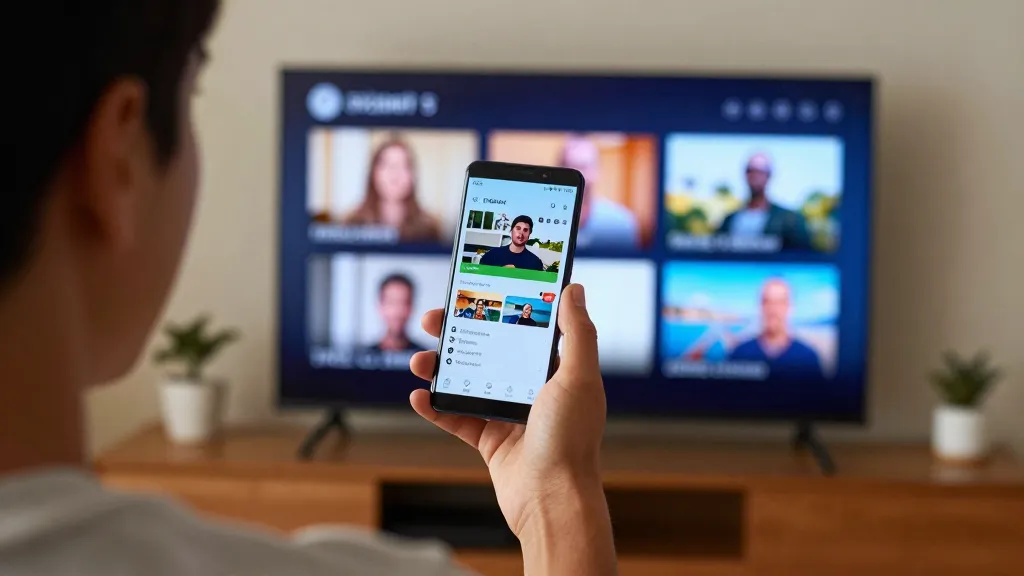
If your Android phone isn't connecting to your smart TV, it can be frustrating, especially when you're trying to stream content or mirror your screen. This issue often stems from simple misconfigurations or compatibility problems. The main keyword for this guide is how to fix android phone not connecting to smart tv, and we’ll walk you through practical solutions to resolve it. Whether you’re at home or in the office, these steps are designed for non-tech experts who want to fix connectivity issues without professional help. We’ll start by checking the basic requirements for a successful connection and move on to more advanced troubleshooting options.
Check Basic Connection Requirements
Before attempting to connect your Android phone to a smart TV, it's essential to verify that both devices meet the basic requirements for a successful connection. This includes ensuring they are on the same Wi-Fi network, checking the TV's support for casting or screen mirroring, and confirming that your phone has the latest system updates. These foundational steps can prevent many common connectivity issues and streamline the setup process.
Verify Wi-Fi Network Compatibility
Both your Android phone and smart TV must be connected to the same Wi-Fi network for a seamless casting or mirroring experience. Ensure that your phone is connected to the correct network and that your TV is also using the same one. If your TV is connected via Ethernet, it may still access the Wi-Fi network through a router, but it's important to confirm that the network is active and accessible. A weak or unstable Wi-Fi signal can also affect the connection, so placing both devices closer to the router may help.
Confirm Smart TV Casting Capabilities
Not all smart TVs support screen mirroring or casting, so it's crucial to check your TV's specifications or settings to confirm compatibility. Look for features like 'Screen Mirroring,' 'Smart View,' or 'Google Cast' in the TV's menu. Some older models may require specific apps or firmware updates to enable these functions. Additionally, certain smart TVs have restrictions that prevent mirroring, such as parental controls or security settings. Review your TV's settings to ensure these are configured to allow external device connections.
Enable Screen Mirroring or Casting on Your Android Phone
To successfully mirror your Android phone to a smart TV, you need to enable screen mirroring through your phone's settings. This process ensures your phone is broadcasting its display to the TV, which can then be viewed using the TV's built-in casting capabilities. Follow these steps to activate screen mirroring and resolve common issues that may prevent the connection from working.
- Open the Settings app on your Android phone and navigate to Connected devices > Connection preferences > Screen mirroring.
- Once in the Screen mirroring menu, your smart TV should appear in the list of available devices. Tap on the TV's name to start the mirroring process.
- If your TV does not show up, try restarting both your phone and the smart TV. This can resolve temporary connectivity issues or refresh the device discovery process.
- Ensure your phone is in the correct orientation—portrait or landscape—as some TVs may not detect the signal if the phone is rotated incorrectly.
Enable Screen Mirroring in Settings
Enabling screen mirroring on your Android phone is a straightforward process that begins with accessing the Settings app. Navigate to Connected devices, then select Connection preferences, and finally choose Screen mirroring. This section of the settings is specifically designed to manage wireless display functions, allowing your phone to broadcast its screen to compatible devices like smart TVs.
Troubleshooting If Your TV Doesn't Appear
If your smart TV does not appear in the list of available devices, there could be several reasons. First, check that both your phone and TV are connected to the same Wi-Fi network. If the TV is not responding, try restarting it to reset its network connection and refresh the device discovery process. Additionally, verify that your phone is in the correct orientation, as some TVs may not detect the signal if the phone is rotated incorrectly.
Update and Configure Smart TV Settings
Updating and configuring your smart TV's settings is a crucial step in resolving connectivity issues with your Android phone. Ensuring your TV runs the latest firmware and is properly configured can eliminate compatibility problems and stabilize the connection.
Update Smart TV Firmware
Check if your smart TV's firmware is up to date. Manufacturers often release updates that improve performance, fix bugs, and enhance compatibility with devices like Android phones. To update, navigate to the TV's settings menu, locate the 'System' or 'Support' section, and look for an 'Update' or 'Software Update' option. If an update is available, follow the on-screen instructions to install it. Restart the TV after the update to ensure the changes take effect.
Reset TV Network Settings
If your TV continues to have connectivity issues, try resetting its network settings. This process clears any corrupted data or misconfigurations that might be interfering with the connection. To reset, go to the TV's settings, find the 'Network' or 'Wi-Fi' section, and select 'Reset Network Settings' or a similar option. You will need to reconnect to your Wi-Fi network afterward, so make sure you know the password. This step can resolve persistent connectivity problems and restore stable performance.
Troubleshoot Wi-Fi and Network Issues
Troubleshooting Wi-Fi and network issues is essential when your Android phone fails to connect to a smart TV. A stable and compatible network ensures seamless casting or mirroring. By addressing signal strength and network configuration, you can resolve many connectivity problems without advanced technical knowledge.
- Restart your router and modem to refresh the network.
- Move closer to the Wi-Fi router to improve signal strength.
- Try switching to a 2.4 GHz Wi-Fi band for better compatibility.
- Forget the network on both your phone and TV, then reconnect.
Improve Wi-Fi Signal Strength
Improving Wi-Fi signal strength can significantly enhance your phone’s ability to connect to the smart TV. If your phone struggles to detect the TV, it might be due to a weak or unstable signal. Move closer to your Wi-Fi router to ensure a stronger connection. Avoid placing obstacles like walls or metal objects between your phone and the router, as they can interfere with the signal.
Forget and Reconnect to the Network
Forgetting and reconnecting to the Wi-Fi network can resolve connectivity issues by resetting the connection. On your Android phone, go to Wi-Fi settings, select the network, and choose 'Forget'. Repeat this on your smart TV if it supports manual network configuration. After forgetting, reconnect to the same network and check if the connection improves. This process can fix temporary glitches and refresh the device's network settings.
Use Alternative Connection Methods
If your Android phone isn't connecting to your smart TV through Wi-Fi, consider using alternative methods for a more reliable connection. HDMI cables and third-party apps can bypass casting issues and provide a direct link between your devices.
- Try connecting via HDMI using a compatible cable and adapter.
- Install a third-party app like AirDroid or Pushbullet for file sharing.
- Use a USB-C to HDMI adapter if your phone supports it.
- Ensure the HDMI cable is properly connected and functioning.
Use HDMI for a Direct Connection
Using an HDMI connection is a straightforward way to link your Android phone to your smart TV. If your phone has a USB-C port, you can use a USB-C to HDMI adapter to connect it directly to the TV’s HDMI port. Ensure the cable is securely plugged in on both ends and that the TV is set to the correct input source. This method eliminates the need for Wi-Fi and can resolve many connectivity issues.
Use Apps for File Transfer Instead of Mirroring
If you prefer not to use screen mirroring, apps like AirDroid or Pushbullet can help transfer files between your Android phone and smart TV. These apps allow you to send photos, videos, and other files directly to your TV without the need for casting. You’ll need to install the app on both your phone and TV, and ensure they’re connected to the same Wi-Fi network. This method is especially useful for sending media files without the hassle of casting.
Frequently Asked Questions
Why isn't my Android phone showing up on my smart TV?
Your phone may not be casting properly or the TV may not be in the correct mode. Ensure both devices are on the same Wi-Fi network and check for any compatibility issues between your phone and TV.
How do I cast my Android phone to a smart TV without Wi-Fi?
You can use an HDMI cable for a direct connection. Alternatively, you may use a third-party app that allows screen mirroring without Wi-Fi, though this is less common and may require additional setup.
What should I do if my smart TV won't detect my phone?
Try restarting both your phone and TV. Ensure your phone’s screen mirroring or casting is enabled, and confirm that your TV is in the correct mode, such as 'Smart View' or 'Screen Mirroring.'
Can I mirror my Android phone to a smart TV without an internet connection?
Mirroring typically requires an internet connection. However, using an HDMI cable or a direct USB connection can allow you to transfer content without Wi-Fi, though full screen mirroring may not be possible.
Final Steps for a Successful Connection
To resolve Android phone connection issues with a smart TV, ensure both devices are on the same Wi-Fi network and enable screen mirroring. If problems persist, try alternative methods like HDMI or app-based file transfer.
If you're still facing difficulties, consider updating your TV's firmware or resetting its network settings. Always start by checking basic requirements before moving to advanced troubleshooting.