
How to Fix MacBook Trackpad Not Clicking or Responding
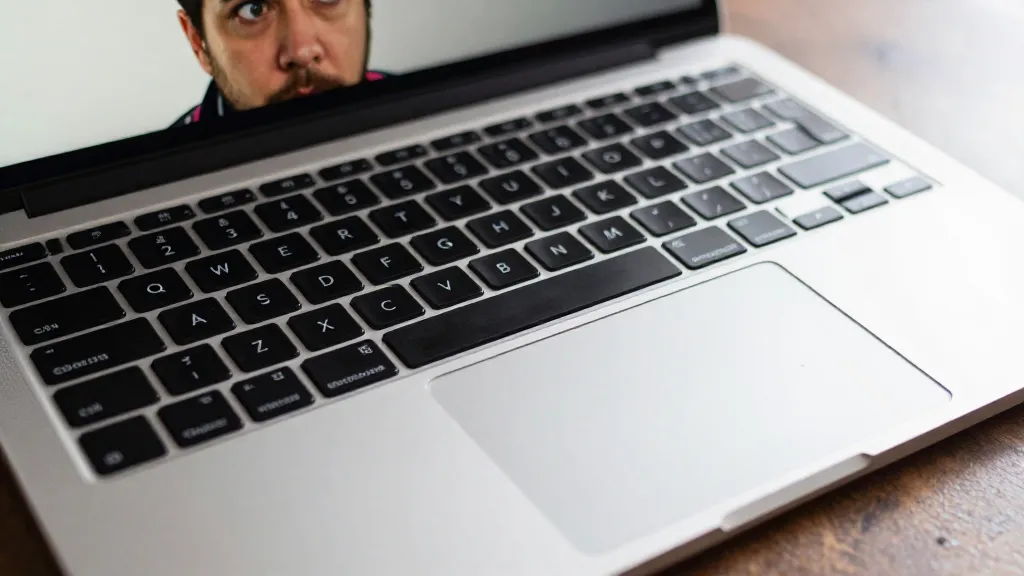
If your MacBook trackpad is not clicking or responding, it can disrupt your workflow and make basic tasks frustrating. Whether you're working from home or in the office, a non-functional trackpad can hinder productivity. This article provides a step-by-step guide to help you fix your MacBook trackpad without needing professional assistance. We'll cover simple checks, settings adjustments, and advanced troubleshooting methods to restore your trackpad's functionality. From basic settings to firmware updates, we've got you covered. If your trackpad is unresponsive, follow these steps to identify and resolve the issue. Let’s get your MacBook back to its best performance.
Check Basic Settings and Connections
Before diving into more complex solutions, it's essential to check the basic settings and connections of your MacBook's trackpad. Simple issues like incorrect settings, physical damage, or temporary software glitches can often be resolved with a few straightforward steps. This section outlines how to verify the trackpad's connection, ensure it's enabled in System Preferences, and rule out physical problems that might be affecting its performance.
Verify Trackpad Connection
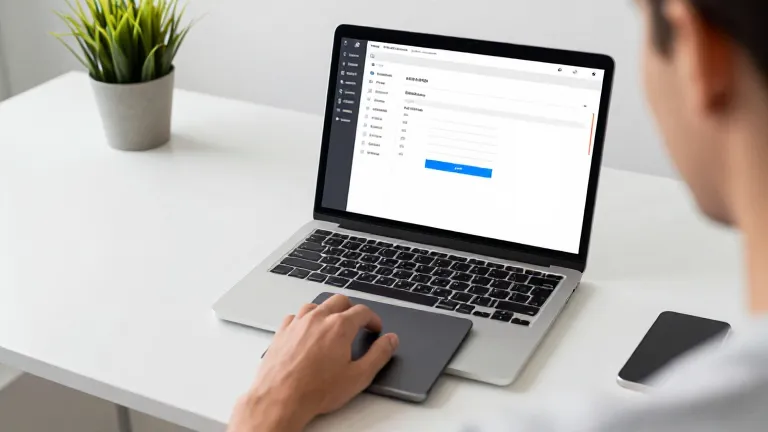
Start by confirming that the trackpad is properly connected to your MacBook. If you're using a MacBook Pro with a detachable trackpad, ensure it's securely attached to the base. For laptops with an integrated trackpad, make sure the device is powered on and that no physical obstruction is preventing it from functioning correctly. A loose or damaged connection can lead to erratic behavior or complete unresponsiveness.
Enable or Disable Trackpad in System Preferences
Next, check if the trackpad is enabled in System Preferences. Open System Preferences, click on 'Trackpad,' and ensure that the 'Trackpad' option is selected. If it's disabled, click the checkbox to enable it. Additionally, review the settings under 'Point & Click' to confirm that the 'Enable dragging' and 'Enable tap to click' options are activated. If these settings are incorrect, it can cause the trackpad to behave unpredictably or not respond at all.
Reset Trackpad and Accessibility Settings
Resetting trackpad and accessibility settings can resolve issues with your MacBook’s trackpad not clicking or responding. This section provides steps to reset trackpad settings and adjust accessibility preferences that might be interfering with its functionality.
Reset Trackpad Settings
To reset trackpad settings, open System Preferences and click on Trackpad. Select the ‘Reset Trackpad’ option from the bottom of the window. This action will restore the trackpad to its default configuration, which can fix minor glitches or misconfigurations. After resetting, ensure that the trackpad is enabled by checking the ‘Trackpad’ checkbox in the same window.
If the trackpad still does not respond, try disabling and re-enabling it through the Trackpad settings. Click the ‘Trackpad’ tab, then uncheck the ‘Trackpad’ option and wait a few seconds before re-checking it. This process can refresh the system’s recognition of the trackpad and may resolve temporary software conflicts.
Adjust Accessibility Preferences
Accessibility settings can sometimes affect trackpad performance. Open System Preferences and navigate to the ‘Accessibility’ section. Look for options related to the trackpad or mouse, such as ‘Pointer Control’ or ‘Trackpad Options,’ and disable any features that might be interfering with its operation. For example, some accessibility settings like ‘Zoom’ or ‘Sticky Keys’ can inadvertently alter trackpad behavior.
After adjusting accessibility settings, restart your MacBook to apply the changes. A reboot ensures that all system updates and configuration changes are properly loaded. If the trackpad still does not respond, consider further troubleshooting steps, such as checking for macOS updates or testing the trackpad on another device.
Update macOS and Trackpad Firmware
Keeping your macOS and trackpad firmware up to date is crucial for ensuring optimal performance and compatibility. Apple frequently releases updates that address bugs, improve functionality, and enhance security. By following these steps, you can resolve potential issues related to your trackpad not clicking or responding.
Check for macOS Updates
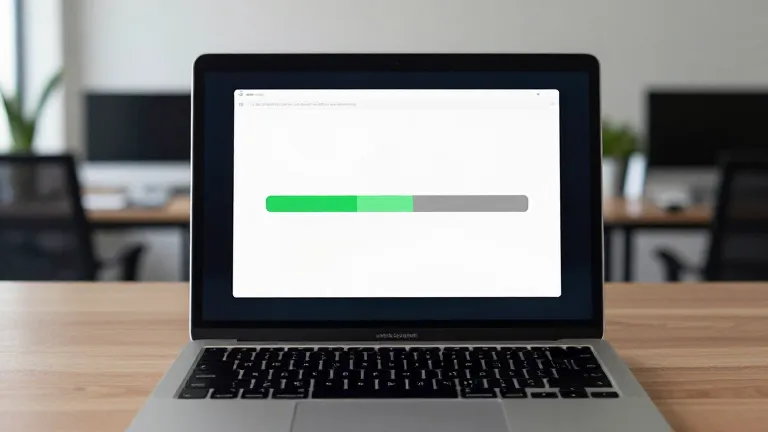
To check for macOS updates, open the Apple menu and select 'System Settings.' Navigate to the 'General' section and click 'Software Update.' This will scan for available updates, including critical system patches and improvements. If an update is found, follow the on-screen instructions to download and install it. Ensure your MacBook is connected to a stable power source and has sufficient storage space to avoid interruptions during the update process.
Update Trackpad Firmware
Updating the trackpad firmware can resolve specific issues related to its responsiveness and functionality. Visit Apple's official support website and search for firmware updates related to your MacBook model. Download and install any available firmware updates using the provided tools. These updates are typically designed to improve trackpad performance and address known issues. After completing the firmware update, restart your MacBook to ensure the changes take effect and the trackpad operates correctly.
Test Trackpad with External Mouse
Testing your MacBook's trackpad with an external mouse is a practical way to determine if the issue lies with the trackpad itself or with the macOS system. By using an external mouse, you can isolate the problem and identify whether the trackpad is the source of the malfunction or if the issue is related to software or input settings.
Use an External Mouse for Testing
Connect a compatible external mouse to your MacBook using a USB port or Bluetooth. If the mouse works reliably, it indicates that the problem is likely with the trackpad or its associated settings. This test helps rule out general input issues and confirms whether the trackpad is the primary concern.
Test Trackpad on Another MacBook
If the external mouse functions properly, the next step is to test the trackpad on another MacBook. This helps determine if the issue is specific to your device or if it's a broader hardware problem. If the trackpad works on another MacBook, it's likely a software or configuration issue on your machine. Conversely, if the trackpad fails on multiple devices, it may indicate a hardware defect that requires further repair or replacement.
Advanced Troubleshooting and Repair Options
If basic troubleshooting steps fail to resolve the trackpad issue, advanced methods can help identify and fix deeper system or hardware problems. These steps are intended for users who have tried all standard solutions and are experiencing persistent issues.
Reinstall macOS
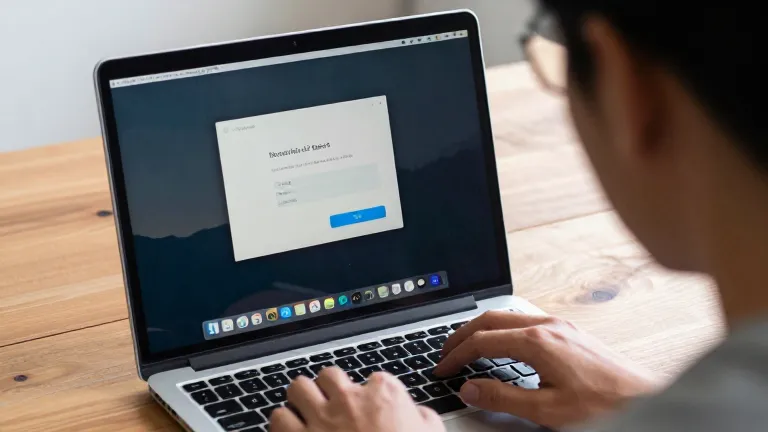
Reinstalling macOS can resolve software conflicts that may be causing the trackpad to malfunction. Before proceeding, back up your data using Time Machine or an external drive. To reinstall macOS, restart your MacBook and hold down the Command and R keys until the Apple logo appears. Follow the on-screen instructions to reinstall the operating system, ensuring you select the correct version for your MacBook model.
Use Apple Diagnostics or Apple Hardware Test
Apple Diagnostics or Apple Hardware Test can help identify hardware issues, including problems with the trackpad or other internal components. To run Apple Diagnostics, restart your MacBook and hold down the D key until the diagnostics screen appears. For Apple Hardware Test, restart your MacBook and hold down the T key. These tools will scan your device for errors and provide detailed reports, which can help pinpoint whether the issue is software-related or hardware-related.
Frequently Asked Questions
What should I do if the trackpad is not responding at all?
If your trackpad is not responding, start by checking basic settings and connections. If that doesn't work, try resetting trackpad and accessibility settings. If the issue persists, consider advanced troubleshooting options.
Can I fix a non-working trackpad without resetting my MacBook?
Yes, you can fix a non-working trackpad without resetting your MacBook by updating macOS, checking for firmware updates, or testing the trackpad with an external mouse.
What if my trackpad is not clicking and I can't use it at all?
If your trackpad is not clicking and unresponsive, try resetting trackpad settings or reinstalling macOS. You can also test it on another MacBook to determine if the issue is hardware-related.
Is there a way to test my trackpad without using an external mouse?
Yes, you can test your trackpad by using Apple Diagnostics or Apple Hardware Test. These tools can help identify hardware issues without the need for an external mouse.
Next Steps and Support
Fixing a non-clicking or unresponsive MacBook trackpad involves checking basic settings, updating macOS, and testing with an external mouse. If these steps don't resolve the issue, advanced troubleshooting like reinstalling macOS or running diagnostics may be necessary.
If your trackpad is still unresponsive after trying these steps, consider contacting Apple Support or visiting an Apple Store for further assistance. Always back up your data before performing any major system changes.





