
How to Fix Windows 11 WiFi Keeps Disconnecting Randomly
If your Windows 11 device keeps losing WiFi connection randomly, it can be frustrating, especially when you're working or streaming. This issue might be caused by outdated software, hardware conflicts, or even environmental factors. How to Fix Windows 11 WiFi Keeps Disconnecting Randomly is the focus of this article, offering simple solutions for users who aren't tech experts. We'll walk you through practical steps to stabilize your connection and minimize disruptions. Whether you're at home or in the office, these fixes can help you regain control of your network without needing advanced technical knowledge.
Check for Basic Connectivity Issues
Before diving into complex solutions, start by checking the basics. A simple issue like a faulty router or a misconfigured network can often cause random WiFi disconnections. Confirm that the router is functioning correctly and that other devices are also experiencing the same problem. If only your Windows 11 device is affected, the issue may lie with your device rather than the network.
Verify Router Functionality
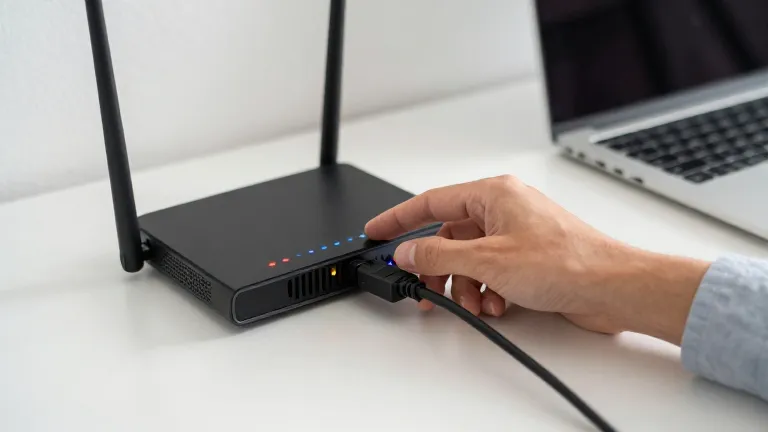
Verify that your WiFi router is operational by checking its status lights. Most routers have an LED indicator for internet connectivity and WiFi signal strength. Ensure the router is not overheating, as this can cause intermittent connectivity issues. If the router is off or showing no signal, power it on and wait for it to fully boot up. Also, check that other devices on the same network are connecting without issues. If other devices are also dropping connections, the problem likely lies with the router or your internet service provider.
Restart Your Device and Router
Restarting your Windows 11 device and the router can resolve temporary glitches that disrupt the WiFi connection. To restart your device, click the Start menu, select the Power icon, and choose Restart. For the router, unplug the power cable, wait for 30 seconds, and then plug it back in. This process clears the router’s memory and can fix minor software or hardware issues. If the problem persists after a restart, move on to the next troubleshooting steps. However, if the issue is resolved after a restart, it may indicate a temporary system error that can be addressed with further maintenance.
Update Windows 11 and Drivers
Keeping your Windows 11 system and drivers up to date is a critical step in resolving random WiFi disconnections. Updates often include bug fixes and performance improvements that can stabilize your network connection. Ensuring both your operating system and network adapter drivers are current can address compatibility issues and enhance overall connectivity.
Check for Windows Updates
To check for Windows updates, open the Settings app, navigate to 'Windows Update,' and click 'Check for updates.' If updates are available, install them and restart your device. Microsoft frequently releases patches that address network-related issues, so staying current is essential for maintaining a stable WiFi connection.
Update Network Adapter Drivers
Updating the network adapter drivers through Device Manager can resolve compatibility and performance issues. Right-click the Start menu, select 'Device Manager,' locate the 'Network adapters' section, right-click your WiFi adapter, and choose 'Update driver.' Select 'Search automatically for updated driver software' to let Windows find and install the latest version. If no updates are found, visiting the manufacturer’s website for the latest driver may be necessary.
Optimize WiFi Settings on Windows 11
Optimizing WiFi settings on Windows 11 can significantly reduce random disconnections by improving signal stability and reducing interference. Simple adjustments to WiFi channels and power management can help your device maintain a stronger and more consistent connection.
- Change WiFi Channel for Better Performance
- Adjust Power Management Settings
- Disable IPv6 if it's causing compatibility issues
Change WiFi Channel for Better Performance
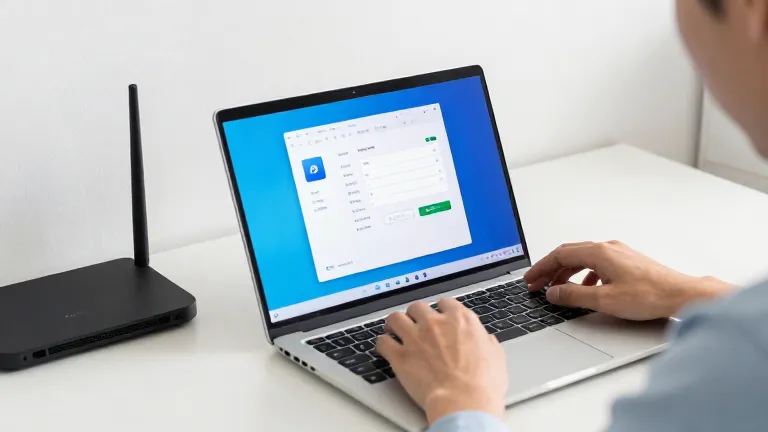
To minimize interference from other devices, change your WiFi channel. Open the Network and Internet settings in Windows 11, select your WiFi network, and click 'Advanced options'. From there, choose a less crowded channel, typically in the 2.4 GHz band (channels 1–11). This can help avoid conflicts with neighboring networks and improve signal strength.
Adjust Power Management Settings
Adjusting WiFi power management settings can prevent your device from disconnecting to save power. In the same advanced options menu, disable 'Power Management' under WiFi settings. This stops Windows from putting your WiFi adapter into sleep mode, which can cause intermittent disconnections. Ensure that the settings are applied correctly to maintain a stable connection.
Troubleshoot Network Adapter Issues
Troubleshooting network adapter issues is a critical step in resolving random WiFi disconnections on Windows 11. Built-in tools and manual adjustments can help identify and fix underlying problems with your device’s network hardware or software.
Use the Built-in Network Troubleshooter
Run the Network Troubleshooter by opening the Settings app, navigating to Network & Internet > Status > Network Troubleshoot, and selecting 'Troubleshoot now.' This tool scans for common issues like IP configuration errors, DNS problems, and connection drops, offering automatic fixes. If the troubleshooter doesn’t resolve the issue, manually check for conflicts in the Device Manager by right-clicking the network adapter and selecting 'Properties.'
Reset Network Settings via Command Prompt
To reset network settings via Command Prompt, open the Start menu, type 'cmd,' right-click on 'Command Prompt,' and select 'Run as administrator.' Enter the command 'netsh winsock reset' and press Enter. Restart your computer to apply the changes. This process clears corrupted network configurations and can resolve persistent connection issues. If the problem continues, consider uninstalling the network adapter driver through Device Manager and restarting your device to allow Windows to reinstall it automatically.
Advanced Fixes for Persistent WiFi Disconnections
For persistent WiFi disconnections, consider advanced solutions that address physical and network limitations. These steps focus on improving signal quality and expanding coverage to ensure stable connectivity.
- Move the device closer to the router to improve signal strength.
- Use a WiFi range extender or mesh network for better coverage.
- Scan for malware that might be interfering with network connections.
Improve Signal Strength by Moving Closer
Improving signal strength is a simple yet effective way to reduce WiFi disconnections. Move your device closer to the router to ensure it's within the optimal range. This minimizes interference and ensures a stronger, more stable connection. If you're still experiencing issues, check for physical obstructions like walls or metal objects that might be blocking the signal.
Use a Range Extender or Mesh Network
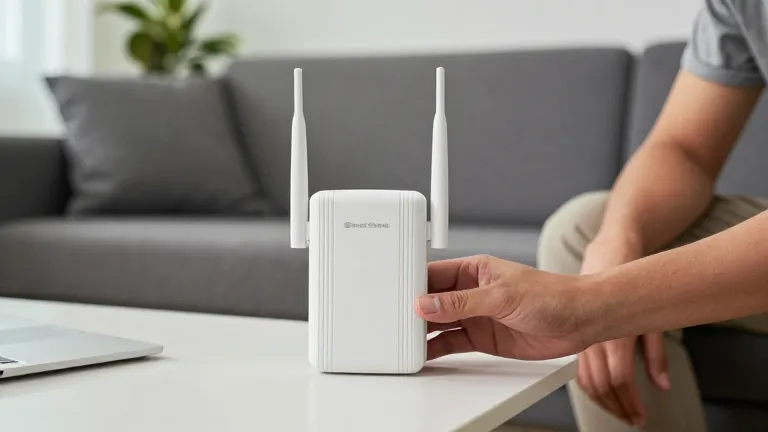
A WiFi range extender or mesh network can significantly enhance coverage, especially in larger spaces. These devices repeat the signal from your router, ensuring that even distant areas receive a strong connection. Mesh networks are particularly useful for multi-room setups, as they provide seamless coverage across the entire home. Both options can help maintain a stable connection and reduce random drops.
Troubleshoot WiFi Settings on Windows 11
Troubleshooting WiFi settings in Windows 11 can resolve connectivity issues caused by misconfigurations or outdated preferences. By reviewing the settings and ensuring the WiFi profile is correctly configured, you can improve stability and reduce random disconnections.
Review WiFi Settings in the Settings App
Open the Settings app and navigate to Network & Internet > WiFi. Here, you can check the status of your connected WiFi network and adjust settings such as the preferred network profile. Ensure the WiFi profile is set to 'Preferred' or 'Always Connect' to maintain a stable connection. If the profile is not set correctly, Windows may disconnect the network when attempting to switch to a different signal.
Reset WiFi Password If Needed
If your device is struggling to connect or keeps dropping the WiFi signal, resetting the WiFi password may help. Navigate to the WiFi settings and select the network you're connected to. Click on 'Forget' to remove the network, then reconnect by entering the password again. This process can fix connection issues caused by corrupted credentials or outdated security settings. If the problem persists after re-entering the password, consider checking the router's settings or contacting your ISP for further assistance.
Frequently Asked Questions
Why is my Windows 11 laptop disconnecting from WiFi randomly?
Your Windows 11 laptop may disconnect from WiFi randomly due to outdated software, router interference, or driver issues. Check for updates and ensure your router is functioning properly. A simple restart often resolves minor connectivity issues.
How can I prevent my Windows 11 device from disconnecting from WiFi?
To prevent disconnections, keep your system and drivers updated, avoid interference from other devices, and ensure your router is placed optimally. Adjust power settings and use a range extender if needed for better coverage.
What should I do if my Windows 11 device keeps losing WiFi connection?
If your device keeps losing WiFi, try running the built-in troubleshooter, resetting network settings, or updating your network adapter drivers. Moving closer to the router or using a mesh network can also improve signal strength.
How do I fix WiFi connectivity issues on Windows 11?
Fix WiFi connectivity issues by checking for updates, updating drivers, and optimizing settings like WiFi channel and power management. Resetting network settings or using a range extender can also help resolve persistent issues.
Final Thoughts
Addressing WiFi disconnections on Windows 11 requires a systematic approach, from basic checks to advanced troubleshooting. Regular updates and optimal network settings are essential for stable connectivity.
If issues persist, consider hardware solutions like range extenders or mesh networks. Always ensure your device is within range of the router for the best signal strength.





