How to Fix WiFi Not Connecting on iPhone: Troubleshooting Guide
If your iPhone isn't connecting to WiFi, it can be frustrating, especially when you need to stay online for work, school, or everyday tasks. The main keyword here is How to Fix WiFi Not Connecting on iPhone, and this guide is designed to help you resolve the issue step by step. Whether your device is stuck on a loading screen or completely unable to find a network, there are practical solutions to get you back online. This article covers basic checks, restarts, and advanced troubleshooting techniques to ensure your iPhone reconnects to WiFi smoothly.
We start by verifying your WiFi settings and ensuring your iPhone is properly connected to the network. If that doesn’t work, a simple restart of both your iPhone and router can often resolve connectivity issues. These steps are easy to follow and don’t require any technical expertise.
For more persistent problems, we’ll guide you through resetting network settings, checking router compatibility, and updating your iPhone’s software. These advanced troubleshooting steps can help identify and fix deeper issues with your WiFi connection. By following this guide, you’ll be able to regain access to the internet and keep your iPhone functioning as intended.
Check Basic WiFi Settings on Your iPhone
Before diving into more complex solutions, start by checking your iPhone's basic WiFi settings. Simple steps like ensuring the device is within range, verifying WiFi is enabled, and confirming the password hasn't changed can often resolve connection issues without further troubleshooting.
Verify WiFi Is Enabled
Make sure your iPhone is within range of the WiFi network. If you're too far from the router, the signal may be weak or nonexistent, preventing a connection. Move closer to the router or check for physical obstructions that might be blocking the signal, such as walls or metal objects.
Check for Password Changes
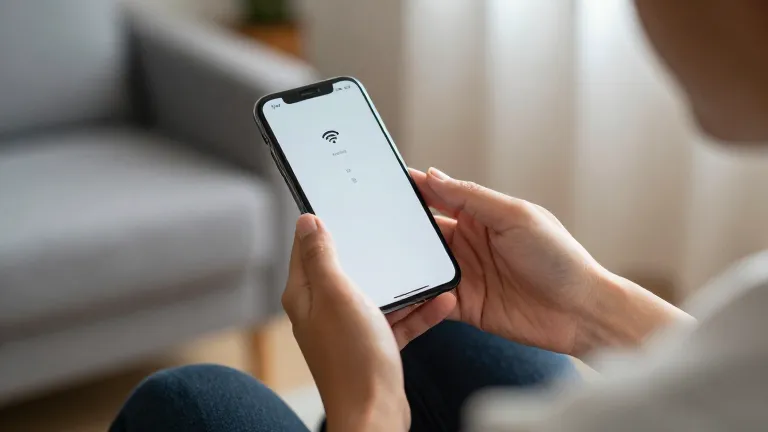
Check if WiFi is enabled on your iPhone. Go to Settings > WiFi and ensure the toggle is turned on. If it's off, switch it on and try connecting again. If WiFi is on but you still can't connect, proceed to the next step to verify the password. If the password has been recently changed, you may need to re-enter it. If you're unsure about the password, check with the network administrator or the person who set up the WiFi. Once you confirm the password is correct, attempt to reconnect to the network.
Restart Your iPhone and Router
Restarting your iPhone and router is a simple yet effective way to resolve temporary WiFi connection issues. This process can refresh the network settings and clear minor glitches that may be preventing your device from connecting to the internet.
- Turn off your iPhone and wait for at least 30 seconds before turning it back on.
- Locate your router and unplug it from the power source.
- Wait for 30 seconds to allow the router to fully power down.
- Plug the router back in and wait for it to reboot completely before attempting to reconnect.
How to Restart Your iPhone
To restart your iPhone, press and hold the Sleep/Wake button until the shutdown menu appears. Select 'Slide to Power Off' and wait for the device to turn off. Once it's fully powered down, press the Sleep/Wake button again to turn it back on. This process can help resolve software-related issues that may be affecting your WiFi connection.
How to Restart Your Router
Restarting your router involves unplugging it from the power outlet for at least 30 seconds. This allows the router to reset its internal systems and clear any temporary errors that might be interfering with the network. After waiting, plug the router back in and allow it to boot up completely. This ensures that your WiFi network is restored to its optimal state.
Reset Network Settings on Your iPhone
Resetting network settings on your iPhone can be an effective way to resolve persistent WiFi connection issues. This process clears all saved networks and passwords, and also resets cellular settings, so it's important to ensure you have access to cellular data before proceeding.
How to Reset Network Settings
To reset network settings, go to Settings > General > Transfer or Reset iPhone > Reset > Reset Network Settings. You will be prompted to enter your Apple ID passcode if it's enabled. Once confirmed, your iPhone will restart and reset all network configurations.
What Happens After Resetting
After resetting, your iPhone will no longer remember any previously connected WiFi networks. You'll need to re-enter the WiFi password and network name manually. This process removes any potential conflicts with saved network data and can improve connectivity. It's also important to note that cellular settings, such as APN configurations, will be reset, so ensure you have access to cellular data to reconfigure them if needed.
Check for Router Compatibility and Settings
If your iPhone is having trouble connecting to WiFi, it may be due to compatibility issues with your router. Understanding the WiFi frequencies your router supports and ensuring your router is configured correctly can help resolve these problems.
Understanding WiFi Frequencies
Most modern routers support both 2.4 GHz and 5 GHz WiFi bands, but your iPhone may be connecting to the wrong one. The 2.4 GHz band is more widely compatible but slower, while the 5 GHz band offers faster speeds but has a shorter range. Check your router's settings to see which bands are active and ensure your iPhone is connected to the correct one. If your router is set to dual-band, your iPhone may automatically choose the best band, but you can manually select it in the WiFi settings.
Router Settings to Check
Verify that your router is broadcasting the correct WiFi name (SSID). Sometimes routers have multiple SSIDs for different bands, which can confuse your iPhone. If the SSID is hidden, your iPhone may not detect it. Also, ensure your router's firmware is up to date. Manufacturers often release updates to fix bugs and improve compatibility. Check the router's manufacturer website for firmware updates and follow the instructions to install them. Outdated firmware can lead to connectivity issues and reduce performance.
Advanced Troubleshooting for Persistent WiFi Issues
If basic troubleshooting steps don't resolve your WiFi connection issues, advanced methods can help identify and fix deeper problems. Updating your iPhone and analyzing the WiFi environment can reveal hidden issues like software bugs or signal interference.
- Forget the network and rejoin to clear cached data and potential authentication errors.
- Update your iPhone to the latest iOS version to fix known connectivity bugs.
- Move closer to the router to test if distance or physical obstructions are affecting the signal.
- Use a WiFi analyzer app to check for interference or signal strength.
Update Your iPhone Software
Updating your iPhone to the latest iOS version ensures you have the latest security patches and bug fixes. Apple regularly releases updates that address connectivity issues, so checking for updates in Settings > General > Software Update is a crucial step. Even if your device is up to date, waiting a few days for the latest update may resolve persistent problems.
Use a WiFi Analyzer Tool
A WiFi analyzer app can provide detailed insights into your network's performance. These tools show signal strength, channel congestion, and potential sources of interference, such as other devices or nearby networks. By identifying the best channel for your router, you can improve connection stability. Popular apps like WiFi Analyzer or iNet WiFi Analyzer can help you make data-driven adjustments to your WiFi environment.
Frequently Asked Questions
What should I do if my iPhone won't connect to WiFi?
Start by checking if WiFi is enabled and your password is correct. If not working, try restarting your iPhone and router. If issues persist, reset your network settings or update your iPhone's software.
How do I reset my iPhone's network settings?
Go to Settings > General > Reset > Reset Network Settings. This will erase saved WiFi networks and passwords, so you'll need to reconnect manually.
Can a router issue be causing my iPhone to not connect to WiFi?
Yes, router issues like incorrect settings or interference can prevent your iPhone from connecting. Check your router's settings and ensure it's compatible with your iPhone's WiFi frequency.
Why is my iPhone stuck on the WiFi login screen?
This can happen if the password is incorrect or the network is temporarily unavailable. Try restarting your iPhone or router. If the issue continues, resetting your network settings may help.
Next Steps for Resolving WiFi Issues
Fixing WiFi issues on your iPhone often involves simple steps like restarting devices, checking settings, and updating software. If these steps don't resolve the issue, consider more advanced troubleshooting options.
If your iPhone still can't connect to WiFi after trying the suggested methods, it's best to contact Apple Support for further assistance. Staying proactive with your device's settings and network environment can prevent many common connectivity problems.