How to Fix WiFi Keeps Disconnecting on Android: Troubleshooting Guide

If your Android phone keeps disconnecting from WiFi, it can be frustrating, especially when you're relying on a stable internet connection. Whether you're streaming, working, or staying in touch with loved ones, a constantly dropping connection can disrupt your daily routine. The main keyword here is How to Fix WiFi Keeps Disconnecting on Android—and this guide will walk you through practical steps to restore your connection without needing to call technical support. From simple troubleshooting to more advanced fixes, we cover everything you need to know to get your WiFi working smoothly again.
This article provides a step-by-step troubleshooting guide designed for both tech-savvy users and those less familiar with technical settings. You'll learn how to identify common causes of WiFi disconnections, such as environmental interference or outdated software, and how to resolve them effectively. Each section is written clearly, with actionable advice that you can apply right away to improve your WiFi experience.
Whether you're dealing with a single disconnection or frequent drops, the solutions outlined here are tailored to help you regain control of your Android device's WiFi connectivity. By following these straightforward steps, you can address the issue at its source and enjoy a more reliable internet connection. Let's get started with diagnosing the problem and finding a solution.
Diagnose the Cause of WiFi Disconnections
Before attempting to fix WiFi disconnections on your Android device, it's essential to determine whether the issue is isolated to your phone or affects multiple devices. This step helps narrow down the cause and ensures you're addressing the right problem.

Check Other Devices for WiFi Issues
Start by checking if other devices connected to the same WiFi network experience similar disconnections. If your phone is the only one affected, the issue likely lies with your Android device. However, if other devices also lose connectivity, the problem may be with your router, modem, or the WiFi network itself. Testing with a laptop or tablet can help identify whether the issue is device-specific.
Look for Environmental Interference
Environmental factors can significantly impact WiFi signal strength and stability. Look for physical obstructions such as walls, furniture, or metal objects that might block or weaken the signal. Additionally, check if nearby electronic devices, such as microwaves, cordless phones, or Bluetooth devices, cause interference. WiFi signals operate on specific frequencies, and these devices can disrupt the connection. If you're experiencing disconnections while moving around the house or during certain activities, it could be due to signal strength fluctuations or interference from nearby devices.
Reset and Reconnect to WiFi
Resetting and reconnecting to your WiFi network can often resolve connectivity issues. This section outlines simple steps to re-establish a stable connection by forgetting the network and restarting your router.
- Forget the WiFi network and reconnect to re-establish a stable connection.
- Ensure the password is correct and there are no typos.
- Restart the WiFi router to refresh the network.
- Check for firmware updates on the router.
Forget and Reconnect to the WiFi Network
To begin, go to your Android device’s WiFi settings and select the network you’re trying to connect to. Tap the ‘Forget’ option to remove the network from your device. After forgetting, re-enter the WiFi password carefully to avoid typos. This process can clear any cached data that might be causing the disconnection.
Restart Your Router for a Fresh Connection
Once you’ve reconnected, the next step is to restart your WiFi router. Locate the router and press the power button or unplug it for about 30 seconds before plugging it back in. This action resets the router and can resolve temporary glitches in the network. If your router has a firmware update available, install it to ensure optimal performance.
Update Android System and WiFi Settings
Keeping your Android device updated is crucial for resolving WiFi disconnection issues. System updates often include bug fixes and performance improvements that can stabilize your WiFi connection. Regularly checking for and installing updates ensures your device runs smoothly and efficiently.
Ensure Your Android Device Is Up to Date
To check for system updates, go to Settings > System > System Update. If an update is available, download and install it. This process may take some time, so ensure your device is charged and connected to a stable power source. System updates can address underlying issues that may be causing your WiFi to drop unexpectedly.
Disable WiFi Optimization Settings
WiFi optimization settings can sometimes interfere with your connection. To disable them, navigate to Settings > Network & Internet > WiFi > Advanced > WiFi Optimization. Turning this off can help prevent the system from managing WiFi connections in a way that causes instability. If you're using an older Android version, you may need to adjust these settings manually through developer options.
Check for Interference and Distance Issues
Proper WiFi performance depends on the physical environment and distance from the router. Issues like weak signal strength or physical obstructions can cause intermittent connectivity, especially on Android devices. By understanding how distance and obstacles impact signal quality, you can take practical steps to improve your WiFi stability.
Test Signal Strength and Distance
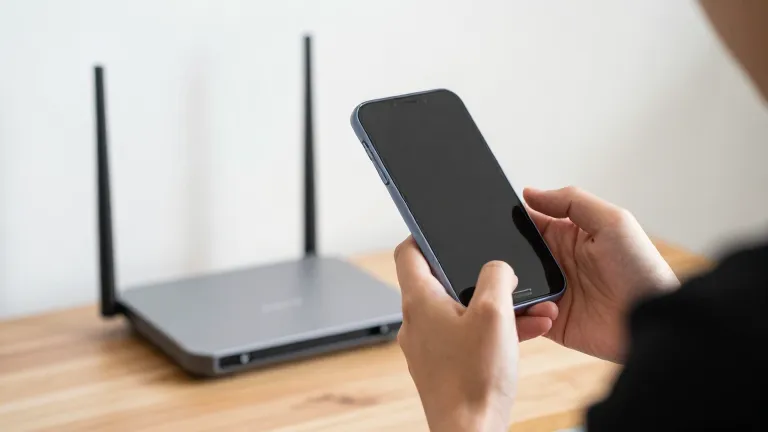
Move closer to your router to test signal strength. If your Android device reconnects reliably when near the router, the issue is likely related to distance. WiFi signals weaken as they travel, so staying within a few meters of the router can help maintain a stable connection. If you're in a large home or office, consider using a WiFi range extender or mesh system to extend coverage.
Avoid Physical Obstacles and Interference
Avoid placing your phone near metal objects or thick walls, as these can absorb or reflect WiFi signals, causing interference. Items like microwaves, cordless phones, and Bluetooth devices can also disrupt WiFi signals. Keep your phone away from these sources to reduce signal degradation. If you're experiencing frequent drops, try repositioning your phone or router to minimize physical barriers between them.
Advanced Fixes for Persistent WiFi Disconnections
For persistent WiFi disconnections, advanced troubleshooting may be required. These steps focus on router-level adjustments and network optimization to resolve stubborn connectivity issues.
- Factory reset your router to restore default settings.
- Change the WiFi channel to avoid congestion.
- Use third-party WiFi analyzers for advanced diagnostics.
Factory Reset Your Router
Factory resetting your router can resolve configuration errors or software glitches that cause disconnections. Locate the reset button on your router, typically a small hole near the port. Press and hold it for 30 seconds to restore factory defaults. After resetting, reconfigure your network settings, including password and SSID, to ensure optimal performance.
Change WiFi Channel for Better Performance
Changing the WiFi channel can reduce interference from neighboring networks and improve stability. Use the router’s admin panel to access the WiFi settings and select a less congested channel, such as 1, 6, or 11 for 2.4 GHz. For 5 GHz networks, channels 36, 40, 44, 48, 149, 153, 157, or 161 are typically available. Test different channels to find the one with the best signal strength and minimal interference.
Troubleshoot WiFi Issues on Android
Troubleshoot WiFi Issues on Android by leveraging built-in diagnostic tools and alternative connectivity methods. These steps can help pinpoint and resolve persistent WiFi disconnection problems without requiring advanced technical knowledge.
Use WiFi Diagnostic Tools
Use WiFi diagnostic tools to identify and resolve network issues. Android includes a WiFi diagnostic tool that can scan for interference, check for weak signal strength, and identify potential connectivity problems. To access this tool, go to Settings > Network & Internet > WiFi > Advanced > WiFi Analyzer. This tool provides visual insights into nearby networks and can help you determine if your WiFi is experiencing interference from other devices. If issues are detected, consider adjusting your router’s settings or changing the WiFi channel.
Test with a Mobile Hotspot
Test with a mobile hotspot to isolate the problem. If your Android device is still experiencing WiFi disconnections, try connecting to a mobile hotspot. This can help determine if the issue is with your home network or your device. If the mobile hotspot works reliably, the problem may lie with your router or the WiFi network itself. If the hotspot also fails, the issue could be with your device’s WiFi hardware or software. This test can help narrow down the root cause and guide further troubleshooting steps.
Frequently Asked Questions
Why does my Android phone keep disconnecting from WiFi?
Your Android phone may disconnect from WiFi due to environmental interference, weak signal strength, or issues with your router. It could also be caused by outdated system updates or incorrect WiFi optimization settings.
How can I fix WiFi disconnections on my Android device?
To fix WiFi disconnections, start by forgetting and reconnecting to your WiFi network. You can also restart your router, update your Android system, and disable WiFi optimization settings to improve connectivity.
What should I do if my Android phone loses WiFi connection frequently?
If your Android phone frequently loses WiFi connection, check for physical obstacles and signal strength. Try moving closer to the router, changing WiFi channels, or using a mobile hotspot to test connectivity.
Can a weak WiFi signal cause my Android phone to disconnect?
Yes, a weak WiFi signal can cause your Android phone to disconnect. Ensure your phone is within range of the router and check for physical obstructions or interference that might be affecting the signal.
Final Steps for a Stable WiFi Connection
WiFi disconnections on Android can often be resolved by checking for interference, updating your system, and optimizing your WiFi settings. Following these steps can help stabilize your connection and improve performance.
If the issue persists, consider advanced fixes like factory resetting your router or changing WiFi channels. These steps can provide long-term solutions and ensure a reliable connection.