How to Fix Wi-Fi Dead Zones with TP-Link Deco X20
If you're struggling with Wi-Fi dead zones in your home, you're not alone. Whether it's a bedroom with no signal or a living room where streaming buffers constantly, poor coverage can disrupt your daily life. Fixing Wi-Fi dead zones requires more than just a traditional router—modern solutions like the TP-Link Deco X20 offer a smarter, more reliable way to cover every corner of your home. This article will guide you through understanding the causes of dead zones, choosing the right mesh router, and setting up the Deco X20 for optimal performance. We’ll also cover troubleshooting tips and maintenance strategies to keep your network running smoothly. By the end, you’ll have the knowledge to eliminate dead zones and enjoy seamless connectivity throughout your space.
Understanding Wi-Fi Dead Zones and Their Impact
Wi-Fi dead zones are areas in your home where the internet signal is weak or completely absent, leading to frustrating connectivity issues. These zones can disrupt everyday activities, from streaming movies to video calls, and can significantly impact the overall user experience. Understanding the causes and consequences of these dead zones is essential for finding effective solutions.
What Are Wi-Fi Dead Zones?
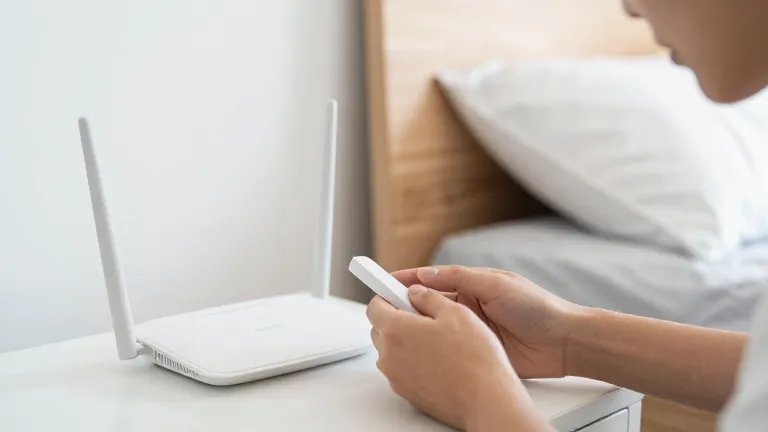
Wi-Fi dead zones refer to areas within a home or office where the wireless signal is either too weak to support reliable internet access or entirely absent. These zones can occur in any part of a building, often in rooms that are far from the router or blocked by physical barriers. The presence of such zones can lead to inconsistent connectivity and hinder the performance of online activities.
Why Do They Happen?
Wi-Fi dead zones are typically caused by physical obstructions such as walls, floors, and large objects that absorb or reflect the signal. Distance from the router also plays a significant role, as the signal strength diminishes with increasing distance. Additionally, interference from other electronic devices, such as microwaves, cordless phones, and Bluetooth devices, can further degrade the signal quality. These factors collectively contribute to the formation of dead zones.
What Are the Consequences of Poor Coverage?
Poor Wi-Fi coverage can result in a range of issues, including dropped calls, slow internet speeds, and interrupted streaming. These problems can be particularly frustrating when multiple devices are connected to the same network, as they can lead to bandwidth contention and reduced performance for all users. In addition, poor coverage can affect the functionality of smart home devices and impact the overall efficiency of home automation systems. Addressing these issues is crucial for maintaining a reliable and efficient network.
Choosing the Right Mesh Router: TP-Link Deco X20
The TP-Link Deco X20 is a mesh router system designed to provide seamless Wi-Fi coverage across large or multi-room homes. It's ideal for users who experience weak or inconsistent signals in certain areas, making it a strong contender for fixing Wi-Fi dead zones.
What Is the TP-Link Deco X20?
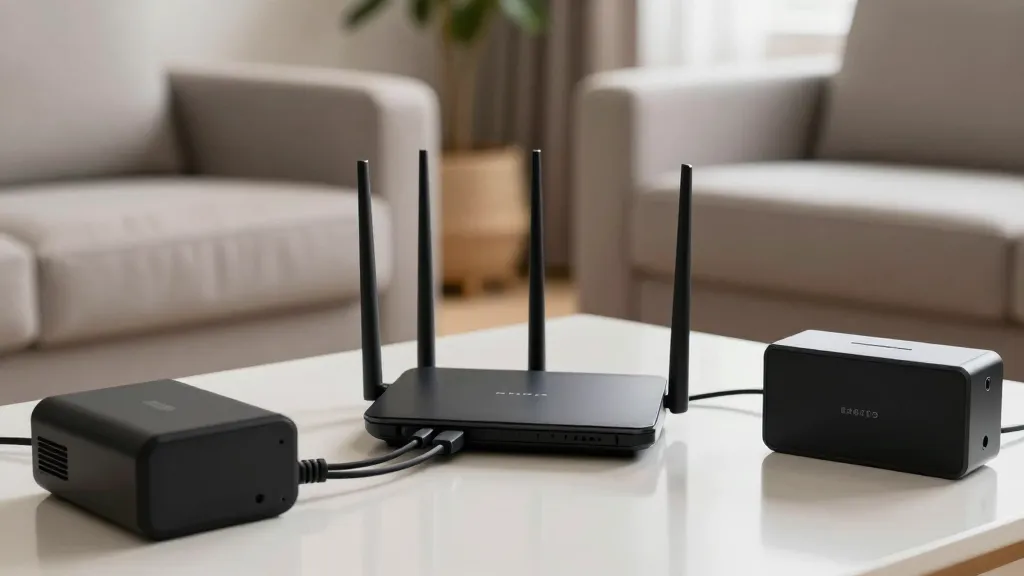
The TP-Link Deco X20 is a Wi-Fi 6 mesh system that replaces traditional routers and extenders. It consists of three identical units that work together to create a single, unified network. This setup ensures that your devices automatically connect to the strongest signal as you move around your home, eliminating the need to switch between networks.
Key Features of the Deco X20
The Deco X20 offers key features that make it a standout choice for improving home Wi-Fi coverage. It supports Wi-Fi 6 technology, which provides faster speeds and better performance for multiple devices. The system can cover up to 5,800 square feet, making it suitable for larger homes. Additionally, each unit includes two Gigabit Ethernet ports, allowing for wired connections to desktops, gaming consoles, or NAS devices. These ports can also be used to set up a wired backhaul between Deco units, enhancing stability and speed.
Why It's Better Than Traditional Routers
Compared to traditional routers and extenders, the Deco X20 offers a more efficient and user-friendly solution. Traditional routers often struggle to provide consistent coverage across large areas, while extenders can create separate networks with different names and passwords. The Deco X20 eliminates these issues by creating a single network with seamless roaming. It also provides better performance and reliability, making it a more future-proof option for homes with growing Wi-Fi demands.
Setting Up the TP-Link Deco X20 for Optimal Coverage
Setting up the TP-Link Deco X20 is a straightforward process that ensures your home has consistent Wi-Fi coverage. By following the steps below, you can install the system, position the units for maximum signal strength, and connect all your devices to a single, unified network.
- Unbox the Deco X20 units and connect them to power. The system requires three units for optimal coverage, so ensure you have all three.
- Download the Deco app from the App Store or Google Play and create an account. The app will guide you through the setup process.
- Place the first unit near your existing router or modem, then position the second and third units strategically throughout your home.
- Follow the on-screen instructions in the Deco app to connect the units and configure the network. The app will automatically detect and link the units.
How to Install the Deco X20
To install the Deco X20, start by connecting the units to power. The system comes with three identical units, and you should place the first one near your existing router or modem. This helps establish a strong base connection. Next, use the Deco app to connect the units, following the on-screen prompts. The app will guide you through the setup process, ensuring all units are linked and configured properly.
Optimal Placement for Maximum Coverage
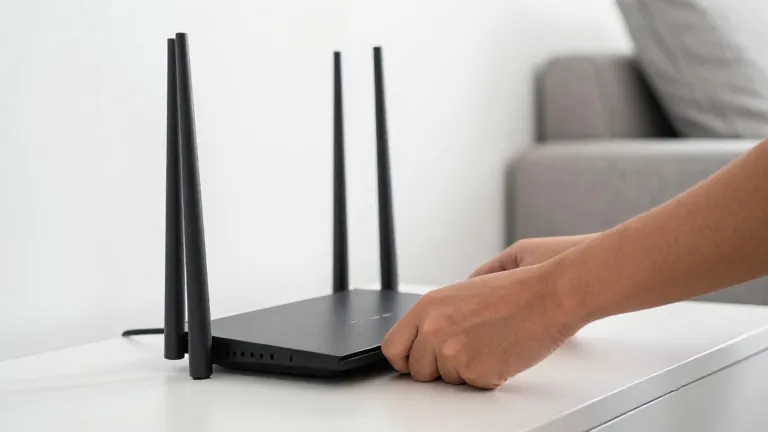
Optimal placement of the Deco X20 units is crucial for maximizing coverage. Place the first unit near your main router, then position the second and third units in areas where Wi-Fi coverage is weak. Avoid placing units behind thick walls or in corners, as this can reduce signal strength. Spread the units evenly throughout your home to ensure seamless connectivity and minimize dead zones.
Connecting Your Devices to the Network
Once the Deco X20 units are set up, connect your devices to the network using the single network name and password provided during setup. This ensures all devices are on the same network, simplifying access and improving performance. The unified network also allows your devices to automatically switch between units as you move around your home, providing a smooth and uninterrupted connection.
Troubleshooting Common Issues with the Deco X20
Troubleshooting issues with your TP-Link Deco X20 can help ensure your Wi-Fi network runs smoothly. Common problems include connectivity issues, slow speeds, and devices dropping off the network. By identifying the root cause and applying the right solutions, you can enhance your network's reliability and performance.
Common Issues and How to Fix Them
Connectivity issues can often be resolved by checking the physical placement of the Deco units. Ensure they are positioned within range of each other and away from walls or large metal objects that might interfere with the signal. If some devices are not connecting, try rebooting the units or checking for firmware updates through the Deco app. Slow speeds may be due to interference from other wireless devices or a congested network. You can mitigate this by adjusting the Wi-Fi bands, prioritizing devices in the app, or using Ethernet ports for critical devices to bypass Wi-Fi congestion.
Tips for Optimizing Performance
Optimizing performance involves using the Deco app to monitor network activity and adjust settings accordingly. Regularly check the app for device usage patterns and set up Quality of Service (QoS) rules to prioritize bandwidth for streaming, gaming, or video calls. Additionally, using the Ethernet ports to connect high-demand devices like gaming consoles or NAS units can reduce strain on the Wi-Fi network. Make sure the Deco units are placed in areas with minimal interference and consider adding more units if coverage is still inadequate. Keeping the network updated with the latest firmware can also improve stability and performance.
Maintaining and Enhancing Your Wi-Fi Network
Maintaining a stable and strong Wi-Fi network is essential for ensuring consistent performance and long-term reliability. By following regular maintenance practices and managing your network efficiently, you can prevent issues like slow speeds and dropped connections, creating a more seamless experience for all your devices.
How to Maintain a Stable Network
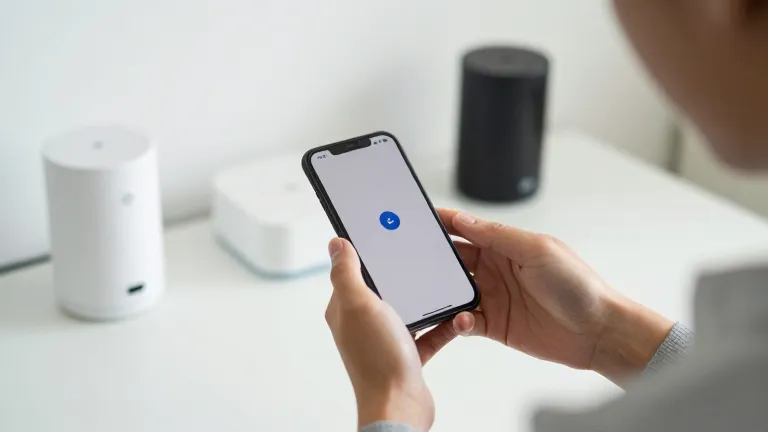
Regular maintenance of your TP-Link Deco X20 system can significantly improve network stability. Check for firmware updates through the Deco app, as these updates often include performance improvements and security patches. It's recommended to review updates at least once a month to ensure your system is running the latest version. Additionally, restarting your Deco units periodically can help clear temporary glitches and reset the network, which may resolve intermittent connectivity problems.
Managing Connected Devices and Bandwidth
Managing connected devices and bandwidth usage is crucial for optimizing your Wi-Fi network. Use the Deco app to monitor which devices are connected and how much data they're using. This allows you to identify potential bandwidth hogs, such as streaming services or large file downloads, and adjust settings accordingly. You can also prioritize devices by assigning them to specific bands or setting up Quality of Service (QoS) rules to ensure critical tasks like video calls or online gaming receive sufficient bandwidth. By maintaining control over your network, you can enhance both performance and user satisfaction over time.
Frequently Asked Questions
How do I know if the TP-Link Deco X20 is the right solution for my home?
The TP-Link Deco X20 is ideal for homes with Wi-Fi dead zones, especially if you need a single network for multiple rooms. It covers up to 5,800 sq ft and supports up to 150 devices, making it suitable for larger homes with multiple users.
Can the TP-Link Deco X20 improve internet speed in areas with poor coverage?
Yes, the TP-Link Deco X20 can enhance internet speed in areas with poor coverage by providing a single, unified Wi-Fi network. It uses Wi-Fi 6 technology to deliver faster speeds and better performance across your home.
What should I do if my devices aren't connecting to the Deco X20 network?
If your devices aren't connecting, check the placement of the Deco units and ensure they are within range. Verify that your devices are within the coverage area and that the network name and password are correctly entered. Restarting the Deco system or the device may also help.
Is it possible to use the Deco X20 with existing routers or extenders?
The TP-Link Deco X20 is designed to replace traditional routers and extenders, providing a single network. It is not recommended to use it with existing routers or extenders, as it may cause interference and reduce performance.
Final Thoughts
The TP-Link Deco X20 is a powerful solution for eliminating Wi-Fi dead zones and improving coverage. With its Wi-Fi 6 technology and mesh network capabilities, it ensures a seamless and stable connection throughout your home.
To get started, install the Deco X20, place the units optimally, and connect your devices. Regular maintenance and optimization will help you maintain a strong and reliable Wi-Fi network.