
What to Expect with Windows 11 26H2 and PC Support Changes
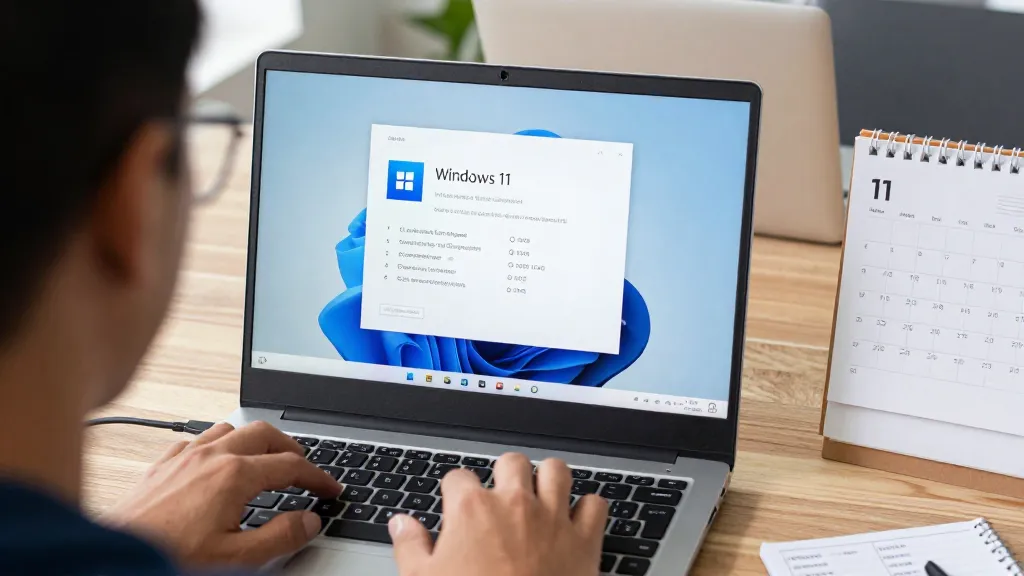
If you're worried about your PC's support timeline, the recent windows 11 update support changes with Windows 11 26H2 could be a game-changer. Microsoft is rolling out this update automatically to eligible devices, which may reset your PC's support clock and extend its lifespan. Understanding how these changes affect your system is crucial for staying secure and up-to-date. This article will guide you through what the 26H2 update entails, how it impacts your PC's support, and what steps you can take to prepare. Whether you're running an older version of Windows or planning for future updates, this information will help you navigate the evolving landscape of windows 11 update support.
The Windows 11 26H2 update is designed to provide continued support for systems that previously reached the end of their update lifecycle. By installing this update, your PC can regain access to critical security patches and feature improvements, ensuring it remains protected against emerging threats. However, it's important to understand the implications of this change and how it aligns with your specific needs. We'll break down the key aspects of the update and its impact on your device's support timeline.
To make the most of the windows 11 update support changes, you should check if your PC is eligible for the update and prepare accordingly. This includes backing up your data, ensuring your system meets the minimum requirements, and understanding the potential effects of the update on your software and hardware. By staying informed and proactive, you can ensure a smooth transition and continue to benefit from the latest features and security enhancements in Windows 11.
Understanding the Windows 11 26H2 Update
The Windows 11 26H2 update is now rolling out to eligible PCs, with Microsoft pushing it automatically to personal and unmanaged business devices. This update is designed to ensure users stay secure and up-to-date, particularly those still running older versions of Windows 11. The release of 26H2 marks a significant step in Microsoft’s ongoing efforts to support a broader range of devices and extend their usability.
What Is Windows 11 26H2?
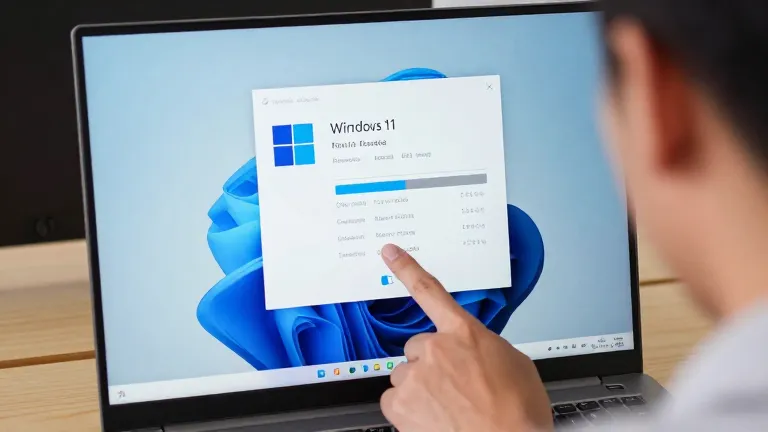
Windows 11 26H2 is the latest major update to the Windows 11 operating system, offering a range of new features and improvements. It includes enhanced security measures, performance optimizations, and additional tools aimed at improving user experience. This update is particularly important for users still on older versions like 24H2 and 25H2, as it helps reset their support timelines and ensures continued access to security updates.
When Was the Update Released?
The 26H2 update was generally available starting on September 29, 2026, and began rolling out to eligible devices in late October. Microsoft has been gradually pushing the update to more personal devices as the rollout continues, though it hasn't specified when every eligible PC will receive it. This phased approach ensures that the update is delivered efficiently and without overwhelming the system.
How the 26H2 Update Affects PC Support
The Windows 11 26H2 update significantly impacts PC support timelines by resetting the support clock for affected devices, ensuring continued security and updates for users who may have fallen behind on previous versions.
Resetting the Support Clock
For PCs running Windows 11 24H2 or 25H2, the 26H2 update resets the support clock, effectively extending their active support period. This means that devices previously reaching the end of their update cycle are now given additional time to remain secure and functional. The update acts as a bridge, allowing users to stay protected without needing to upgrade immediately.
Extended Support for Older Systems
The update extends support for Home and Pro editions of Windows 11 until October 2028, providing users with an additional two years of security patches and updates. This extended support is crucial for users who rely on older systems and may not have the resources to upgrade to newer versions immediately. By resetting the support clock, Microsoft ensures that these devices can continue to receive critical updates, reducing the risk of vulnerabilities and maintaining system stability.
What You Should Do with Your PC
To ensure your PC benefits from the Windows 11 26H2 update, it's essential to verify your eligibility and prepare your system accordingly. This section outlines the necessary steps to determine if your device is ready for the update and how to set it up for a smooth transition.
- Check your PC's current Windows version and update history.
- Verify if your hardware meets the minimum requirements for 26H2.
- Ensure your PC is running the latest version of Windows 11 before installing the update.
- Back up important files and settings before proceeding with the update.
Checking Eligibility for the Update
To check if your PC is eligible for the 26H2 update, open Settings and navigate to Windows Update. Here, you'll see if the update is available for your device. If your PC is running Windows 11 24H2 or 25H2, it's likely eligible for the update. However, if your PC is managed by an IT department, you may need to contact them for assistance. Additionally, you can check your support timeline to determine if the update is recommended for your system.
Preparing Your PC for the Update
Before installing the 26H2 update, ensure your PC meets the minimum system requirements. This includes checking your processor, RAM, and storage space. If your device is running low on storage, consider freeing up space by deleting unnecessary files or moving data to an external drive. Also, make sure your PC is running the latest version of Windows 11 to avoid compatibility issues. If your PC is not eligible for the update, you may need to wait for a future version or consider upgrading your hardware to meet the requirements.
What to Expect After the Update
Once the Windows 11 26H2 update is installed, users can expect a familiar experience, similar to regular monthly updates. The update is delivered through the standard Windows Update mechanism, meaning it will appear in your update settings and install automatically if your system is configured for automatic updates. However, it’s always wise to check for updates manually, especially if you’re concerned about the impact of the update on your system.
Installation Process
The installation process for Windows 11 26H2 is straightforward and should not take an excessive amount of time, though the duration may vary depending on your PC's hardware and internet connection. During installation, your system may restart several times to complete the update. It’s important to ensure your PC is connected to a stable power source and has a reliable internet connection throughout the process to avoid interruptions.
Potential Issues After the Update
While the update is designed to improve system stability and security, some users may experience minor glitches or performance changes. These can include unexpected behavior in certain applications, slight changes in system performance, or compatibility issues with older hardware or software. If you encounter any problems, it’s recommended to check for any available driver updates or contact Microsoft support for assistance. As a precaution, always ensure your data is backed up before installing any major update to minimize the risk of data loss or system instability.
Managing Your PC's Support Timeline
Managing your PC's support timeline is essential to ensure your system remains secure and up-to-date. By staying informed about your device's support dates, you can proactively plan for upgrades or replacements, avoiding potential vulnerabilities and disruptions in service.
Tracking Your PC's Support Dates
To track your PC's support dates, check the Windows Update settings or use the System Information tool. These tools provide details on when your current version of Windows will stop receiving updates. For example, Windows 11 Home and Pro editions supported until October 10, 2028, while Enterprise and Education versions are supported until October 9, 2029. Keeping this information accessible helps you stay ahead of the curve and avoid unexpected support endings.
Planning for Future Updates
Plan for future updates by upgrading to a newer version of Windows 11 before your current version reaches its end-of-support date. Microsoft regularly releases new updates that enhance security, performance, and compatibility. If your PC is no longer supported, consider replacing it with a newer model that can run the latest Windows versions. This ensures continued access to critical updates and support, keeping your system secure and efficient for longer.
Frequently Asked Questions
When will my PC stop receiving Windows 11 updates?
Your PC will stop receiving Windows 11 updates when it reaches the end of its support period. For Home and Pro editions, this is typically around October 2028, while Enterprise and Education editions may have support until October 2029.
Will the 26H2 update slow down my PC?
The 26H2 update is designed to be efficient and should not significantly slow down your PC. However, older hardware may experience some performance impact, and it’s advisable to ensure your system meets the update requirements before installation.
Can I still use my PC after support ends?
Yes, you can still use your PC after support ends, but you will no longer receive security updates or technical support. This could leave your system vulnerable to new threats, so it’s important to plan for future updates or consider upgrading.
How do I check if my PC is getting the 26H2 update?
To check if your PC is getting the 26H2 update, go to Settings > Windows Update and look for available updates. If your PC is eligible, the update should be listed and can be installed automatically or manually.
Next Steps for Your PC
Understanding the Windows 11 26H2 update and its impact on PC support is crucial for maintaining system security and performance. By staying informed and preparing for the update, you can ensure a smooth transition and continued support for your device.
To keep your PC secure and up-to-date, check your eligibility, prepare your system, and monitor your support timeline. Stay proactive to avoid potential issues and ensure your device remains supported for as long as possible.





