Why Troubleshooting a Computer Is Necessary and How to Do It

Troubleshooting a computer is an essential skill for anyone who uses a PC, whether at home or in the office. When your computer freezes, runs slowly, or loses connectivity, it can disrupt your workflow and cause frustration. Understanding why troubleshooting computer issues is necessary helps you take control of your system and avoid costly repairs. By learning how to identify and fix problems, you can save time and money while ensuring your device remains reliable. This article explains the importance of troubleshooting and provides practical steps to address common issues. From basic solutions to advanced techniques, you'll gain the knowledge to resolve problems on your own. Additionally, we'll cover how to know when to seek help and how to prevent future issues through proper maintenance. Whether you're a beginner or a regular user, this guide will empower you to maintain a smooth and efficient computing experience.
Understanding the Need for Troubleshooting
Troubleshooting a computer is a critical skill that enables users to resolve common issues without relying on professional help. By understanding the process and applying basic techniques, home users and office workers can save time, money, and frustration. This section explores the importance of troubleshooting and the types of problems it addresses, empowering users to take control of their computer's performance.
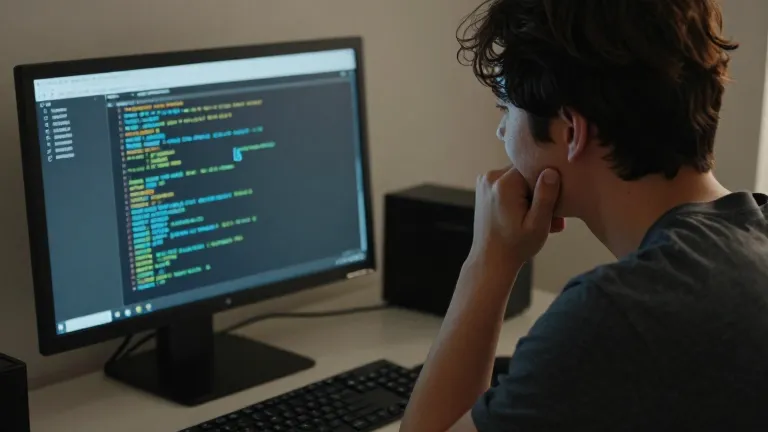
What Is Troubleshooting and Why It Matters
Troubleshooting involves identifying and resolving computer issues through systematic steps. It is essential because it allows users to address problems independently, avoiding the need for costly repairs or technical support. This process not only saves money but also builds confidence in managing digital tools. By learning to troubleshoot, users can maintain their systems more effectively and reduce downtime.
The ability to troubleshoot is particularly valuable in today's digital world, where computers are integral to both personal and professional life. Simple steps, such as restarting the device or checking connections, can often resolve common issues. This proactive approach ensures that users can quickly return to their tasks without significant disruption. With a basic understanding of troubleshooting, individuals can minimize the impact of technical problems on their workflow.
Common Computer Issues and Their Impact
Common computer issues such as freezing, slow performance, and connectivity problems are frequent sources of frustration. These problems can disrupt work, communication, and daily activities, making timely resolution crucial. Freezing occurs when the system crashes or becomes unresponsive, often due to software conflicts or insufficient resources. Slow performance may result from outdated software, excessive background processes, or insufficient hardware capabilities.
Connectivity issues, such as Wi-Fi or Ethernet problems, can prevent access to essential services and online collaboration tools. These challenges can significantly affect productivity, especially in remote or hybrid work environments. By understanding the nature of these common issues, users can apply targeted troubleshooting steps to restore functionality. This knowledge empowers individuals to address problems before they escalate, ensuring a more reliable and efficient computing experience.
Basic Troubleshooting Steps for Common Issues
Basic troubleshooting is essential for resolving common computer issues without professional assistance. By following simple, methodical steps, you can often identify and fix problems quickly, saving time and effort. Starting with the most straightforward solutions ensures you cover the basics before moving to more complex diagnostics.
- Restart your computer to clear temporary glitches and free up system resources.
- Check all physical connections, including cables, peripherals, and power sources.
- Use Task Manager to monitor CPU, memory, and disk usage for performance bottlenecks.
- Access System Information to review hardware details and detect compatibility issues.
How to Begin: Restart and Check Connections
Restarting your computer is one of the most effective basic troubleshooting steps. It clears the RAM, stops unresponsive processes, and refreshes the operating system. If your computer is freezing, slow, or unresponsive, a restart can often resolve the issue temporarily or provide insight into the root cause. Always restart the device before proceeding to more advanced troubleshooting.
Using Built-In Tools for Diagnosis
Built-in diagnostic tools like Task Manager and System Information provide valuable insights into your computer’s performance and health. Task Manager allows you to monitor resource usage and identify processes that may be causing slowdowns or crashes. System Information offers a comprehensive overview of your hardware, including processor, memory, and storage details, which can help pinpoint compatibility or configuration issues. Using these tools is a logical next step after basic checks to narrow down potential problems.
Advanced Troubleshooting Techniques
Advanced troubleshooting techniques can help resolve complex issues that basic steps may not address. These methods involve using specialized tools and procedures to pinpoint and fix underlying problems in both hardware and software components.
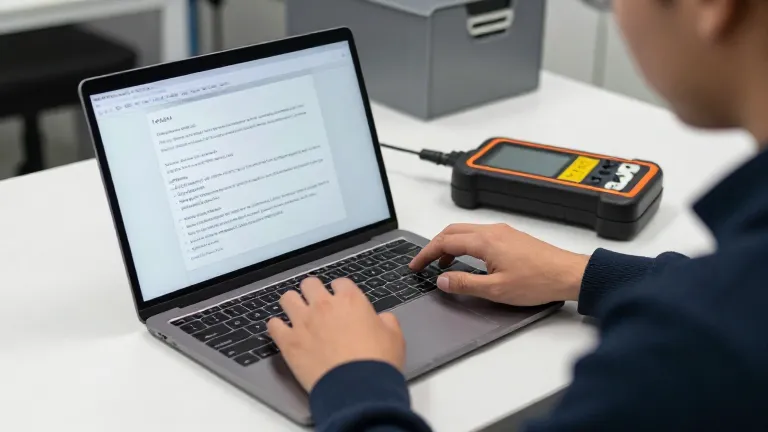
Diagnostic Tools for Hardware and Software
Diagnostic tools are essential for identifying hardware or software issues that may be causing system instability or performance problems. Many operating systems include built-in diagnostic utilities, such as Windows' System File Checker or macOS' Disk Utility, which can scan for and repair file system errors. Third-party tools, like Malwarebytes or HWMonitor, can also provide detailed insights into hardware health and potential software conflicts.
Updating Drivers and Operating Systems
Keeping drivers and operating systems up to date is crucial for ensuring compatibility and performance. Outdated drivers can lead to hardware malfunctions or reduced system efficiency, while an outdated OS may lack security patches and new features. Regularly checking for updates through the manufacturer's website or using built-in update tools can help maintain optimal system performance. Additionally, manually installing the latest drivers for critical components like graphics cards or network adapters can resolve specific compatibility issues.
When to Seek Help and What to Do Next
When computer issues persist despite basic troubleshooting efforts, it's essential to recognize when to seek external assistance. Some problems require specialized knowledge or tools that go beyond the capabilities of a home user or office worker. Understanding the limits of self-diagnosis ensures that you can move toward a more effective solution without unnecessary delays.
Knowing When to Give Up and Ask for Help
A problem is beyond basic troubleshooting when it involves complex hardware failures, persistent software errors, or security breaches that cannot be resolved through simple fixes. If your computer continues to freeze, crash, or display cryptic error messages after trying standard solutions, it's time to consider professional help. These issues often indicate deeper problems that require expert intervention to resolve efficiently.
Preparing for Professional Support
To prepare for professional support, document the issue in detail, including the symptoms, steps you've already taken, and any error messages. This information helps technicians understand the context of the problem and narrow down potential causes. Additionally, gather relevant data such as system specifications, recent software changes, and any connected devices. Providing this information ensures a smoother and more accurate diagnostic process.
Tips for Preventing Future Computer Problems
Preventing future computer problems is essential for maintaining performance, security, and reliability. By adopting proactive maintenance habits, you can significantly reduce the likelihood of unexpected issues and extend the lifespan of your system.
- Keep your system updated with the latest security patches.
- Regularly clean your computer to prevent dust buildup and overheating.
- Backup important data to avoid loss in case of hardware failure.
Maintaining Your Computer for Long-Term Use
Maintaining your computer for long-term use involves regular updates and maintenance tasks. Keeping your operating system and software up to date ensures that you have the latest security fixes and performance improvements. Updates often address vulnerabilities that could be exploited by malware or hackers, making your system more secure. Additionally, scheduled maintenance tasks, such as checking for disk errors or optimizing startup programs, can help keep your system running smoothly.
Protecting Your Data with Regular Backups
Protecting your data with regular backups is a critical step in preventing data loss. Hardware failures, accidental deletions, or malware attacks can result in the loss of valuable files, so having a reliable backup strategy is essential. You can use external hard drives, cloud storage services, or both to store copies of your important data. It's also advisable to test your backups periodically to ensure they are working correctly and can be restored when needed.
Frequently Asked Questions
What should I do if my computer keeps freezing?
If your computer freezes, start by checking for overheating or insufficient resources. Restarting the device and closing unused programs can resolve minor issues. If the problem persists, consider running diagnostic tools or seeking professional help.
How can I tell if my computer has a virus?
Signs of a virus include unexpected pop-ups, slow performance, and unexplained file changes. Run a full system scan using trusted antivirus software. If you’re unsure, consult a professional or use online virus detection tools.
What are the best ways to keep my computer running smoothly?
Regularly update your software and drivers, clean up temporary files, and avoid overloading your system with unnecessary programs. Monitoring system performance and maintaining a stable internet connection also help keep your computer running smoothly.
When is it time to call a professional for computer repairs?
Call a professional if you’re unable to resolve hardware issues, encounter persistent software errors, or notice unusual behavior that affects your work. Complex problems often require expert diagnosis and repair to prevent further damage.
Final Thoughts
Troubleshooting your computer is essential for maintaining efficiency and preventing data loss. By following basic steps and using available tools, you can often resolve common issues on your own.
If problems persist, don’t hesitate to seek professional help. Regular maintenance and awareness of potential risks can help you keep your computer running smoothly for years to come.