How to Fix Blue Screen of Death (BSOD) Critical Process Died
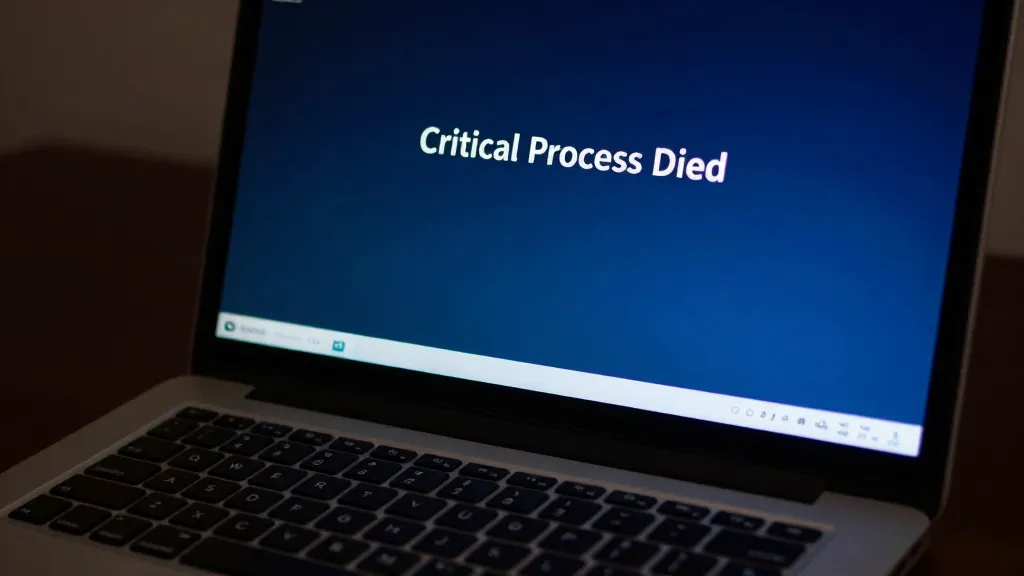
Encountering a Blue Screen of Death (BSOD) with the error message 'Critical Process Died' can be frustrating, especially when it disrupts your work or personal computing. This error often signals a critical system failure, leaving your Windows PC unresponsive and requiring immediate attention. If you're facing this issue, you're not alone, and there are practical steps you can take to resolve it without needing technical expertise. In this article, we'll guide you through understanding the 'Critical Process Died' error and provide a step-by-step solution to fix the Blue Screen of Death (BSOD).
The 'Critical Process Died' error typically arises from software conflicts, outdated drivers, or corrupted system files. It can also be linked to hardware issues such as faulty RAM or a failing hard drive. By following a structured troubleshooting approach, you can identify and address the root cause of the error. Our guide includes simple actions like restarting your PC, updating drivers, and running system file checks, which can help stabilize your system and prevent further crashes.
For persistent BSOD errors, we’ll explore advanced solutions such as using System Restore and reinstalling Windows. These methods are designed to help you recover your system without losing important data. Whether you're a home user or an office worker, the steps outlined in this article are meant to be clear and actionable, ensuring you can resolve the Blue Screen of Death (BSOD) issue efficiently.
Understanding the Blue Screen of Death (BSOD) Critical Process Died Error
The 'Critical Process Died' error is a common Blue Screen of Death (BSOD) message that appears when a critical system process fails unexpectedly. This error can disrupt your Windows experience and prevent your PC from functioning properly. Understanding the nature of the BSOD and its causes is essential to address the issue effectively.

What Is a Blue Screen of Death (BSOD)?
A Blue Screen of Death (BSOD) is an error screen that Windows displays when it encounters a critical system problem that it cannot recover from. This screen typically appears in response to a crash, and it includes a stop code and error message that can help identify the cause. BSODs are often triggered by hardware failures, software conflicts, or issues with the operating system itself.
What Causes the 'Critical Process Died' Error?
The 'Critical Process Died' error usually occurs when a vital system process, such as a kernel-mode driver or a core Windows service, fails unexpectedly. This can be caused by hardware issues, such as faulty memory or failing hard drives, or by software conflicts, like incompatible drivers or corrupted system files. Additionally, recent updates or installations may introduce incompatibilities that lead to this error. Identifying the root cause is crucial for resolving the issue, as it may require different troubleshooting steps depending on the source of the problem.
Step-by-Step Guide to Fix BSOD Critical Process Died
The first step in addressing the Blue Screen of Death (BSOD) 'Critical Process Died' error is to take simple, methodical actions that can often resolve the issue without requiring advanced technical knowledge.
- Restart Your PC
- Check for Driver and Software Updates
- Use the Windows Recovery Environment to troubleshoot and repair system files
- Reinstall or update the driver for the process that caused the error
Restart Your PC
Begin by safely restarting your PC. Sometimes, the BSOD error can be a temporary glitch that resolves itself after a simple reboot. Ensure all open applications are closed before initiating the restart. If the error persists, proceed to the next steps.
Check for Driver and Software Updates
Check for recent software or driver updates that may have caused the issue. Visit the manufacturer's website for your hardware components and download the latest drivers. Also, ensure Windows is up to date by navigating to Settings > Update & Security > Windows Update. Installing the latest updates can resolve compatibility issues and bugs that trigger the BSOD.
Using System File Checker to Repair Corrupted Files
System File Checker (SFC) is a built-in Windows tool that scans for and repairs corrupted system files, which can often be the root cause of the Blue Screen of Death (BSOD) 'Critical Process Died' error. Running SFC can help resolve file corruption issues without requiring advanced technical knowledge, making it a valuable troubleshooting step for home users and office workers.

Running System File Checker (SFC)
To run SFC, open the Command Prompt as an administrator and type 'sfc /scannow' followed by the Enter key. This command initiates a comprehensive scan of all protected system files, comparing them with a known good cache to identify and repair any discrepancies. The process may take several minutes to complete, and it is recommended to avoid using the PC during this time to ensure accuracy.
Using DISM to Repair Windows Image
If SFC fails to resolve the issue, the next step is to use the Deployment Image Servicing and Management (DISM) tool to repair the Windows image. DISM can fix issues with the Windows system files that SFC might not be able to address. To use DISM, open an elevated Command Prompt and enter 'DISM /Online /Cleanup-Image /RestoreHealth'. This command repairs the Windows image by replacing corrupted files with healthy ones from the Windows Update servers.
Troubleshooting Hardware Issues That Cause BSOD
Hardware problems such as faulty RAM, overheating, or failing hard drives can trigger the 'Critical Process Died' error. These issues can cause system instability and unexpected crashes, making it essential to inspect and maintain your PC's physical components. Proper hardware diagnostics and maintenance can help identify and resolve the root cause of the BSOD.
Testing Your RAM for Errors
Testing your RAM for errors is a critical step in diagnosing hardware-related BSOD issues. Windows includes the Windows Memory Diagnostic tool, which can scan for memory problems by running a series of tests. To use it, search for 'Windows Memory Diagnostic' in the Start menu, select 'Restart now and check for problems,' and let the tool run during the next reboot. If errors are detected, replacing the faulty RAM modules can often resolve the issue.
Checking for Hard Drive Issues
Checking for hard drive issues is another important aspect of troubleshooting BSOD errors. Use the Check Disk utility (Chkdsk) to scan for file system errors and bad sectors. Open Command Prompt as an administrator and run 'chkdsk /f /r' to initiate the scan. This process can repair logical file system errors and mark bad sectors to prevent data loss. If the hard drive is failing, consider replacing it with a new one to avoid further system instability.
Advanced Solutions for Persistent BSOD Critical Process Died Errors
If basic troubleshooting steps fail to resolve the BSOD Critical Process Died error, advanced solutions such as System Restore and Windows reinstallation can help restore stability. These methods are typically used when the error persists despite addressing software and hardware issues.

- Use System Restore to revert your PC to a previous state before the error began.
- Create a system restore point before making significant changes to your PC.
- Reinstall Windows if all other methods fail to resolve the BSOD error.
- Backup your data before proceeding with a system reinstallation.
Using System Restore
System Restore is a built-in Windows tool that allows you to roll back your PC to an earlier point in time, known as a restore point. This can undo recent changes that may have triggered the BSOD error. To use System Restore, navigate to the Control Panel, select System and Security, then System, and click on System Protection. From there, choose Create a Restore Point or Restore Your Computer. Follow the prompts to select a restore point and initiate the process. This can help eliminate software conflicts or recent driver issues that may be causing the error.
Reinstalling Windows
Reinstalling Windows is a more drastic measure but can resolve persistent BSOD errors caused by deep-seated software or system file corruption. Before proceeding, ensure you have backed up all important data to an external drive or cloud storage. Once the backup is complete, access the Windows Recovery Environment by booting from a USB installation media. Follow the on-screen instructions to reinstall Windows, ensuring that you select the option to keep your personal files while removing programs and settings. This process can provide a clean slate and eliminate any underlying issues contributing to the BSOD.
Frequently Asked Questions
What does the 'Critical Process Died' error mean on Windows?
The 'Critical Process Died' error indicates a critical system process has failed, often due to software or hardware issues. It can result in a Blue Screen of Death (BSOD) and system instability.
Can a virus cause the 'Critical Process Died' BSOD error?
Yes, malware or viruses can corrupt system files or processes, leading to the 'Critical Process Died' error. Scanning for malware is an essential troubleshooting step.
How do I know if the 'Critical Process Died' error is hardware-related?
Hardware issues like faulty RAM or hard drives can cause the error. Running memory and disk diagnostics can help determine if hardware is the root cause.
What should I do if the 'Critical Process Died' error keeps recurring?
Persistent errors may require advanced troubleshooting, such as system restore, reinstallation, or checking for driver and software conflicts.
Final Thoughts
The 'Critical Process Died' error can stem from various sources, including software issues, hardware failures, or malware. A systematic approach to troubleshooting, such as restarting, checking for updates, and running diagnostics, can often resolve the issue.
If the error persists, consider advanced solutions like system restore or reinstallation. Regular maintenance and updates can help prevent future occurrences of this error.