How to Check Your SSD’s Health in Windows 11
If you're worried about your SSD's longevity and performance, checking its health in Windows 11 is a simple yet essential task. SSDs are more reliable than traditional hard drives, but they aren't immune to wear and tear. Knowing how to check SSD health in Windows 11 can help you identify potential issues before they lead to data loss. This article will guide you through the process of assessing your SSD's condition using built-in tools and third-party options. Whether you're a home user or office worker, understanding your SSD's health is crucial for ensuring your data stays safe and your system runs smoothly. We'll cover everything from basic checks to interpreting health metrics and maintaining optimal performance. By following these steps, you can take control of your SSD's maintenance without needing to invest in expensive tools.
Why Checking SSD Health Matters
Solid-state drives (SSDs) have become the preferred storage solution for many due to their speed and reliability compared to traditional hard drives (HDDs). However, even though SSDs are more durable and have no moving parts, they are not immune to wear and tear over time. Regularly checking your SSD's health is essential to ensure it continues to perform reliably and to prevent unexpected data loss or system crashes.
SSD Vs. HDD: Why Health Matters
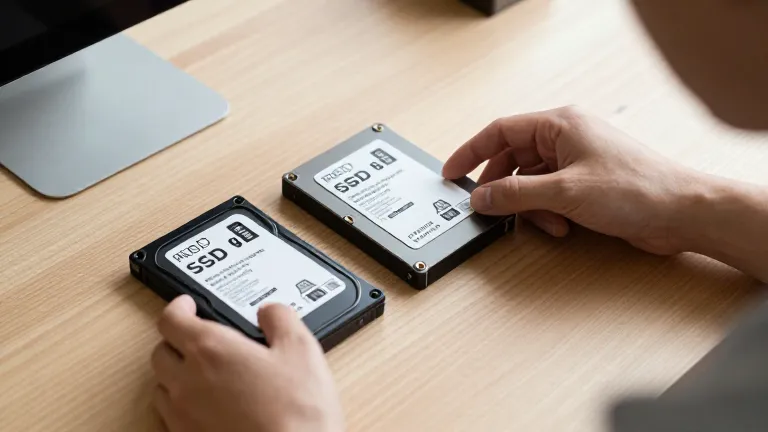
SSDs offer significant advantages over HDDs, including faster read/write speeds and greater resistance to physical shock. However, SSDs rely on flash memory cells that degrade with each write operation, making their lifespan finite. Unlike HDDs, which can fail suddenly due to mechanical issues, SSDs often show early warning signs of wear. By monitoring SSD health, users can detect these signs before they lead to data loss or system instability, ensuring a smoother and more reliable computing experience.
Windows 11 SSD Health Monitoring Overview
Windows 11 includes built-in tools to monitor SSD health, but these tools are only available for NVMe drives. The Drive health feature in Windows 11 provides a quick overview of key metrics such as estimated remaining life, available spare capacity, and temperature. These metrics help users understand how their SSD is performing and whether it might be approaching the end of its lifespan. For SATA SSDs or HDDs, users need to rely on third-party tools like CrystalDiskInfo to access comprehensive S.M.A.R.T. data. Understanding these metrics is crucial for making informed decisions about your drive's maintenance and replacement.
How to Check SSD Health in Windows 11
Checking your SSD's health in Windows 11 is straightforward with the built-in tools, though there are limitations depending on your drive type. This section guides you through the process and explains when to use third-party software for more detailed information.
- Open the Settings app and navigate to System > Storage > Advanced storage settings > Disks & volumes.
- Select your SSD from the list and click Properties to access the Drive health section.
- Review the three key metrics: Estimated remaining life, Available spare, and Temperature.
- For SATA SSDs or HDDs, use third-party tools like CrystalDiskInfo to get full S.M.A.R.T. data.
Step-by-Step Guide to Check SSD Health in Windows 11
To check your SSD's health in Windows 11, start by opening the Settings app. Navigate to System > Storage > Advanced storage settings > Disks & volumes. From here, select your SSD from the list of drives. Click Properties to access the Drive health section, where you'll find the key metrics that indicate your drive's condition.
Windows 11 SSD Health Tool Vs. Third-Party Tools
The built-in tool in Windows 11 provides basic health data for NVMe drives, including Estimated remaining life, Available spare, and Temperature. However, it does not support SATA SSDs or HDDs. For these drives, third-party tools like CrystalDiskInfo offer comprehensive S.M.A.R.T. data, including drive attributes, error logs, and more detailed health information. While the Windows tool is convenient, third-party software is necessary for a full assessment of older drive types.
Understanding SSD Health Metrics
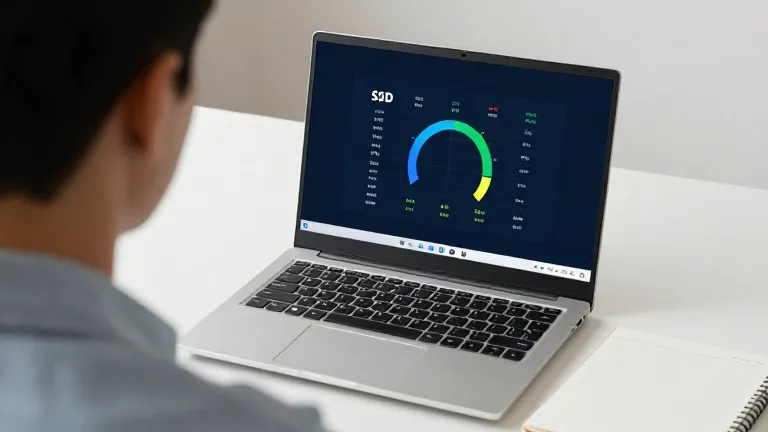
Understanding the SSD health metrics in Windows 11 is essential for assessing the drive's condition and predicting its lifespan. Three key metrics — Estimated remaining life, Available spare, and Temperature — provide insights into how well your SSD is performing and how long it might last. These metrics help you determine whether your drive is still reliable or if it's time to take action.
What Each SSD Health Metric Means
Estimated remaining life is a percentage that indicates how much longer your SSD is expected to function before reaching the end of its life. This metric is based on the drive's wear and tear, and it gives you a rough idea of how much time you have before potential failures. While this number is useful, it's not always precise, as it depends on usage patterns and how well the drive is maintained.
Available spare shows the percentage of the drive's capacity that can be used to repair minor errors or replace damaged blocks. This metric is crucial because it indicates how much 'buffer' your SSD has to handle wear and tear. As your drive ages, this percentage decreases, which means your SSD has less capacity to repair itself. Keeping an eye on this metric can help you identify when your drive is starting to degrade.
How to Interpret SSD Health Data
Temperature is another vital metric that affects SSD longevity. High temperatures can accelerate wear and reduce the drive's lifespan, so it's important to ensure your SSD operates within a safe range. If your drive runs too hot, it could lead to performance issues or even failure, especially if it's not properly ventilated or placed in a well-ventilated area.
Interpreting these metrics helps you decide whether to replace or monitor your drive. If the Estimated remaining life is low or the Available spare percentage is decreasing rapidly, it's a sign that your SSD may be nearing the end of its life. In such cases, it's wise to back up your data and consider replacing the drive before it fails. Monitoring these metrics regularly can help you maintain your SSD's performance and avoid unexpected data loss.
Troubleshooting SSD Health Issues
If your SSD health indicators show signs of degradation, such as low remaining life or high temperatures, it's crucial to act quickly to avoid data loss. Early intervention can help you preserve your data and extend the drive's usability. Understanding the specific issues and taking appropriate steps can make a significant difference in maintaining your system's reliability.
What to Do If Your SSD Health Is Poor
If your SSD health is poor, start by checking for software updates or driver issues that might be affecting performance. Outdated firmware or drivers can sometimes lead to unexpected behavior or reduced efficiency. Run a full system scan for malware, as malicious software can also degrade SSD performance over time. If the problem persists, consider using a dedicated tool like CrystalDiskInfo to get detailed S.M.A.R.T. data and identify specific issues.
When to Replace Your SSD
Replace your SSD if the health metrics are concerning, especially if you rely on it for important work. A failing drive can lead to data corruption or loss, which is difficult to recover from. If your SSD is showing signs of imminent failure, such as frequent errors or a low remaining life percentage, it's time to back up your data and replace the drive. Consider upgrading to a newer SSD for better performance and reliability, as modern drives offer improved durability and faster speeds.
Best Practices for Maintaining SSD Health
Maintaining your SSD's health is essential for long-term performance and reliability. By following these best practices, you can significantly extend your SSD's lifespan and ensure it continues to operate efficiently.

- Avoid overwriting data on the same portion of the SSD to reduce wear.
- Use TRIM to ensure the SSD can efficiently manage deleted data.
- Keep your operating system and drivers updated for optimal SSD performance.
- Avoid using your SSD as a secondary storage drive for heavy data transfers.
- Regularly check your SSD health to catch issues early and extend its lifespan.
How to Extend Your SSD's Lifespan
Avoid overwriting data on the same portion of the SSD to reduce wear. SSDs have a limited number of write cycles, and repeatedly writing to the same area can accelerate wear. To minimize this, avoid saving large files or frequently updating the same files on the same partition. Instead, use dedicated storage drives for such tasks to spread out the wear evenly across the drive.
Tips for Optimizing SSD Performance
Use TRIM to ensure the SSD can efficiently manage deleted data. TRIM helps the SSD maintain performance by allowing it to efficiently erase data that is no longer needed. This process ensures that the SSD can quickly write new data without slowing down over time. Most modern operating systems, including Windows 11, automatically enable TRIM, but it's worth verifying that it's active in your system settings.
Keep your operating system and drivers updated for optimal SSD performance. Regular updates often include improvements and bug fixes that can enhance SSD performance and efficiency. Additionally, outdated drivers may not fully utilize the SSD's capabilities, leading to suboptimal performance. Make sure to install updates regularly to maintain the best possible performance from your SSD.
Avoid using your SSD as a secondary storage drive for heavy data transfers. While SSDs are fast, using them for large file transfers or as a secondary storage drive can lead to increased wear and potential performance degradation. Instead, use an external hard drive or a dedicated secondary storage drive for such tasks to preserve your SSD's longevity and maintain its efficiency.
Frequently Asked Questions
How often should I check my SSD's health in Windows 11?
It's recommended to check your SSD's health every few months or after significant data transfers. Regular checks help identify early signs of wear and ensure optimal performance.
What should I do if my SSD shows low remaining life?
If your SSD shows low remaining life, consider backing up your data immediately and planning for a replacement. Low remaining life indicates the drive is nearing the end of its lifespan.
Can I check my SSD's health without using third-party tools?
Yes, you can check your SSD's health using the built-in Windows 11 tool for NVMe drives. This tool provides essential metrics like estimated remaining life and temperature.
What are the best practices to keep my SSD running smoothly?
To keep your SSD running smoothly, avoid overwriting data, keep the drive cool, and use the built-in health monitoring tools. Regular maintenance and proper usage can significantly extend its lifespan.
Final Thoughts
Regular SSD health checks in Windows 11 are essential for maintaining performance and preventing unexpected failures. By understanding the metrics and taking proactive steps, you can ensure your SSD lasts longer and runs efficiently.
If your SSD shows signs of wear, act quickly by backing up your data and replacing it when necessary. Prioritizing SSD health monitoring and maintenance will help you avoid data loss and keep your system running smoothly.