
Fix a Cluttered Windows Right-Click Menu with a Free Tool
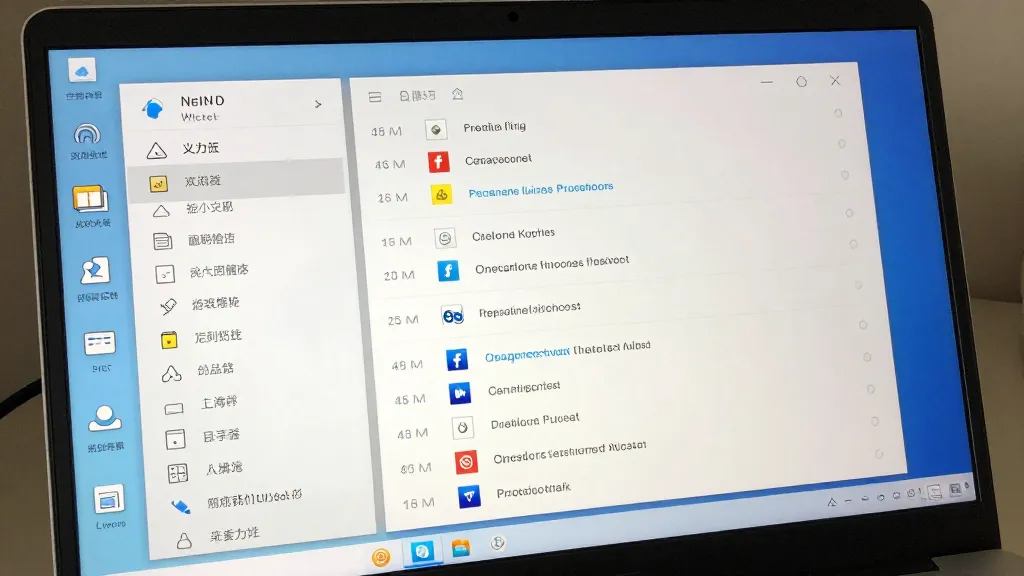
Many users are frustrated with the cluttered and less intuitive Windows right-click menu in Windows 11. The new context menu adds unnecessary options, making it harder to find the tools you use most. If you're looking for a Windows right-click menu fix, you're not alone. This article provides practical solutions to restore a cleaner, more efficient interface. We'll explore how to revert to the classic right-click menu and introduce a powerful, free tool that lets you customize your context menu exactly as you need. Whether you're a home user or an office worker, these steps will help you regain control over your Windows experience.
The modern Windows right-click menu often includes redundant options that slow down your workflow. While Windows 11 aims to offer more features, it can feel overwhelming for those who prefer simplicity. By restoring the classic menu, you can streamline your interactions and make common tasks faster. This guide walks you through the process of switching back to the older, more user-friendly context menu style. You'll also discover how to enhance it further with a dedicated customization tool.
A clean right-click menu can significantly improve your productivity. We'll walk you through the steps to enable the classic menu and introduce Easy Context Menu, a free tool that lets you add frequently used commands directly to your right-click options. From launching the Command Prompt to deleting temporary files, this tool makes your workflow more efficient. By the end of this article, you'll have a personalized, clutter-free context menu that fits your needs and preferences.
Understanding the Problem with the Windows Right-Click Menu
The Windows right-click menu has become a point of frustration for many users, particularly with the transition to Windows 11. The new context menu is often criticized for being overly cluttered and less intuitive compared to its predecessor. While the modern design aims to offer more features, it has inadvertently made it harder for users to access the tools they need most.
Why the New Windows 11 Right-Click Menu Is Less User-Friendly
The new Windows 11 right-click menu has introduced a more complex structure, with additional options and a more extensive list of commands. This change, while aimed at providing greater functionality, has led to a less streamlined experience. Many users find that the menu is now more difficult to navigate, especially when trying to access frequently used tools like the Snipping Tool or the Recycle Bin. The increased number of options can also make the interface feel slower and less responsive, which can be a significant drawback for those who rely on quick access to system tools.
Common Issues with the Modern Context Menu
Common issues with the modern context menu include the difficulty in locating essential functions and the presence of unnecessary items. For instance, the Recycle Bin emptying option, which was readily available in previous versions, is now buried beneath several other options. Similarly, launching the Snipping Tool or accessing system settings requires more clicks than before. These changes can disrupt workflow and reduce productivity, especially for users who are accustomed to the simplicity and efficiency of the older menu. As a result, many users are seeking alternatives to restore a cleaner and more user-friendly right-click experience.
Restoring the Classic Right-Click Menu in Windows 11
Restoring the classic Windows 10-style right-click menu in Windows 11 is a simple yet effective way to improve your daily computing experience. The modern context menu, while visually appealing, often feels cluttered and less intuitive, especially for users accustomed to the streamlined approach of Windows 10. Reverting to the classic menu not only enhances usability but also ensures compatibility with tools like Easy Context Menu, which rely on the traditional interface for optimal performance.
How to Restore the Classic Right-Click Menu in Windows 11
To restore the classic right-click menu in Windows 11, you can use a straightforward PowerShell command. Open PowerShell as an administrator and run the command 'Set-ItemProperty -Path
Introducing Easy Context Menu: A Free and Powerful Tool
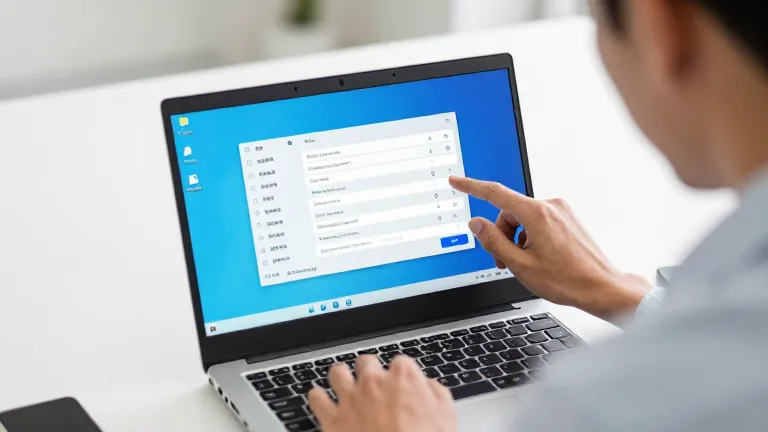
Easy Context Menu is a free, portable tool that gives you full control over your right-click menu in Windows. It allows you to add or remove commands, making your context menu more efficient and tailored to your needs. Whether you want to launch the Command Prompt, delete temporary files, or copy your IP address, this tool provides quick access to these functions without cluttering your interface.
What Easy Context Menu Can Do for Your Right-Click Menu
The tool is easy to use and does not require installation, making it ideal for users who want a lightweight solution. You can run it directly from a USB drive or any folder, which is especially useful if you need to use it on multiple computers. This portability ensures that you can customize your right-click menu on the go without any setup.
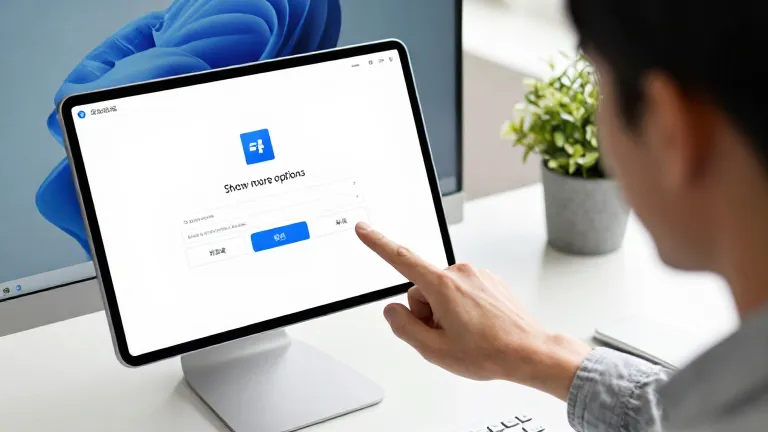
Easy Context Menu is compatible with both Windows 10 and Windows 11, though it has some limitations in the newer version. On Windows 11, you need to right-click, select 'Show more options,' and then choose the tools from the classic context menu. While this adds an extra click, it ensures that you can still access the tools you need efficiently.
Step-by-Step Guide to Fixing the Right-Click Menu with Easy Context Menu
This section walks you through the process of using Easy Context Menu to streamline your Windows right-click menu. By following these steps, you'll be able to download, configure, and test the tool to create a more efficient and personalized interface.
- Visit the official website of Easy Context Menu and download the portable version of the tool.
- Extract the downloaded file to a folder on your computer and run the application directly from there.
- Use the interface to add or remove commands based on your preferences and workflow.
- Save your customizations and test the new menu to ensure everything works as expected.
How to Download and Run Easy Context Menu
To begin, download the portable version of Easy Context Menu from its official website. Portable applications like this do not require installation and can be run directly from a folder. Once downloaded, extract the files to a convenient location on your computer. Launch the tool by double-clicking the executable file, which will open the main interface where you can start customizing your right-click menu.
Customizing the Right-Click Menu with Easy Context Menu
In the Easy Context Menu interface, you can add or remove commands to suit your needs. Look for the option to add new entries, such as shortcuts for frequently used tools like Command Prompt, Registry Editor, or Snipping Tool. You can also remove unwanted items that clutter the menu. After making your changes, click the Save button to ensure your preferences are stored. It's important to test the new menu by right-clicking on a file or folder to verify that all added commands work as intended.
Tips and Best Practices for Maintaining a Clean Right-Click Menu
Maintaining a clean and efficient right-click menu requires ongoing attention and careful management. Regularly reviewing and refining your menu ensures it remains useful and uncluttered. By following best practices, you can keep your interface streamlined and avoid performance issues that come from overloading the system with unnecessary commands.
How to Keep Your Right-Click Menu Organized
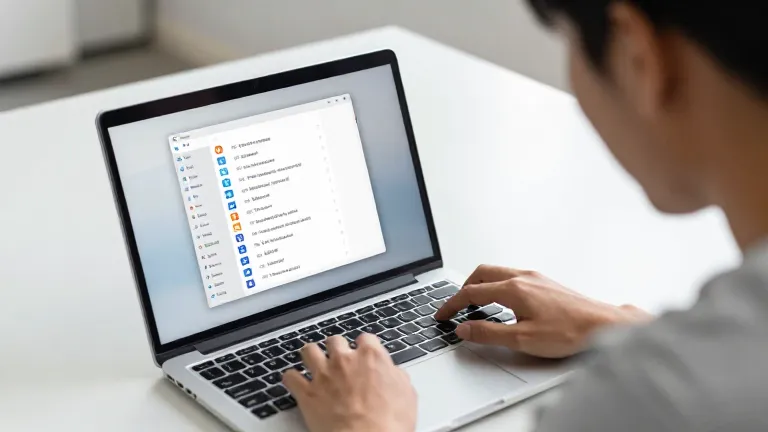
To keep your right-click menu organized, schedule periodic reviews of the commands you've added. Remove any tools you no longer use or find redundant. For example, if you rarely use the 'Snipping Tool' or 'Disk Cleanup,' consider removing it to simplify your menu. Keeping only the most frequently used options ensures quick access without overwhelming your workflow.
Use the classic menu layout to enhance accessibility and speed. This layout is more intuitive for many users, especially those who are accustomed to older Windows versions. By sticking to this format, you reduce the number of clicks needed to access your favorite tools, making your tasks more efficient.
Troubleshooting Common Issues with Custom Right-Click Menus
Avoid adding too many commands to your right-click menu, as this can slow down system performance and make the interface harder to navigate. While it's tempting to include every tool you might need, a cluttered menu can lead to confusion and inefficiency. Limit your menu to only the most essential functions to maintain clarity and usability.
Keep your system updated to ensure compatibility with new Windows updates. Some updates may affect the behavior of third-party tools like Easy Context Menu, so staying current can prevent unexpected issues. If you encounter problems after an update, check for tool updates or consult the official support resources for guidance.
Frequently Asked Questions
How do I restore the classic right-click menu in Windows 11?
You can restore the classic right-click menu in Windows 11 by running a PowerShell command as an administrator. This command disables the new context menu and brings back the classic style, making it easier to access frequently used options.
Can I use Easy Context Menu on Windows 11?
Yes, Easy Context Menu works on Windows 11, but it requires the classic right-click menu to be enabled. You can use it to add useful tools and streamline your right-click experience.
What are the best free tools for customizing the right-click menu in Windows?
Easy Context Menu is one of the best free tools for customizing the right-click menu in Windows. It allows you to add shortcuts and customize the menu to suit your needs.
Why is my right-click menu so slow and cluttered in Windows 11?
The new Windows 11 right-click menu can be slow and cluttered due to the extra options and features added. Restoring the classic menu or using tools like Easy Context Menu can help reduce clutter and improve performance.
Final Thoughts
Customizing your right-click menu can significantly improve your Windows experience. By restoring the classic menu and using tools like Easy Context Menu, you can streamline your workflow and reduce clutter.
To get started, use the PowerShell command to restore the classic right-click menu, then install Easy Context Menu to add your preferred tools. This will help you work more efficiently and with greater control over your system.





