
How to Fix File Explorer Not Responding or Crashing in Windows 11
File Explorer is a crucial tool for managing files and folders in Windows 11, but it can sometimes crash, freeze, or become unresponsive, disrupting your workflow. If you're facing this issue, you're not alone—many users encounter File Explorer not responding or crashing due to software glitches, system resource overload, or compatibility problems. This article provides clear, step-by-step solutions to help you resolve these issues without needing advanced technical knowledge.
We'll start by exploring the common causes of File Explorer crashes and how to diagnose them. From there, you'll learn basic fixes like restarting the application and freeing up system resources. For more persistent problems, we'll guide you through advanced troubleshooting steps, including using System File Checker and updating drivers. These methods are designed to help you restore stable File Explorer functionality.
To prevent future issues, we'll share practical tips for maintaining a stable File Explorer and managing your files efficiently. If these steps don't resolve the problem, we'll also outline when to seek further assistance, such as contacting Microsoft Support or reinstalling Windows. Whether you're a home user or an office worker, this guide offers actionable solutions to get your File Explorer back on track.
Understanding Why File Explorer Is Not Responding
File Explorer is a critical component of Windows 11, but it can become unresponsive or crash due to a range of issues. Understanding the root cause of these problems is essential for effective troubleshooting. Whether the issue is isolated or affects the entire system, identifying the underlying reason can help users resolve the problem efficiently.
Common Causes of File Explorer Crashes
Common causes of File Explorer crashes include corrupted system files, outdated or incompatible drivers, and resource overload. These issues can arise from software conflicts, recent system updates, or hardware incompatibilities. For instance, outdated graphics drivers may cause instability when rendering folders or files. Similarly, a buildup of temporary files or excessive background processes can exhaust system resources, leading to crashes. Additionally, malware or viruses can interfere with File Explorer's normal operation, causing unexpected behavior.
How to Diagnose File Explorer Issues
To diagnose File Explorer issues, start by determining whether the problem is localized or system-wide. If File Explorer crashes only when accessing specific folders or files, the issue may be related to those particular items, such as corrupted files or incompatible file types. On the other hand, if the problem occurs across the entire system, it may indicate a broader issue, such as a corrupted system file or a conflict with another running application. Checking for recent changes to the system, such as new software installations or updates, can also help identify potential triggers for the issue.
Basic Fixes to Resolve File Explorer Problems
Basic fixes are often the simplest and most effective way to resolve File Explorer issues. These steps can help stabilize the application and prevent crashes by addressing common culprits such as resource overload or temporary glitches.
- Restart File Explorer by using Task Manager to end the process.
- Close all open programs to free up system resources.
- Check for any recent changes that might have caused the issue.
How to Restart File Explorer Manually
To restart File Explorer manually, open Task Manager by pressing Ctrl + Shift + Esc. Look for the 'Windows Explorer' process under the 'Processes' tab. Right-click it and select 'Restart' to refresh the application. This action can resolve temporary glitches that might be causing the issue.
Tips to Free Up System Resources
Closing all open programs helps free up system resources such as memory and CPU power, which can contribute to File Explorer crashes. If your system is running too many background applications, it may be overworking the available resources. Minimize or close unnecessary apps to improve performance and stability.
In addition to closing programs, you should also check for any recent system changes, such as software installations, driver updates, or file modifications. These changes can sometimes interfere with File Explorer's normal operation. Reverting or undoing recent actions may help identify and resolve the issue.
Advanced Troubleshooting for File Explorer Crashes
Advanced troubleshooting methods can help resolve persistent File Explorer crashes by addressing deeper system or hardware issues. These steps are ideal when basic fixes fail, and they involve repairing system files, updating drivers, and reviewing recent Windows updates.
Using System File Checker to Fix File Explorer
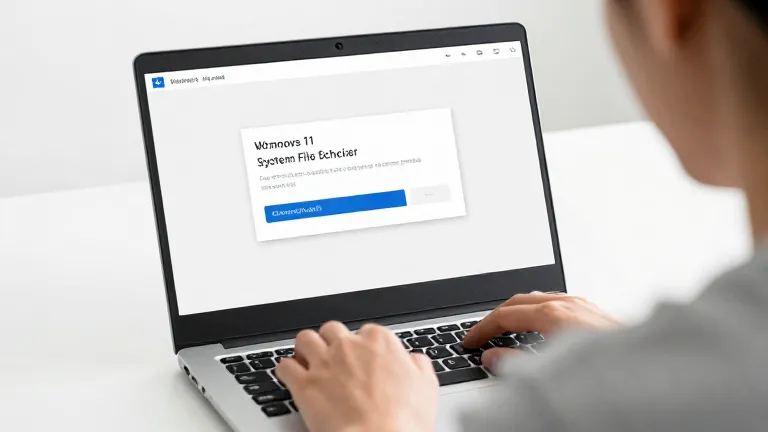
Run the System File Checker (SFC) tool to scan for and repair corrupted system files that may be causing File Explorer instability. Open Command Prompt as an administrator and enter 'sfc /scannow' to initiate the scan. This process can take several minutes, and it will automatically replace any problematic files with healthy copies. If the scan detects issues, restart your computer to apply the fixes.
Updating Drivers for Hardware Compatibility
Outdated or incompatible drivers can lead to File Explorer crashes, especially with storage devices and graphics hardware. Visit the manufacturer's website for your hardware components and download the latest drivers. Install them one at a time to identify if a specific driver is the cause. If a driver update doesn't resolve the issue, consider uninstalling the driver and reinstalling it through Device Manager to restore compatibility.
Preventive Measures to Avoid File Explorer Issues
Preventive measures are essential to avoid recurring File Explorer issues and ensure smooth file management. By following simple yet effective strategies, you can significantly reduce the likelihood of crashes and improve overall system performance.
- Keep your system and software updated regularly.
- Avoid opening too many folders or files at once.
- Use third-party tools for file management if needed.
How to Maintain a Stable File Explorer
How to Maintain a Stable File Explorer involves keeping your operating system and all installed software up to date. Regular updates often include bug fixes and performance improvements that can prevent File Explorer from crashing. Enable automatic updates in Windows Settings to ensure your system remains secure and stable. Additionally, updating drivers for hardware components like storage devices can help prevent compatibility issues that may affect File Explorer.
Best Practices for File Management
Best Practices for File Management include organizing files into logical folders and limiting the number of open windows at any given time. Overloading File Explorer with too many folders or files can cause it to become unresponsive. Instead, use shortcuts or the search function to quickly locate files without overwhelming the interface. Consider using cloud storage or external drives for large file collections to reduce the load on your local system and improve efficiency.
When to Seek Further Help for File Explorer Problems
If File Explorer continues to malfunction despite all basic and advanced troubleshooting steps, it may be necessary to seek further assistance. Microsoft provides dedicated support channels and community forums where users can share their experiences and find solutions. In some cases, a complete system reset or reinstall may be required to resolve persistent issues.
When to Contact Microsoft Support
Microsoft Support is a valuable resource for resolving complex File Explorer issues. If the problem persists after trying all other options, reaching out to Microsoft support can provide access to expert guidance and tools. Support teams can help identify underlying system conflicts or software incompatibilities that may be causing File Explorer to crash.
Reinstalling Windows as a Final Option
Reinstalling Windows should be considered only as a final option when all other troubleshooting methods have failed. This process can eliminate software conflicts and restore system stability. Before proceeding, ensure you have backed up important data and are prepared to reinstall all necessary programs and settings.
Frequently Asked Questions
What should I do if File Explorer is frozen and won't respond?
If File Explorer is frozen, try restarting it manually by opening Task Manager and ending the explorer.exe process. If that doesn't work, restart your PC to clear any temporary glitches.
How can I force File Explorer to restart without restarting my PC?
To restart File Explorer without rebooting, open Task Manager, locate the explorer.exe process, and click 'Restart' to refresh the interface.
What are the common reasons File Explorer crashes on Windows 11?
File Explorer crashes can result from corrupted system files, outdated drivers, insufficient RAM, or conflicts with third-party software. These issues can cause instability or freezing.
Is there a way to prevent File Explorer from freezing in the future?
To prevent File Explorer from freezing, keep your system updated, manage your files efficiently, and avoid running too many background applications that consume system resources.
Final Thoughts
By following the troubleshooting steps and adopting good file management habits, you can significantly reduce the chances of File Explorer freezing or crashing. If these methods don't resolve the issue, consider reaching out to Microsoft Support for further assistance.
Take proactive steps to maintain system stability and ensure a smoother experience with File Explorer. If problems persist, you may need to reinstall Windows as a last resort.





