
Windows 11 26H2 Auto-Install: What You Need to Know
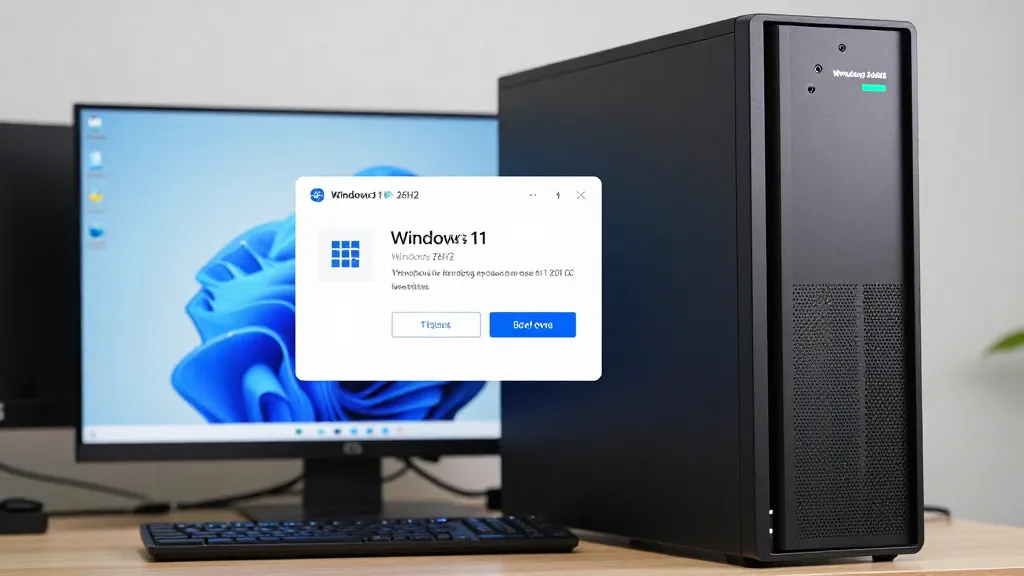
If your Windows 11 device is suddenly installing the Windows 11 26H2 auto install without you asking, you're not alone. Microsoft has started rolling out this update automatically to eligible devices, including personal and non-managed business computers. This change is part of a broader effort to streamline updates and ensure users get the latest features and security improvements. Understanding how the Windows 11 26H2 auto install works—and how to manage it—is essential for keeping your system running smoothly.
The Windows 11 26H2 auto install is part of Microsoft's phased rollout, which began in late October 2026. The update includes new features, performance enhancements, and critical security patches. However, not all users may be ready for these changes, making it important to know how to control or delay the update if needed.
This article explains the Windows 11 26H2 auto install process, how it works, and what you can do to manage it. Whether you're a home user or an office worker, understanding the update's impact and your options will help you make informed decisions about your device's future.
What Is Windows 11 26H2 Auto Install?
Microsoft is now automatically installing Windows 11 26H2 on unmanaged devices, making it easier for users to stay up to date without manual intervention. This update, part of a broader rollout plan, includes all the features from previous Windows 11 versions and is designed to improve both security and performance. The auto-install process is rolling out gradually, starting with devices running Windows 11 24H2 and 25H2, ensuring a smooth transition for users.
Understanding the Auto-Install Process
The auto-install process for Windows 11 26H2 is managed through Windows Update, which automatically delivers the update to eligible devices. This means that users who are not part of an IT-managed environment will receive the update without having to check for it manually. The update is available for personal and non-managed business devices running Windows 11 24H2 and 25H2, and it will continue to roll out as the process progresses.
Why Microsoft Is Rolling Out the Update Automatically
Microsoft is rolling out the update automatically to simplify the update process and ensure that users have access to the latest features and security improvements. By automating the installation, Microsoft aims to reduce the burden on users and ensure a more consistent experience across devices. This approach also helps in maintaining the overall security of the Windows ecosystem by ensuring that devices are kept up to date with the latest patches and features.
How Does Windows 11 26H2 Auto Install Work?
The Windows 11 26H2 auto install process is managed through Windows Update, which automatically delivers the update to eligible devices. This ensures that users receive the latest version without needing to manually check for updates. The process is particularly beneficial for unmanaged devices, such as personal computers, which now receive the update without user intervention.
The Role of Windows Update in the Auto-Install Process
Windows Update plays a central role in the auto-install process for Windows 11 26H2. It continuously checks for new versions and applies updates based on the device's settings. This system ensures that eligible devices, including those running Windows 11 24H2 and 25H2, receive the latest improvements and security patches automatically. The update is rolled out gradually, with Microsoft expanding its availability to more devices over time.
How to Manually Check for Windows 11 26H2 Updates
If you prefer to control when the update is installed, you can manually check for Windows 11 26H2 updates. This option is useful if you want to ensure the update is installed as soon as possible or if you're concerned about potential disruptions. To do this, navigate to Settings > Windows Update and select 'Check for Windows updates.' Additionally, you can toggle the 'Get the latest updates as soon as they're available' option to prioritize timely installations. This method gives you more control over the update process while still keeping your system up to date.
What Are the Benefits of Windows 11 26H2 Auto Install?
The Windows 11 26H2 auto install brings a range of benefits that enhance both the user experience and device security. By automatically delivering the update, Microsoft ensures that users stay protected and benefit from the latest improvements without needing to take action.
New Features in Windows 11 26H2
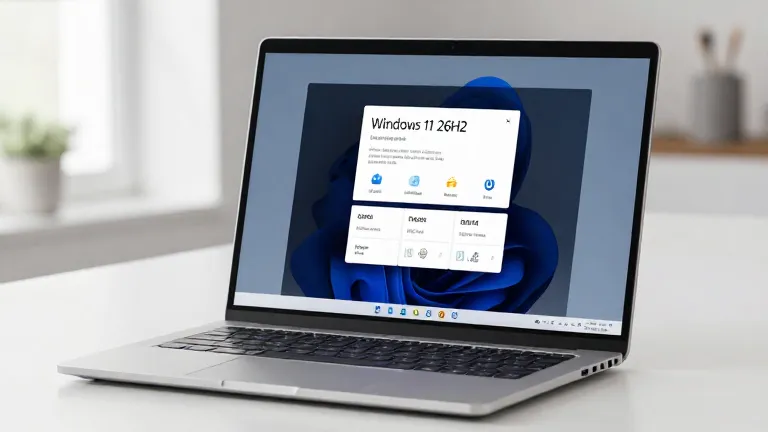
Windows 11 26H2 introduces several new features and improvements that enhance productivity and user experience. These include enhanced support for memory integrity, which helps protect against certain types of attacks, and improved performance in managing system resources. The update also brings new tools for managing files and settings, making it easier for users to customize their environment according to their needs.
Security and Performance Improvements
Automatic installation of Windows 11 26H2 ensures that your device receives the latest security patches and performance optimizations. This reduces the risk of vulnerabilities being exploited and helps maintain system stability. Additionally, the update includes efficiency improvements that can lead to better battery life and faster response times, especially on devices with limited resources. By staying up to date, users can also ensure their devices remain supported for the full duration of their lifecycle, reducing the need for frequent manual updates.
What Should You Do If You Don’t Want the Auto Install?
If you prefer to avoid automatic installation of Windows 11 26H2, several options are available to manage or delay the update. These methods give you control over when updates are applied, ensuring you can plan for them without unexpected disruptions.
- Change your Windows Update settings to prevent automatic installation.
- Use the 'Pause updates' feature in Windows 11 to delay the update.
- Manually check for updates and install them at your convenience.
- Disable automatic updates if you prefer to manage them manually.
- Use third-party tools to control when updates are installed.
How to Manage or Delay the Auto Install
To manage or delay the auto-install of Windows 11 26H2, you can adjust your Windows Update settings. Open Settings, navigate to Windows Update, and select Advanced options. From there, you can choose to Pause updates for up to 35 days, giving you time to prepare for the update without it being applied automatically. This feature is useful if you want to avoid disruptions during work hours or when you're away from your device.
Additionally, you can change your update settings to Never receive updates automatically. This means you’ll have to manually check for updates by going to Settings > Windows Update > Check for updates. While this gives you full control, it requires more attention to ensure your system remains secure and up-to-date.
Alternative Methods to Control Windows 11 Updates
For users who want more flexibility, third-party tools can be used to manage Windows updates. Tools like Windows Update Blocker or Update Blocker allow you to schedule updates or block them entirely. These tools can be particularly helpful if you’re dealing with a large number of devices or if you need to ensure updates are applied during specific times. However, it’s important to choose reputable tools to avoid any potential security risks.
While third-party tools offer convenience, they should be used with caution. Always verify the tool’s reputation and ensure it doesn’t interfere with your system’s stability or security. Combining these tools with built-in Windows settings can give you a more tailored approach to managing updates.
What Happens After the Auto Install?
After the Windows 11 26H2 auto install completes, your device will be running the latest version of the operating system, which is supported until October 2029. This means that your device will receive security patches, bug fixes, and performance improvements for the next few years. However, it is important to stay updated to ensure compatibility with future updates and to continue benefiting from the latest features and security enhancements.
Support and Lifespan of the Windows 11 26H2 Update
The Windows 11 26H2 update is currently available for a limited time, and it will eventually be replaced by newer versions as Microsoft continues to release updates. The support period for 26H2 ends in October 2029, which is less than three years from now. During this time, Microsoft will provide regular updates to ensure your device remains secure and functional. Once the support period ends, your device will no longer receive updates, so it is crucial to keep your system updated to avoid potential vulnerabilities and ensure continued compatibility with future software and hardware.
Preparing Your Device for Future Updates
To prepare your device for future updates, make sure that your system meets the minimum requirements for upcoming versions of Windows 11. This includes having sufficient RAM, storage space, and a compatible processor. Additionally, keep your device up to date with the latest patches and features to maintain optimal performance and security. By staying current, you will be better positioned to handle future updates and avoid any potential issues that may arise from outdated software.
Frequently Asked Questions
What happens if I don’t want to install Windows 11 26H2 automatically?
If you prefer not to install Windows 11 26H2 automatically, you can manage your update settings to pause or delay the installation. Microsoft provides options to adjust how updates are delivered, allowing you to control when the update is applied.
Can I delay the installation of Windows 11 26H2?
Yes, you can delay the installation of Windows 11 26H2 by adjusting your Windows Update settings. Microsoft allows users to pause updates for a certain period, giving you more control over when the update is applied.
What should I do if the auto install causes problems on my device?
If the auto install causes issues, you can roll back the update or troubleshoot the problem. Microsoft provides tools to revert to a previous version, and you can also check for any specific error messages to find solutions.
Will my device still receive support after the Windows 11 26H2 update?
Your device will still receive support after the Windows 11 26H2 update, but it will eventually reach end-of-support in October 2029. It's important to stay updated to ensure continued security and support.
Final Thoughts
Microsoft's rollout of Windows 11 26H2 includes automatic updates for eligible devices, simplifying the upgrade process. Understanding how the auto-install works and how to manage it is essential for maintaining system stability and security.
To ensure a smooth transition, review your update settings and prepare for future updates. Staying informed about the support timeline and features in Windows 11 26H2 will help you make the most of the update.





