
How to Fix Windows 11 Mouse Not Moving Smoothly
If your mouse isn't moving smoothly on Windows 11, it can disrupt your workflow and make tasks frustrating. This issue, commonly referred to as 'How to Fix Windows 11 Mouse Not Moving Smoothly,' often stems from software glitches, outdated drivers, or hardware interference. Whether you're a tech-savvy user or someone encountering this problem for the first time, there are practical steps you can take to restore smooth mouse movement without needing professional help.
This article provides a straightforward guide to troubleshooting mouse lag and jitter on Windows 11. We'll start by checking for physical issues like dirt on the mouse or surface, then move on to updating or reinstalling drivers. You'll also learn how to adjust mouse settings and identify background applications that may be causing the problem.
For persistent issues, we'll explore advanced troubleshooting options, including using built-in Windows tools and testing your mouse on another computer. By following these steps, you can resolve most mouse performance problems and regain a smooth, responsive pointing device.
Check for Physical Interference or Hardware Issues
Before diving into software solutions, it's essential to rule out physical or hardware-related causes for mouse lag or jitter in Windows 11. Simple checks can often resolve the issue without requiring technical expertise or additional tools.
Clean Your Mouse and Surface
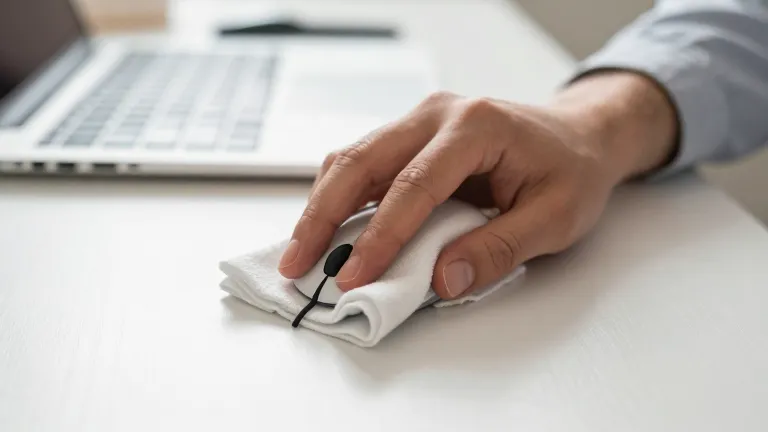
Ensure that your mouse is free from dust, dirt, or debris that might interfere with its movement. Use a soft, dry cloth or isopropyl alcohol to gently clean the mouse's surface, especially the sensor area. Also, check the mouse pad or surface for any buildup of grime or residue. A clean mouse and surface can significantly improve tracking accuracy and reduce lag.
Test with a Different Mouse
If the issue persists after cleaning, try connecting the mouse to a different USB port or using a Bluetooth mouse to see if the problem is related to the current connection. Ensure the mouse is properly plugged in and that the USB port is functioning correctly. If you're using a wireless mouse, check the battery level and ensure the receiver is securely connected. If the mouse works on another device, the problem is likely with the Windows 11 setup rather than the hardware itself.
Update or Reinstall Mouse Drivers
Updating or reinstalling mouse drivers is a critical step in resolving mouse lag or jitter in Windows 11. Outdated or corrupted drivers can cause erratic mouse behavior, so ensuring your system has the latest drivers is essential for smooth performance.
How to Update Mouse Drivers in Windows 11
To update your mouse drivers, open the Device Manager by right-clicking the Start menu and selecting it. Expand the 'Mice and other pointing devices' section, right-click your mouse model, and choose 'Update driver.' Windows will search for and install any available updates. If no updates are found, check the manufacturer's website for the latest drivers specific to your mouse model.
How to Reinstall Mouse Drivers
If updating doesn't resolve the issue, uninstalling and reinstalling the mouse driver can help. In Device Manager, right-click your mouse and select 'Uninstall device.' Confirm the action and restart your computer. Windows will automatically reinstall the driver upon reboot. Ensure your system is up to date with the latest Windows updates, as these often include important driver improvements and bug fixes.
Adjust Mouse Settings for Better Performance
Adjusting mouse settings in Windows 11 can significantly improve pointer movement and responsiveness. Fine-tuning pointer speed, sensitivity, and disabling unnecessary enhancements can help reduce jitter and make the mouse feel more natural under your control.

Change Mouse Pointer Speed and Sensitivity
To adjust the mouse pointer speed and sensitivity, open the Control Panel and navigate to 'Hardware and Sound' > 'Mouse.' Here, you can modify the 'Pointer speed' slider to find a balance between responsiveness and smoothness. For more precise control, adjust the 'Enhance pointer precision' option if enabled, which can sometimes cause erratic movement. Additionally, you can tweak the 'Mouse acceleration' setting to determine how quickly the pointer speeds up as you move the mouse. Lowering acceleration can provide more consistent tracking, especially for tasks requiring fine control.
Disable Mouse Enhancements
Disabling mouse enhancements like 'Enhance pointer precision' can resolve tracking issues that cause the pointer to lag or jitter. This feature, while intended to smooth out movement, can sometimes create an unnatural feel, especially on high-precision mice. To disable it, go to the same Mouse settings in the Control Panel and uncheck the box next to 'Enhance pointer precision.' You can also adjust the 'Double-click speed' to ensure the mouse responds quickly to clicks without overreacting. Making these adjustments can help the mouse feel more accurate and responsive, especially when performing tasks that require precision.
Check for Background Applications Affecting Mouse Performance
Background applications can significantly impact mouse performance by consuming system resources. Identifying and managing these programs can help restore smooth mouse movement. Monitoring system usage and disabling non-essential startup programs are effective ways to improve overall responsiveness.
Use Task Manager to Identify Resource Usage
Open Task Manager by pressing Ctrl + Shift + Esc to view real-time system performance. Look for applications with high CPU, memory, or disk usage that might be causing lag. Right-click on any suspicious processes and select 'End Task' to stop them temporarily. This can help determine if a specific program is affecting mouse responsiveness.
Disable Unnecessary Startup Programs
To reduce system load, disable unnecessary startup programs through Task Manager. Navigate to the 'Startup' tab and right-click on any non-essential applications to disable them. This prevents resource-heavy programs from launching automatically and interfering with mouse performance. Regularly reviewing and managing startup items ensures optimal system performance.
Advanced Troubleshooting for Persistent Mouse Issues
If your mouse issues persist after trying basic troubleshooting steps, it's time to explore more advanced solutions. Windows 11 includes built-in tools designed to diagnose and fix mouse and keyboard problems, and testing the mouse on another device can help determine whether the issue is hardware- or software-related.
Use Windows Troubleshooters for Mouse Issues
Start by opening the Settings app and navigating to System > Devices > Mouse. Click on 'Troubleshoot' to run the built-in mouse troubleshooter. This tool scans for common issues such as driver conflicts, incorrect settings, or hardware malfunctions. If the troubleshooter doesn't resolve the problem, try running the 'Keyboard and Mouse' troubleshooter from the Control Panel. These tools can identify and fix underlying issues that might be affecting your mouse's performance.
Test the Mouse on Another Computer
To isolate the problem, connect your mouse to a different computer and test its performance. If the mouse works smoothly on another device, the issue is likely with your current system's software or drivers. If the problem persists across multiple computers, the mouse itself may be faulty, or there could be an issue with the USB port or wireless receiver. This step helps determine whether the problem is device-specific or system-wide, guiding you toward a more targeted solution.
Frequently Asked Questions
Why is my mouse not moving smoothly on Windows 11?
Mouse movement issues on Windows 11 can stem from hardware problems, outdated drivers, or software conflicts. Begin by checking for physical obstructions or cleaning your mouse and surface. If the issue persists, update your mouse drivers or test the mouse on another computer to isolate the problem.
How do I check if my mouse driver is up to date?
To check your mouse driver status, open Device Manager, expand the 'Mice and other pointing devices' section, right-click your mouse, and select 'Update driver.' This will check for available updates. If no updates are found, consider reinstalling the driver for improved performance.
What should I do if my mouse is jittering on Windows 11?
Jittering can be caused by outdated drivers or conflicting software. Update your mouse drivers and disable any mouse enhancements in the settings. If the problem continues, test the mouse on another computer to determine if the issue is hardware-related.
Can a dirty mouse cause movement issues on Windows 11?
Yes, a dirty mouse can lead to movement issues due to reduced sensitivity or tracking accuracy. Clean the mouse and surface regularly to maintain optimal performance. If the problem persists, test the mouse on another computer to rule out hardware faults.
Final Thoughts and Next Steps
Smooth mouse movement on Windows 11 requires attention to both hardware and software settings. By following the outlined steps, you can identify and resolve most common issues, such as outdated drivers, conflicting applications, or physical obstructions.
If the problem persists after trying these solutions, consider advanced troubleshooting or contacting technical support. Ensuring your mouse is clean, drivers are updated, and background processes are managed can significantly improve your experience.





