
Why Windows 11 Keeps Freezing and How to Fix It

If you're wondering why Windows 11 keeps freezing, you're not alone. Many users experience unexpected freezes that disrupt work and daily tasks. These issues can stem from a variety of factors, including software conflicts, hardware limitations, or outdated system files. Understanding the root cause is the first step toward finding a solution. This article provides a clear, step-by-step guide to help you identify and resolve freezing problems on your Windows 11 device. Whether you're a home user or an office worker, the fixes outlined here can help restore stability without requiring professional assistance.
Understanding Why Windows 11 Freezes
Windows 11 freezing can be frustrating, but understanding the underlying causes is the first step toward resolving the issue. Whether it's software conflicts, hardware limitations, or system file errors, identifying the root cause can help users find an effective solution.
Common Causes of Windows 11 Freezing
Common Causes of Windows 11 Freezing can often be traced back to a combination of software and hardware issues. Overheating is a frequent culprit, especially if the device lacks proper ventilation or has dust buildup in the cooling system. Driver incompatibilities can also lead to freezes, particularly when new hardware or software is installed without proper updates. Additionally, background processes consuming excessive memory or CPU resources can cause the system to lag or freeze, especially on devices with limited hardware capabilities.
How to Check System Logs for Errors
How to Check System Logs for Errors is a critical step in diagnosing Windows 11 freezing. The Event Viewer provides detailed logs that can reveal system crashes, application errors, or hardware issues. To access it, press Win + R, type 'eventvwr.msc', and press Enter. Navigate to 'Windows Logs' and select 'System' or 'Application' to review recent events. Look for error codes or warnings that coincide with the freezing incidents. These logs can help pinpoint specific issues such as failed driver loads, software conflicts, or hardware malfunctions.
Basic Troubleshooting Steps for Freezing
Basic troubleshooting steps are essential when dealing with Windows 11 freezing. These simple actions can often resolve the issue without requiring advanced technical knowledge.
- Restart your device to clear temporary glitches.
- Check for system updates to apply the latest bug fixes.
- Disable unnecessary startup programs to reduce memory usage.
- Scan for malware to rule out security-related issues.
How to Restart Windows 11 Properly
Restarting your Windows 11 device can resolve many temporary glitches that may cause freezing. When you restart, the system clears out temporary files, resets running processes, and refreshes the operating system. If the freezing issue is due to a minor software conflict or a corrupted cache, a restart can often fix it. However, make sure to save any open work before initiating the restart to avoid data loss.
Checking for Windows Updates
Checking for Windows updates is a crucial step in resolving freezing issues. Microsoft frequently releases updates that include bug fixes, performance improvements, and security patches. These updates can address underlying issues that may be causing your system to freeze. To check for updates, go to Settings > Windows Update and click 'Check for updates'. If updates are available, install them and restart your device to apply the changes.
Advanced Fixes for Persistent Freezing
Persistent freezing in Windows 11 often stems from software conflicts or hardware issues that require deeper troubleshooting. A clean boot and hardware health check can help identify and resolve these problems without affecting your data.

How to Perform a Clean Boot
A clean boot starts Windows 11 with a minimal set of drivers and startup programs, helping to isolate software conflicts that may be causing the freeze. To perform a clean boot, press Ctrl + Shift + Esc to open Task Manager, then navigate to the 'Startup' tab and disable all startup items. Next, open the Run dialog by pressing Win + R, type 'msconfig', and press Enter. In the 'Services' tab, check the 'Hide all Microsoft services' box and disable the rest. Restart your computer to apply the changes. If the freezing stops, a third-party application or service is likely the cause.
Checking Disk Space and Storage Health
Checking disk space and storage health is crucial for preventing system freezes. Ensure that your system drive has at least 15% free space to allow Windows to operate efficiently. Open File Explorer, right-click on the system drive (usually C:), and select 'Properties' to view the available space. If the drive is nearly full, delete unnecessary files or move data to an external storage device. Additionally, use the built-in 'Check Disk' tool by opening Command Prompt as an administrator and typing 'chkdsk /f /r' to scan for and repair file system errors. Maintaining a healthy storage environment can significantly improve system stability.
System File and Driver Fixes
System file and driver issues can significantly impact the stability of Windows 11. Corrupted system files or outdated drivers can lead to unexpected freezing, making it crucial to address these problems systematically. Running diagnostic tools and updating drivers can often resolve these issues without requiring a full system reinstall.
- Run the System File Checker (SFC) to repair corrupted system files.
- Use DISM to reset the Windows image and resolve deeper system issues.
- Update or reinstall hardware drivers to ensure compatibility and stability.
- Check for driver rollbacks if recent updates caused instability.
Running SFC and DISM Commands
The System File Checker (SFC) is a built-in Windows tool that scans for and repairs corrupted system files. To run SFC, open the Command Prompt as an administrator and type 'sfc /scannow'. This process may take some time, but it can resolve issues related to system file corruption that might cause freezing.
If SFC doesn't fully resolve the problem, the Deployment Image Servicing and Management (DISM) tool can be used. DISM repairs the Windows image and can fix deeper issues that SFC might not address. Run DISM by typing 'DISM /Online /Cleanup-Image /RestoreHealth' in the Command Prompt. This command may require internet access to download necessary files.
How to Update or Reinstall Drivers
Outdated or incompatible drivers can cause instability and freezing in Windows 11. To update drivers, open Device Manager, right-click on the relevant hardware, and select 'Update driver'. This ensures your system uses the latest manufacturer-provided drivers, which can improve performance and prevent crashes.
If updating drivers doesn't resolve the issue, consider reinstalling them. Right-click on the device in Device Manager and choose 'Uninstall device'. After uninstalling, restart your computer to allow Windows to automatically reinstall the drivers. This can help eliminate conflicts and restore system stability.
When to Consider Reinstalling Windows 11
Reinstalling Windows 11 can be a last-resort solution for persistent freezing issues, especially when software corruption or deep system errors prevent normal operation. Before proceeding, it is crucial to ensure that all critical data is securely backed up and that you have access to a recovery drive to reinstall the operating system if needed.
How to Back Up Your Data
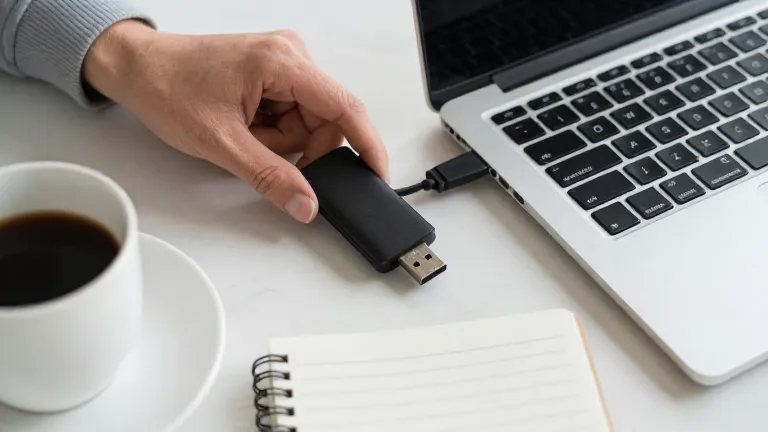
Before initiating a clean install, back up all personal files, documents, and essential data to an external drive, cloud storage, or another partition. This step ensures that no important information is lost during the reinstallation process. It is also advisable to save any custom settings or configurations in case they need to be re-applied after the system is restored.
Creating a Windows 11 Recovery Drive
Creating a Windows 11 recovery drive is essential in case you need to reinstall the operating system without internet access. To do this, insert a blank USB flash drive with at least 8GB of storage and use the Media Creation Tool from Microsoft's official website. Follow the prompts to create the recovery drive, which will allow you to boot into the Windows Recovery Environment and perform a clean installation if needed.
Frequently Asked Questions
What should I do if my Windows 11 keeps freezing after an update?
If Windows 11 freezes after an update, first check for any pending updates. If the issue persists, consider rolling back the update or performing a clean boot to isolate the problem.
Can overheating cause Windows 11 to freeze, and how can I check?
Yes, overheating can cause Windows 11 to freeze. Use built-in tools or third-party software to monitor your system temperature and ensure proper cooling.
How can I tell if a driver is causing my Windows 11 to freeze?
To identify a problematic driver, use the Device Manager to disable non-essential hardware. If the freezing stops, the driver is likely the cause.
Is a clean Windows 11 install the best solution for freezing issues?
A clean install should be a last resort. Try troubleshooting steps first, as it can lead to data loss and requires reinstallation of all software.
Final Thoughts on Fixing Windows 11 Freezing
Windows 11 freezing can be caused by various factors, including software conflicts, driver issues, and system resource limitations. By following the outlined steps, you can systematically troubleshoot and resolve most freezing problems.
If basic solutions fail, consider advanced fixes like clean boot or a system reinstall. Always ensure your data is backed up before making significant changes to your system.





