
How to Fix Bad Earbud Sound on Android
If you're struggling with fix bad earbud sound on your Android device, you're not alone. Many users experience poor audio quality, whether it's muffled sound, low volume, or distortion. The issue might not be with your earbuds themselves, but with how your Android phone is handling audio output. One common culprit is the 'Absolute Volume' setting, which can interfere with how your earbuds process sound. This article will guide you through understanding the problem and offer practical solutions to improve your listening experience.
We'll start by explaining how the Absolute Volume feature works and why it might be causing your earbuds to sound bad. Then, we’ll walk you through simple steps to disable it and other settings that can enhance sound quality. Whether you're tech-savvy or new to Android, these fixes are designed to be easy to follow and effective.
In addition to adjusting settings, we’ll cover alternative methods like testing different audio codecs, updating firmware, and maintaining your earbuds to prevent future sound issues. By the end of this article, you’ll have a clear plan to resolve fix bad earbud sound and enjoy clearer, more immersive audio on your Android device.
Understanding the Problem: Why Your Earbuds Sound Bad
If your earbuds sound bad on Android, the issue might not be with the earbuds themselves but with how your phone is handling audio output. A hidden setting called 'Absolute Volume' can interfere with the way your earbuds process sound, leading to poor audio quality. Understanding how this setting works and why it might be causing problems is key to fixing the issue.
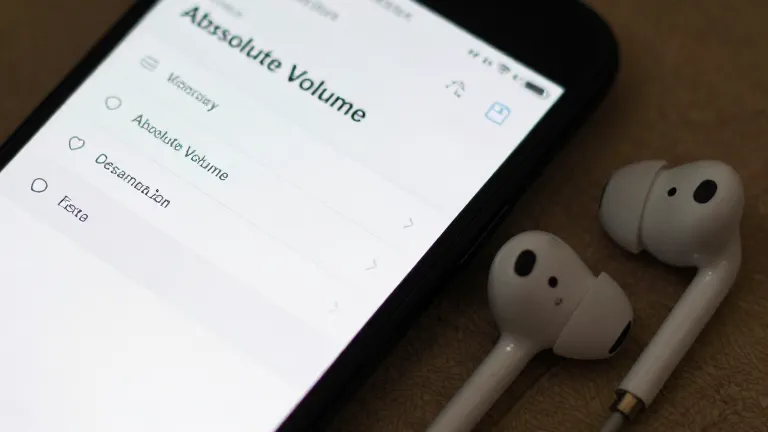
What Is Absolute Volume and How Does It Work?
Absolute Volume, also known as Absolute Bluetooth Volume, is a setting on Android that attempts to standardize the volume output across different audio sources. When enabled, it forces your phone to control the volume level sent to your earbuds, bypassing the earbuds' own volume controls. While this might seem helpful, it can actually disrupt the way your earbuds process audio, leading to issues like poor sound quality or distorted audio. Earbuds are designed to handle audio processing, including volume stepping and dynamic range compression, and disabling Absolute Volume allows them to function as intended.
Why Your Earbuds May Sound Bad on Android
Your earbuds may sound bad on Android because the phone is interfering with their audio processing. Many earbuds have built-in digital processing and volume control, which can be overridden by the Absolute Volume setting. This can result in a flat, lifeless sound or even distortion. In some cases, the problem might not be the earbuds at all but how the phone is managing the audio output. If your earbuds sound too quiet or have poor sound quality, it's worth checking whether the Absolute Volume setting is the culprit. Disabling it could restore the earbuds' natural audio processing and improve the overall sound quality.
Step-by-Step: How to Fix Bad Earbud Sound on Android
Fixing bad earbud sound on Android often starts with adjusting the phone's audio settings. One key setting to check is Absolute Volume, which can interfere with how your earbuds process sound. Disabling this setting allows your earbuds to handle audio processing as intended, potentially improving sound quality. Other volume-related settings and ensuring your earbuds are properly connected can also make a significant difference.
- Disable Absolute Volume on Android
- Check other volume-related settings
- Ensure earbuds are set as the default audio output
- Test with different audio sources
How to Disable Absolute Volume on Android
To disable Absolute Volume on Android, open the Settings app and navigate to Sound. Look for the 'Advanced' section and find the 'Absolute Volume' option. Toggle it off to let your earbuds handle audio processing. This change can make your sound more dynamic and less distorted, especially if your earbuds have their own digital processing capabilities.
Additional Steps to Improve Earbud Sound
After disabling Absolute Volume, check other volume-related settings. Go to Sound settings and look for options like 'Volume Stepping' or 'Audio Enhancements.' These settings can affect how audio is processed and delivered to your earbuds. Turning them off or adjusting them can help you achieve a more balanced and clear sound. Also, ensure that your earbuds are set as the default audio output. This can be found in the Sound settings under 'Output device' or 'Connected devices.' Selecting your earbuds ensures they receive the audio signal correctly.
Finally, test your earbuds with different audio sources. Play music, podcasts, or videos from various apps to see if the sound improves. If the issue persists, try using a different audio file format or streaming service. This can help identify if the problem is with the earbuds or the audio source itself.
Alternative Fixes for Poor Earbud Sound
If your earbuds still sound poor after adjusting settings, consider alternative fixes that can significantly improve audio quality. Trying different audio codecs and ensuring your devices are up-to-date can address underlying issues that might be affecting sound performance.
Testing with Different Audio Codecs
Many Android devices support various audio codecs such as AAC, LDAC, and SBC. These codecs compress and transmit audio data differently, which can impact sound quality. To test this, go to your phone's Bluetooth settings, select your earbuds, and check if an option to change the audio codec is available. If so, try switching to AAC or LDAC, which offer higher quality audio transmission. Some earbuds may not support all codecs, so it's important to verify compatibility before making changes.
Updating Your Android and Earbud Firmware
Keeping your Android system and earbud firmware updated is crucial for optimal performance. Manufacturers often release updates that fix bugs, improve connectivity, and enhance audio quality. To update your Android system, go to Settings > System > System Update and check for available updates. For earbuds, refer to the manufacturer's website or app for firmware updates. Ensure your earbuds are connected to your phone and follow the on-screen instructions carefully to avoid any interruptions during the update process.
Troubleshooting Common Earbud Sound Issues
If your earbuds continue to produce poor sound quality after adjusting settings, physical and software issues may be the culprits. Ensuring your earbuds are in good condition and properly configured can resolve many common problems.
Cleaning and Checking Earbud Contacts
Dirty or damaged earbud contacts can prevent proper signal transmission, leading to distorted or weak sound. Use a soft, dry cloth or a cotton swab dipped in isopropyl alcohol to gently clean the contacts. Avoid using excessive force or liquid, as this may damage the delicate components. If you notice any visible wear or corrosion on the contacts, replacing the earbuds may be necessary for optimal performance.
Resetting Your Earbuds to Factory Settings
Resetting your earbuds to their factory settings can resolve software-related issues that may be affecting audio quality. This process typically clears any corrupted settings or firmware bugs that could be causing sound problems. Refer to the manufacturer’s instructions for how to reset your specific earbuds, as the steps can vary. After resetting, pair the earbuds with your Android device again and test the sound quality to see if the issue is resolved.
Preventing Future Sound Issues with Your Earbuds
Preventing future sound issues with your earbuds involves proactive maintenance and mindful usage. By keeping your Android device and earbuds updated, avoiding problematic apps, and using high-quality audio sources, you can significantly reduce the chances of encountering sound quality problems.

Maintaining Your Android and Earbuds
Regularly updating your Android device and earbuds ensures that you have the latest bug fixes, performance improvements, and audio enhancements. Manufacturers often release firmware updates that address known issues with sound processing and connectivity. To check for updates, go to your phone's settings and look for system updates. For earbuds, consult the manufacturer's app or website for firmware updates. Staying current with these updates helps maintain optimal performance and sound quality.
Using High-Quality Audio Sources
Avoiding third-party apps that interfere with audio settings can prevent unexpected changes to your sound output. Some apps may alter volume levels or audio processing, leading to poor sound quality. Stick to official apps and avoid installing unknown or untrusted audio-related software. If you're unsure about an app's impact on your audio settings, research its reputation or consult user reviews before installation. Keeping your app ecosystem clean and trusted helps preserve the integrity of your audio experience.
Using high-quality audio sources, such as lossless music files or streaming services with high-bitrate options, ensures that your earbuds receive the best possible audio signal. Low-quality or compressed audio can result in muffled or distorted sound, even with good earbuds. Choose platforms like Spotify, Apple Music, or Tidal that offer high-fidelity streaming, and consider using lossless audio files if you're downloading music. By prioritizing quality over convenience, you can enjoy a richer and more accurate listening experience.
Frequently Asked Questions
Why do my earbuds sound bad on Android even though they work fine on other devices?
Your earbuds may sound bad on Android due to the 'Absolute Volume' setting, which can interfere with their audio processing. Other devices might not use this feature, allowing your earbuds to function as intended.
Can disabling Absolute Volume on Android improve my earbud sound quality?
Disabling Absolute Volume can allow your earbts to process audio as intended, potentially improving sound quality by letting them manage their own volume and audio processing.
What should I do if my earbuds still sound bad after disabling Absolute Volume?
Try additional steps like updating your Android and earbud firmware, testing different audio codecs, or checking for physical issues like dirty contacts or damaged cables.
Are there other Android settings that can affect earbud sound quality?
Other settings like audio codecs, volume levels, and Bluetooth pairing can impact sound quality. Ensuring your device and earbuds are up to date can also help.
Final Thoughts
Fixing bad earbud sound on Android often involves adjusting settings like Absolute Volume and ensuring proper audio processing. Regular maintenance and updates can prevent future issues.
To improve your earbud sound, start by disabling Absolute Volume and checking other settings. If problems persist, consider firmware updates or physical inspections.





