
How to Enable Windows Settings That Bring Work Back After Restart
If you frequently restart your Windows PC, you may have noticed that your work sessions — like open apps, tabs, and File Explorer windows — disappear every time. This can be frustrating, especially if you rely on a consistent workspace. The good news is that Windows has built-in settings that can restore your work automatically after a restart. These windows settings work after restart are designed to bring back your interrupted tasks without requiring you to manually reopen everything. In this article, we’ll show you how to enable these settings and how they can help you save time and maintain productivity.
Many users are unaware that Windows can automatically save and restore your work environment after a restart. This feature is especially useful when unexpected restarts occur due to updates, system slowdowns, or crashes. By enabling the right settings, you can ensure that your apps, files, and even File Explorer windows return exactly as you left them. This means less time spent reconfiguring your workspace and more time getting back to work.
The process is simple but requires a few steps to activate. We’ll guide you through enabling the two key settings that make windows settings work after restart possible. Whether you’re dealing with frequent restarts or just want to streamline your workflow, these settings can make a big difference. Read on to learn how to set them up and improve your Windows experience.
Why Your Work Disappears After a Windows Restart
Windows restarts can disrupt your workflow, often without warning. Whether it's a system update, a sudden slowdown, or a crash, your open applications and windows may vanish, leaving you to start over. Understanding why this happens and how Windows manages your workspace can help you prepare for these interruptions.
Common Reasons for Unexpected Restarts
Unexpected restarts are a common part of using Windows, often triggered by updates, performance issues, or system instability. Updates are a primary cause, as they frequently require a restart to apply changes. Additionally, if your PC becomes sluggish or experiences low-memory crashes, it may restart automatically to prevent further damage. These interruptions are rarely planned, which means your work environment can be lost without prior warning.
What Happens to Your Open Work After a Restart
By default, Windows does not automatically restore your open applications and windows after a restart. Instead, it resets your workspace, leaving you to manually reopen each program and window. This means that any unsaved work, open tabs, or specific file explorer layouts are gone, requiring you to recreate your setup. While this behavior is standard, it can be frustrating for users who rely on their workspaces for productivity. Understanding how Windows handles these scenarios can help you adjust your workflow and minimize the impact of unexpected restarts.
Enable the First Setting: Automatically Save Restartable Apps
The 'Automatically save my restartable apps and restart them when I sign back in' setting is a powerful tool for users who frequently restart their Windows PCs. It allows your open applications, tabs, and even unsaved work to be restored automatically after a restart, saving you time and effort. This feature is distinct from startup apps in Task Manager, which only launches apps on boot without considering your actual usage.
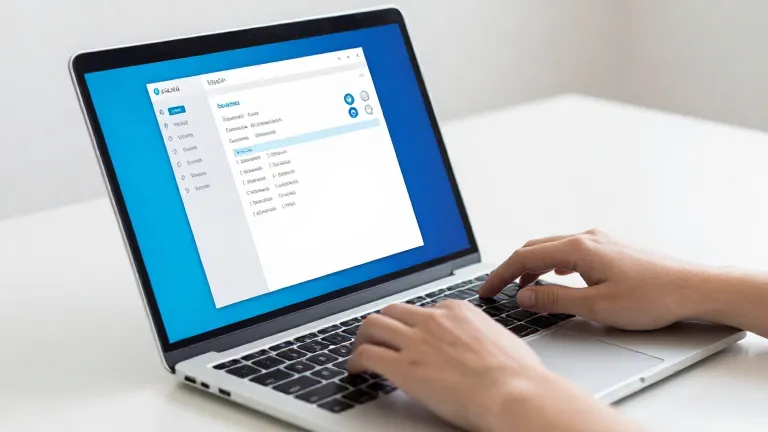
- Open the Start menu and select Settings.
- Navigate to Accounts > Sign-in options, and scroll down to the 'Additional settings' section.
- Toggle on 'Automatically save my restartable apps and restart them when I sign back in'.
- Restart your PC to test the feature.
Where to Find the Setting in Windows
To locate the setting, go to the Settings app by pressing the Windows key and typing 'Settings'. Click on 'Accounts' and then select 'Sign-in options'. Scroll down to the 'Additional settings' section, where you'll find the toggle for 'Automatically save my restartable apps and restart them when I sign back in'. Enabling this setting ensures that your open applications and work are preserved after a restart.
How to Test the Feature
To test the feature, open multiple applications such as Notepad, Microsoft Word, and a web browser with several tabs. Ensure you have some unsaved work in Notepad. Restart your PC and observe whether the applications and their state are restored. This test confirms that the setting is working as intended and helps you understand how it can streamline your workflow after unexpected restarts.
Enable the Second Setting: Restore File Explorer Windows
The second setting, Restore File Explorer Windows, ensures that the exact File Explorer windows you had open before a restart are brought back, providing a seamless continuation of your workflow. This feature works in conjunction with the first setting, Automatically Save Restartable Apps, to recreate your entire workspace, including open documents, browser tabs, and File Explorer windows, without manual intervention.
How This Setting Differs From Others
Unlike other settings that simply open default File Explorer windows, this setting specifically identifies and restores the exact windows you had open before the restart. This includes the folders you were browsing, the views you had set up, and even the size and position of each window. It is designed to replicate your precise work environment, making it an essential complement to the first setting.
Checking the Setting in Windows
To check this setting, navigate to the same location as the first setting: Settings -> Accounts -> Sign-in options, and look for the Restore File Explorer Windows option under Additional settings. This setting is typically off by default, so you will need to toggle it on to enable its functionality. Once activated, it will work alongside the first setting to ensure a comprehensive recovery of your work environment after a restart.
What to Expect After Enabling These Settings
Once you've enabled both settings, your workspace will automatically resume after a restart, bringing back your apps, windows, and even unsaved work. This means you won’t have to manually reopen programs or reorganize your files each time you start your PC, significantly reducing the time and effort needed to get back to work.
What Will Be Restored
Your open apps and windows will be restored automatically after a restart. This includes not only the applications you were using, such as Notepad, Word, and Firefox, but also the specific windows and tabs you had open. For example, if you had two tabs in Notepad with unsaved text, both will appear exactly as they were before the restart. Similarly, Firefox will reopen with all your previous tabs, including any bookmarks or extensions you had active.
How It Improves Productivity
File Explorer windows will return to their exact state, including the folders you had open and the files you were viewing. This means you won’t have to navigate through your directories again or search for the files you were working on. The setting ensures that even if you had multiple File Explorer windows open, each one will be restored to its previous position and state. This level of detail helps maintain your workflow without interruption, making it easier to continue your tasks immediately after a restart.
Tips to Maximize the Effect of These Settings
Once you've enabled the settings that restore your workspace after a restart, maintaining them effectively requires some proactive steps. By following these best practices and knowing how to address potential issues, you can ensure that your work is reliably recovered without disruptions.
- Keep your workspace organized to make the recovery process smoother.
- Avoid running too many memory-intensive applications to prevent crashes.
- Regularly save your work to avoid data loss.
- Test the settings with a few open apps before relying on them completely.
Best Practices for Using These Settings
Keeping your workspace organized helps ensure that the settings can accurately restore your session. Group related applications and files together, and avoid cluttering your desktop or taskbar. This makes it easier for Windows to recognize and reopen the exact layout you were working with, reducing the chance of missing or misplacing open windows and tabs.
How to Troubleshoot If Something Goes Wrong
If you encounter issues with the settings not working as expected, start by checking if all the required settings are enabled in the correct locations. If certain apps or windows fail to restore, consider restarting your PC again to confirm the behavior. If problems persist, try closing and reopening the apps before the restart, or temporarily disable and re-enable the settings to reset their configuration.
Frequently Asked Questions
Will these settings work if I restart my PC for an update?
These settings can work even if you restart for an update, but results may vary. Windows updates sometimes reset settings, so you may need to re-enable them after the update.
Can I restore my workspace after a restart if I'm using a laptop?
Yes, these settings work on laptops too. They restore apps and File Explorer windows regardless of whether you're using a desktop or laptop.
What if my apps don't reopen after a restart?
If your apps don't reopen, check if they are supported. Some apps may not save state properly. You can also try updating the app or Windows.
Are these settings available on all Windows versions?
These settings are available on Windows 10 and later versions, including Windows 11. They may not be present on older versions of Windows.
Next Steps
Enabling these settings can help restore your workspace after a restart, reducing the need to manually reopen apps. It's a simple way to improve productivity and save time.
To get started, enable the settings for saving restartable apps and restoring File Explorer windows. This will help you resume your work quickly after any restart.





