
Why Your Monitor Is Cutting Your Download Speed and How to Fix It
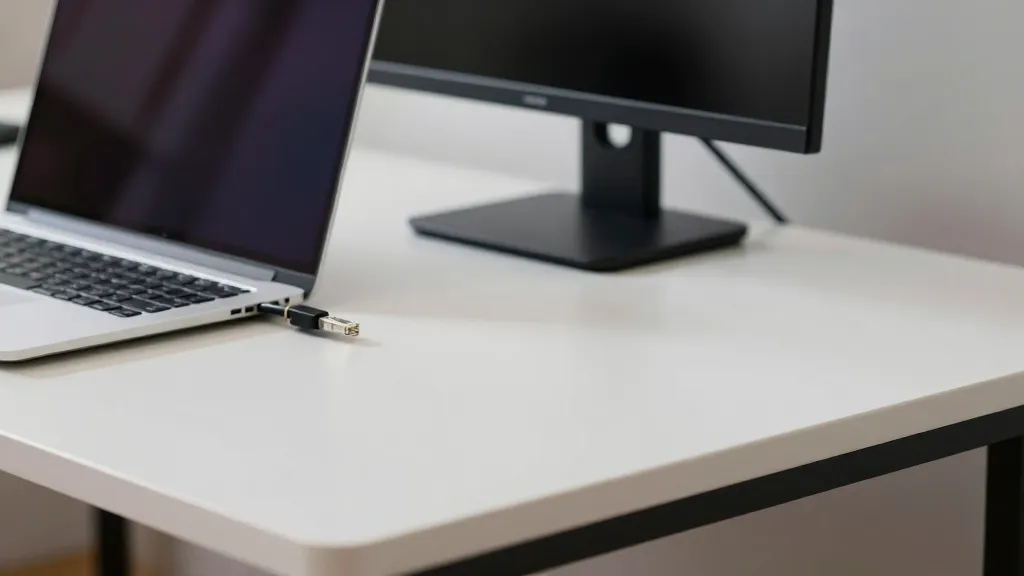
If you're experiencing a sudden drop in download speed, you might be surprised to learn that your monitor could be the culprit. Many modern monitors, especially those with USB hubs, can inadvertently slow down your internet connection by sharing bandwidth with other devices. This issue, known as monitor cutting download speed, is more common than you might think, especially with high-speed internet setups. If you're struggling to reach the speeds you're paying for, it's worth investigating whether your monitor is interfering with your connection.
The problem often arises when your monitor is connected via USB-C and also acting as a hub for other peripherals. In some cases, the monitor's internal USB hub can limit the bandwidth available for your internet connection, leading to slower download speeds. This can be especially noticeable if you're using a 2.5 Gbps or higher internet connection. Understanding how monitors interact with your network is the first step in diagnosing and resolving the issue.
In this article, we'll explore why a monitor might be affecting your download speed, how to identify if your monitor is the cause, and practical steps to fix the problem. Whether you're a home user or an office worker, knowing how to troubleshoot and prevent future issues can help you maintain optimal internet performance. Let's dive in and uncover the solution to your speed woes.
Understanding the Problem: Why a Monitor Can Affect Your Download Speed
Modern monitors can unexpectedly impact your internet download speed, particularly when connected through USB-C ports and using USB-to-Ethernet adapters. This issue, though rare, can lead to significant slowdowns, sometimes dropping speeds by 75% or more. Understanding how monitors and internet connections interact is crucial for diagnosing and resolving such problems.
How Monitors Can Interfere with Internet Speeds
Monitors can interfere with internet speeds when they act as a hub for multiple devices or share a data path with your network. This is especially common with USB-C displays that connect to your computer and also provide Ethernet connectivity. The monitor essentially becomes part of the data path, which can cause bottlenecks and reduce overall speed. This type of interference is not typical and usually occurs with specific hardware configurations.
The Role of USB Hubs and Shared Data Paths
USB hubs and shared data paths play a critical role in this issue. When a monitor is connected via a USB-C port and uses a USB-to-Ethernet adapter, it can share bandwidth with other connected devices. This shared bandwidth can limit the data transfer rate, especially if multiple devices are using the same data path. The problem often arises when the monitor is the primary or only device connected through this shared path, leading to a noticeable drop in download speed. Recognizing this shared connection is key to identifying and resolving the issue.
Identifying the Cause: Is Your Monitor the Problem?
To determine if your monitor is causing download speed issues, start by running speed tests with and without the monitor connected. This simple step can reveal whether the monitor is the root of the problem. If your download speed drops significantly when the monitor is connected, it's a strong indication that the monitor or its associated hardware is affecting your internet performance.
- Run a speed test with the monitor connected and then again without it to see if there's a noticeable difference in download speed.
- Try using a different monitor or a different setup to isolate the issue. If the speed improves when switching monitors or setups, the original monitor is likely the culprit.
- Check if the monitor is using the same USB-C port as your internet adapter. Monitors often share data paths through USB hubs, which can cause bandwidth conflicts.
- Test other devices connected via the same USB hub to see if they experience similar speed drops. This helps identify if the issue is with the hub or the specific monitor.
- Use separate USB-C ports for the monitor and the internet adapter to prevent data path conflicts. This ensures that both devices have dedicated bandwidth and avoid interference.
Running Speed Tests to Diagnose the Issue
Running speed tests is a straightforward way to identify if your monitor is affecting your download speed. Connect your monitor and run a speed test, then disconnect the monitor and run another test. If the download speed improves significantly without the monitor, it's a strong sign that the monitor is causing the issue. This method is effective because it isolates the variable of the monitor and allows you to compare results directly.
Testing with Different Monitors and Setups
Testing with different monitors and setups can help you pinpoint the exact cause of the speed drop. If you switch to a different monitor and your download speed improves, the original monitor is likely the problem. This approach is especially useful if you're using a USB hub or a monitor that shares data paths with other devices. It also helps rule out other factors such as hardware malfunctions or software conflicts.
Troubleshooting Steps to Fix Monitor-Related Speed Drops
If your monitor is suspected of causing download speed drops, the first step is to isolate the issue by testing your internet speed without the monitor connected. This will help determine whether the problem is related to the monitor or another factor in your setup.
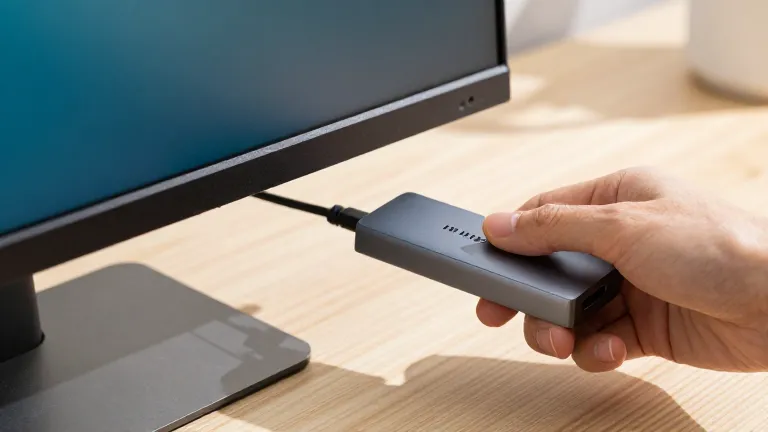
- Disconnect the monitor from the USB-C port and test your internet speed.
- Use a separate USB-C port for the monitor and the internet adapter if possible.
- Try a different USB-C to Ethernet adapter if you're using one.
- Check for software updates on your monitor and your computer.
- Ensure that your internet adapter is set to the correct speed and bandwidth.
Testing Without the Monitor Connected
Begin by disconnecting your monitor from the USB-C port and running a speed test. If your download speed improves significantly, it confirms that the monitor is interfering with your connection. This step helps eliminate the monitor as a variable and confirms the issue is related to the device itself.
Using a Different USB Port or Adapter
If your monitor is connected via a USB-C port, try using a different port on your computer or laptop. Some ports may not support the full bandwidth required for high-speed internet connections. If you're using a USB-C to Ethernet adapter, consider switching to a different adapter, as some models may not provide the necessary bandwidth. Ensure that the adapter is compatible with your device and supports the required speed, such as 2.5 Gbps.
Additionally, check if your monitor and computer have the latest software updates. Manufacturers often release updates that address compatibility issues and improve performance. Ensure that your internet adapter is configured correctly, and verify that it is set to the maximum supported speed. This will ensure that your connection is not being limited by incorrect settings.
Preventing Future Issues: Best Practices for Monitor and Internet Setup
To prevent future issues with your monitor affecting download speeds, it's essential to adopt best practices that ensure both your monitor and internet connection work seamlessly together. By following these guidelines, you can avoid common pitfalls and maintain optimal performance for your high-speed internet.
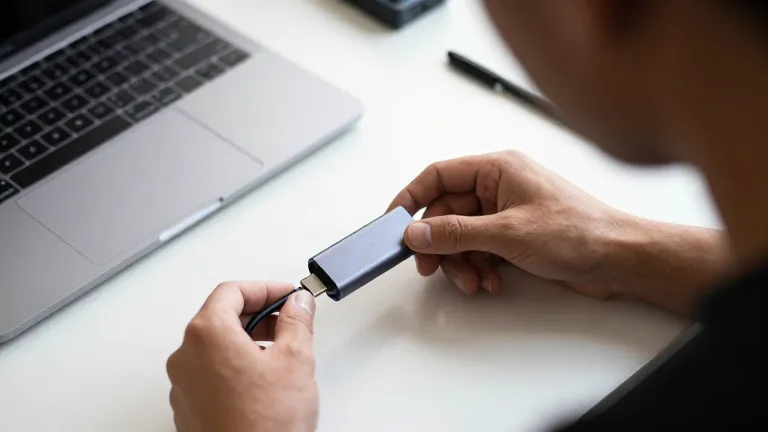
- Avoid connecting multiple high-speed peripherals to the same USB-C port.
- Use a separate USB-C port for your monitor and internet adapter if possible.
- Invest in a high-quality USB-C to Ethernet adapter for better performance.
- Regularly update your monitor and computer firmware to prevent compatibility issues.
- Keep your internet adapter settings optimized for your internet plan.
Optimal Monitor and Internet Setup Tips
Optimal monitor and internet setup involves careful planning to prevent conflicts between devices. Ensure that your monitor is connected to a dedicated USB-C port, especially if you're using a high-speed internet adapter. This minimizes the risk of shared data paths causing bottlenecks. If your monitor has multiple ports, consider using a USB hub to distribute the load more evenly and avoid overloading a single port.
Choosing the Right USB-C to Ethernet Adapter
Choosing the right USB-C to Ethernet adapter is crucial for maintaining high download speeds. Look for adapters that support 2.5G or higher speeds and have good reviews for reliability and performance. Avoid low-quality adapters that may introduce latency or reduce throughput. Additionally, ensure that the adapter is compatible with your monitor and computer to prevent any compatibility issues that could affect your internet speed.
When to Seek Professional Help
If you're still experiencing download speed issues after trying all troubleshooting steps, it's time to seek professional help. Whether you're dealing with a high-end monitor, a custom setup, or other connectivity problems, experts can provide the tools and knowledge to resolve the issue effectively.
When to Contact Your ISP or Tech Support
Contact your ISP or tech support if the problem persists despite your efforts. They can check for network issues or provide guidance on optimizing your setup. If you're using a high-speed internet connection and the issue isn't resolved, they may identify a problem with your ISP's infrastructure or your home network configuration.
When to Consult a Professional Monitor Technician
Consider consulting a professional monitor technician if you're using a high-end or custom monitor setup. These specialists can diagnose hardware or software issues that may be causing the speed drop. If you're unsure about your setup or the cause of the problem, a technician can help you identify and fix the issue without risking further complications.
Frequently Asked Questions
Can a monitor really slow down my internet connection?
Yes, a monitor can slow down your internet connection, especially if it uses a USB hub or shared data path. This is often due to bandwidth limitations or interference with the connection.
How do I know if my monitor is causing my internet speed drop?
You can identify if your monitor is causing the issue by testing your speed without the monitor connected. If your speed improves, the monitor is likely the cause.
What should I do if my download speed drops when I connect my monitor?
If your download speed drops when you connect your monitor, try disconnecting it and running a speed test. If the issue persists, test with a different monitor or setup.
Is there a way to prevent my monitor from affecting my internet speed?
To prevent your monitor from affecting your internet speed, use a dedicated USB-C to Ethernet adapter and avoid shared data paths. Optimize your setup for both performance and convenience.
Next Steps for a Faster Connection
Understanding that your monitor can affect your internet speed is crucial for maintaining optimal performance. By following the outlined troubleshooting steps and best practices, you can identify and resolve the issue effectively.
If you're still experiencing problems, it's time to seek professional help. Your ISP or a qualified technician can provide further insights and solutions tailored to your specific setup.





