
How to Fix Wireless Headphones No Sound
If your wireless headphones are suddenly producing no sound, it can be frustrating, especially if you rely on them for calls, music, or work. Whether you're a home user or tech-savvy, knowing how to fix wireless headphones no sound can save you time and hassle. This article provides a clear, step-by-step guide to help you troubleshoot and resolve the issue without needing professional assistance. From checking basic settings to advanced solutions, we cover the most common causes of audio failure and how to address them effectively. You'll find practical advice that works for a variety of devices and headphone models, ensuring you can get your audio back up and running smoothly.
Check Basic Connectivity and Settings
Before diving into more complex solutions, start by verifying the basic connectivity and settings of your wireless headphones. Simple issues like improper pairing, muted volume, or incorrect audio output settings can often be the root cause of no sound. Taking a methodical approach here can quickly resolve the problem without unnecessary troubleshooting.
Verify Pairing and Connection
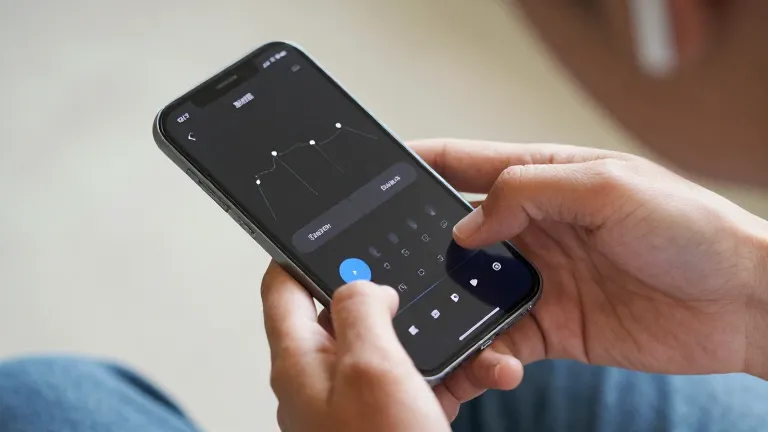
Ensure your wireless headphones are properly paired with your device. If they are not connected, put them in pairing mode by holding the power button until the indicator light flashes. Once in pairing mode, open the Bluetooth settings on your device and select your headphones from the list. If the connection is unstable, try removing the headphones from the device and re-pairing them to refresh the link.
Check Volume and Output Settings
Check that the volume is not muted or set to zero on both your headphones and your device. A muted setting or low volume can prevent audio from being heard. On your device, navigate to the sound settings and adjust the volume to an audible level. Additionally, confirm that the correct audio output device is selected in your system settings—some devices allow multiple audio outputs, and selecting the wrong one can result in no sound. If you're using a computer, ensure that the headphones are set as the default playback device in the sound preferences.
Reset Your Headphones and Device
Resetting your wireless headphones and device can resolve many common sound issues. A simple reset can clear temporary glitches and re-establish a stable connection. This section outlines steps to reset your headphones and restart your device to ensure optimal performance.
- Put the headphones in pairing mode and reset the connection.
- Restart your phone, tablet, or computer to resolve software glitches.
- Unpair and re-pair the headphones to ensure a fresh connection.
- Reset the device settings to default if the issue persists.
How to Reset Wireless Headphones
To reset your wireless headphones, locate the reset button, usually found on the back or side of the device. Press and hold it for about 10 to 30 seconds until the LED indicator flashes or the headphones enter pairing mode. This process clears any corrupted connection data and allows the headphones to reconnect properly.
Once in pairing mode, your device should detect the headphones automatically. If not, go to your device's Bluetooth settings and manually select the headphones from the list of available devices. This ensures a clean reconnection and may resolve intermittent sound issues.
Restarting Your Device for Better Performance
Restarting your phone, tablet, or computer can eliminate temporary software glitches that may be affecting audio output. Close all running apps, press and hold the power button, and select 'Restart' or 'Power Off' followed by 'Power On.' This action refreshes the system and can resolve conflicts with audio drivers or Bluetooth connectivity.
After restarting your device, check the volume settings again and ensure that the headphones are selected as the default audio output. Some devices may revert to built-in speakers if the connection is not properly re-established after a restart.
Update Firmware and Software
Updating firmware and software is a critical step in resolving sound issues with wireless headphones. Manufacturers often release updates to fix bugs, improve performance, and ensure compatibility with new devices or operating systems. By keeping both your headphones and your device up to date, you can eliminate potential conflicts that may be causing the no-sound problem.
Updating Headphone Firmware
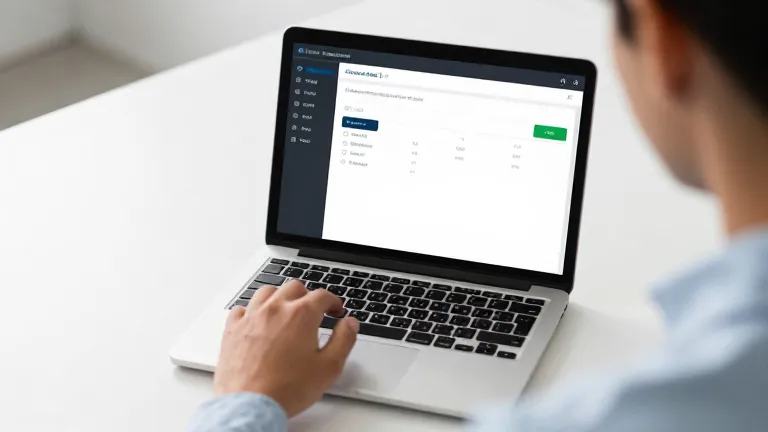
To update your headphone firmware, visit the manufacturer's official website and look for support or firmware update sections. Download the latest firmware file and follow the provided instructions for installation. Some headphones may require you to use a dedicated app or connect them to a computer for the update process. Always ensure your headphones are fully charged before starting the update to avoid interruptions.
Ensuring Your Device Is Up to Date
Check your device's settings for available operating system updates. On Android, go to Settings > System > System Update. On iOS, navigate to Settings > General > Software Update. Installing the latest OS version can resolve compatibility issues and improve audio performance. Additionally, ensure any companion apps for your headphones are updated to the latest version, as these often include bug fixes and new features that enhance functionality.
Check for Physical Damage and Battery Issues
Physical damage and battery issues are common causes of no sound in wireless headphones. A thorough inspection of the device and testing with different power sources can help identify and resolve these problems.
Inspect for Physical Damage
Begin by visually inspecting the headphones for signs of physical damage, such as cracks, frayed cables, or damaged speaker grilles. These issues can interfere with sound output and should be addressed before proceeding with further troubleshooting. If you notice any visible damage, it may be necessary to replace the affected components or the headphones altogether.
Battery and Power Management Issues
Ensure the headphones are fully charged and not in low power mode, as this can cause intermittent sound issues or complete silence. If the battery is old or no longer holds a charge, consider replacing it or the entire unit. Testing the headphones with another device can also help determine if the issue is related to power management or the device itself.
Advanced Troubleshooting and Replacement
If basic troubleshooting fails, advanced steps can help determine if the issue lies with the headphones or the audio source. Testing with different media and connections can isolate the problem and guide the next course of action.
- Use a different audio source to rule out playback or file issues.
- Test the headphones with a wired connection to isolate the problem.
- Check for interference from other wireless devices or Bluetooth signals.
- Consider replacing the headphones if all other steps fail.
Testing with Alternative Audio Sources
Testing with alternative audio sources helps determine if the issue is with the file, app, or device rather than the headphones. Try playing music from a different app, streaming service, or device to see if sound appears. If sound works on another source, the problem may be with the original media or app, not the headphones.
Replacing Faulty Headphones
If all troubleshooting steps fail and sound remains absent, the headphones may be faulty. Check for visible damage, degraded battery life, or manufacturer defects. If the issue persists across multiple devices and sources, replacing the headphones is often the most effective solution. Ensure you choose a compatible model and follow the manufacturer's warranty or return policies.
Frequently Asked Questions
What should I do if my wireless headphones have no sound?
Start by checking the connection and volume settings. If the issue persists, try resetting your headphones and device. Ensure both are updated to the latest firmware and software versions.
How can I reset my wireless headphones to fix the no sound issue?
Follow the manufacturer's reset instructions, usually found in the user manual. If unavailable, remove the headphones from the Bluetooth settings on your device and reconnect them.
Why is there no sound coming from my Bluetooth headphones?
The issue could be due to incorrect pairing, low battery, or software glitches. Check the connection, volume, and ensure your device is running the latest operating system.
What if my wireless headphones still have no sound after trying all the steps?
Physical damage or a faulty unit may be the cause. Test with another device or audio source. If the problem continues, consider replacing the headphones.
Final Steps for Resolution
Troubleshooting wireless headphones with no sound involves checking connectivity, resetting devices, updating software, and inspecting for physical issues. If all steps fail, the headphones may require replacement.
If you're still experiencing sound issues, reach out to the manufacturer for support or consider purchasing a new pair of wireless headphones for reliable performance.





