How to Fix Smart TV Not Switching Input Sources
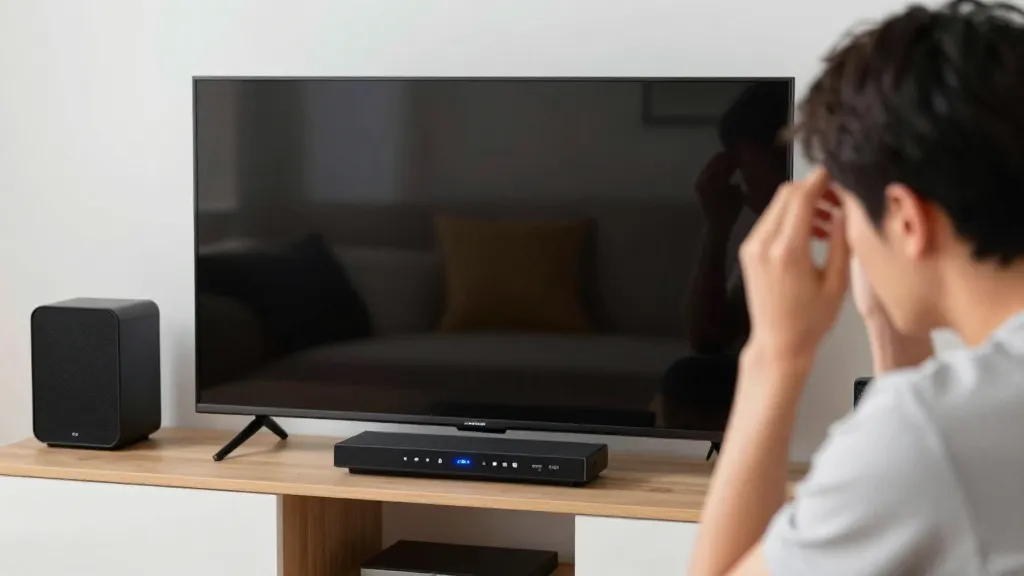
If your smart TV isn't switching input sources, it can be frustrating, especially when you're trying to watch content from different devices. This issue often stems from simple misconfigurations or connectivity problems. How to Fix Smart TV Not Switching Input Sources is a common challenge, but with the right steps, you can resolve it quickly. This article guides you through understanding why your TV might be having trouble switching inputs and provides actionable solutions.
We'll start by exploring common causes of input switching problems, such as incorrect source selections or faulty cable connections. Then, we'll move to basic troubleshooting steps that can help you identify and fix the issue without needing advanced technical knowledge. Whether you're a home user or a tech-savvy individual, these methods are designed to be practical and easy to follow.
For more persistent issues, we'll cover advanced settings and menu adjustments that can fine-tune your TV's behavior. We'll also address troubleshooting external devices and when to consider professional help. By the end of this article, you'll have a clear roadmap to restore your smart TV's input switching functionality.
Understanding Why Your Smart TV Won't Switch Input Sources
Understanding why your smart TV won't switch input sources is essential for resolving the issue effectively. Input switching problems can arise from a variety of factors, including physical connections, settings, or even device compatibility. By identifying the root cause, you can take targeted steps to restore proper functionality.
Common Causes of Input Switching Problems
Common causes of input switching problems often stem from simple oversights or misconfigurations. Loose or damaged HDMI cables, incorrect port selection, or outdated firmware can all prevent the TV from recognizing connected devices. Additionally, some TVs may not support all input types, especially older devices like analog video or certain gaming consoles. It's also possible that the TV's auto-switching feature is disabled, requiring manual input selection each time.
How Input Sources Work on Smart TVs
Modern smart TVs use a combination of hardware and software to manage input sources. When you connect a device like a gaming console or streaming box, the TV typically detects it through the HDMI port and assigns an input source automatically. However, this process can fail if the device isn't properly powered, the TV's settings are misconfigured, or the input source is not supported by the TV's operating system. Understanding how these components interact can help you troubleshoot more efficiently.
Basic Troubleshooting Steps for Input Source Issues
Basic troubleshooting steps can often resolve issues with your smart TV not switching input sources. By checking physical connections, verifying settings, and restarting devices, you can address common problems without needing advanced tools or technical expertise.
- Check that all cables are securely connected.
- Verify that the correct input source is selected on the TV.
- Restart the TV and any connected devices to resolve temporary glitches.
Check Cable Connections and Ports
Ensure all HDMI, USB, or other cables are firmly plugged into both the TV and the external device. Loose connections can prevent the TV from recognizing the input source. Inspect the ports for damage or debris that might interfere with the signal. If a cable is damaged, replace it with a new one to restore proper functionality.
Confirm Input Source Selection
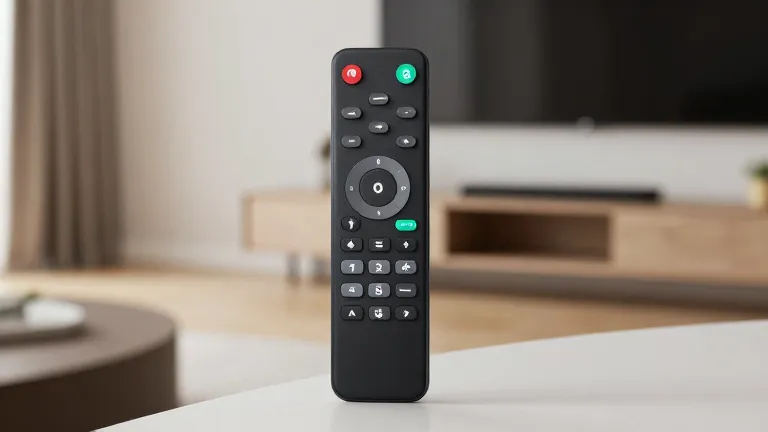
Use the TV remote to navigate to the input source menu and confirm that the correct source is selected. Some TVs require you to press the 'Source' or 'Input' button on the remote to cycle through options. If the TV is set to a different source than the one you're using, it will not display the correct feed. Double-check the settings to avoid confusion with similar labels like 'HDMI 1' versus 'HDMI 2'.
Advanced Settings and Menu Adjustments for Input Switching
Advanced settings and menu adjustments can resolve persistent input switching issues on a smart TV. By accessing the TV's settings menu, you can review and modify input source configurations, which may be misaligned or improperly set. This section guides you through essential steps to adjust these settings and restore proper input switching functionality.
Navigating the TV Settings Menu
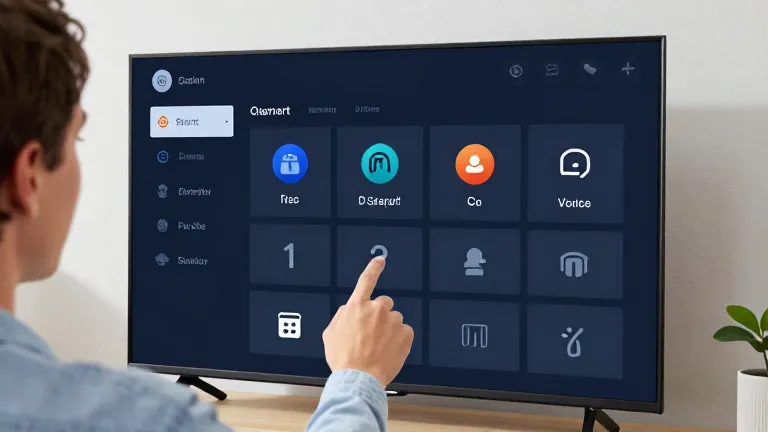
To access the TV's settings menu, press the 'Menu' button on your remote control and navigate to the 'Settings' option. From there, look for a section related to 'Input Sources' or 'Source Settings.' This menu allows you to view and adjust the current input source configuration. Ensure that the input source is not set to 'Auto' or 'Smart' mode, as these settings can sometimes cause the TV to fail to switch inputs correctly. If the TV is set to 'Auto,' it may not detect or switch to the correct input when a device is connected.
Resetting TV to Factory Defaults
If adjusting the input source settings doesn't resolve the issue, resetting the TV to factory defaults can help. This process will restore all settings to their original state, potentially eliminating any misconfigurations that may be interfering with input switching. To reset your TV, go to the 'Settings' menu, find the 'System' or 'General' section, and look for an option such as 'Factory Reset' or 'Restore Defaults.' Be aware that this action will erase all custom settings, including Wi-Fi passwords and app preferences, so it's best to perform this step only if other troubleshooting methods have failed. After the reset, reconfigure your TV settings and test the input switching functionality again.
Troubleshooting External Devices Connected to the TV
If your smart TV is having trouble switching input sources, the issue might not be with the TV itself but with the external devices connected to it. By systematically testing these devices on other displays and ensuring their firmware is up to date, you can identify and resolve compatibility or performance problems.
- Test the external device on a different TV or monitor to isolate the issue.
- Check if the external device is compatible with the TV's input port.
- Update the firmware of the external device if necessary.
- Verify that the external device is properly powered and connected.
Testing External Devices on Another TV
Testing an external device on another TV is a straightforward way to determine if the problem lies with the device or the TV. If the device works on a different display, the issue is likely with your TV's input settings or ports. If it doesn't work on another TV, the problem may be with the device itself or its connection.
Updating Firmware for Connected Devices
Many external devices, such as gaming consoles or streaming boxes, require firmware updates to function correctly. Manufacturers often release updates to fix bugs, improve performance, or add new features. Check the device's official website for firmware updates and follow the installation instructions carefully. If the firmware update doesn't resolve the issue, consider contacting the device's support team for further assistance.
When to Seek Further Help or Professional Assistance
If basic troubleshooting steps fail to resolve your smart TV's input switching issues, it's time to consider more advanced solutions or professional assistance. Persistent problems may indicate deeper software glitches, firmware incompatibilities, or hardware malfunctions that require expert attention.
When to Contact TV Manufacturer Support
When your smart TV continues to have input switching issues despite trying all basic troubleshooting steps, it's advisable to contact the TV manufacturer's support team. Manufacturers often have access to specific diagnostic tools and firmware updates that can resolve complex software issues. They can also guide you through more advanced troubleshooting steps or confirm if a hardware malfunction is the root cause.
Recognizing Signs of Hardware Failure
Recognizing signs of hardware failure is crucial in determining whether professional repair is needed. If your TV exhibits symptoms such as unresponsive buttons, intermittent screen flickering, or complete failure to switch inputs despite proper connections, it could indicate a faulty internal component. In such cases, attempting DIY repairs is not recommended, as it may cause further damage. A qualified technician can assess the situation and provide the appropriate repair or replacement options.
Frequently Asked Questions
What should I do if my smart TV won't switch to HDMI?
First, check that the HDMI cable is securely connected to both the TV and the device. Try using a different HDMI port on the TV. If the issue persists, power cycle the TV and the connected device to reset the connection.
How can I reset the input settings on my smart TV?
Access the TV's settings menu, navigate to the input or source settings, and select the option to reset or restore default input settings. This action can often resolve software-related input issues.
Why is my TV not responding to input changes?
Your TV may be in a mode where input changes are disabled, such as picture-in-picture or a specific app interface. Exit these modes and check if the TV responds to input changes.
What if my smart TV is stuck on the same input source?
Try using the TV remote to cycle through input sources manually. If this doesn't work, a factory reset may be necessary to restore the TV's default settings and resolve the issue.
Final Thoughts
By systematically addressing potential issues such as cable connections, input settings, and external device compatibility, you can often resolve input switching problems on your smart TV. If these steps don't work, it's time to consider further assistance.
Regularly maintaining your TV's firmware and settings can help prevent future input switching issues. If you're still experiencing problems, contact the TV manufacturer for support.