How to Reset Smart TV to Factory Settings
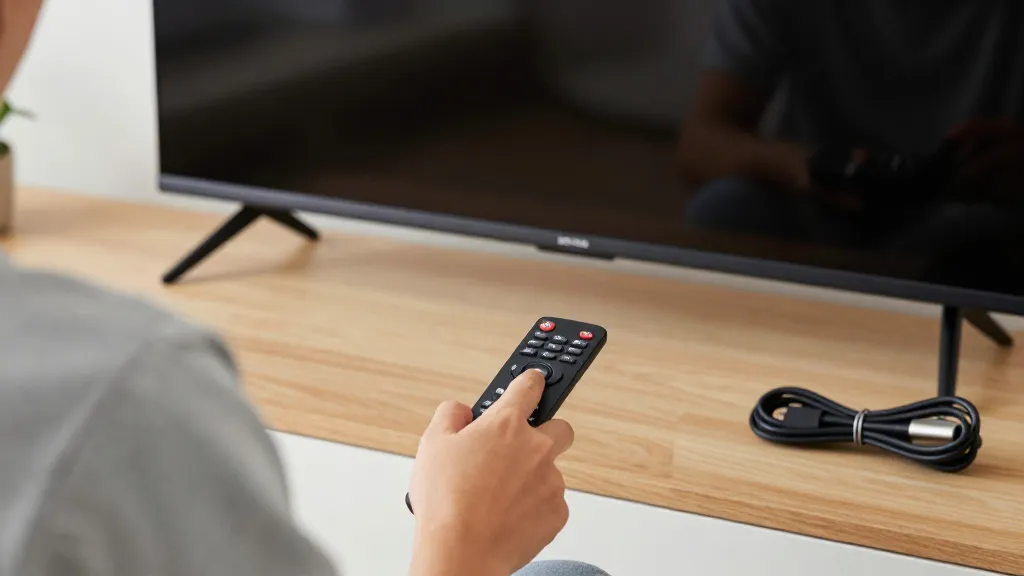
If your smart TV is experiencing glitches, slow performance, or you're preparing to sell it, resetting it to factory settings can restore its original functionality. The main keyword 'how to reset smart tv to factory settings' is a common solution for users facing software issues or wanting to return their TV to its default state. This guide will walk you through the process step-by-step, ensuring you can confidently reset your TV without losing essential data. Whether you're dealing with a Samsung, LG, or another brand, the instructions are tailored to help you troubleshoot effectively. By following these practical steps, you can resolve common problems and ensure your smart TV is ready for use again. Understanding the process beforehand will also help you avoid unnecessary complications during the reset. Let's dive into the reasons why you might need to reset your smart TV and how to proceed safely.
Why You Might Need to Reset Your Smart TV
Resetting your smart TV to factory settings is a common troubleshooting step that can resolve a variety of issues, from software glitches to performance slowdowns. Whether you're experiencing persistent errors, slow response times, or unresponsive features, a factory reset can often restore your TV to a stable and efficient state. This process also plays a crucial role in preparing your device for sale, donation, or transfer to another user, ensuring that all personal data and settings are removed.
Common Reasons for Resetting Your Smart TV
There are several situations where resetting your smart TV becomes necessary. One of the most common reasons is when your TV is running slowly or exhibiting unexpected behavior, such as freezing, crashing, or failing to load apps. A factory reset can clear out corrupted files, unnecessary data, and outdated configurations, giving your TV a fresh start. Additionally, if you're planning to sell or give away your TV, a reset ensures that all personal information, such as login credentials, app preferences, and custom settings, are erased, protecting your privacy.
What Happens During a Factory Reset
During a factory reset, your smart TV will erase all user data, including saved Wi-Fi passwords, app installations, and personalized settings. This process also removes any third-party apps or customizations you've added, returning the TV to its original factory state. While this can be disruptive, it’s an effective way to eliminate software issues and improve overall performance. It’s important to note that a factory reset does not affect the hardware or warranty of your TV, but it does require you to reconfigure your device from scratch.
Preparing for a Smart TV Factory Reset
Before proceeding with a factory reset, it's crucial to prepare adequately to avoid losing important data or settings. Taking the right steps ensures a smoother reset process and helps you regain access to your preferred configurations after the reset.
Important Data to Backup Before Resetting
Backup any personal data, such as saved passwords, streaming app credentials, and custom settings. If your smart TV allows, use the built-in backup feature or manually note down key details. Avoid relying on cloud-based backups, as they may not always be accessible after a reset.
What to Keep in Mind Before You Start
Make sure your TV is connected to a stable power source and has a reliable internet connection. This ensures that the reset process completes without interruption and allows the TV to download necessary updates or configurations. Also, refer to your TV's manual or manufacturer's website for model-specific instructions, as some TVs may require additional steps or have unique reset procedures.
How to Reset Your Smart TV to Factory Settings
Resetting your smart TV to factory settings is a straightforward process, though the exact steps may vary depending on your TV's brand and model. Most smart TVs offer a factory reset option through their settings menu, which will erase all personal data and restore the TV to its original state. If your TV doesn't have a reset option in the settings, you can often use physical buttons or a USB tool to initiate the process.
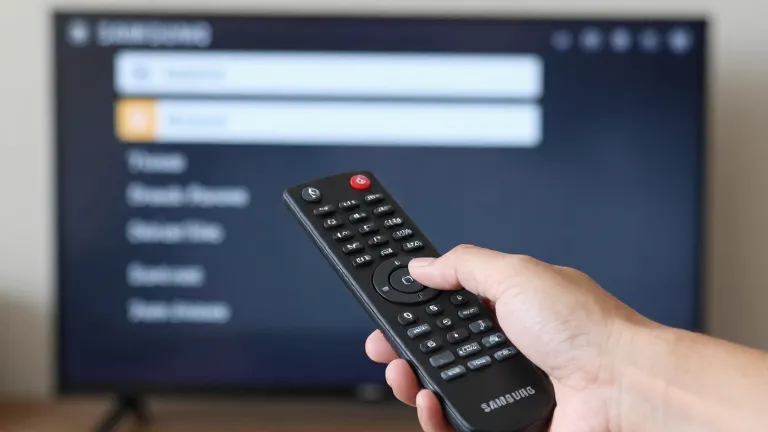
- Access the settings menu on your smart TV and look for the 'General' or 'System' section.
- Navigate to the 'Reset' or 'Factory Reset' option and confirm the action by selecting 'Yes' or 'Reset'.
- Wait for the TV to reboot and complete the reset process, which may take a few minutes.
- If your TV doesn't respond to the settings menu, try using the physical buttons on the TV or the remote control to access the reset function.
Steps to Reset Samsung Smart TV
To reset a Samsung Smart TV, start by pressing the 'Smart Hub' button on the remote control or the TV itself. This will open the Smart Hub interface, where you can access the settings. From there, navigate to the 'General' menu and select 'Reset'. Choose 'Factory Reset' and confirm by pressing 'Yes'. The TV will then restart and begin the reset process, which may take a few minutes to complete.
How to Factory Reset LG Smart TV
For an LG Smart TV, go to the main settings menu and select 'Support' or 'General'. Look for the 'Factory Reset' option and select it. You may be prompted to enter a confirmation code or press a button on the TV to proceed. Once confirmed, the TV will restart and reset to its original settings. This process usually takes a few minutes, after which your TV will be ready for use.
What to Do After Resetting Your Smart TV
After resetting your smart TV, it's important to restore its connectivity and functionality to ensure a seamless experience. Reconnecting to your Wi-Fi network and reinstalling essential apps will help you regain full control over your device. Additionally, updating the firmware and customizing your settings will enhance performance and usability.
Reconnecting Your TV to Wi-Fi
Reconnecting your TV to your Wi-Fi network is the first step after a factory reset. Navigate to the settings menu and select the network option to search for available Wi-Fi networks. Choose your home network and enter the password when prompted. Once connected, test the internet connection by accessing a streaming service or checking for updates.
Reinstalling Apps and Services
Reinstalling apps and services you previously used is essential to restore your TV's functionality. Open the Smart Hub or app store on your TV and search for the apps you need, such as streaming services or productivity tools. Download and install each app, then sign in with your account if required. Ensure all apps are updated to their latest versions for optimal performance.
Alternative Methods for Resetting Your Smart TV
Alternative methods for resetting your smart TV can be useful if you're unable to access the settings menu or prefer a more direct approach. These options vary by brand and model, so it's important to consult your TV's manual or support documentation to ensure you're following the correct procedure for your specific device.
Resetting via Physical Buttons
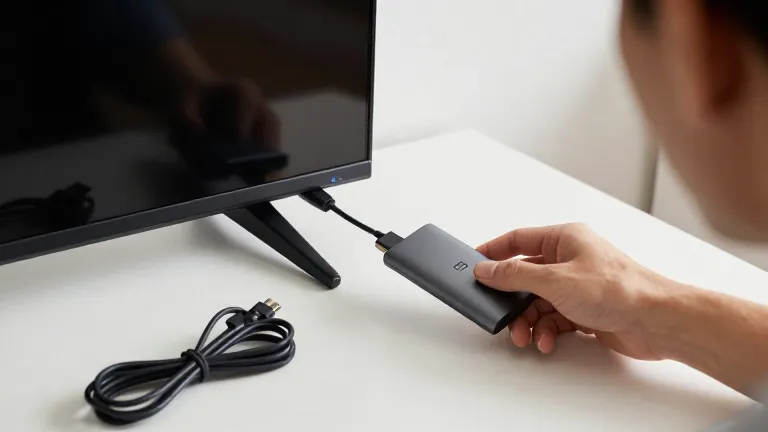
Some smart TVs offer a factory reset option through physical buttons located on the back or side of the unit. These buttons are typically labeled with a small icon or text indicating their function. To use this method, locate the button, press and hold it for several seconds until the TV enters reset mode. This process may vary slightly depending on the brand and model, so it's essential to refer to the user manual for precise instructions.
Using a USB Reset Tool
A USB reset tool can be used to factory reset certain smart TV models that support this method. The tool is usually a small device that connects to the TV’s USB port, and it contains pre-programmed instructions to initiate the reset process. This method is particularly helpful if the TV's interface is unresponsive or if you're unable to navigate to the settings menu. Always verify that your TV model is compatible with a USB reset tool before attempting this method.
Frequently Asked Questions
Can I reset my smart TV without a remote?
Yes, you can reset your smart TV without a remote by using the physical buttons on the TV itself. This method varies slightly depending on the brand, but generally involves pressing and holding specific buttons on the TV's panel.
Will a factory reset remove all my apps?
Yes, a factory reset will remove all apps, settings, and personal data from your smart TV. However, you can reinstall apps and services after the reset.
How long does it take to reset a smart TV?
The time required to reset a smart TV depends on the model and the amount of data being erased. Typically, it takes between 5 to 15 minutes to complete the process.
Can I recover my data after a factory reset?
No, you cannot recover data after a factory reset. It permanently deletes all personal data, settings, and installed apps. Always back up important information before proceeding.
Final Thoughts
Resetting your smart TV to factory settings can resolve performance issues or restore original functionality. Always back up your data before proceeding, and follow the brand-specific steps for your TV model. After the reset, reconnect your TV to Wi-Fi and reinstall necessary apps.
If you're unsure about the process, consult the user manual or manufacturer support. With the right guidance, resetting your smart TV is a straightforward way to enhance its performance and security.