How to Fix Smart TV Not Connecting to HDMI: Step-by-Step Guide
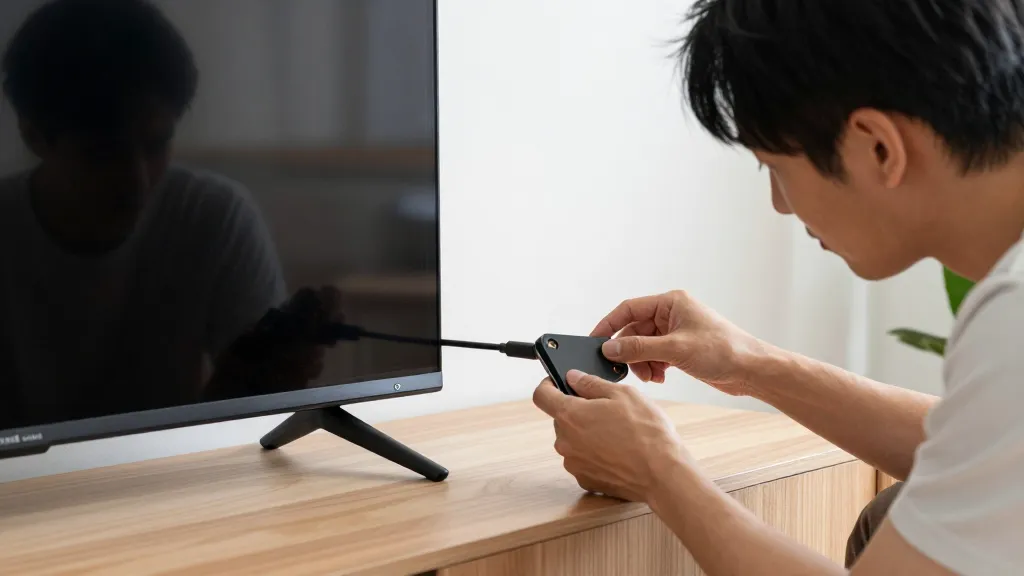
If your smart TV is having trouble connecting to an HDMI device, it can be frustrating, especially when you're trying to watch your favorite content or use a gaming console. The main keyword, How to Fix Smart TV Not Connecting to HDMI, is the focus of this guide, designed to help you resolve the issue step by step. Whether you're a home user or tech-savvy individual, this article offers clear, actionable solutions to troubleshoot and fix HDMI connection problems without needing professional assistance. We'll walk you through each potential cause and provide practical steps to restore your TV's connectivity. By following this guide, you can quickly identify and resolve the issue, ensuring a seamless experience with your smart TV.
Check Physical Connections and Ports
The first step in resolving HDMI connection issues is to thoroughly check the physical connections and ports. Ensuring that all components are properly connected and in good condition can often resolve the problem without further troubleshooting.
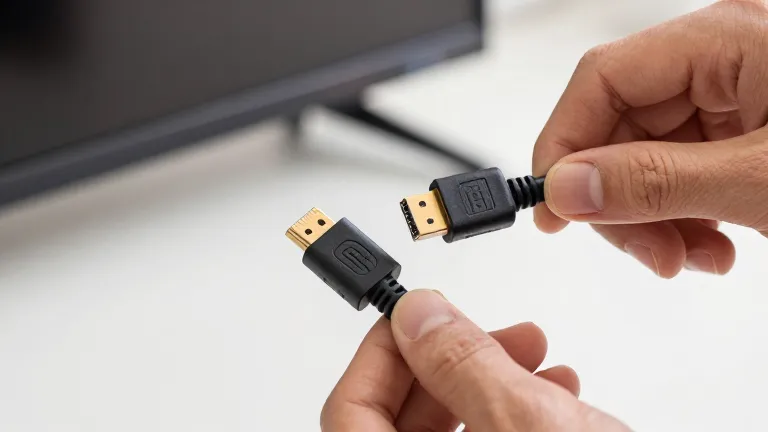
Inspecting the HDMI Cable and Ports
Begin by inspecting the HDMI cable for any visible damage, such as frayed wires, bent pins, or broken connectors. Make sure the cable is securely plugged into both the TV and the device, such as a gaming console or soundbar. Loose connections or damaged cables can lead to signal loss or poor performance. Additionally, examine the HDMI ports on both the TV and the device for dust, debris, or physical damage. A dirty or obstructed port can prevent a stable connection, so use a soft, dry cloth or compressed air to clean it if necessary.
Testing with a New Cable or Port
If the current HDMI cable appears to be in good condition, try using a different one to rule out cable damage. A faulty cable can cause intermittent connectivity or no signal at all. Similarly, if the HDMI port on the TV is not working, test it with a different port if available. Most smart TVs have multiple HDMI ports, and one may be functioning correctly while another is defective. If you have access to another device, such as a Blu-ray player or gaming console, connect it to the TV to determine if the issue is with the original device or the HDMI port itself. This step helps isolate the problem and ensures a more accurate diagnosis.
Verify Input Source Settings on the TV
Verifying the input source settings on your smart TV is a crucial step in resolving HDMI connection issues. If your TV isn't detecting the signal from the connected device, it might be set to the wrong input or in a mode that interferes with the display.
Selecting the Correct Input Source
Ensure the TV is set to the correct input source, such as HDMI 1, HDMI 2, or another designated port. Look for an HDMI icon on the screen or check the TV's menu to confirm the current input. If the source is incorrect, use the remote control to cycle through the available inputs until the desired one is selected. Some TVs have a dedicated button for switching inputs, while others require navigating through the settings menu.
Resetting TV Settings to Default
If the input source is not displaying correctly, resetting the TV settings to default can help restore proper functionality. Access the TV's settings menu and look for an option to reset all settings or restore factory defaults. This action can resolve issues caused by incorrect configurations or software glitches. After resetting, make sure to reconfigure the TV's settings, including input sources and display preferences, to ensure a stable HDMI connection.
Troubleshoot the Connected Device
If your smart TV is not connecting to HDMI, the issue may lie with the device you're trying to connect, such as a gaming console or Blu-ray player. Ensuring the device is functioning correctly and properly configured is a critical step in diagnosing the problem.
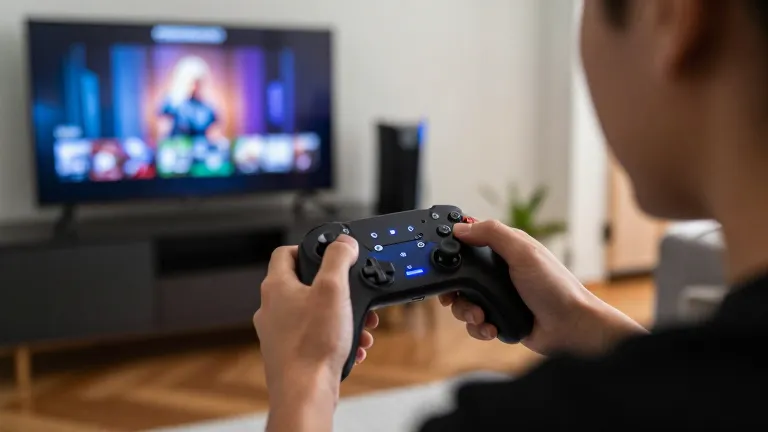
Checking Device Settings and Power
Start by confirming that the connected device is powered on and set to the correct output mode. Many devices have a menu option to select the output port, such as HDMI 1, HDMI 2, or a specific mode for 4K or HDR. If the device is not set to HDMI, it may not send a signal to the TV. Additionally, check for any power-saving features that might be preventing the device from sending a signal through HDMI.
Testing the Device on Another TV
To isolate whether the issue is with the device itself, try connecting it to a different TV or display. If the device works on another TV but not on your smart TV, the problem is likely with the HDMI port or settings on your TV. Conversely, if the device fails to work on any TV, the issue is probably with the device. This step helps determine whether the problem lies with the device or the TV's HDMI connection.
Check for HDMI Port Issues on the Smart TV
If your smart TV is having trouble connecting via HDMI, it's possible that the issue lies with the HDMI port itself. Before assuming the problem is with your devices, it's important to thoroughly test the port to determine if it's functioning correctly. This section outlines practical steps to identify and resolve potential HDMI port issues on your smart TV.
Testing the HDMI Port with Different Devices
To test the HDMI port, connect a different device such as a gaming console, Blu-ray player, or another TV to the same port. If the new device works without issues, the original device may have a problem. If the new device also fails to connect, the issue is likely with the HDMI port. You can also use a HDMI port tester if available, which can help identify physical or electrical faults within the port.
Resetting TV Settings to Restore HDMI
If testing with different devices doesn't resolve the issue, resetting your TV's settings can help restore default HDMI functionality. Access the TV's settings menu and look for an option to reset to factory settings. This process will erase custom configurations and may fix any software-related HDMI problems. Be sure to back up any important settings before proceeding. If the issue persists, consider contacting the manufacturer for further assistance, as the HDMI port may be physically damaged or require professional repair.
Advanced Troubleshooting and Alternatives
If basic troubleshooting steps fail to resolve your HDMI connectivity issues, consider advanced solutions and alternative connection methods. These options can help bypass common HDMI port limitations or improve signal quality for a more stable connection.
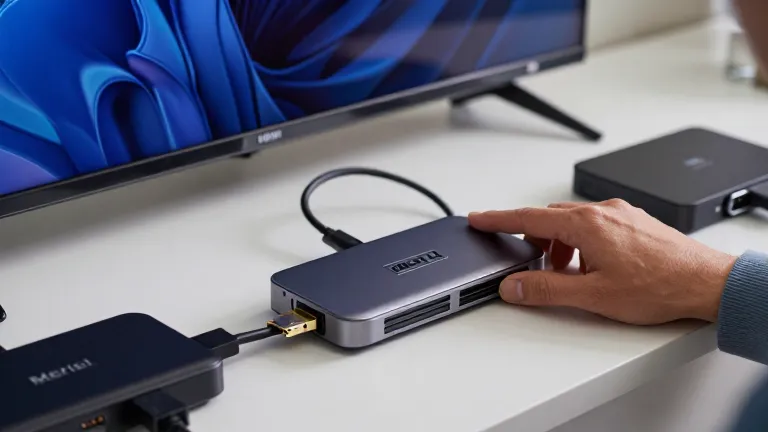
Using HDMI Switches or Splitters
Using an HDMI switch or splitter can be beneficial if you're connecting multiple devices to your smart TV. These devices allow you to manage multiple HDMI sources through a single port, reducing the need to switch inputs manually. However, ensure that the switch or splitter is compatible with your TV's HDMI version and supports the required bandwidth for your devices. Some models may introduce latency or signal degradation, so choose a high-quality unit for optimal performance.
Alternative Connection Methods for HDMI Issues
If HDMI issues persist, consider alternative connection methods such as AV cables or wireless HDMI adapters. AV cables, like composite or component cables, can be used as a temporary solution, though they typically offer lower video quality and fewer audio channels. Wireless HDMI adapters transmit the signal over Wi-Fi, eliminating the need for physical cables but may introduce latency or require a stable internet connection. These alternatives should be used only when HDMI connectivity remains problematic despite all troubleshooting efforts.
Frequently Asked Questions
What should I do if my smart TV still doesn't detect HDMI after checking the connections?
If your smart TV still doesn't detect HDMI after checking connections, try restarting both the TV and the connected device. If the problem persists, reset the TV's settings to default or contact the manufacturer for further assistance.
Can a faulty HDMI port on the smart TV be fixed without replacing the TV?
A faulty HDMI port on a smart TV can often be fixed by resetting the TV's settings or using a different HDMI port. In some cases, professional repair may be needed if the port is damaged.
How do I know if the issue is with the HDMI cable or the TV?
To determine if the issue is with the HDMI cable or the TV, test the cable with another device. If the problem remains, the issue is likely with the TV. Try a different HDMI port on the TV to confirm.
Is there a way to test the HDMI port on my smart TV without using another device?
You can test the HDMI port on your smart TV without another device by using an HDMI loopback adapter or a portable HDMI monitor. These tools can help identify port issues without external devices.
Final Thoughts
Fixing smart TV HDMI issues involves checking physical connections, verifying input settings, and troubleshooting connected devices. If all else fails, advanced methods like HDMI switches or alternative connections can help.
If your smart TV still doesn't detect HDMI, consider resetting the TV or contacting support. Regular maintenance and testing can prevent future HDMI connection problems.