How to Fix Smart Home Device Not Responding
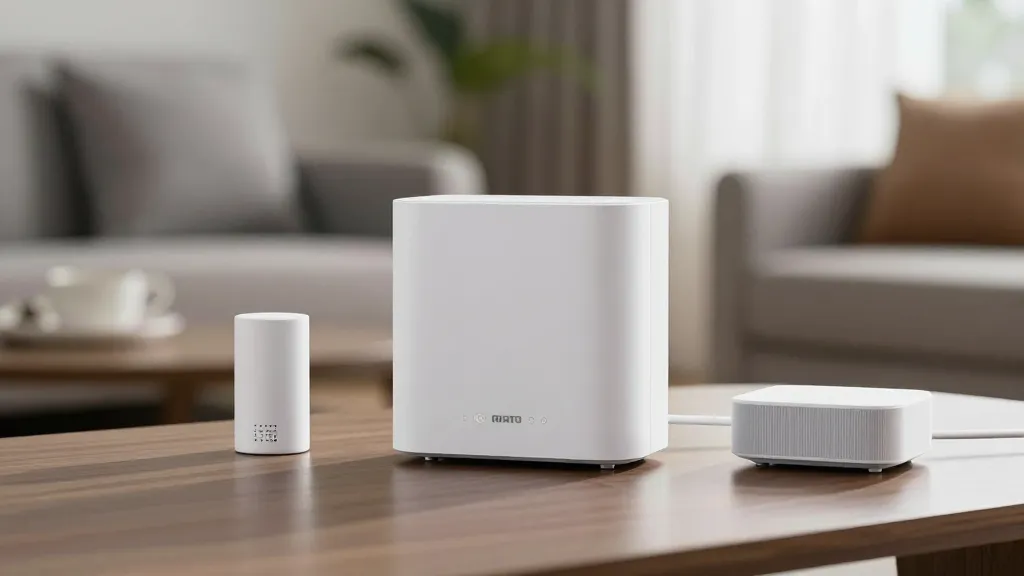
If your smart home device is not responding to commands, it can disrupt your routine and reduce the convenience you expect from automation. Whether it's a smart bulb, thermostat, or security camera, unresponsiveness can be frustrating. This guide provides a clear, step-by-step approach to how to fix smart home device not responding, helping you restore functionality without confusion. By following these practical solutions, you can quickly resolve common issues and get your devices working again.
Smart home devices rely on stable power, reliable connectivity, and proper setup to function correctly. Before diving into advanced troubleshooting, start with simple checks that often resolve the problem. Ensuring your device is properly powered and connected to your network is the first step toward restoring control over your smart home setup.
This article walks you through a structured troubleshooting process, from basic diagnostics to advanced re-pairing and factory reset options. Each step is designed to help you identify and fix the root cause of the issue, whether it's a temporary glitch or a configuration error. With the right approach, you can bring your smart home devices back to life and enjoy seamless automation.
Check the Basics First
Before diving into complex troubleshooting steps, it's essential to verify that your smart home device is functioning at the most basic level. This section covers fundamental checks that can resolve many common issues without requiring advanced technical skills.
Power and Connectivity Check
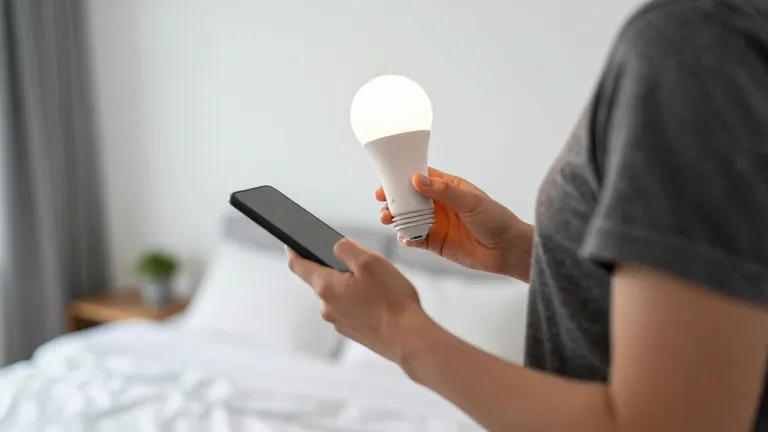
Start by confirming that your smart home device is powered on and connected to the correct power source. If the device is not responding, it may be in a low-power state or disconnected from the main power supply. Check all cables and adapters for damage or loose connections. If the device uses a battery, ensure it is fully charged or replace it if necessary. Also, verify that the device is plugged into the correct outlet or power strip, especially if multiple devices are connected to the same circuit.
Verify Pairing and App Connection
Next, ensure that your smart home device is within range of your WiFi network. Many devices require a stable and strong internet connection to operate correctly. If the device is too far from the router, it may lose signal or experience intermittent connectivity. Move the device closer to the router or use a WiFi extender if needed. Additionally, check if the device is connected to the correct WiFi network, especially if multiple networks are available. Some devices may default to a different network if not properly configured.
Restart the Smart Home Device
Restarting your smart home device is often the simplest and most effective way to resolve unresponsiveness. A power cycle can clear temporary glitches and refresh the device’s internal systems, while a reset button can restore default settings if the issue persists.
- Turn the device off and on again to reset its internal systems.
- Wait for 30 seconds before turning it back on to allow the system to stabilize.
- If the device has a reset button, use it to restore default settings.
- Ensure that the device is not in a power-saving or sleep mode.
How to Power Cycle the Device
To power cycle your smart home device, locate the power source or switch and turn it off. Wait for at least 30 seconds to let the device fully power down. This allows the internal systems to reset and can resolve minor software glitches or connectivity issues. After the wait, turn the device back on and check if it responds as expected.
Using the Reset Button
If your device has a reset button, press and hold it for 10 to 30 seconds until the device reboots or resets. This action can clear cached data, restore factory settings, and fix persistent errors. Be aware that a reset may remove custom settings or paired devices, so ensure you have the device’s credentials or pairing information ready before proceeding.
Update Firmware and App
Updating firmware and the smart home app is essential to resolve unresponsiveness in smart home devices. Outdated software can lead to compatibility issues, bugs, or security vulnerabilities that affect device performance. Regularly checking for updates ensures your devices function optimally and integrate seamlessly with your smart home ecosystem.
Update the Device Firmware
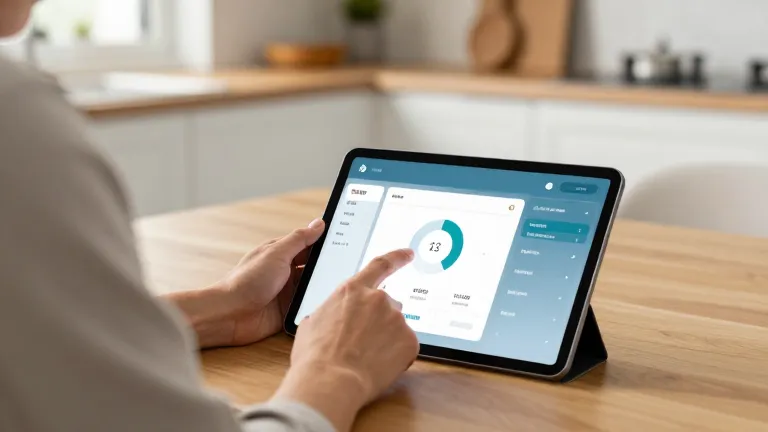
To update the device firmware, open the manufacturer’s app and navigate to the device’s settings. Look for an option labeled 'Firmware Update' or 'Check for Updates.' If an update is available, follow the on-screen instructions to download and install it. Some devices may require a restart after the update to apply changes. Always ensure the device is connected to a stable power source during the update process to avoid interruptions.
Update the Smart Home App
Updating the smart home app ensures compatibility with the latest device firmware and features. Check the app store for updates or use the app’s built-in update notification. If the app fails to update, clear the app cache through your device’s settings. For Android users, go to Settings > Apps > [App Name] > Storage > Clear Cache. For iOS, delete the app and reinstall it from the App Store. After reinstalling, reconnect the device to the app and verify that all functions are working correctly.
Check for Network Issues
Network issues are a common cause of smart home device unresponsiveness. Ensuring your device is connected to the right WiFi network and that the network itself is stable can resolve many connectivity problems.
- Check that the smart home device is connected to the correct WiFi network.
- Test the WiFi connection on other devices to confirm it is stable.
- Move the device closer to the router to improve signal strength.
- Restart your router to resolve temporary network issues.
Verify WiFi Connection
Ensure the smart home device is connected to the correct WiFi network. Some devices may connect to a guest network or a different SSID than intended. Check the device's settings or the app to confirm the network name and password match your main WiFi. If the device is on the wrong network, it may not receive commands or updates from your router.
Improve Signal Strength
Improving signal strength can significantly enhance device responsiveness. Place the smart home device within a few feet of your router to ensure a strong connection. If the device is in a different room or area, consider using a WiFi extender or mesh network to boost coverage. Avoid placing the device near thick walls, metal objects, or other sources of interference that can weaken the signal.
Advanced Troubleshooting and Re-pairing
When a smart home device remains unresponsive despite basic troubleshooting, advanced steps like re-pairing and factory resets can help restore functionality. These methods address deeper connectivity or configuration issues, often resolving problems that simple restarts or updates cannot.
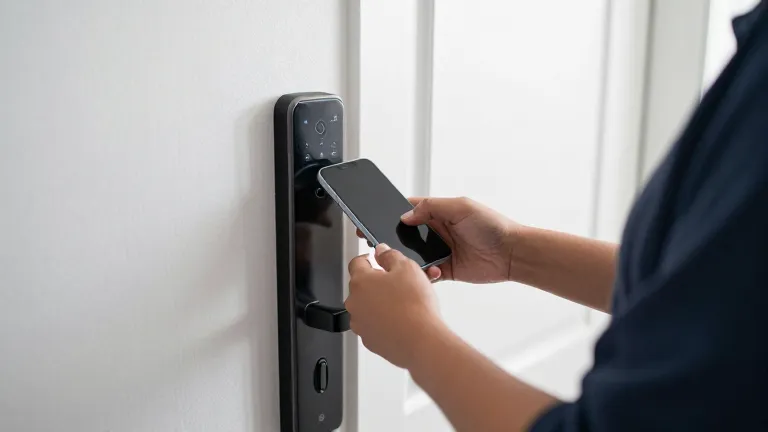
Re-pairing the Device
To re-pair a device, first remove it from the app's device list. This action clears any existing connection data, allowing the device to accept a new pairing. Follow the manufacturer’s instructions to add the device again, ensuring all steps are completed correctly. If the device still doesn’t respond, check that it’s within the recommended range of your router and free from physical obstructions.
Factory Reset Options
If re-pairing doesn’t resolve the issue, a factory reset may be necessary. This process restores the device to its original settings, eliminating any misconfigurations or corrupted data. Locate the reset button on the device, usually hidden under a cap or on the back, and hold it for the specified duration. After the reset, re-pair the device with the app to ensure it functions properly. Always refer to the user manual for specific reset instructions to avoid damaging the device.
Frequently Asked Questions
What should I do if my smart home device is not responding to voice commands?
Ensure the device is properly paired and the app is set to use voice commands. Check for background app restrictions and test with a different voice assistant if needed.
How can I tell if my smart home device is offline?
Check the app for offline status indicators. If the device doesn't appear in the list or shows as disconnected, it may be offline. Test by sending a command.
What if my smart home device keeps rebooting after a power cycle?
A frequent reboot may indicate a software glitch or hardware issue. Try a factory reset or contact customer support for further assistance.
Should I factory reset my smart home device if it is unresponsive?
Factory resetting can resolve software issues, but it will erase all settings. Use this as a last resort after checking basic troubleshooting steps.
Next Steps for Resolution
Troubleshooting a smart home device involves checking basics, restarting, updating software, and addressing network issues. If all else fails, re-pairing or a factory reset may be necessary.
Follow these steps to resolve most common issues. If problems persist, consult the manufacturer's support resources for specific guidance.