
How to Fix External Hard Drive Not Showing Up on Windows or Mac
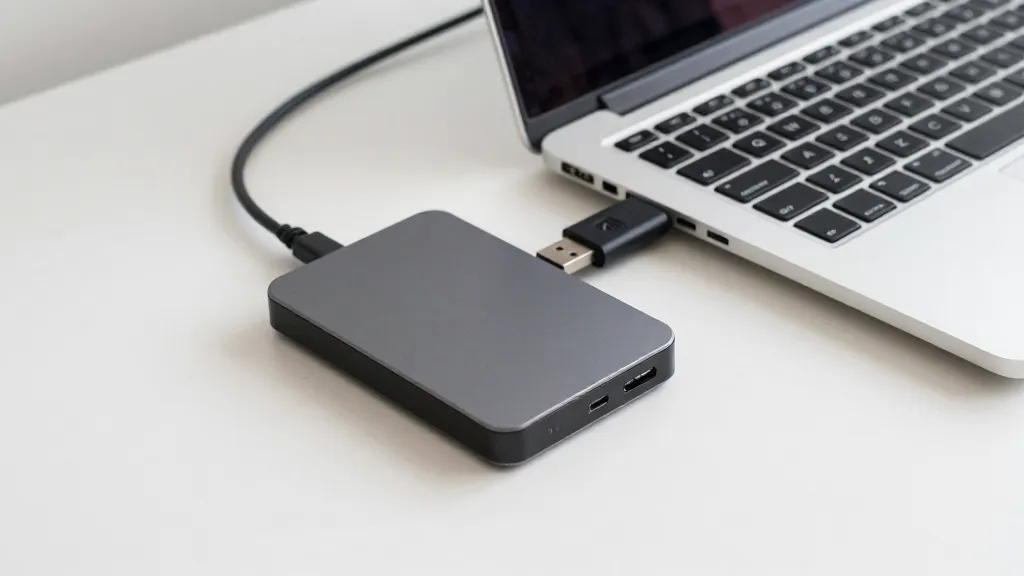
If your external hard drive is not showing up on your Windows or Mac computer, it can be frustrating, especially when you need to access important files. Whether you're a home user or an office worker, encountering this issue can disrupt your workflow. This article provides a clear, step-by-step guide to help you troubleshoot and fix the problem. We'll cover essential checks, from verifying physical connections to using built-in tools for repair and recovery.
Starting with the basics, we'll guide you through checking the USB connection and testing with different cables or ports. These simple steps often resolve minor connection issues. Next, we'll explore how to check for disk recognition in your system settings, including using Disk Management on Windows and Disk Utility on Mac.
Further down, we'll explain how to update or reinstall drivers, use command-line tools to repair the drive, and even reformat it if necessary. As a last resort, we'll discuss reinstalling the operating system to restore full functionality. By following this guide, you can confidently address the issue without needing professional help.
Check Physical Connections and Power
Before troubleshooting more complex issues, start by checking the physical connections and power supply of your external hard drive. A loose connection, faulty cable, or malfunctioning USB port can prevent the drive from being recognized by your computer. Ensuring that all components are properly connected and functioning is the first step in resolving visibility problems.
Verify the USB Connection
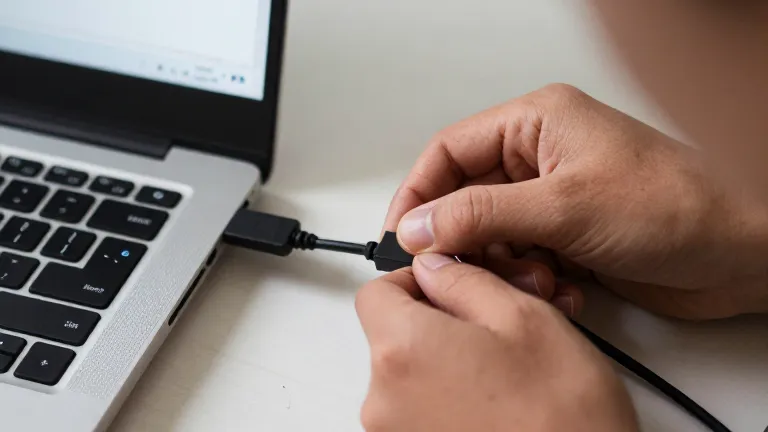
Ensure the external hard drive is securely connected to your computer. Look for a firm plug-in at the USB port, and make sure the drive is fully seated. If the drive has an external power source, confirm that it is turned on. Some drives require an additional power adapter to operate, and a disconnected or faulty power supply can prevent the device from being detected.
Test with a Different Cable or Port
If the drive is still not appearing, try using a different USB cable or port. Faulty cables can disrupt data transfer and prevent the drive from being recognized, even if the port is working. Plug the drive into another USB port on your computer to see if it appears in the system. If you're using a USB hub, try connecting the drive directly to the computer to eliminate any interference from the hub. Testing with different hardware can help isolate the issue to either the cable, port, or the drive itself.
Check for Disk Recognition in System Settings
Before attempting more advanced troubleshooting steps, it's essential to confirm whether your external hard drive is being recognized by your operating system. On Windows, you can check the Disk Management tool, while on Mac, you can use Disk Utility to see if the drive appears in the list of available storage devices.
Windows: Use Disk Management to Identify the Drive
On Windows, open the Disk Management tool by right-clicking the Start menu and selecting 'Disk Management.' This tool provides a list of all storage devices connected to your system, including internal and external drives. If your external hard drive is not listed, it may not be properly connected or recognized by the system. Look for an entry that corresponds to your drive, which may be labeled as 'Unallocated' or with a different file system. If the drive is not visible, proceed to the next steps to investigate potential issues.
Mac: Check Disk Utility for Drive Recognition
On Mac, open Disk Utility by searching for it in the Applications folder or by using Spotlight. Once open, the drive should appear in the left-hand sidebar under the 'External' section. If it's not listed, the system might not have detected it correctly. Ensure that the drive is not set to 'hidden' in Finder by going to the 'View' menu and checking the 'Show Hidden Files' option. If the drive still doesn't appear, there may be an issue with the drive itself or its connection.
Update or Reinstall Drivers
Outdated or corrupted drivers can prevent the external hard drive from being recognized by your computer. Updating or reinstalling drivers is a crucial step in resolving this issue, especially on Windows, where driver management is more manual. Mac systems typically handle drivers automatically, but a simple restart can often refresh the connection and restore drive recognition.
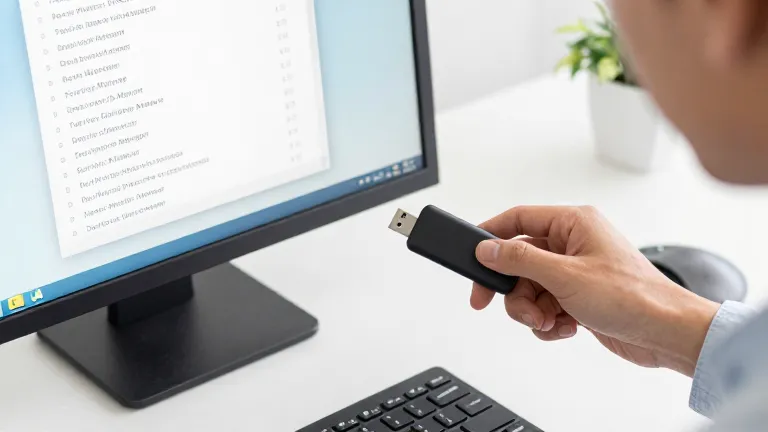
- Open Device Manager and locate the USB controllers or the specific device associated with the external hard drive.
- Right-click on the device and select 'Update driver' to install the latest available drivers from Windows' database.
- If the update doesn't work, try uninstalling the driver and restarting the computer to allow Windows to reinstall it automatically.
- For Mac users, ensure your system is updated to the latest macOS version, as this can resolve compatibility issues with external drives.
Update USB Drivers on Windows
On Windows, outdated or corrupted USB drivers can cause the system to fail in recognizing the external hard drive. To update these drivers, open Device Manager by right-clicking the Start menu and selecting 'Device Manager'. Navigate to the 'Universal Serial Bus controllers' section and locate the device associated with your external drive. Right-click on the device and choose 'Update driver' to search for and install the latest version. If the update option doesn't resolve the issue, you can try uninstalling the driver and restarting your computer to prompt Windows to reinstall it automatically.
Restart Your Computer to Refresh the Connection
Restarting your computer can help refresh the connection between the external hard drive and the operating system, especially if the issue is related to temporary software glitches. After restarting, the system may re-detect the drive and establish a proper connection. For Mac users, a restart can also help the system re-recognize the drive, particularly if the connection was disrupted or if there were recent software updates. Ensure that your system is up to date with the latest software patches, as these can fix bugs or compatibility issues that may be affecting drive recognition.
Use Disk Utility or Command Prompt to Repair the Drive
If your external hard drive isn't showing up, running disk repair tools can help resolve file system errors or disk corruption. Windows provides the Command Prompt with the 'chkdsk' command, while macOS users can use Disk Utility to scan and fix issues. These tools can identify and repair problems that prevent the drive from being recognized or functioning properly.
Windows: Run Chkdsk to Repair Disk Errors
On Windows, open the Command Prompt as an administrator and enter 'chkdsk /f /r' to scan and repair file system errors. The '/f' parameter fixes errors, and '/r' recovers bad sectors. This command can take some time, depending on the drive's size and condition. If the drive is not showing up, ensure it is properly connected before running the scan.
Mac: Use Disk Utility to Repair the Drive
On Mac, launch Disk Utility from the Applications folder and select your external drive from the list. Click 'First Aid' and choose 'Repair Disk' to check for and fix file system issues. If the drive isn't appearing in the list, try reconnecting it or using a different USB port. Disk Utility can also help recover data if the drive is partially recognized but not fully functional.
Reformat or Reinstall the Operating System
Reformatting the drive or reinstalling the operating system should only be considered after all other troubleshooting steps have failed. These are more drastic solutions that can resolve deep-seated software issues but come with significant risks, such as data loss or system instability. Proceed with caution and ensure you have a reliable backup or recovery plan in place before taking these actions.
Reformat the Drive to Resolve Recognition Issues
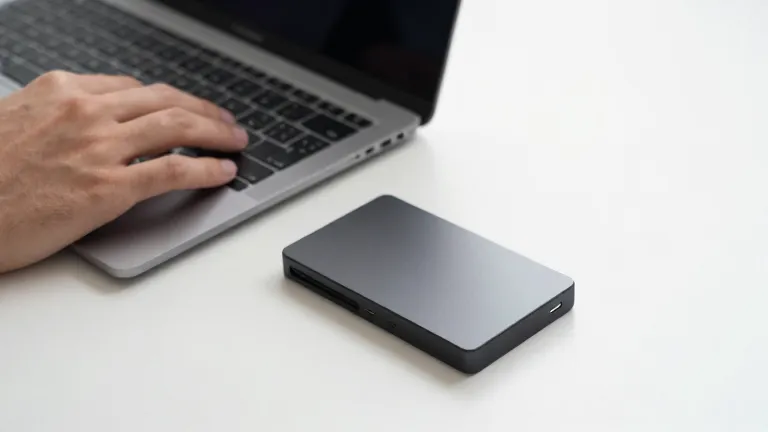
Reformatting the drive can resolve recognition issues by removing file system corruption or incompatible settings. On Windows, right-click the drive in Disk Management and select 'Format' to erase and reinitialize the drive. On Mac, use Disk Utility to erase the drive and choose a file system compatible with your operating system. This process will delete all data on the drive, so it is essential to have a backup of important files before proceeding.
Reinstall the Operating System as a Last Resort
Reinstalling the operating system is a last-resort step that should only be attempted if all other options have been exhausted. This process can resolve system-level conflicts that prevent the drive from being recognized. However, it is a complex task that requires a recovery partition, installation media, or an external backup. Before proceeding, ensure you have access to a bootable USB drive or recovery partition to avoid losing access to your system entirely.
Frequently Asked Questions
Why is my external hard drive not showing up on my computer?
Your external hard drive may not show up due to a loose connection, faulty cable, or driver issues. Check the physical connections and try a different port or cable. If the drive is still not detected, it could be a problem with the drive itself or the operating system.
How can I tell if my USB cable is faulty?
To test your USB cable, try connecting it to a different device or computer. If the cable works with another device but not your hard drive, it may be faulty. Additionally, you can use a multimeter to check for continuity or look for physical damage on the cable.
What should I do if my drive is not recognized by Windows or Mac?
If your drive is not recognized, start by checking the connections and trying a different port. If that doesn't work, use the built-in disk utility tools in Windows or Mac to identify and repair the drive. If the drive is still not detected, it may require further troubleshooting or professional assistance.
Can I recover data from a drive that isn't showing up?
Recovering data from a drive that isn't showing up can be difficult, but it may still be possible using data recovery software or professional services. If the drive is not recognized by the operating system, it may be damaged, and the chances of recovery depend on the extent of the issue.
Next Steps and Final Tips
To resolve an external hard drive not showing up, begin by checking physical connections and ensuring the drive is properly powered. If the drive is still not detected, use system tools like Disk Management or Disk Utility to identify and repair the drive. In more severe cases, reformatting or reinstalling the operating system may be necessary.
If your external hard drive remains undetected after these steps, consider seeking professional assistance or data recovery services. Always back up important data regularly to prevent data loss in the future.





