
How to Fix Windows 11 Search Bar Not Working or Typing
If your Windows 11 search bar isn't working or isn't responding to typing, it can be frustrating, especially when you're trying to find files, apps, or settings quickly. This issue can arise from various causes, such as system file corruption, software conflicts, or outdated drivers. Fortunately, there are several ways to fix the Windows 11 search bar not working or typing, even if you're not a technical expert. This article provides clear, step-by-step solutions to help you restore the search functionality and get back to productivity. Whether you're a home user or an office worker, these methods can help you resolve the problem effectively.
The first step in troubleshooting the search bar issue is to identify the root cause. Common problems include corrupted system files, conflicts with recent software updates, or incomplete Windows updates. By addressing these issues systematically, you can often resolve the problem without needing to reinstall the operating system. Simple steps like restarting the search function or updating Windows can make a big difference in restoring the search bar’s functionality.
For more persistent issues, advanced fixes such as using System File Checker, resetting search settings, or reinstalling the search feature through PowerShell can be effective. These methods are designed to be user-friendly, so even those with limited technical knowledge can follow along. Additionally, taking preventive measures like maintaining regular updates and avoiding software conflicts can help ensure your search bar remains reliable. By following the steps in this article, you can fix the Windows 11 search bar not working or typing and keep your system running smoothly.
Why the Windows 11 Search Bar Might Not Be Working
The Windows 11 search bar is a critical tool for navigating your system, but it can sometimes stop working or fail to respond to typing. Understanding the possible causes of these issues can help you troubleshoot effectively. Common reasons include corrupted system files, outdated software, or conflicts with third-party applications. Misconfigured settings or recent system updates can also disrupt the search functionality. Additionally, hardware issues like faulty keyboard input or software conflicts can prevent the search bar from receiving or processing typed commands.
System File Corruption
Corrupted system files can lead to instability in Windows 11, affecting core functionalities like the search bar. These files are essential for the operating system to run smoothly, and any damage can result in unexpected behavior or errors. Issues can arise from failed updates, improper shutdowns, or malware infections. If the search bar is unresponsive or not working, it might be due to missing or damaged system files that support this feature.
Software and Driver Conflicts
Software and driver conflicts can also interfere with the search bar's ability to function properly. Third-party applications, especially those that modify system behavior or keyboard input, may clash with Windows 11's built-in search functionality. Similarly, outdated or incompatible drivers, particularly for input devices like keyboards or mice, can cause typing issues in the search bar. Resolving these conflicts often requires checking for updates or disabling conflicting software to restore normal operation.
Basic Troubleshooting Steps
Basic troubleshooting steps can often resolve common issues with the Windows 11 search bar. These steps are simple and do not require advanced technical knowledge, making them ideal for home users and office workers.
- Restart the Search Function
- Update Windows and System Files
- Check for and Disable Third-Party Apps
- Restart Your Computer
Restart the Search Function
Restarting the Search function is a quick way to refresh the search bar. Right-click on the taskbar and select 'Search' to open the search bar. If it doesn’t appear, try right-clicking again and ensuring the option is enabled. This action can resolve temporary glitches or minor software conflicts that might be causing the search bar to malfunction.
Update Windows and System Files
Keeping your system updated is crucial for maintaining the stability and functionality of Windows 11. Open the Settings app, navigate to 'Windows Update', and check for any available updates. Installing the latest updates ensures that system files are current and can fix bugs or compatibility issues that might be affecting the search bar. If updates are not available, consider running the Windows Update troubleshooter for additional support.
Advanced Fixes for Search Bar Issues
Advanced fixes for the Windows 11 search bar issue involve deeper system-level actions that can resolve underlying corruption or misconfigurations. These steps are ideal for users who have already tried basic troubleshooting but continue to experience problems with the search functionality.
Use System File Checker and DISM
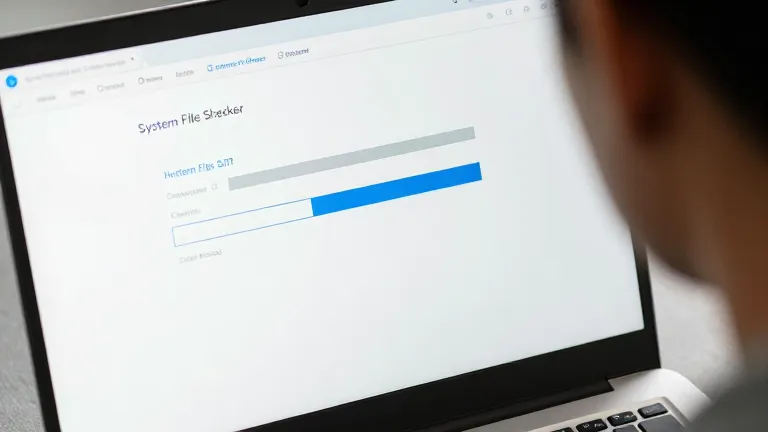
To address potential system file corruption, run the System File Checker (SFC) and DISM commands. Open Command Prompt as an administrator and type `sfc /scannow` to scan and repair corrupted system files. If the issue persists, use DISM with the command `DISM /Online /Cleanup-Image /RestoreHealth` to repair the Windows image. These tools can resolve file inconsistencies that may interfere with the search bar’s operation.
Reset Taskbar and Search Settings
Resetting the taskbar and search settings can eliminate configuration conflicts. Right-click the taskbar and select 'Taskbar settings,' then reset the taskbar to its default state. For the search feature, go to Settings > Privacy & security > Search, and disable search indexing before re-enabling it. This process can refresh the search index and correct any corrupted or outdated data that affects search performance.
How to Reinstall the Search Feature in Windows 11
Reinstalling the Windows Search feature can resolve persistent issues with the search bar not working. This process involves removing and re-adding the search component through both the Settings app and PowerShell commands. It ensures that any corrupted or outdated files are replaced, restoring the functionality of the search bar.
- Open the Settings app and navigate to Apps > Apps & features > Optional features.
- Locate 'Windows Search' and click 'Remove' to uninstall it.
- After uninstallation, go back to Optional features and click 'Add a feature' to reinstall Windows Search.
- Restart your computer to apply the changes and verify if the search bar is functioning correctly.
Uninstall and Reinstall Windows Search
Uninstalling and reinstalling the Windows Search feature is a straightforward method to fix search bar issues. Navigate to the Settings app, then to Apps > Apps & features > Optional features. From there, you can remove the existing search feature. Once removed, you can reinstall it by clicking 'Add a feature' and selecting Windows Search. This process ensures that any corrupted or outdated components are replaced, potentially resolving the issue.
Use PowerShell for Reinstallation
PowerShell can be used to reinstall the Windows Search feature when the Settings method does not work. Open PowerShell as an administrator and run the command 'Get-WindowsOptionalFeature -Online -FeatureName Microsoft-Windows-Search' to check the status. If it is disabled, use the command 'Enable-WindowsOptionalFeature -Online -FeatureName Microsoft-Windows-Search -All' to reinstall it. This method is useful for advanced users and can be more efficient than the Settings approach, especially if the feature is not listed in Optional features.
Preventive Measures to Avoid Future Search Bar Issues
Preventing future issues with the Windows 11 search bar involves consistent maintenance and cautious system management. By following best practices for updates and software installation, users can significantly reduce the risk of encountering search-related problems.
Maintain Regular System Updates
Maintaining regular system updates is crucial for the stability and performance of Windows 11. Microsoft frequently releases updates that address bugs, improve system functionality, and enhance security. Enabling automatic updates ensures that your system stays current with the latest patches and improvements. However, it’s important to review update notes to understand what changes are being applied, as some updates may introduce new behaviors or dependencies.
Avoid Software Conflicts
Avoiding software conflicts is another key preventive measure. Installing untrusted or incompatible third-party applications can interfere with core system functions, including the search bar. Before downloading new software, research its reputation and compatibility with Windows 11. Additionally, regularly scan your system for potential conflicts using built-in tools like the Windows Defender or third-party utilities. If conflicts arise, uninstalling the problematic software and monitoring system behavior can help restore normal functionality.
Frequently Asked Questions
What should I do if the search bar is completely unresponsive?
If the search bar is unresponsive, try restarting the Search service or using System File Checker. If these don't work, consider resetting the taskbar or reinstalling the search feature.
Can a corrupted system file cause the search bar to stop working?
Yes, corrupted system files can affect the search bar. Use DISM or System File Checker to repair these files and restore functionality.
How do I reset the search index in Windows 11?
To reset the search index, open the Control Panel, navigate to Indexing Options, and click 'Pause indexing' followed by 'Delete index files'.
Is there a way to force-reinstall the search feature without using the Settings app?
Yes, use PowerShell commands like 'Get-WindowsOptionalFeature -Online -FeatureName Microsoft-Windows-Search' and 'Enable-WindowsOptionalFeature' to reinstall the search feature.
Final Thoughts
Fixing the Windows 11 search bar requires a combination of basic troubleshooting and advanced techniques. Regular updates and system maintenance can prevent future issues.
If the search bar remains non-functional, consider reinstalling the search feature or seeking further assistance. Stay proactive with system health to avoid similar problems.





