
How to Fix Windows 11 Black Screen with Cursor After Login
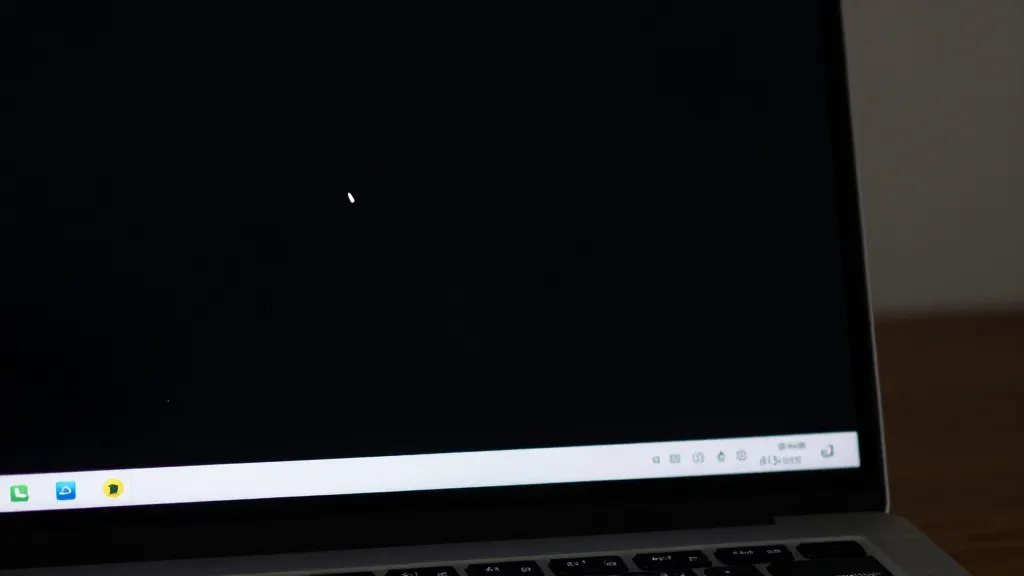
If you're facing a How to Fix Windows 11 Black Screen with Cursor After Login issue, you're not alone. A black screen with a cursor appears after logging into Windows 11, leaving you unable to access your files or settings. This problem can be frustrating, especially when you rely on your computer for work or daily tasks. Fortunately, there are several troubleshooting steps you can take to resolve the issue without needing technical expertise. This guide covers the most common causes of the black screen, basic and advanced troubleshooting methods, and when to seek professional help. Whether you're a home user or an office worker, you'll find practical solutions to restore your system to normal operation.
Understanding the Black Screen with Cursor on Windows 11
The black screen with cursor on Windows 11 is a frustrating issue that occurs after logging in, leaving users unable to see the desktop or access their files. This problem can stem from various factors, including software glitches, driver conflicts, or incorrect display settings. Understanding the underlying causes is essential to resolving the issue effectively.

Common Causes of the Black Screen with Cursor
Common causes of the black screen with cursor include software glitches such as corrupted system files or conflicts with recently installed applications. Driver issues, particularly with graphics or display drivers, can also lead to this problem. Additionally, incorrect display settings, such as resolution or scaling mismatches, may result in a black screen. These issues often arise after system updates, hardware changes, or improper shutdowns.
How to Tell If the Issue Is Software or Hardware Related
To determine whether the issue is software or hardware related, consider recent changes to your system. If the problem began after an update or software installation, it is likely a software issue. Conversely, if the issue occurs after connecting a new monitor or changing display settings, it may be hardware-related. Checking for physical damage to the monitor or display cables can also help identify hardware problems. If the cursor responds to input, it is usually a software issue, while a lack of response may point to a hardware failure.
Basic Troubleshooting Steps for the Black Screen
Basic troubleshooting steps are essential when dealing with a black screen with a cursor on Windows 11. These steps can often resolve the issue without requiring advanced technical knowledge or tools.
- Restarting Your Computer
- Checking for Windows Updates
- Updating or Reinstalling Graphics Drivers
- Verifying Display Settings
Restarting Your Computer
Restarting your computer is one of the simplest and most effective ways to resolve minor software glitches. A restart can clear temporary system errors, refresh the operating system, and allow the display drivers to reset properly. If the black screen occurs after a recent update or software change, a restart may resolve the issue quickly.
Checking for Windows Updates
Checking for Windows updates ensures your system has the latest patches, bug fixes, and improvements. Go to Settings > Update & Security > Windows Update, and click 'Check for Updates'. Installing pending updates can address compatibility issues or bugs that may be causing the black screen. If updates are available, install them and restart your computer to see if the problem is resolved.
Advanced Fixes for the Black Screen with Cursor
Advanced fixes for the Windows 11 black screen with cursor issue require more in-depth troubleshooting. These steps focus on isolating the problem by using Safe Mode and addressing graphics driver conflicts. Following these procedures can help identify whether the issue stems from software or hardware.
Entering Safe Mode
Entering Safe Mode allows you to troubleshoot the black screen with cursor issue by bypassing non-essential startup programs and services. To access Safe Mode, restart your computer and press the F8 key repeatedly during startup. If Safe Mode loads successfully, the issue might be caused by a third-party application or a recent system update. From here, you can uninstall recently installed software or roll back updates to restore normal functionality.
Updating or Reinstalling Graphics Drivers
Updating or reinstalling graphics drivers is another critical step in resolving the black screen with cursor issue. Outdated or corrupted drivers can cause display problems, so open Device Manager and locate your graphics card. Right-click and select 'Update driver' to install the latest version. If the issue persists, uninstall the driver and restart your computer to allow Windows to reinstall it automatically. If you're unsure about the correct driver, visit the manufacturer’s website and download the latest version compatible with your hardware.
System Repair and Recovery Options
System repair and recovery options can help resolve the black screen with cursor issue by addressing corrupt system files or problematic system configurations. These tools are designed to scan and repair critical system components without requiring advanced technical knowledge.
- Use the System File Checker tool to repair corrupt system files.
- Consider running the DISM and SFC commands in an elevated Command Prompt.
- If the issue persists, performing a system restore or reset may be necessary.
Using System File Checker (SFC)
The System File Checker (SFC) is a built-in Windows tool that scans for and repairs corrupted system files. To use it, open the Command Prompt as an administrator and run the command 'sfc /scannow'. This process can take some time, but it will check for and fix any issues with system files that might be causing the black screen.
Running DISM and SFC Commands
In some cases, the DISM (Deployment Imaging Servicing and Management) tool can help resolve deeper system file corruption. Run the command 'DISM /Online /Cleanup-Image /RestoreHealth' in an elevated Command Prompt to repair the Windows image. After DISM completes, run SFC again to ensure all system files are intact. This combination can address more complex issues that SFC alone might not resolve.
When to Seek Professional Help
If the black screen with cursor issue persists even after attempting all troubleshooting steps, it may indicate a hardware-related problem. Faulty display connections, damaged graphics cards, or issues with the monitor itself can all lead to this symptom. These problems are often difficult to resolve through software means alone, as they require physical inspection and replacement of components.
It is important to rule out hardware failures to avoid unnecessary software repairs that may not address the root cause. A faulty graphics card, for example, can cause the system to fail to render the desktop properly, resulting in a black screen with a cursor. Similarly, a loose or damaged display cable can prevent the screen from receiving the correct signal.
In such cases, contacting a professional technician or reaching out to the manufacturer's support is the best course of action. Technicians can perform diagnostic tests to identify hardware issues and recommend appropriate repairs or replacements. This ensures that your system is restored to full functionality without further complications.
Professional help is especially crucial if you are not comfortable handling hardware components or if the issue affects your ability to use the computer for work or personal tasks. A qualified technician can provide a comprehensive solution, ensuring that your Windows 11 system operates reliably and efficiently.
Frequently Asked Questions
What should I do if my Windows 11 screen turns black after logging in?
If your screen turns black after logging in, start by restarting your computer. If the issue persists, check for updates or try booting into Safe Mode. If these steps don’t work, consider advanced troubleshooting like updating graphics drivers or running system file checks.
How can I fix the black screen with a cursor on Windows 11?
To fix a black screen with a cursor, try basic troubleshooting steps like restarting your PC or checking for Windows updates. If that doesn't resolve it, attempt to enter Safe Mode, update or reinstall your graphics drivers, or run system repair tools like SFC and DISM.
Can I recover my data if the screen turns black after login?
Yes, you can recover your data if the screen turns black after login. Ensure you have an external backup or cloud storage. If you don’t, try booting into Safe Mode or using recovery tools to access your files before attempting system repairs.
What if the black screen issue keeps happening even after troubleshooting?
If the black screen issue persists after troubleshooting, it may indicate a deeper system problem. Consider seeking professional help or performing a clean install of Windows. Ensure you back up your data before making significant changes to your system.
Next Steps and Support
The black screen with a cursor on Windows 11 can stem from various causes, including software conflicts or hardware issues. A combination of basic and advanced troubleshooting steps can often resolve the issue. If these fail, professional assistance may be necessary.
Always ensure you have a backup before attempting major system repairs. If you're unsure about the steps or the issue remains unresolved, contacting a professional technician is the safest next step.





