How to Fix UPS Battery Backup Beeping Continuously
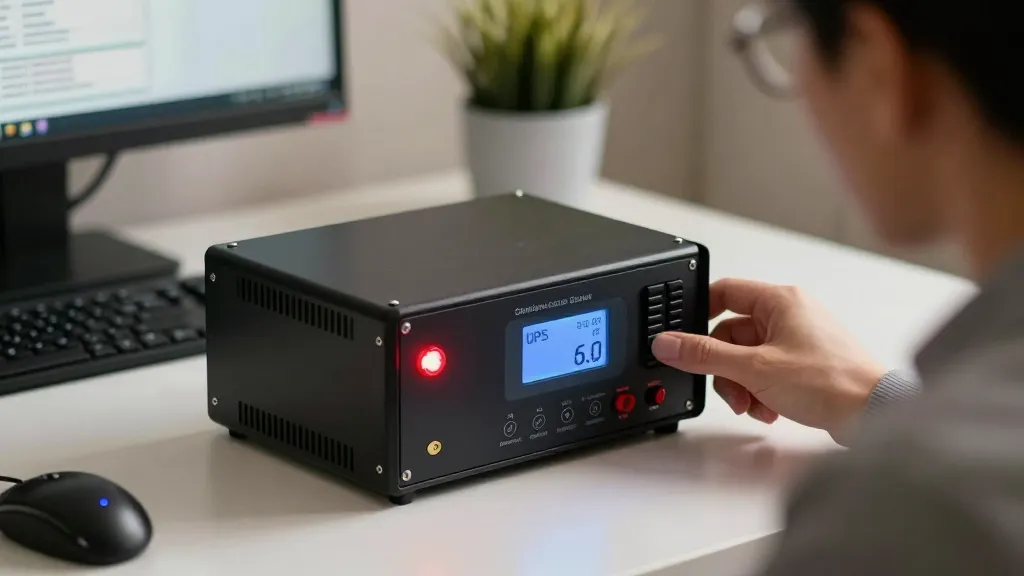
If your UPS battery backup is beeping continuously, it can be frustrating and disruptive. This persistent sound is often a signal that something is wrong with your power protection system. The main keyword, 'How to Fix UPS Battery Backup Beeping Continuously,' is exactly what you need to resolve this issue without calling a professional. In this article, we'll guide you through the steps to identify and fix the cause of the beeping. Whether you're a homeowner or an office worker, understanding the reasons behind the noise and taking action can help restore your UPS system to normal operation. We'll cover everything from checking power sources to advanced maintenance tips, so you can troubleshoot effectively and keep your devices safe during power outages. By following these practical steps, you can eliminate the beeping and ensure your UPS functions reliably when you need it most.
Understanding Why Your UPS Beeps Continuously
Continuous beeping from your UPS battery backup is a clear signal that the system is detecting an issue requiring attention. This sound is designed to alert users to potential problems that could affect the reliability of your power protection system. Understanding the cause of the beeping is essential to resolving the issue quickly and preventing further complications.

What Does a Continuous Beep Mean?
A continuous beep from your UPS typically indicates that the system is in an alert or warning mode. This could be due to a variety of factors, including low battery levels, an overload on the connected devices, or a system fault that needs to be addressed. The beep is a direct communication from the UPS, signaling that an action is required to ensure the system functions correctly.
Common UPS Beep Patterns and Their Meanings
Most UPS units use different beep patterns to indicate specific problems, allowing users to identify the nature of the issue quickly. For instance, a single continuous beep might signal a low battery, while a series of beeps at regular intervals could indicate an overload condition. Some units also use a combination of beeps and lights to provide more detailed information about the problem. Familiarizing yourself with these patterns can help you take the appropriate steps to resolve the issue without unnecessary delays.
Check for Immediate Power Issues
Before diving into more complex solutions, start by checking for immediate power issues that could be causing your UPS battery backup to beep continuously. A simple power source problem or a faulty connection can often be resolved quickly without any advanced troubleshooting.
- Ensure the UPS is properly plugged into a working power source.
- Verify that the power outlet is not overloaded or damaged.
- Test the UPS by unplugging and replugging it to reset the system.
Verify Power Source and Outlet
Verify that the UPS is securely connected to a working power outlet. A loose or faulty connection can prevent the UPS from receiving power, leading to continuous beeping. Check the outlet for any visible damage, such as cracks or burn marks, which could indicate a more serious issue. If the outlet is damaged, avoid using it and consider replacing it or using an alternative power source.
Resetting the UPS System
To reset the UPS system, unplug it from the power outlet for about 30 seconds, then plug it back in. This process can clear temporary errors or glitches that might be causing the beeping. If the beeping persists after resetting, it may indicate a deeper issue that requires further investigation. Always ensure that all connected devices are safely disconnected before performing a reset to avoid any potential damage.
Investigate Battery Health and Replacement
A low or failing battery is a common cause of continuous beeping from your UPS system. The battery is crucial for providing backup power during outages, and its health directly affects the UPS's ability to protect connected devices. Regularly checking the battery status can help identify issues before they lead to system failures or persistent alerts.
How to Check UPS Battery Status
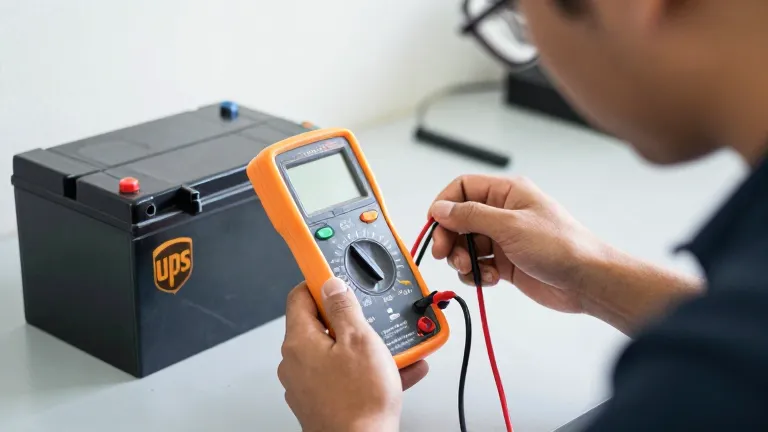
To check your UPS battery status, refer to the display panel on the unit or use the software provided by the manufacturer. Most UPS systems show the battery level, charge status, and health indicators. If the battery is low or in a degraded state, the UPS may emit continuous beeps to alert you. Some models also offer diagnostic tools or error codes that can pinpoint specific battery-related issues.
When to Replace the UPS Battery
Replace the UPS battery if it is more than three to five years old, as batteries typically have a limited lifespan. Signs that a battery may need replacement include swelling, leakage, or physical damage. If the UPS frequently beeps despite a full charge or if the battery fails to hold a charge, it is likely time for a replacement. Always use a battery that matches the specifications provided by the UPS manufacturer to ensure compatibility and optimal performance.
Troubleshoot Overload or Fault Conditions
A continuous beep from your UPS can often indicate an overload or fault condition. These issues arise when the UPS is unable to supply sufficient power to connected devices, or when a fault is detected in the system. Identifying and resolving these conditions is crucial to restoring normal operation and preventing further damage.
- Check for overload by reviewing the power consumption of connected devices.
- Unplug non-essential devices to reduce the load on the UPS.
- Ensure that the total power draw does not exceed the UPS's rated capacity.
- Look for any visible signs of damage or overheating on the UPS or connected equipment.
Identifying Overload or Fault Conditions
Identifying overload or fault conditions begins with assessing the load on your UPS. Most UPS units have a display or indicator lights that show the current power usage. If the load exceeds the UPS's capacity, it will trigger a continuous beep. Additionally, the UPS may display an error message or flash a specific light to indicate the issue. Checking the user manual for specific codes or patterns can help pinpoint the exact cause.
Managing Connected Devices
Managing connected devices is a key step in resolving overload or fault conditions. Start by disconnecting all non-essential devices and observe if the beeping stops. If the problem persists, gradually reconnect devices one at a time to identify the one causing the overload. High-power devices such as printers, servers, or gaming consoles can significantly increase the load. It's also important to ensure that all devices are compatible with the UPS and that their power requirements are within the UPS's limits.
Advanced Troubleshooting and Maintenance
Advanced troubleshooting and maintenance can help resolve persistent beeping and ensure your UPS system operates reliably. Regular updates and inspections can prevent software glitches and physical issues from affecting performance.

Updating UPS Firmware
Updating the UPS firmware can resolve software-related issues that may cause continuous beeping. Check the manufacturer’s website for the latest firmware version and follow the installation instructions carefully. Firmware updates often include bug fixes and performance improvements that enhance system stability and reliability.
Cleaning and System Testing
Cleaning the UPS unit is essential to remove dust and debris that can interfere with its operation. Use a soft cloth or compressed air to gently clean the vents, fan, and internal components. Avoid using liquid cleaners, as they may damage sensitive electronics. A clean UPS ensures proper airflow and reduces the risk of overheating.
Performing a full system test after cleaning and updating firmware helps confirm that the issue is resolved. Use the UPS’s built-in diagnostic tools or follow the manufacturer’s guidelines for testing. If the beeping persists, consult the user manual or contact customer support for further assistance.
Frequently Asked Questions
What should I do if my UPS keeps beeping even after replacing the battery?
If the beeping continues after replacing the battery, check for other issues such as overload, faulty connections, or system errors. Ensure the UPS is properly connected and restart the system. If the problem persists, consult the user manual or contact technical support.
Can a UPS beep continuously even if the battery is fully charged?
Yes, a UPS can beep continuously due to other issues like overload, system faults, or software errors. A fully charged battery does not always prevent beeping if the system detects a problem.
How do I know if my UPS is experiencing an overload?
An overload typically triggers a continuous beep or a specific alarm pattern. Check the UPS manual for overload indicators. If the UPS is drawing more power than it can handle, unplug non-essential devices to resolve the issue.
Is it possible for a UPS to beep continuously due to a software error?
Yes, software errors can cause continuous beeping. Check for firmware updates and ensure the system is running the latest version. If the issue persists, resetting the UPS or contacting technical support may be necessary.
Final Steps for UPS Troubleshooting
A continuous beep from your UPS often signals an underlying issue that requires attention. By systematically checking power sources, battery health, and system conditions, you can identify and resolve the problem. Regular maintenance and firmware updates are also essential for optimal UPS performance.
If beeping persists after troubleshooting, consult the user manual or seek professional assistance. Addressing these issues promptly ensures your UPS functions reliably during power outages.