
How to Fix iPhone Battery Draining Fast Overnight
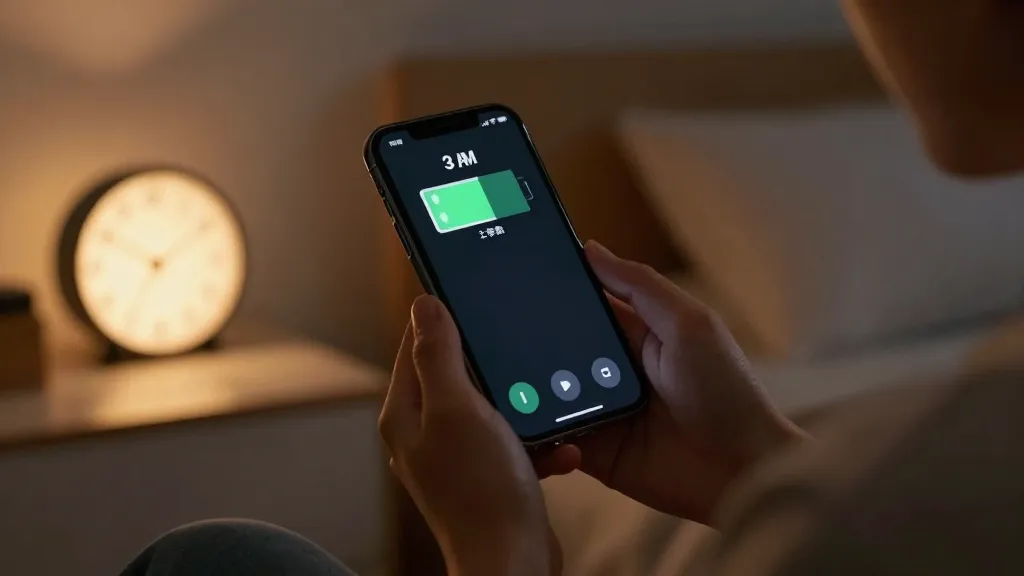
If your iPhone is draining its battery fast overnight, it can be frustrating, especially when you rely on it for work or personal tasks. The main keyword 'How to Fix iPhone Battery Draining Fast Overnight' is a common concern for many users who want to extend their device’s battery life without spending money on repairs. This issue can stem from various factors, including system updates, background app activity, and settings that aren’t optimized for energy efficiency. By understanding the root causes and taking simple steps, you can significantly improve your iPhone’s battery performance. This article will guide you through practical solutions to address overnight battery drain and help you keep your device running longer on a single charge.
Understanding iPhone Battery Drain
Understanding why your iPhone drains its battery overnight is essential for maintaining optimal performance and extending battery life. Even when your phone is idle, various factors can contribute to rapid battery drain, making it crucial to identify and address these issues proactively.
Common Causes of Overnight Battery Drain
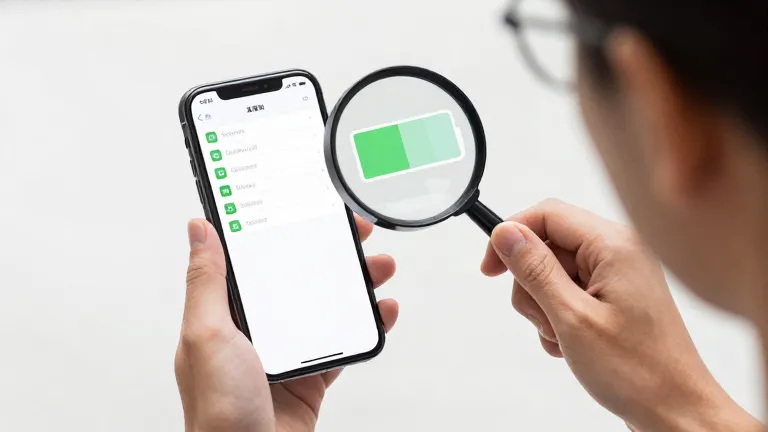
Common causes of overnight battery drain often include background processes, location services, and automatic updates. Even when your iPhone is locked, apps may continue to run in the background, consuming power. Location services and Bluetooth can also contribute to battery drain if left enabled unnecessarily. It's important to review which apps are active in the background and adjust their settings accordingly.
How System Updates Affect Battery Life
System updates can significantly affect battery life, especially if they are large or require a lot of processing power. While updates are essential for security and performance, they can temporarily increase battery consumption during installation. Additionally, some updates may introduce changes to battery management or background activity that impact power efficiency. Monitoring your battery usage after an update can help identify if it's contributing to unexpected drain.
Check Battery Settings and Usage
Checking your iPhone's battery settings is a crucial first step in diagnosing and resolving overnight battery drain. By reviewing app usage and enabling power-saving features, you can significantly improve your device's battery efficiency without needing to replace the battery.
- Review battery usage in Settings to identify energy-hungry apps.
- Enable Low Power Mode to extend battery life during the night.
- Turn off unnecessary features like Bluetooth and Wi-Fi when not in use.
Battery Usage in Settings
Open the Settings app and navigate to the Battery section to view a detailed breakdown of how your iPhone is using power. This overview highlights which apps are consuming the most energy, allowing you to pinpoint potential culprits such as background refresh or constant location updates. If an app is using an unusually high amount of battery, consider restricting its background activity or limiting its access to location services.
Low Power Mode and Its Impact
Low Power Mode is a built-in feature that reduces your iPhone's power consumption by dimming the screen, disabling non-essential functions like automatic downloads, and limiting background app refresh. Activating this mode during the night can help conserve battery life, especially if you're not using your device extensively. However, it's important to note that some features, such as push notifications and certain app functions, may be affected, so use it judiciously based on your needs.
Optimize Background App Activity
Optimizing background app activity is a key step in preventing your iPhone from draining battery overnight. Many apps continue to use data and resources in the background, which can significantly impact battery life. By managing these activities, you can reduce unnecessary power consumption and extend your battery's longevity.
- Disable Background App Refresh for non-essential apps.
- Close apps that are running in the background and not needed.
- Use App Restrictions to limit background activity for power-hungry apps.
- Monitor which apps are using the most battery through Battery Usage settings.
Managing Background App Refresh
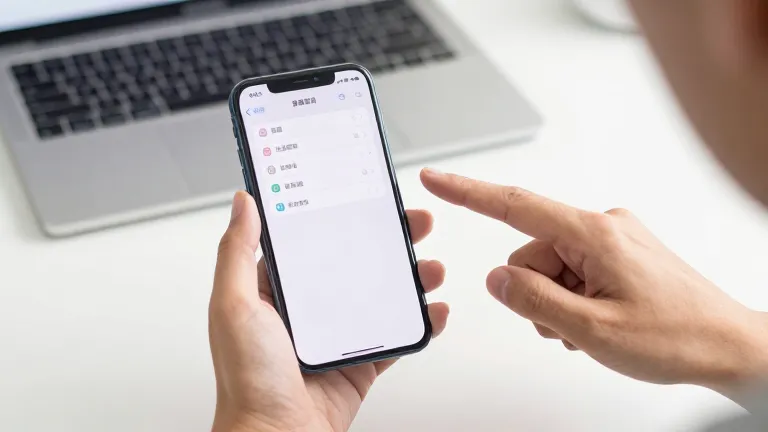
Managing Background App Refresh is an effective way to reduce battery drain. Go to Settings > General > Background App Refresh and toggle off apps that don't require constant updates. This prevents them from using data and power unnecessarily, especially when you're not actively using the app. However, some apps, like messaging or navigation services, may still need background access for optimal performance.
To further control background activity, you can disable Background App Refresh entirely. This will stop all apps from refreshing in the background, which can save battery life but may affect app functionality. If you're concerned about battery drain, consider selectively disabling this feature for apps that aren't essential for your daily tasks.
App Restrictions for Battery Saving
App Restrictions allow you to limit how apps use your iPhone's resources, including background activity. Go to Settings > Screen Time > App Limits and create a new limit for specific apps. This helps prevent apps from running in the background and using power when they're not needed. You can also set a daily usage cap to ensure apps don't consume too much battery during the night.
For apps that are known to be power-hungry, such as streaming services or social media platforms, using App Restrictions can significantly reduce their impact on battery life. This approach gives you more control over which apps can access background data and how often they can do so, helping to conserve battery without compromising essential functions.
Use Battery Saver Features and Settings
Battery Saver features and settings are powerful tools for extending your iPhone’s battery life, especially during overnight use. By adjusting key settings and enabling built-in power-saving options, you can significantly reduce energy consumption without sacrificing essential functionality.
- Enable Battery Saver to reduce power consumption automatically.
- Adjust screen brightness and set a shorter screen timeout.
- Turn off features like Location Services when not needed.
Battery Saver Mode
Battery Saver Mode is a built-in feature that automatically reduces power consumption by limiting background activity, dimming the screen, and disabling non-essential functions. When enabled, it prioritizes battery life over performance, making it ideal for overnight use. You can activate it manually through Settings or let it turn on automatically when the battery drops below 20%.
Screen Brightness and Timeout Settings
Screen brightness and timeout settings play a crucial role in battery conservation. Lowering the screen brightness to a comfortable level can significantly extend battery life, especially on newer iPhone models with OLED displays. Additionally, setting a shorter screen timeout—such as 15 seconds instead of 1 minute—ensures the screen turns off quickly when not in use, preventing unnecessary power drain.
When to Consider Professional Help
If your iPhone continues to drain its battery rapidly even after adjusting settings and optimizing usage, it may indicate a faulty battery or a hardware issue. While software settings can often resolve battery concerns, some problems require professional attention to ensure your device functions optimally.
Signs of a Faulty iPhone Battery
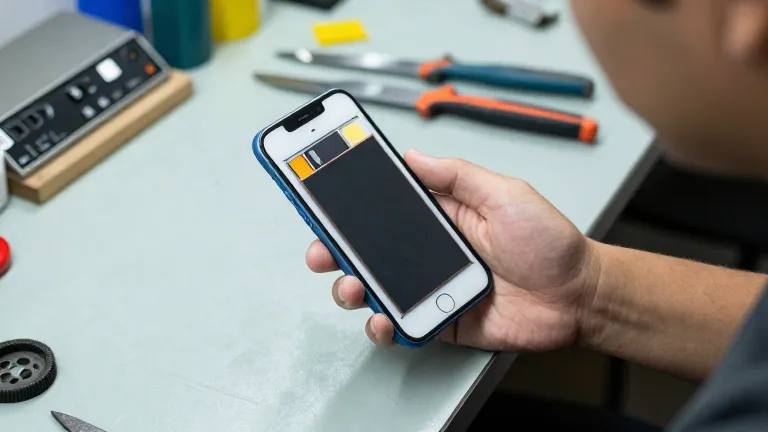
A faulty iPhone battery may show signs such as rapid drainage, unexpected shutdowns, or a battery percentage that doesn’t match the actual charge. If your device fails to charge properly, or if the battery icon shows a full charge but the phone turns off unexpectedly, these could be hardware-related issues. Additionally, if your iPhone overheats during charging or when in use, it may signal a deeper problem that cannot be fixed through software adjustments.
Replacing Your iPhone Battery
Replacing your iPhone battery can be done through Apple or a certified repair center. Apple offers battery replacements for a fee, and the cost varies depending on the model and region. Certified repair centers may provide more affordable options, but it's essential to ensure they use genuine or compatible parts to avoid further damage. Always verify the repair center's credentials to ensure quality service and warranty coverage. If your iPhone is still under warranty, Apple may replace the battery at no cost, which is a convenient option for users facing persistent battery issues.
Frequently Asked Questions
Why is my iPhone battery draining even when it's not in use?
Your iPhone may drain battery even when not in use due to background processes, location services, or system updates. Check battery usage in Settings and disable unnecessary features.
Can I fix iPhone battery drain without replacing the battery?
Yes, you can often fix battery drain by adjusting settings, using battery saver modes, and managing app activity. These steps can significantly improve battery life.
How do I check which apps are using the most battery?
Go to Settings > Battery > Battery Usage to see which apps are consuming the most power. This helps identify and manage energy-hungry apps.
What should I do if my iPhone battery drains overnight even after adjusting settings?
If battery drain persists after adjusting settings, consider professional help. A faulty battery or software issue may require repair or replacement.
Final Tips for Battery Efficiency
Managing your iPhone's battery settings and optimizing app usage can significantly extend battery life. Regularly check for updates and adjust settings to maintain efficiency.
If issues persist, consult a professional for battery replacement or further diagnostics. Taking proactive steps ensures your iPhone remains efficient and reliable.





