
How to Fix Laptop Battery Plugged In Not Charging
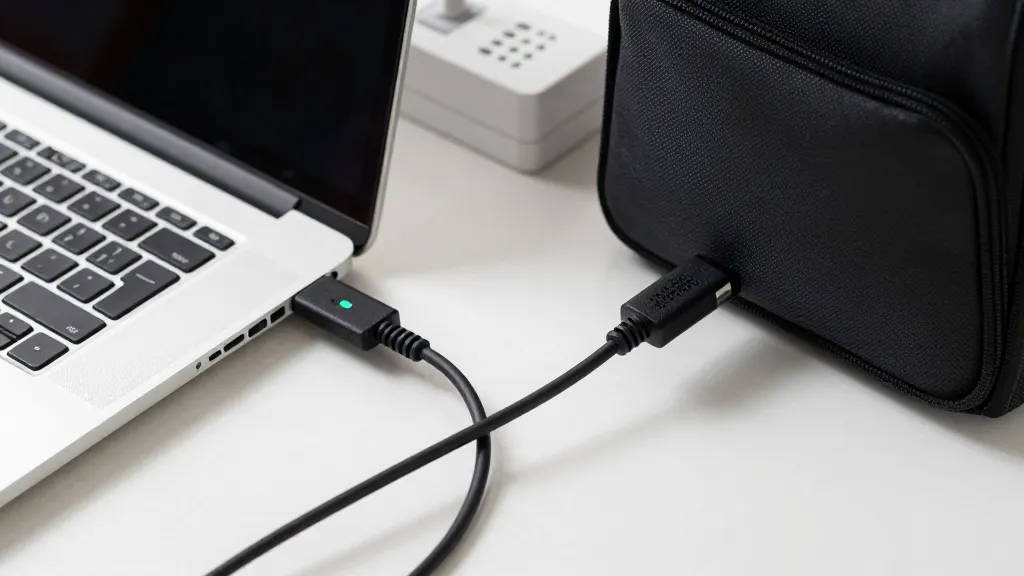
If your laptop is plugged in but not charging, it can be frustrating, especially when you need it to power through your work or personal tasks. This issue can arise from a variety of causes, ranging from simple connection problems to more complex hardware or software issues. The main keyword here is 'How to Fix Laptop Battery Plugged In Not Charging,' and this article will guide you through practical steps to resolve the problem without needing professional help. Whether you're a home user or an office worker, the solutions provided are designed to help you troubleshoot and fix the issue quickly and efficiently.
The first step in diagnosing the problem is to check the physical connections, including the charging port and cable. A loose connection or damaged cable can prevent the laptop from receiving power. Additionally, verifying the power outlet and adapter ensures that the issue isn't with the external power source. These initial checks are often the most straightforward and can resolve the issue without further intervention.
If the basic checks don’t solve the problem, you can use built-in diagnostic tools or manufacturer-specific software to identify deeper issues. In some cases, a hard reset or resetting power and battery settings can also help. If these steps don’t work, it may be necessary to replace the battery or seek professional assistance. By following this guide, you can address the problem confidently and efficiently.
Check the Charging Port and Cable
Before diving into more complex solutions, start by checking the most common culprits behind a laptop that's plugged in but not charging: the charging port and cable. Physical damage or debris in the port can prevent a secure connection, while a faulty cable or adapter may fail to deliver power. A simple inspection and testing with alternative components can often resolve the issue without requiring further troubleshooting.
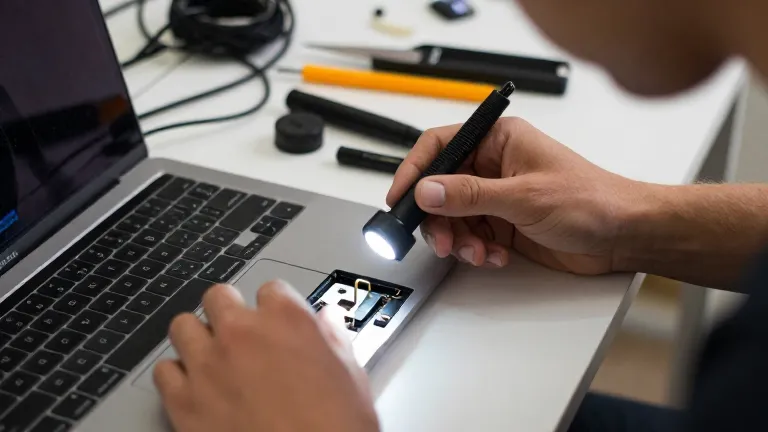
Inspect the Charging Port
Inspect the laptop's charging port for any signs of physical damage, such as bent pins, corrosion, or debris buildup. Use a flashlight to closely examine the port and look for any visible damage that might interfere with the connection. If you notice any debris, gently clean it with a soft brush or compressed air to ensure the port remains clear and functional.
Try a Different Power Cable
Test the power cable by plugging it into a different laptop or device to confirm whether it is functioning correctly. If the cable works with another device, the issue may lie with your laptop's charging port. If the cable fails to power another device, it is likely defective and should be replaced. Always use a cable that is compatible with your laptop's specifications to avoid further complications.
Verify the Power Outlet and Adapter
Verifying the power outlet and adapter is a crucial step in diagnosing why your laptop isn't charging. Many issues can stem from a faulty power source or a disconnected adapter, so it's important to rule these out before moving on to more complex solutions.
Test the Power Outlet
To test the power outlet, plug in a different device such as a phone or a lamp. If the device works, the outlet is likely functional. If it doesn't, try a different outlet or check the circuit breaker. A working outlet is essential for your laptop to receive power.
Check the Adapter Connection
Ensure the power adapter is securely connected to both the laptop and the power outlet. Look for any loose connections or signs of damage, such as frayed wires or a cracked plug. If the adapter is not properly seated, it may not deliver power to the laptop. Additionally, verify that the adapter's LED indicator is on, which usually signifies that it's receiving power from the outlet.
If you're unsure about the adapter's voltage output, use a multimeter to test it. Set the multimeter to measure voltage and connect the probes to the adapter's output terminals. Compare the reading to the voltage specified on the adapter's label, typically between 18.5V and 20V. A significant deviation may indicate a faulty adapter that needs replacement.
Use Diagnostic Tools to Troubleshoot
Diagnostic tools are essential for identifying the root cause of charging issues. These tools can detect hardware malfunctions, software conflicts, or system errors that prevent the laptop from charging properly. Running these tests can help pinpoint the problem without requiring advanced technical knowledge.
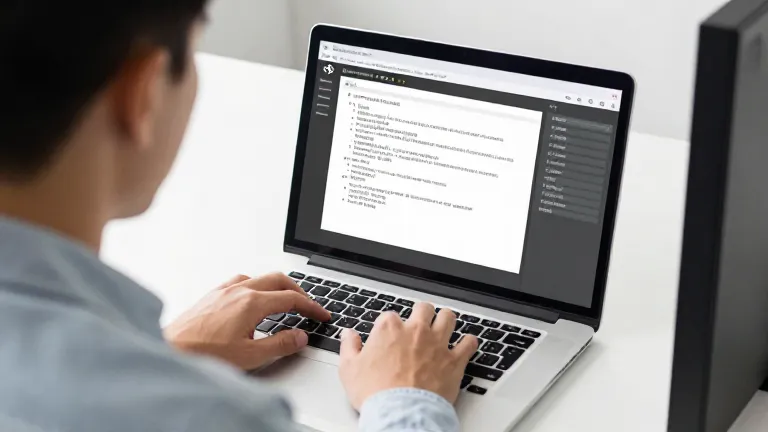
Run Built-In Diagnostic Tools
Windows and macOS include built-in tools to check battery health and charging status. On Windows, open the Settings app, navigate to System > Power, and check the battery health section. macOS users can access the Battery section in System Preferences to view the condition of their laptop battery. These tools provide insights into whether the battery is charging correctly and if there are any warnings or errors.
Use Manufacturer-Specific Software
Many laptop manufacturers provide diagnostic software to test charging systems and other hardware components. For example, Dell’s Dell Diagnostics, HP’s Support Assistant, and Lenovo’s Vantage can scan for issues related to the charging port, power adapter, or battery. Downloading and running these tools can reveal specific errors or malfunctions that might not be visible through standard system checks. If the software detects a problem, it may offer guidance on how to resolve it or suggest replacing faulty components.
Reset the Laptop Battery and Settings
Resetting your laptop's battery and settings can resolve charging issues caused by software glitches or temporary system errors. This section outlines steps to perform a hard reset and adjust power settings to restore normal charging functionality.
Perform a Hard Reset
To perform a hard reset, start by unplugging the laptop from the power source and removing the battery if it's removable. Wait for at least 30 minutes to allow the system to fully discharge any residual power. After the wait, reinsert the battery (if applicable) and plug the laptop back in. This process can clear minor software conflicts that may be interfering with the charging process.
Reset Power and Battery Settings
Next, reset the power and battery settings through your laptop's system preferences. On Windows, navigate to 'Control Panel' > 'Power Options' and select 'Change plan settings' to adjust the power plan. On macOS, go to 'System Settings' > 'Battery' and ensure the settings are optimized for charging. Adjusting these settings can help the system recognize and manage the battery more effectively.
Replace Faulty Components or Seek Professional Help
If self-troubleshooting fails, faulty components like the laptop battery or charging port may be the root cause. These parts can degrade over time or suffer physical damage, leading to persistent charging issues. Replacing them or seeking professional assistance ensures long-term reliability and safety.
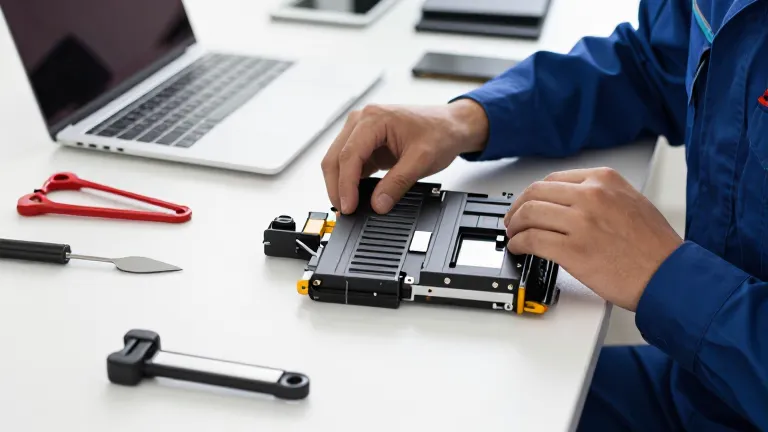
Replace the Laptop Battery
Replace the laptop battery if it is old or damaged. Most laptops use lithium-ion batteries that degrade after several years of use, reducing their ability to hold a charge. If the battery is swollen, cracked, or shows signs of wear, it should be replaced. Check the laptop manufacturer's website for compatible battery models and ensure proper installation to avoid further damage.
Contact a Professional Repair Service
Contact a certified technician for complex hardware issues. If the charging port is physically compromised—such as bent pins or visible damage—it may require professional repair or replacement. Similarly, internal hardware failures, like a faulty motherboard or power management chip, should be addressed by a qualified technician. Always use authorized service centers to ensure compatibility and warranty coverage.
Frequently Asked Questions
Why is my laptop battery not charging even though it's plugged in?
Your laptop might not charge due to a faulty power cable, damaged charging port, or issues with the power adapter. Check for loose connections or try a different cable. If the problem persists, consider running diagnostic tools or contacting a professional.
How can I tell if my laptop's charging port is damaged?
Look for physical damage, such as bent pins or debris in the port. If your laptop fails to charge even with a working cable and adapter, the port might be damaged. You can also test with a different power source or use diagnostic software.
Is it possible to fix a laptop battery charging issue without replacing parts?
Yes, many charging issues can be resolved by troubleshooting the cable, adapter, and port, or by resetting power settings. Software tools and basic diagnostics often address the problem without requiring hardware replacement.
What should I do if my laptop still won't charge after checking the cable and port?
Try running built-in diagnostic tools or using manufacturer-specific software to identify deeper issues. If the problem persists, it may be necessary to replace the battery or seek professional repair services for further assistance.
Final Thoughts
Fixing a laptop battery that isn't charging when plugged in involves checking physical connections, verifying the power source, and using diagnostic tools. If these steps don't resolve the issue, professional help may be required.
Always start with simple troubleshooting steps like checking cables and ports before moving to more complex solutions. A well-maintained charging system ensures optimal laptop performance and longevity.





