
How to Fix MacBook Overheating and Loud Fan Noise
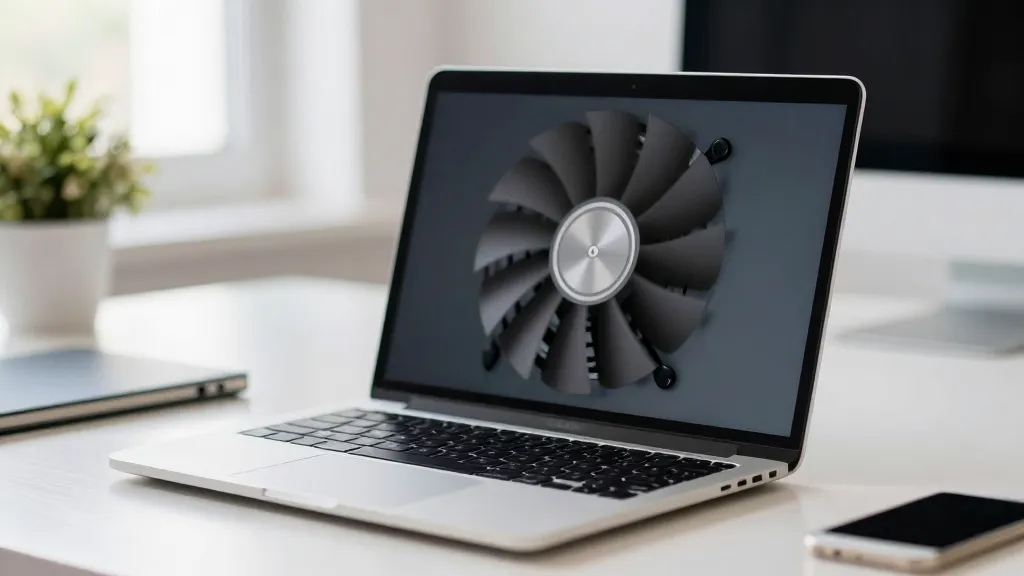
If your MacBook is overheating and producing loud fan noise, it can be both annoying and concerning. This issue is common among homeowners and office workers who rely on their devices for daily tasks. The fan noise and heat can affect performance and even shorten the lifespan of your laptop. The main keyword here is 'How to Fix MacBook Overheating and Loud Fan Noise,' and this article will guide you through practical solutions to address the problem without needing professional repair services.
We’ll start by explaining what causes overheating and loud fan noise, then move on to actionable steps like cleaning the fans and improving airflow. You’ll also learn how to update your software and manage background processes to reduce strain on your system.
Whether you're dealing with a dusty laptop or a software-related issue, this guide offers clear, no-nonsense advice to help you troubleshoot and fix the problem at home. Let’s get your MacBook running smoothly again.
Understanding MacBook Overheating and Fan Noise
MacBook overheating is a common issue that can affect performance and longevity. When the laptop's internal components get too hot, it can lead to thermal throttling, reduced processing power, and even hardware damage over time. Loud fan noise is a clear indicator that the cooling system is working harder than usual to maintain safe operating temperatures. Understanding the root cause of these issues is essential for finding an effective and affordable solution.
What Causes MacBook Overheating?
Overheating in MacBooks is often caused by dust buildup in the vents and fans, which restricts airflow and traps heat inside the device. Poor ventilation, such as placing the laptop on soft surfaces or in a confined space, can also contribute to the problem. Additionally, software issues like outdated macOS versions or background processes consuming excessive resources can cause the CPU and GPU to work harder, generating more heat.
Why Does the Fan Sound Loud?
Loud fan noise typically indicates that the cooling system is under stress and needs to work harder to maintain safe temperatures. This can happen when the laptop is running resource-intensive applications, multitasking, or when the internal components are overheating due to poor airflow. The fan may also become louder if the thermal paste between the CPU and heat sink has degraded over time, reducing heat transfer efficiency.
Check for Dust and Clean the Fans
Dust buildup is a primary cause of MacBook overheating and loud fan noise. Over time, dust accumulates in vents and fan blades, obstructing airflow and forcing the fan to work harder. Regular cleaning can significantly improve cooling efficiency and reduce noise without requiring professional assistance.

- Turn off the MacBook and unplug it from the power source to ensure safety during cleaning.
- Use a soft brush or compressed air to gently remove dust from vents and fan blades. Avoid using excessive force to prevent damage to delicate components.
- Clean the vents using a soft brush or compressed air, ensuring all dust is removed without applying direct pressure.
- Avoid using liquid cleaners or solvents, as they can damage internal components and void warranties.
How to Clean MacBook Fans and Vents
To clean MacBook fans and vents, start by turning off the device and unplugging it. Use a soft brush or compressed air to carefully remove dust from the vents and fan blades. Ensure that you do not apply direct pressure to the fan, as this could cause damage. This method is effective and safe for most MacBook models.
Best Tools for MacBook Cleaning
The best tools for cleaning a MacBook include a soft brush, compressed air canister, and a microfiber cloth. A soft brush is ideal for gently removing dust from vents and fan blades, while compressed air is perfect for dislodging stubborn debris. A microfiber cloth can be used to wipe down the exterior of the MacBook and remove any remaining dust. These tools are inexpensive and widely available, making them a practical choice for regular maintenance.
Improve Airflow and Ventilation
Improving airflow and ventilation is a simple yet effective way to reduce MacBook overheating and loud fan noise. By ensuring the device has enough space to breathe, you can significantly lower internal temperatures and improve overall performance.
Optimal Placement for MacBook Cooling
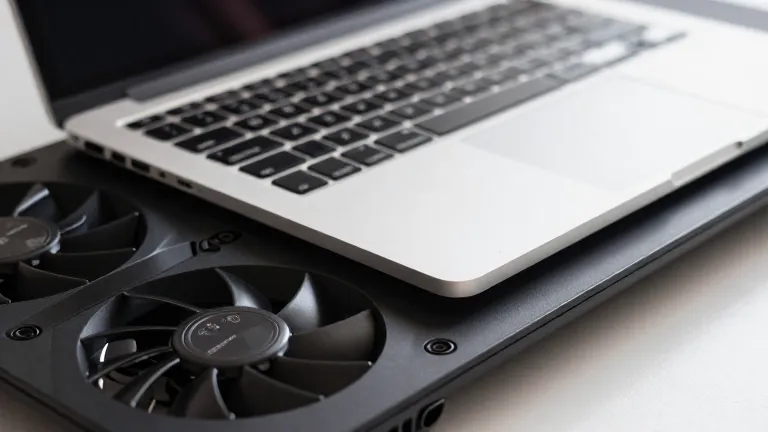
Place your MacBook on a hard, flat surface to allow proper airflow. Soft surfaces like beds, couches, or carpets can block the vents and trap heat, leading to increased temperatures. A desk or table provides the best airflow and ensures the laptop’s cooling system operates efficiently. Avoid placing the MacBook on a lap or in a closed laptop bag, as these can also restrict airflow and cause overheating.
Cooling Pads: Do They Work?
Cooling pads can enhance airflow and reduce heat buildup, but their effectiveness depends on the model and usage. These devices typically have built-in fans that supplement the MacBook’s cooling system, helping to maintain lower temperatures during intensive tasks. However, not all cooling pads are created equal—look for ones with adjustable fan speeds and good airflow design. While they can be useful, they are not a substitute for proper placement and maintenance, and should be used in conjunction with other cooling strategies.
Update Software and System Settings
Keeping your macOS and applications up to date is crucial for maintaining optimal performance and reducing unnecessary heat generation. Software updates often include bug fixes, security patches, and performance improvements that can help prevent overheating and reduce fan noise.
- Open System Preferences and click on Software Update to check for macOS updates.
- Ensure all installed applications are updated through the App Store or their respective developer websites.
- Use the Activity Monitor to identify and quit any background processes that are using excessive CPU or memory.
- Adjust energy settings in System Preferences to prioritize performance over battery savings when needed.
How to Update macOS and Applications
Updating macOS ensures your system benefits from the latest optimizations and bug fixes. Apple regularly releases updates that improve thermal management and reduce resource consumption. To update, go to System Preferences > Software Update and click 'Check for Updates'. Install any available updates to maintain system stability and efficiency.
Managing Background Processes on MacBook
Background processes can significantly impact your MacBook's performance and contribute to overheating. Use the Activity Monitor to identify apps using excessive CPU, memory, or disk resources. Right-click on any suspicious processes and select 'Quit' to stop them. Avoid leaving unnecessary apps running in the background to free up system resources and reduce heat buildup.
Monitor and Manage System Performance
Monitoring and managing system performance is essential to identifying and resolving overheating and loud fan noise on your MacBook. Built-in and third-party tools can help you pinpoint resource-heavy processes, manage background activity, and ensure your system runs efficiently without excessive strain.

Using Activity Monitor to Diagnose Issues
Activity Monitor is a powerful built-in tool that provides real-time insights into your MacBook’s CPU, memory, and disk usage. Open it via Applications > Utilities to view which processes are consuming the most resources. Look for applications or processes with unusually high CPU or memory usage, as these can contribute to overheating. Closing or optimizing such processes can help reduce heat generation and lower fan activity.
Third-Party Tools for System Monitoring
For more advanced monitoring, third-party tools like iStat Menus or Coconut Battery offer detailed insights into system performance, battery health, and thermal management. These tools allow you to set alerts for high temperatures or excessive resource usage, giving you greater control over your MacBook’s environment. While they are not necessary for basic troubleshooting, they can be useful for users who want deeper customization and real-time monitoring of system behavior.
Frequently Asked Questions
Can I fix MacBook overheating without cleaning the fans?
Yes, you can address overheating without cleaning the fans by improving airflow, updating software, and managing background processes. However, dust buildup is a common cause, so cleaning remains a crucial step for long-term cooling.
What should I do if my MacBook fan is loud but not overheating?
Loud fan noise without overheating may indicate a faulty fan or software issues. Check for software updates, close unnecessary processes, and consider professional inspection if the noise persists.
Are cooling pads effective for MacBook cooling?
Cooling pads can improve airflow and reduce temperatures, but their effectiveness depends on quality and design. They are a helpful supplement but not a substitute for proper ventilation and maintenance.
How often should I clean my MacBook fans?
Cleaning fans every 3 to 6 months is recommended, depending on usage. If you use your MacBook frequently or in dusty environments, more frequent cleaning may be necessary.
Final Thoughts
Regular maintenance, optimal placement, and software updates are key to preventing MacBook overheating. Addressing noise and heat issues early ensures better performance and longevity.
If your MacBook continues to overheat or produce loud fan noise, consider professional servicing. Implement the steps outlined here to keep your device running smoothly.





