
How to Use Your Android Phone as a Second Monitor on Windows 11
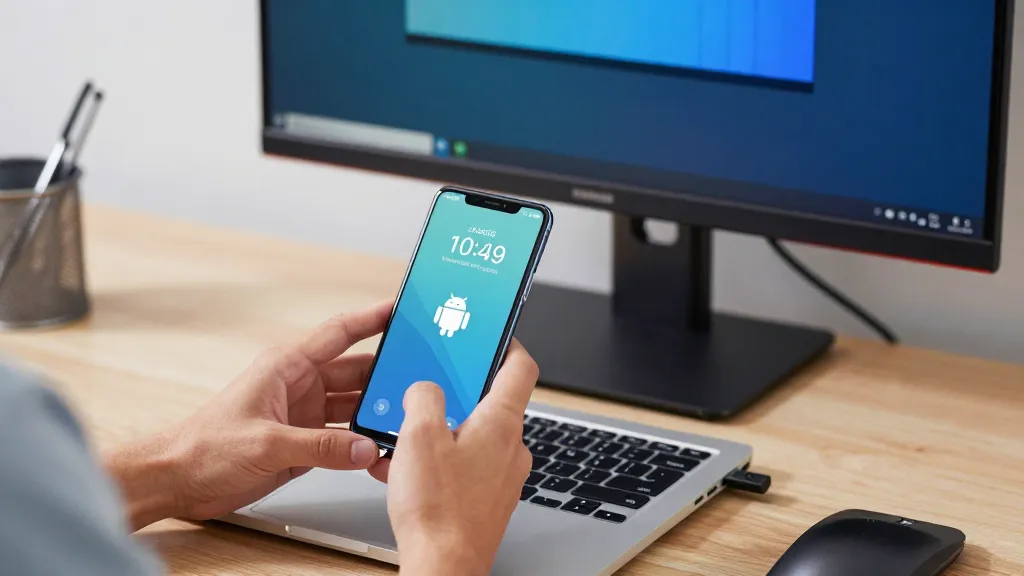
If you're looking for a cost-effective way to expand your workspace, you might be wondering how to use your Android phone as a second monitor on Windows 11. With the potential for your Android device to act as a secondary display, you could gain extra screen space without the need for an additional monitor. This feature, still in development, could revolutionize how users manage their digital workspace by integrating their mobile devices seamlessly with their PCs. In this article, we'll explore what this feature entails, how to set it up, and what you need to know before using your Android phone as a second monitor on Windows 11.
The concept of using an Android phone as a second monitor involves sending part of your Windows desktop to the device, effectively turning it into an extra display. While the feature is not yet fully available, recent code hints suggest that Microsoft is working on integrating this functionality into Windows 11. This development could offer users a new way to manage their workspace, especially for home users and office workers who want to maximize productivity without extra costs.
Before diving into the setup process, it's important to understand the technical requirements and potential challenges. While the feature promises to enhance productivity, factors like performance, battery life, and connectivity may affect the user experience. This article provides a comprehensive guide to help you navigate the possibilities and limitations of using your Android phone as a second monitor on Windows 11.
What Is an Android Phone as a Second Monitor?
Using your Android phone as a second monitor on Windows 11 is an emerging feature that could significantly enhance workspace flexibility. This functionality, still under development, allows users to extend their desktop across their phone, effectively turning it into an additional display. While not yet available, the potential for this feature highlights Microsoft's ongoing efforts to integrate mobile devices more seamlessly into the Windows ecosystem.
How This Feature Works
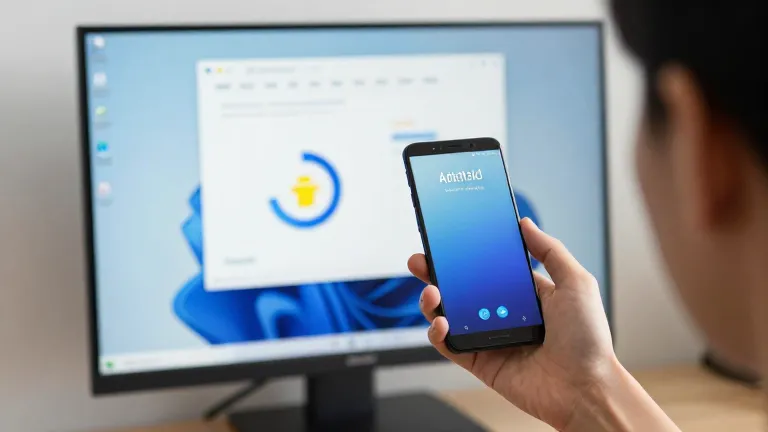
The feature works by sending parts of the Windows desktop to the Android device, enabling it to function as an extended display. This process involves encoding the desktop content into a video stream, which is then transmitted to the phone using specific video codecs such as H.264 and HEVC. The phone decodes this stream and displays it as a secondary screen, allowing users to multitask more efficiently without the need for an extra monitor.
What the Feature Could Mean for Users
For users, this feature could mean a more versatile and cost-effective way to manage their workspace. It eliminates the need for purchasing an additional monitor, making it an attractive option for those with limited space or budget. Additionally, the ability to use a phone as a second monitor could improve productivity by allowing users to spread out their work across multiple screens, enhancing multitasking and workflow efficiency.
How to Set Up Your Android Phone as a Second Monitor on Windows 11
As of now, there is no official setup process for using an Android phone as a second monitor on Windows 11, as the feature is still in development. While new code has been discovered in the Link to Windows app suggesting the possibility of this functionality, it remains a work in progress. Users are advised to stay informed through official Microsoft channels for updates on when this feature might become available.
Current Status of the Feature
The feature is currently not available for general use, and there is no official method to set it up at this time. Microsoft has not released any formal instructions or tools for users to activate the 'Extend display' functionality on their Android devices. While there are indications that the feature is being developed, including references to video codecs like H.264 and HEVC, there is no confirmed release date or setup guide. Users who are eager to try this functionality may need to rely on third-party applications or wait for an official update from Microsoft.
What to Expect in the Future
In the future, Microsoft may introduce an official update that allows users to connect their Android phones as a second monitor via Wi-Fi or USB. The feature is expected to offer a more seamless experience, with the ability to extend the Windows desktop to the phone, effectively turning it into an additional screen. However, until this update is released, users should remain cautious and avoid relying on unverified third-party tools that claim to provide similar functionality. Following updates from Microsoft's official sources will be the best way to stay informed about the progress of this feature.
Understanding the Technical Requirements
Understanding the technical requirements for using an Android phone as a second monitor on Windows 11 is essential to ensure a smooth and functional experience. The feature relies on specific video codecs and connectivity options to transmit desktop content to the phone, which are still evolving and subject to change.
Video Codecs and Display Settings
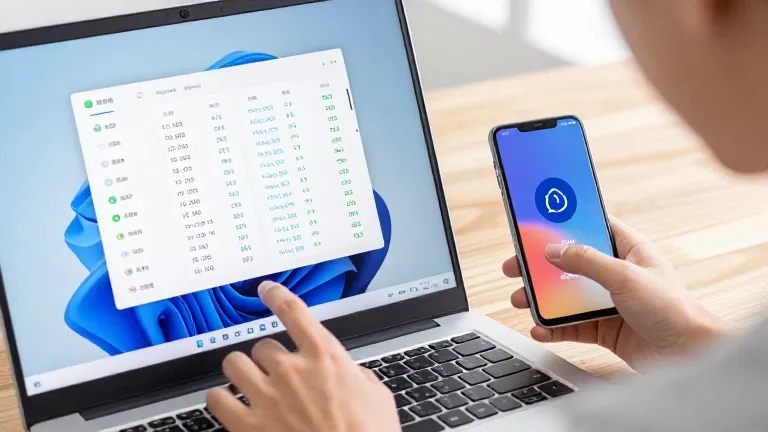
The feature depends on video codecs such as H.264 and HEVC to encode and transmit desktop content to the Android device. These codecs are widely used for video compression, allowing the PC to send high-quality video over limited bandwidth. The phone must support these codecs to decode and display the content accurately. The resolution and refresh rate of the phone also play a critical role in the overall performance, ensuring that the second screen remains clear and responsive.
Connectivity Options
Connectivity options for this feature are still under development, with both Wi-Fi and USB being potential methods. The code discovered in the Link to Windows app suggests that the system may support multiple connection types, offering flexibility for users. However, the exact implementation details, such as which protocol will be used and how it will handle different network conditions, are not yet finalized. This means that users may need to wait for official updates or specific hardware support to fully utilize the feature.
What You Need to Know Before Using Your Android Phone as a Second Monitor
Before using your Android phone as a second monitor on Windows 11, it's important to understand the limitations and potential challenges. While the feature promises expanded workspace, there are several factors that could impact your experience, including performance, battery life, and compatibility with different devices.
Potential Performance Issues
Potential performance issues could arise due to the additional processing required to send desktop content to your phone. The phone will need to decode video streams from your PC, which may cause lag or delays, especially if your device has limited hardware capabilities. Additionally, the quality of the display might not match that of a dedicated monitor, leading to a less optimal experience for tasks that require high precision or fast response times.
Battery and Usage Considerations
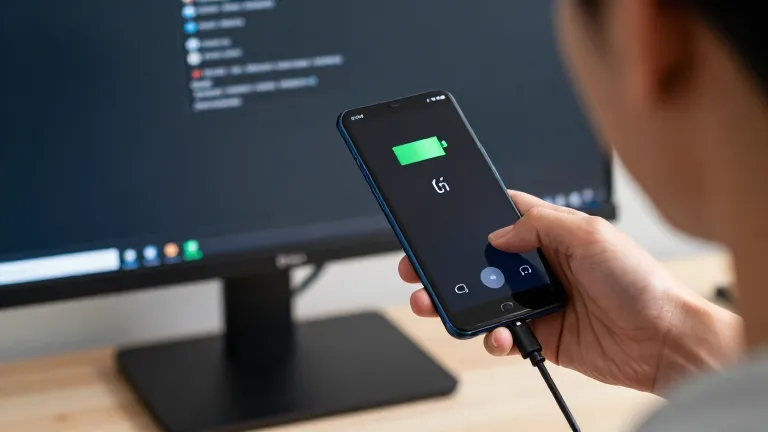
Using your Android phone as a second monitor can significantly drain its battery life. The constant data transfer and screen rendering will put extra strain on the phone's battery, which could lead to shorter usage times. To mitigate this, it's advisable to keep your phone charged or use it with a power source while in use. Furthermore, the experience may not be as seamless as using a traditional monitor, with potential issues such as screen refresh rates, resolution, and input lag affecting productivity and comfort.
Tips for Using Your Android Phone as a Second Monitor
When using your Android phone as a second monitor, it's essential to keep it charged to avoid any interruptions during your work session. A low battery can cause the connection to drop, which may disrupt your workflow. Ensure your phone is fully charged before starting, and consider keeping it plugged in if you plan to use it for an extended period.
- Keep your phone charged to avoid disruptions during use.
- Use a stable Wi-Fi connection to ensure a smooth experience.
- Be aware that this feature is still in development, and the final experience may vary.
- Position your phone for optimal display and adjust settings for clarity.
- Monitor your phone's battery life and performance during extended use.
A stable Wi-Fi connection is crucial for a seamless experience. Poor connectivity can lead to lag, pixelation, or even a complete disconnection. If possible, use a strong and reliable Wi-Fi network to minimize these issues. Avoid using your phone for other tasks simultaneously, as this can also affect the performance of the second monitor feature.
As this feature is still in development, the final experience may vary depending on your device and software updates. Microsoft is likely refining the feature, so it's important to stay updated with the latest Windows 11 and Link to Windows app versions. Be prepared for potential bugs or performance hiccups during the early stages of the feature's release.
To make the most of this feature, position your phone in a location where it can display the second screen clearly. Adjust the resolution and refresh rate settings to match your phone's capabilities for the best visual experience. Additionally, be mindful of how you use the second monitor, as it may impact your phone's battery life and overall device performance.
Frequently Asked Questions
Is it possible to use my Android phone as a second monitor with Windows 11 right now?
As of now, the feature is not officially available. However, new code suggests it may be coming in a future update. Until then, users can rely on existing apps like Phone Link for basic functionality.
What are the technical requirements for using an Android phone as a second monitor?
The feature may require specific video codecs like H.264 and HEVC, along with compatible display settings. It could also depend on connectivity options such as Wi-Fi or USB, though exact specifications are not yet confirmed.
How will this feature affect my phone’s battery life?
Using your phone as a second monitor may drain the battery faster due to the processing and display requirements. It is advisable to keep your phone charged or use a power source during extended use.
Will using my phone as a second monitor slow down my Windows 11 computer?
There is a potential risk of performance issues, especially if the connection is not stable or if the device is not powerful enough. However, the impact may vary based on the specific hardware and software configurations.
Next Steps and Final Thoughts
Using your Android phone as a second monitor on Windows 11 is an exciting prospect, offering expanded workspace options without the need for additional displays. While the feature is not yet available, it is expected to be part of future updates, providing users with more flexibility in their computing setup.
To stay updated, monitor official Microsoft channels for feature releases and consider using existing tools like Phone Link for current functionality. This setup could be a game-changer for productivity and multitasking.





