
How to Fix Windows 11 Touchpad Not Working on Laptop
If your Windows 11 laptop's touchpad is not working, it can be frustrating, especially when you're relying on it for navigation and productivity. Whether you're a home user or an office worker, a malfunctioning touchpad can disrupt your workflow. The good news is that there are several practical steps you can take to resolve the issue without needing professional help. This article provides a comprehensive guide on How to Fix Windows 11 Touchpad Not Working on Laptop, covering basic troubleshooting, driver updates, and advanced fixes. By following these steps, you can restore your touchpad functionality and get back to using your laptop efficiently.
The article starts by guiding you through basic touchpad settings to ensure that the feature is enabled and properly configured. Next, it covers driver-related issues, which are a common cause of touchpad malfunctions. You'll learn how to update or reinstall touchpad drivers through Device Manager and troubleshoot any driver conflicts. These steps are essential for resolving many touchpad problems at the software level.
For more persistent issues, the guide moves on to advanced troubleshooting options, including resetting touchpad settings and using Windows' built-in troubleshooter. It also covers system restoration and running the System File Checker (SFC) to repair any underlying system file issues. These methods are useful if the touchpad problem is linked to a recent system change or software corruption. By following this structured approach, you can identify and fix the root cause of your touchpad issue effectively.
Troubleshoot Basic Touchpad Settings
Before diving into advanced troubleshooting steps, start by verifying basic touchpad settings in Windows 11. Simple misconfigurations or accidental toggles can often disable the touchpad, so it's essential to check its status and ensure it's properly enabled. This section covers how to confirm the touchpad is active and how to update or reinstall its drivers to resolve common issues.
Check Touchpad Enabled Status
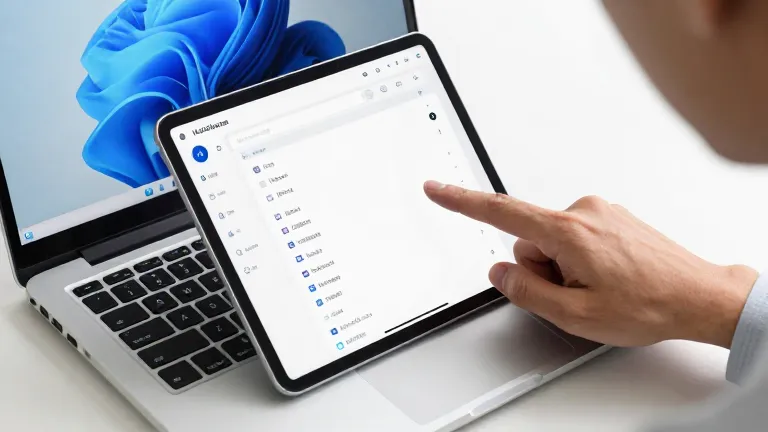
To check if your touchpad is enabled, open the Settings app by pressing the Windows key and typing 'Settings'. Navigate to 'Devices' > 'Touchpad'. Here, ensure the toggle for 'Touchpad' is turned on. If it's disabled, simply switch it to 'On' and test the touchpad. Some laptops have a physical switch or function key that can disable the touchpad, so check your laptop's keyboard for any such buttons.
Update or Reinstall Touchpad Drivers
If the touchpad is enabled but still not working, the next step is to update or reinstall the touchpad drivers. Right-click the Start menu and select 'Device Manager'. Expand the 'Human Interface Devices' section and look for entries related to your touchpad. Right-click on each and choose 'Update driver' to install the latest version. If the issue persists, try uninstalling the driver and restarting your laptop to prompt Windows to reinstall it automatically. Keeping drivers up to date ensures compatibility and improves touchpad functionality.
Check for Touchpad Driver Issues
If your touchpad is not working on Windows 11, outdated or corrupted drivers may be the culprit. Ensuring that your touchpad drivers are up to date or reinstalling them can often resolve the issue. This section outlines steps to update, roll back, or reinstall touchpad drivers through Device Manager and the manufacturer's website.
- Open Device Manager and locate your touchpad device under the Human Interface Devices or Mouse and Keyboard categories.
- Right-click the touchpad device and select 'Update driver' to search for the latest driver from Windows.
- If no update is found, visit your laptop manufacturer's website to download the latest touchpad drivers for your specific model.
- Reinstall the touchpad driver by uninstalling it through Device Manager and restarting your laptop to prompt Windows to reinstall it.
Update Touchpad Drivers Through Device Manager
Updating touchpad drivers through Device Manager is a straightforward method to ensure your system has the latest firmware and bug fixes. Right-click the touchpad device and select 'Update driver' to let Windows search for and install the latest version. This process can resolve compatibility issues or minor glitches that affect touchpad functionality.
Roll Back or Reinstall Touchpad Driver
If the latest driver does not resolve the issue, consider rolling back to a previous version or reinstalling the driver. Rolling back can be useful if the current driver introduced the problem. To do this, right-click the touchpad device in Device Manager, select 'Properties', then 'Driver' tab, and choose 'Roll Back Driver'. If rolling back is not an option, uninstall the driver and restart your laptop to trigger a reinstall.
Reset Touchpad Settings in Windows 11
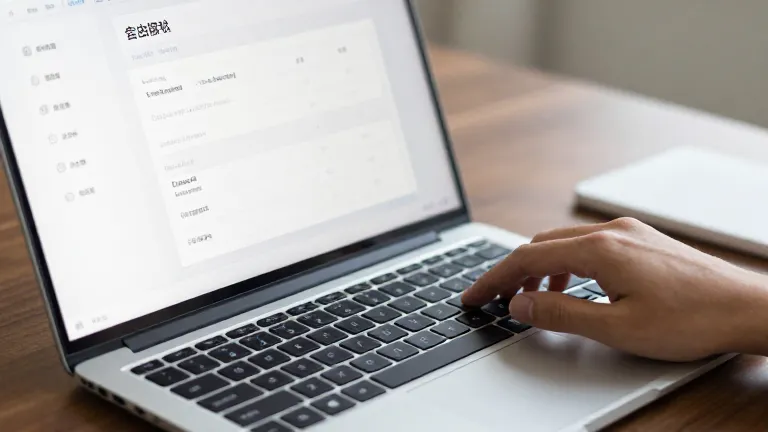
Resetting touchpad settings in Windows 11 can resolve configuration errors or conflicts that prevent the touchpad from functioning correctly. This process involves restoring default settings and ensuring that the system recognizes the touchpad properly.
Reset Touchpad Settings in Windows 11
To reset touchpad settings, open the Settings app and navigate to System > Touchpad. Here, you can toggle the touchpad on or off to ensure it is enabled. If the touchpad is disabled, turning it back on may resolve the issue. Additionally, you can adjust sensitivity settings and disable or enable gestures to see if this helps stabilize the touchpad’s behavior.
Use Windows Troubleshooter for Touchpad Issues
Windows 11 includes a built-in troubleshooter for hardware issues, which can automatically detect and fix touchpad-related problems. To access this tool, go to Settings > System > Troubleshoot, and select 'Additional troubleshooters.' From the list, choose 'Hardware and Devices' and run the troubleshooter. This tool scans for common issues and applies fixes, which can often resolve touchpad malfunctions without manual intervention. After running the troubleshooter, restart your laptop to apply the changes and check if the touchpad works as expected.
Test Touchpad with External Mouse
Using an external mouse is a straightforward way to determine if the issue lies with the touchpad itself or with the system's software. If the mouse works perfectly, it suggests the problem is likely with the touchpad or its drivers. This step helps isolate the issue and gives you a clearer idea of whether the problem is hardware-related or software-related. It also allows you to continue working without interruption while you troubleshoot further. By confirming the mouse functions correctly, you can focus on resolving touchpad-specific issues without confusion.
- Connect an external mouse to your laptop’s USB port.
- Try to navigate and click using the external mouse.
- If the mouse works, the issue is likely with the touchpad or its drivers.
- This confirms the problem is not with your laptop’s overall input system.
- Check for keyboard shortcuts that might be conflicting with touchpad functions.
- Use the mouse to perform tasks that previously relied on the touchpad.
- If the mouse works, proceed with fixing the touchpad or its drivers.
Advanced Touchpad Fix Options
If basic troubleshooting doesn't resolve your touchpad issue, consider advanced methods that address deeper system conflicts. These include restoring your system to a stable state, checking for software conflicts, and repairing critical system files.
System Restore to Fix Touchpad Issues
System Restore can revert your Windows 11 installation to a point before the touchpad malfunction began. This is particularly useful if the issue emerged after a recent software update or system change. To perform a restore, open the Start menu, navigate to Settings > Update & Security > Recovery, and select 'Open System Restore.' Follow the prompts to choose a restore point and complete the process.
Run SFC to Repair System Files
The System File Checker (SFC) scans and repairs corrupted system files that might affect touchpad functionality. To run SFC, open Command Prompt as an administrator and enter 'sfc /scannow.' The process will scan your system and automatically repair any issues it finds. If SFC doesn't resolve the problem, you may need to run the DISM command next to further repair system files.
Frequently Asked Questions
Why is my touchpad not working after a Windows 11 update?
A Windows 11 update can sometimes cause touchpad issues. Check if the touchpad is enabled in settings and update or reinstall the drivers through Device Manager.
How do I enable the touchpad if it is disabled?
Go to Settings > Devices > Touchpad and toggle the touchpad on. If it's still disabled, try restarting the laptop or checking for driver issues.
What should I do if my touch, pad is not responding to clicks?
Ensure the touchpad is enabled and check for any driver conflicts. You can also reset touchpad settings or use the built-in troubleshooter for touchpad issues.
Can I use an external mouse to bypass touchpad issues?
Yes, using an external mouse is a temporary fix while you troubleshoot the touchpad. It allows you to continue working without interruptions.
Final Steps and Recommendations
To resolve touchpad issues in Windows 11, start by checking the touchpad settings and updating drivers. If problems persist, consider resetting settings or using system tools like SFC. If the touchpad remains unresponsive, an external mouse is a reliable alternative.
If your touchpad is not working, follow these steps to identify and fix the issue. Regularly updating your system and drivers can prevent future problems. For persistent issues, consider advanced solutions like system restore or professional support.





