How to Fix iPhone Not Connecting to Bluetooth: Step-by-Step Guide
If your iPhone is struggling to connect to Bluetooth devices, it can be frustrating, especially when you're relying on it for work or everyday tasks. Whether it's a headset, speaker, or keyboard, Bluetooth connectivity issues can disrupt your workflow. This guide provides a step-by-step solution to the problem: How to Fix iPhone Not Connecting to Bluetooth. We'll walk you through simple troubleshooting steps that can resolve most common issues without the need for professional help. From checking basic settings to advanced fixes, this article covers everything you need to get your Bluetooth devices working smoothly again.
Check Basic Bluetooth Settings
Before diving into advanced troubleshooting, start by verifying the basic Bluetooth settings on your iPhone and the device you're trying to connect. Simple steps like ensuring Bluetooth is enabled, checking the device's discoverable mode, and confirming the connection range can resolve many common issues.
Enable Bluetooth on Your iPhone
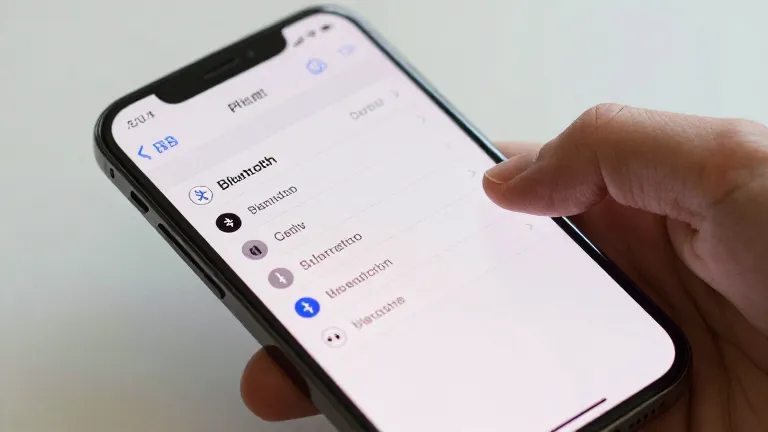
To enable Bluetooth on your iPhone, go to Settings > Bluetooth and toggle the switch to the on position. If Bluetooth is already enabled, try toggling it off and then back on to refresh the connection. Ensure your iPhone is fully charged, as low battery can sometimes interfere with Bluetooth performance.
Put the Bluetooth Device in Pairing Mode
Before attempting to pair, make sure the Bluetooth device you're connecting to is in discoverable mode. This usually involves pressing and holding a specific button on the device until a light starts blinking or a pairing prompt appears on the device's screen. Refer to the device's manual for exact instructions on entering pairing mode. Once the device is in discoverable mode, keep your iPhone within the recommended Bluetooth range, typically around 30 feet or 10 meters, for a stable connection.
Troubleshoot Bluetooth Pairing Issues
Troubleshooting Bluetooth pairing issues often starts with removing existing connections and ensuring your iPhone is up to date. If your iPhone is having trouble connecting to a Bluetooth device, forgetting the device and re-pairing it can resolve conflicts or outdated settings. Additionally, keeping your iPhone's software current ensures compatibility and bug fixes that may address connection problems.
- Forget the Bluetooth Device
- Check for Conflicting Pairings
- Verify Device Compatibility
- Update Your iPhone Software
Forget the Bluetooth Device
To forget a Bluetooth device, open the Settings app, tap Bluetooth, and select the device you want to remove. Tap 'Forget This Device' to disconnect it. After forgetting, turn off Bluetooth and then turn it back on to scan for devices. This clears any stored connection details that might be causing issues.
Update Your iPhone Software
Updating your iPhone's software ensures you have the latest features, security patches, and Bluetooth improvements. Go to Settings > General > Software Update to check for updates. If an update is available, download and install it. A software update can resolve bugs or compatibility issues that may be preventing your iPhone from connecting to Bluetooth devices.
Reset Bluetooth Settings on Your iPhone
Resetting Bluetooth settings on your iPhone can resolve persistent connection issues by clearing stored pairings and restoring default configurations. This process ensures that your device starts fresh, eliminating conflicts that may have developed over time.
Remove Existing Pairings
To remove existing pairings, open the Settings app and navigate to Bluetooth. Tap the 'i' icon next to the paired device, then select 'Forget This Device.' This action removes the connection and stops your iPhone from automatically reconnecting to the device. If multiple devices are paired, repeat this process for each one to ensure a clean slate.
Reset Bluetooth Settings
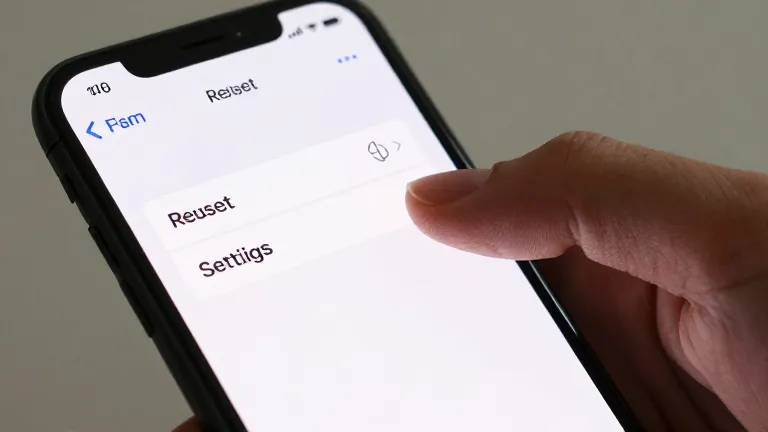
Once all pairings are removed, reset Bluetooth settings by going to Settings > General > Reset > Reset Network Settings. This action clears all Bluetooth configurations and restores them to factory defaults. Note that this process also resets Wi-Fi and cellular settings, so you'll need to reconfigure these afterward. After resetting, turn Bluetooth off and then back on to ensure the changes take effect. Once done, attempt to pair your device again to see if the issue is resolved. If problems persist, check for third-party apps that may be interfering with Bluetooth functionality by disabling them temporarily.
Fix Physical and Environmental Bluetooth Issues
Physical and environmental factors can significantly impact Bluetooth connectivity on your iPhone. Issues such as damaged hardware, interference from other devices, or proximity to the Bluetooth device can all affect the signal strength and stability. Addressing these factors can help restore a reliable connection without needing advanced technical knowledge.
Check for Physical Damage
Inspect your iPhone for any signs of physical damage, particularly around the area where the Bluetooth antenna is located. While the antenna is internal, physical trauma such as drops or water exposure can affect its performance. If you suspect damage, consider having the device checked by an authorized service provider, as internal repairs may be necessary.
Avoid Bluetooth Interference
Bluetooth signals can be disrupted by other electronic devices, especially those operating on the same 2.4 GHz frequency band. This includes Wi-Fi routers, cordless phones, microwaves, and other Bluetooth devices. To minimize interference, keep your iPhone and the Bluetooth device away from these sources, and try to use them in a quiet, uncluttered environment.
If multiple Bluetooth devices are in use, they can compete for bandwidth and cause connection issues. To improve stability, reduce the number of active Bluetooth devices nearby. Additionally, maintaining a short distance between your iPhone and the Bluetooth device can enhance signal strength and reliability.
Advanced Solutions for Persistent Bluetooth Problems
If your iPhone still can't connect to Bluetooth after trying basic troubleshooting steps, consider advanced solutions. These methods are for persistent issues that require deeper intervention. Start by re-pairing devices manually, then consider a factory reset if needed.
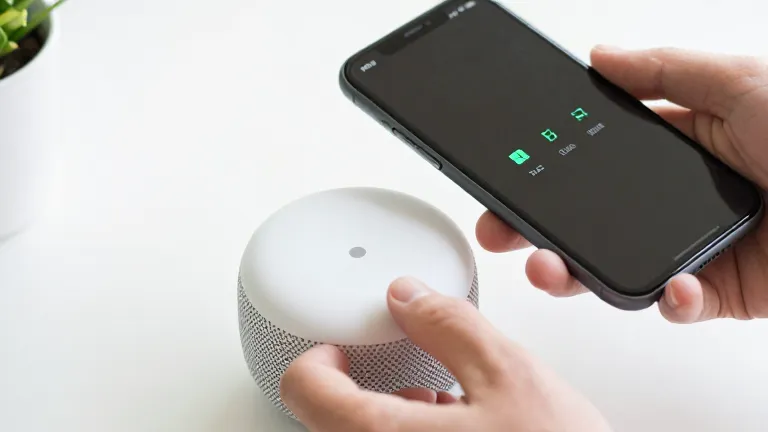
- Use the 'Settings > Bluetooth' menu to manually re-pair devices.
- Try using a different Bluetooth device to test your iPhone's Bluetooth functionality.
- Factory reset your iPhone as a last resort.
- Consult Apple support for further assistance if the issue persists.
Re-Pair Bluetooth Devices Manually
To manually re-pair a Bluetooth device, go to 'Settings > Bluetooth' and ensure Bluetooth is enabled. Tap the 'Forget This Device' option for any previously paired devices. Once removed, turn off and then on again the Bluetooth device to initiate pairing mode. Your iPhone should detect it and prompt you to connect. This process can resolve temporary pairing errors or outdated connections.
Factory Reset Your iPhone
A factory reset will restore your iPhone to its original settings, removing all personal data, apps, and settings. This can fix software-related Bluetooth issues that other methods haven't resolved. Before proceeding, back up your data to iCloud or a computer. To reset, go to 'Settings > General > Transfer or Reset iPhone > Erase All Content and Settings'. After the reset, set up your iPhone again and test Bluetooth connectivity.
Frequently Asked Questions
Why is my iPhone not detecting Bluetooth devices?
Your iPhone may not detect Bluetooth devices due to incorrect settings or interference. Ensure Bluetooth is enabled and the device is in pairing mode. Check for physical damage or software issues that may prevent detection.
How do I reset Bluetooth on my iPhone?
To reset Bluetooth, go to Settings > General > Reset > Reset Network Settings. This will remove all Bluetooth pairings and restart the Bluetooth function on your iPhone.
Can I fix Bluetooth issues without restarting my iPhone?
Yes, you can fix Bluetooth issues without restarting your iPhone by forgetting the device, updating the software, or re-pairing manually. However, some persistent issues may require a restart for the changes to take effect.
What should I do if my iPhone still won't connect to Bluetooth after trying all steps?
If your iPhone still won't connect to Bluetooth after trying all steps, consider a factory reset or contacting Apple Support. These steps can resolve deep-seated software or hardware issues affecting Bluetooth functionality.
Final Tips for a Smooth Bluetooth Experience
Troubleshooting Bluetooth issues on your iPhone often starts with checking basic settings and ensuring both devices are in pairing mode. Advanced steps like resetting network settings or re-pairing manually can resolve more complex problems. If issues persist, a factory reset or professional support may be necessary.
To ensure optimal Bluetooth performance, regularly update your iPhone's software and avoid interference from other devices. If you're still experiencing issues, consider reaching out to Apple Support for further assistance.