
How to Troubleshoot Your Computer: Step-by-Step Guide

If your computer is freezing, displaying error messages, or struggling with connectivity, it can be frustrating to deal with without knowing where to start. How to troubleshooting computer issues can often be resolved with simple steps that don’t require advanced technical knowledge. Whether you’re a home user or an office worker, understanding the basics of troubleshooting can save you time and help you regain control of your system. This guide provides clear, step-by-step instructions to help you identify and resolve common problems on your own.
The first step in how to troubleshooting computer is to recognize the issue and determine its cause. By observing error messages, physical signs, and system behavior, you can narrow down potential problems and take the right action. This article walks you through each stage, from restarting your computer to checking for updates and scanning for malware, ensuring you have the tools to handle most basic issues confidently.
With practical advice and real-world examples, this guide empowers you to take charge of your computer’s performance. You’ll learn how to troubleshoot hardware, update software, and even identify signs of overheating or dust buildup. By following these steps, you can resolve many common problems without needing professional assistance, making your computing experience smoother and more reliable.
Identify the Problem
Before taking any action, it's crucial to accurately identify the nature of the problem. Understanding whether the issue stems from hardware, software, or connectivity can significantly streamline your troubleshooting process. Take note of any error messages, unusual sounds, or changes in performance, as these can provide critical clues. Additionally, consider whether any recent changes—such as software updates, new installations, or hardware additions—might be related to the issue.
Recognize Common Error Messages
Error messages are often the first indicator of a problem. Pay close attention to the text displayed on your screen, as they can point to specific issues like driver conflicts, system errors, or connectivity failures. If the message is unclear, search for it online or consult the user manual for your software or hardware. Keeping a record of any error codes or messages can also help when seeking further assistance.
Check for Physical Signs of Trouble
Physical signs of trouble can provide valuable insights into hardware-related issues. Look for signs such as excessive heat, unusual noises like fan whirring or clicking sounds, or visible dust buildup inside the computer. These symptoms may indicate overheating, faulty components, or poor ventilation. If your computer is not responding or is freezing, it could also be a sign of hardware stress or damage. Inspect the internal components and connections to ensure everything is secure and functioning properly.
Restart Your Computer
A simple restart can resolve many temporary issues that may be causing your computer to freeze, crash, or behave unexpectedly. Many software glitches, memory leaks, and system conflicts are resolved by restarting the computer, as it allows the operating system to clear caches, reload drivers, and reset background processes. This is often the first step in troubleshooting because it is quick, non-invasive, and can address a wide range of problems without requiring technical expertise.
- Save all open programs and files before restarting to avoid data loss.
- Wait at least 30 seconds before pressing the power button again to ensure the system fully shuts down.
- If the issue persists after the first restart, wait a few minutes before attempting to restart again.
- Avoid frequent restarts within a short period, as this can cause unnecessary strain on the system.
Check for Software Updates
Keeping your software up to date is essential for maintaining your computer's performance and security. Regular updates often include bug fixes, performance improvements, and critical security patches that protect against vulnerabilities.
Update Your Operating System
Updating your operating system ensures that your computer runs smoothly and securely. Most modern operating systems, such as Windows, macOS, and Linux, have built-in update tools that automatically check for and install new versions. You can also manually check for updates through the system settings or control panel. It's important to install these updates as they often address known issues and improve overall system stability.
Update Drivers and Software
Drivers and software updates are equally important for your computer's functionality. Drivers are the communication links between your hardware and the operating system, and outdated drivers can cause performance issues or prevent hardware from working correctly. To update drivers, you can use the built-in Device Manager in Windows or check for updates in your system settings. For third-party software, visit the official website of the program provider to download the latest version. Always restart your computer after applying updates to ensure all changes are properly implemented.
Scan for Malware and Viruses
Malware can significantly impact your computer's performance, leading to system slowdowns, error messages, and erratic behavior. These malicious programs can steal data, corrupt files, or even disable essential functions. Regular scanning for malware and viruses is a crucial step in maintaining system stability and security. If you notice unexplained changes in your files, unexpected pop-ups, or a sudden drop in performance, it's a strong indication that malware may be present.

- Use a trusted antivirus program to scan your system.
- Run a full system scan to detect all potential threats.
- Remove any detected malware according to the antivirus recommendations.
- Ensure your antivirus software is regularly updated with the latest virus definitions.
To effectively combat malware, use a trusted antivirus program that is updated with the latest threat definitions. Most modern antivirus tools offer real-time protection, scanning files as they are accessed, and can detect a wide range of threats including viruses, ransomware, and spyware. Ensure that your antivirus software is from a reputable provider, as free or unverified tools may not offer the same level of protection or could even be harmful themselves.
Run a full system scan using your antivirus program to thoroughly check all files and folders. A full scan is more comprehensive than a quick scan and can identify hidden or deeply embedded malware. Once the scan is complete, review the results carefully and follow the recommended actions to remove any detected threats. If your antivirus detects a serious threat, consider isolating the affected files or disconnecting from the internet to prevent further damage.
Troubleshoot Hardware Issues
Troubleshooting hardware issues often involves inspecting physical components for signs of damage or malfunction. Issues such as overheating, loose connections, or faulty parts can disrupt normal computer operation and should be addressed systematically to restore functionality.
Check for Overheating and Dust Buildup
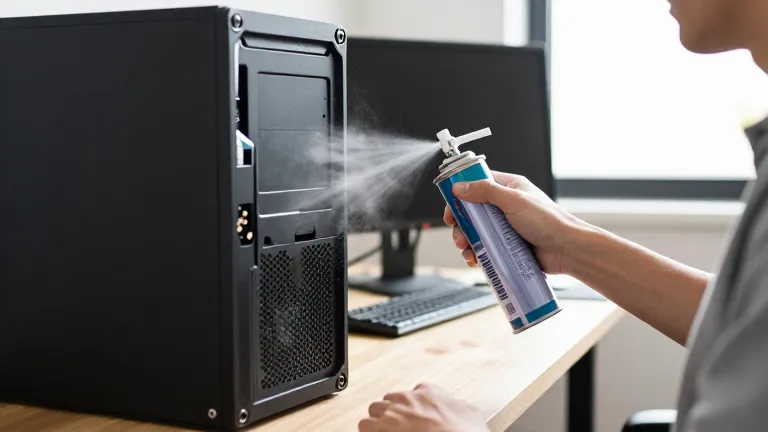
Overheating is a common cause of computer instability and can lead to unexpected shutdowns or performance drops. To check for overheating, ensure the computer's vents are clear of dust and debris. Use a can of compressed air to clean fans and heat sinks, then monitor temperatures using built-in tools or third-party software. If temperatures remain high, consider improving airflow or replacing thermal paste.
Test Internal Components and Connections
Securely connecting internal components is essential for reliable hardware performance. Inspect all cables and connectors for looseness, damage, or improper seating, especially for power supplies, storage drives, and expansion cards. If a component feels loose, gently reseat it and test the system. For suspected faulty parts, use diagnostic tools provided by the manufacturer or replace the component if it fails tests.
Seek Additional Help
If the problem persists after trying the previous steps, it's time to seek additional help. Online resources such as support forums, tech blogs, and video tutorials can provide valuable insights and solutions. Search for specific error messages or symptoms to find relevant discussions and guides that may address your issue.

- Visit official support websites for your device or operating system.
- Join online forums or communities where users share experiences and solutions.
- Watch tutorial videos on platforms like YouTube to see how others resolved similar problems.
- Contact customer support if you need direct assistance from experts.
Consult the manufacturer's support documentation for your computer or device. These resources often include troubleshooting guides, FAQs, and step-by-step instructions tailored to specific models. You can find this information on the official website or through the device's user manual.
Frequently Asked Questions
What should I do if my computer keeps freezing?
If your computer keeps freezing, start by checking for overheating and dust buildup. Restart your computer and ensure all software and drivers are up to date. If the issue persists, consider running a malware scan or checking for hardware issues.
How can I tell if my computer has a virus?
Signs of a virus include unexpected pop-ups, slow performance, and unexplained file changes. Run a malware scan using trusted antivirus software. Avoid opening suspicious links or downloading unknown files to prevent infections.
Why is my computer running slowly and how can I fix it?
A slow computer may be due to insufficient RAM, outdated software, or background processes. Free up disk space, update your system, and close unnecessary programs. Scanning for malware and checking hardware health can also improve performance.
What steps should I take if my computer won't start?
If your computer won't start, check the power cable and power supply. Ensure all connections are secure and try a different power outlet. If the issue continues, inspect internal components or seek professional assistance.
Final Thoughts
Troubleshooting your computer involves a systematic approach, starting with identifying the problem and ending with seeking professional help if needed. Regular maintenance, such as updating software and checking for malware, can prevent many common issues.
By following these steps, you can resolve most computer problems on your own. If you're still experiencing difficulties, don't hesitate to reach out to a technician for further assistance.





