
How to Clear Error Codes on DSTV: Step-by-Step Guide
If you're struggling with error codes on your DSTV device, you're not alone. These codes can disrupt your viewing experience and leave you unsure of how to proceed. The main keyword, how to clear error codes on dstv, is the key to resolving these issues without needing to call a technician. This guide will walk you through the process step by step, helping you understand what the codes mean and how to fix them. Whether you're a home user or a tech-savvy individual, you'll find practical solutions tailored to your needs.
From basic troubleshooting steps to advanced menu navigation, we cover everything you need to know about how to clear error codes on dstv. You'll learn how to restart your device, check signal strength, and access the settings menu to clear errors. These methods are designed to be simple and effective, ensuring you can resolve issues quickly and confidently.
In cases where the error codes persist or indicate a hardware problem, we'll guide you on when to seek professional help. By following this guide, you'll gain the knowledge to troubleshoot common DSTV issues and maintain a smooth viewing experience. Let’s get started with the first step in resolving your DSTV error codes.
Understanding DSTV Error Codes
Error codes on DSTV devices serve as diagnostic tools, providing users with insights into the nature of technical issues affecting their service. These codes can range from minor software glitches to more serious hardware malfunctions, and understanding their meaning is crucial for effective troubleshooting. By recognizing and interpreting these codes, users can take targeted steps to resolve problems without requiring immediate professional assistance.
What DSTV Error Codes Mean
DSTV error codes are designed to communicate specific issues that may be impacting the performance of the device. These codes typically relate to problems such as signal reception, software errors, or configuration issues. For example, error code 100 might indicate a signal strength problem, while code 101 could point to an issue with the satellite dish alignment. Each code corresponds to a particular problem, enabling users to address the root cause more efficiently.
How to Identify the Correct Error Code
Identifying the correct error code is essential for resolving DSTV issues effectively. Users should note the exact code displayed on their screen, as each code has a unique meaning and recommended resolution. Common error codes such as 111, which may relate to a temporary communication error, can often be cleared by restarting the device or reconfiguring the settings. Keeping a record of error codes and their meanings can also help users troubleshoot more quickly in the future.
Basic Troubleshooting Steps
Before diving into advanced troubleshooting, it's essential to perform basic steps that can often resolve common DSTV error issues. Simple actions like restarting the device, verifying signal strength, and ensuring firmware updates can eliminate many temporary glitches without requiring professional intervention.
- Restart your DSTV device by unplugging it for 30 seconds and then plugging it back in.
- Check the signal strength through the DSTV menu and adjust the antenna position if necessary.
- Ensure your DSTV device is running the latest firmware version to prevent known bugs.
- Verify that all cables connecting the DSTV to the antenna and power source are securely connected.
Restarting Your DSTV Device
Restarting your DSTV device can resolve temporary software glitches that may be causing error codes. To do this, unplug the device from the power source for at least 30 seconds, then plug it back in. This process clears the device's memory and can reset any corrupted settings. It's a quick and effective way to address minor issues without needing to access the menu or contact support.
Checking Signal Strength and Antenna Position
Signal-related errors are common and can often be fixed by checking the signal strength and adjusting the antenna position. Access the DSTV menu to view the signal strength indicator, which should be above 80% for optimal performance. If the signal is weak, move the antenna to a more elevated position or ensure it is not obstructed by buildings or trees. A stable signal is crucial for proper channel reception and can prevent many error codes from appearing.
Clearing Error Codes via the DSTV Menu
Clearing error codes via the DSTV menu is a straightforward method that allows users to resolve issues without external assistance. By accessing the settings menu, you can reset the device or manually clear error codes, depending on your model. This process is typically simple and requires minimal technical knowledge, making it ideal for home users and those with basic tech skills.
Accessing the DSTV Settings Menu
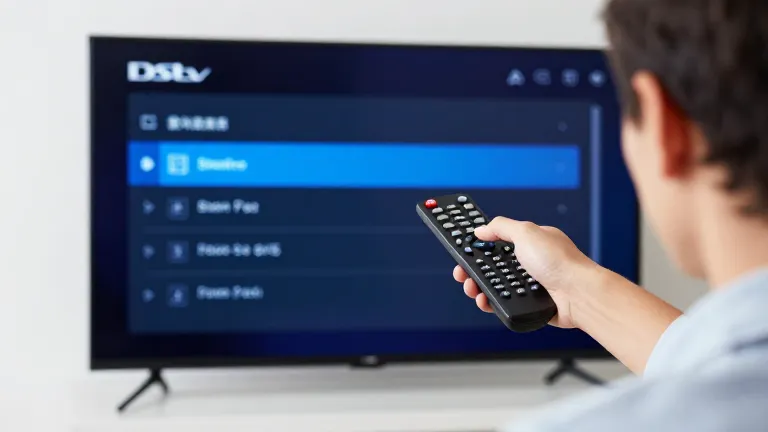
To access the DSTV settings menu, press the 'Menu' button on your remote control. Navigate to the 'Settings' option and select it using the arrow keys. Once in the settings menu, look for an option related to 'Error Codes' or 'System Reset.' This section may vary slightly depending on your DSTV model, so refer to your user manual if needed.
Clearing Error Codes in the Menu
Once you've accessed the error code section, follow the on-screen prompts to reset the device or clear the error code manually. Some models allow you to select and clear specific error codes directly from the menu, which can save time and prevent unnecessary reboots. If the option to clear specific codes is not available, a full system reset may be required to resolve the issue. Always ensure the device is connected to a power source during this process to avoid interruptions.
Using the DSTV Remote Control
The DSTV remote control can be a valuable tool for clearing certain error codes, especially when the device is unresponsive or the menu options are inaccessible. While the primary method for clearing error codes involves the DSTV menu, some error codes can be resolved using specific remote control functions.
- Use the remote control to access the device's reset function if available.
- Press and hold the power button for a few seconds to initiate a soft reset.
- Consult the user manual for instructions on using the remote to reset the device.
- Some models require you to press and hold specific buttons to initiate a reset.
Remote Control Reset Options
Many DSTV models include a reset function that can be accessed through the remote control. This function is designed to clear minor software glitches and reset the device to its default settings. To locate this function, refer to the remote control's user manual, as the exact button or combination may vary depending on the model.
Button Combinations for Error Code Clearing
Certain error codes can be cleared by pressing and holding specific buttons on the remote control. For example, holding the power button for 10 to 15 seconds may trigger a reset that clears temporary error codes. However, this method is not universally applicable, and the effectiveness may depend on the specific model and error code. It is advisable to test this method only after verifying that it is compatible with your device.
When to Seek Professional Help
If basic troubleshooting steps fail to resolve the error, it's time to seek professional help. Some error codes are linked to internal components or system malfunctions that require expert attention. DSTV support can provide guidance tailored to your specific issue and may help identify whether a hardware repair or replacement is needed.

When to Contact DSTV Support
Contact DSTV support if error codes persist after trying all basic troubleshooting methods. They can offer detailed instructions or confirm if the problem lies with the service provider's end. It's also advisable to reach out if the error appears after a recent software update or hardware change, as this may indicate a compatibility issue that requires technical intervention.
Recognizing Hardware-Related Error Codes
Hardware-related error codes often signal deeper issues such as faulty internal components, damaged circuit boards, or problems with the satellite dish. These errors typically cannot be resolved through simple troubleshooting and may require a technician to diagnose and repair the device. If you notice recurring errors after physical damage or exposure to extreme conditions, it's a clear sign that professional assistance is necessary to prevent further complications.
Frequently Asked Questions
What should I do if my DSTV keeps showing error code 100?
Error code 100 usually indicates a signal issue. Check the antenna position and signal strength. If the problem persists, restart your DSTV or contact DSTV support.
Can I clear DSTV error codes without using the remote?
Yes, some error codes can be cleared by restarting the device or accessing the settings menu directly. However, advanced options may require the remote for full functionality.
How often should I update my DSTV firmware?
Firmware updates are typically released periodically. Check for updates through the DSTV settings menu or official channels to ensure optimal performance.
What does DSTV error code 111 mean and how do I fix it?
Error code 111 usually relates to a problem with the satellite signal. Ensure the antenna is correctly positioned and the signal is strong. If the issue continues, contact DSTV support.
Final Thoughts
Understanding and addressing DSTV error codes is essential for maintaining uninterrupted service. Follow the steps outlined in this guide to resolve common issues effectively.
If you encounter persistent problems, consider reaching out to DSTV support for further assistance. Regular maintenance and updates can help prevent many error-related issues.





