
How to Fix Netflix Error Code NW-2-5 on Smart TV and Streaming Stick
If you're trying to stream Netflix on your smart TV or streaming stick and are met with error code NW-2-5, you're not alone. This common issue can disrupt your viewing experience and leave you frustrated. The error typically points to a network connection problem, making it difficult to access content smoothly. Understanding how to fix Netflix error code NW-2-5 on smart TV and streaming stick is key to restoring your service quickly. This article provides a clear, step-by-step guide to help you resolve the issue at home without professional assistance. Whether you're a home user or tech-savvy individual, the solutions outlined here can help you get back to streaming with minimal hassle.
The first section explains what error code NW-2-5 means and when it might occur, offering context to help you identify the root cause. Following that, basic troubleshooting steps are outlined to address common issues like unstable connections or outdated software. For more complex problems, advanced network settings and router configurations are explored, including firewall rules and Wi-Fi channel interference.
To ensure long-term stability, the article also covers how to test your network and diagnose potential issues using other devices and speed tests. Finally, it offers tips on maintaining firmware and optimizing your network for streaming to prevent future occurrences of error code NW-2-5. By following these practical steps, you can enjoy uninterrupted Netflix streaming on your smart TV or streaming stick.
Understanding Netflix Error Code NW-2-5
Error code NW-2-5 is a common issue that affects Netflix streaming on smart TVs and streaming sticks. It typically arises when a device is unable to connect to the internet, preventing the loading of Netflix content. This error is often linked to network problems and can appear across various devices, including smart TVs, streaming sticks, and other streaming devices. Understanding the nature and causes of this error is essential for effectively troubleshooting and resolving it.
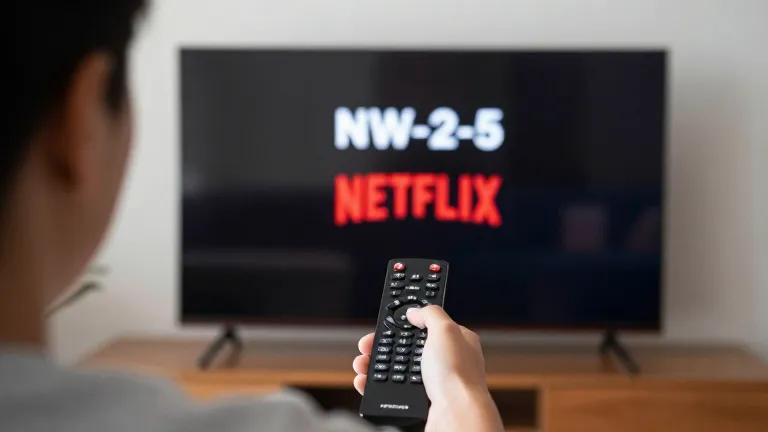
What Is Error Code NW-2-5?
Error code NW-2-5 is a network-related issue that occurs when a device cannot establish or maintain a stable connection to the internet. This error is not specific to Netflix itself but rather indicates a problem with the device's ability to access online services. It can be caused by a variety of factors, including incorrect network settings, router issues, or problems with the local network. The error message usually appears when attempting to load Netflix content, signaling that the connection to the streaming service has been interrupted.
When Does NW-2-5 Occur?
NW-2-5 typically occurs when there is a disruption in the connection between the streaming device and the internet. This can happen if the device is not connected to the correct Wi-Fi network or if there is an issue with the router's configuration. Additionally, problems with the ISP (Internet Service Provider) or local network settings can also trigger this error. The error may appear even if the device is connected to the internet, but the connection is unstable or too slow to stream content. It can also occur if there are firewall rules or network restrictions that block the necessary traffic for Netflix.
Basic Troubleshooting Steps for NW-2-5
The first step in resolving Netflix Error Code NW-2-5 is to restart your smart TV or streaming stick. This simple action can clear temporary glitches and refresh the device’s connection to the internet. Power off the device for at least 30 seconds before turning it back on to ensure a full reset. This often resolves minor software issues that may be causing the error.
- Restart your smart TV or streaming stick to refresh the connection.
- Check the Wi-Fi or Ethernet connection to ensure it is stable and working.
- Verify that your internet speed meets Netflix’s minimum requirements.
- Restart your router and modem to reset the network connection.
Next, verify that your Wi-Fi or Ethernet connection is stable and functioning correctly. A weak or unstable connection can lead to streaming interruptions and error codes like NW-2-5. Ensure your device is connected to the correct network and that there are no other devices causing bandwidth contention. If using Wi-Fi, check for signal strength and consider moving closer to the router for a stronger connection.
Advanced Network Settings and Router Issues
Advanced network settings and router issues can significantly impact your ability to stream Netflix without encountering error code NW-2-5. By adjusting your router’s configuration and managing potential interference, you can improve connectivity and resolve the issue effectively.
Router Configuration and Firewall Rules
Check your router’s settings for any restrictions or firewall rules that may block Netflix. Some routers have built-in firewalls or content filtering features that could prevent access to streaming services. Navigate to your router’s admin panel, usually accessible via a web browser by entering the router’s IP address. Look for firewall or parental control settings and ensure that Netflix or streaming traffic is not being blocked. If you’re unsure, temporarily disable these settings to see if the issue resolves.
Wi-Fi Channel and Signal Interference
Ensure your device is connected to the correct Wi-Fi network or Ethernet port. If your router supports multiple networks, double-check that your smart TV or streaming stick is connected to the same network as your internet service. If you're using Wi-Fi, try switching to an Ethernet connection for a more stable and faster connection. If you're on Wi-Fi, consider moving closer to the router or using a Wi-Fi extender to improve signal strength and reduce latency.
Testing and Diagnosing the Issue
Testing and diagnosing the issue is a crucial step in identifying whether the problem is with your device, your network, or a broader service issue. By systematically isolating variables, you can determine the root cause and apply the most effective solution.
- Test your internet connection using a different device to see if the issue is specific to your smart TV or streaming stick.
- Use speed test tools to check for latency or bandwidth issues.
- Check if other streaming services work normally to isolate the problem.
- Run a network diagnostic tool on your router or device.
Testing with Other Devices
To determine if the issue is device-specific, connect another device to your network and attempt to stream Netflix. If the error does not occur on the second device, the problem likely lies with your smart TV or streaming stick. This test helps rule out issues with your network or account settings, narrowing the focus to the affected device.
Speed Test and Network Diagnostics
Speed test tools like Speedtest.net or Fast.com can help identify if your internet connection meets Netflix's recommended bandwidth requirements. A slow download speed or high latency could be the cause of error code NW-2-5. If your connection is stable on other devices but not on your streaming device, the issue may be related to how your device connects to the network. Additionally, many routers have built-in diagnostic tools that can detect and resolve network issues automatically. Running these diagnostics can help identify and fix problems such as IP address conflicts or DNS resolution errors.
Preventing Future NW-2-5 Errors
Preventing future occurrences of Netflix error code NW-2-5 involves proactive maintenance and smart network management. By ensuring all devices are up to date and optimizing your network environment, you can significantly reduce the chances of encountering this error again.
Maintaining Firmware and Software
Maintaining the firmware and software of your smart TV, streaming stick, and router is essential for preventing errors like NW-2-5. Manufacturers often release updates that fix bugs, improve performance, and enhance security. Check for updates regularly through the device settings or the manufacturer’s website. Enabling automatic updates, if available, ensures your devices stay current without manual intervention.
Optimizing Your Network for Streaming
Optimizing your network for streaming involves reducing interference and managing connected devices. A dedicated streaming network, created using a separate Wi-Fi band or a wired Ethernet connection, can provide a more stable and faster connection for your streaming devices. Avoid overloading your network with unnecessary devices, especially during high-bandwidth activities like streaming or gaming. A wired Ethernet connection offers the most reliable performance, eliminating signal interference and ensuring a consistent streaming experience.
Frequently Asked Questions
Why is my Netflix not working on my smart TV even though I have internet?
Netflix error code NW-2-5 indicates a network issue, not necessarily a lack of internet. Check your connection, router settings, and device compatibility. Ensure your TV or streaming stick is up-to-date and your network is stable.
How can I tell if the issue is with my router or my smart TV?
Test the connection on other devices to isolate the problem. If other devices work, the issue may be with your smart TV or streaming stick. If not, the problem likely lies with your router or network.
Can a weak Wi-Fi signal cause error code NW-2-5?
Yes, a weak or unstable Wi-Fi signal can lead to error code NW-2-5. Ensure your device is within range of your router and consider using a wired connection for better performance.
What should I do if restarting my device doesn’t fix the error?
If restarting doesn't resolve the issue, check your router's settings, firewall rules, and signal strength. You may need to update your firmware or contact your internet service provider for further assistance.
Final Thoughts
Addressing error code NW-2-5 requires a methodical approach, starting with basic checks and progressing to advanced network settings. Regularly updating your devices and maintaining a stable connection can prevent future issues.
By following these steps, you can identify and resolve the root cause of the error. If the problem persists, consider reaching out to your service provider for further support.





