
Why Error Code Is 404 and How to Fix It

If you're browsing the internet and suddenly see the message 'why error code is 404,' you're not alone. This error is a common experience for many users, and it often means the page you're looking for can't be found. A 404 error occurs when a server cannot locate the requested resource, which can happen for a variety of reasons. Whether you're at home or in the office, encountering this error can be frustrating and disrupt your workflow. In this article, we'll explore what a 404 error is, why it happens, and how to resolve it step by step. By understanding the 'why error code is 404' and taking the right actions, you can quickly get back to browsing without interruptions.
The 404 error is more than just a simple message—it's a signal that something is wrong with the website or the link you clicked. This error can appear when the page has been removed, the URL is incorrect, or there's an issue with the server. Most users may not know how to fix it, but with the right approach, you can often resolve the problem on your own. We'll walk you through practical solutions that work for both home users and office workers, ensuring you can navigate the web without unnecessary delays.
From checking the URL to using browser history, we'll cover simple steps that can help you bypass a 404 error quickly. If the issue persists, we'll also explain how to report broken links and find alternative resources. Preventing future 404 errors is another key focus, with tips on testing links and using redirects. Whether you're dealing with a one-time issue or looking to avoid these errors altogether, this guide provides clear, actionable advice. Let's dive in and learn how to tackle the 'why error code is 404' problem confidently.
What Is a 404 Error and Why It Happens
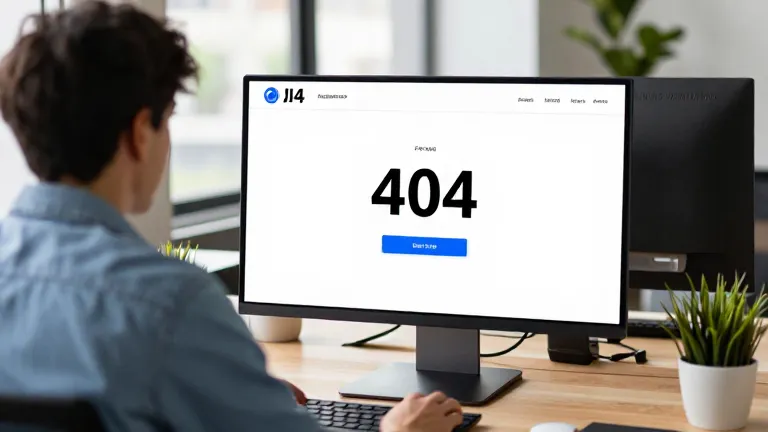
A 404 error is a standard response from a website indicating that the requested page cannot be located. It is a common occurrence during web browsing and does not signify a security threat or a malfunction of your device.
Understanding the 404 Error Code
When you encounter a 404 error, it means the server could not find the specific page or resource you are trying to access. This error is part of the HTTP protocol, which is used to communicate between web browsers and servers. The 404 status code is one of many that help define the nature of a request's outcome, providing clarity for both users and developers.
Common Causes of a 404 Error
The most frequent causes of a 404 error include incorrect URLs, pages that have been deleted or moved, and temporary server downtime. For instance, if you manually type a URL or click a broken link, the server might not have the requested content available. Additionally, if a website undergoes restructuring or content reorganization, some pages may no longer be accessible without proper redirection. In some cases, a 404 error may also appear if the website is under maintenance or experiencing technical difficulties.
How to Fix a 404 Error on Your Browser
When you encounter a 404 error, the first step is to address it directly through your browser. Simple actions like checking the URL, refreshing the page, or using browser history can often resolve the issue without needing advanced technical knowledge. These steps are designed to help you quickly regain access to the content you're looking for.
- Check the URL for typos or spelling mistakes.
- Navigate back to the previous page or use the browser's history to return to a working link.
- Refresh the page to see if the error resolves itself.
- Try a different browser or device to rule out browser-specific issues.
Check the URL for Errors
Check the URL for typos or spelling mistakes. It's easy to accidentally type an incorrect address, especially when visiting a new website. Carefully review the URL in your browser's address bar to ensure it's correct. If you notice a mistake, manually correct it and press Enter to reload the page.
Use Browser History to Navigate Back
Use browser history to navigate back to a working link. If you arrived at the 404 page by clicking a link, it might have been broken or outdated. Press the Back button in your browser to return to the previous page. If that doesn't work, check your browser's history menu to find a working link that leads to the correct content.
What to Do If the 404 Error Persists
If the 404 error persists after basic troubleshooting, there are additional steps you can take to resolve the issue or find an alternative solution. These actions can help you either get the page back or locate a working version of the content you're looking for.
- Verify that the page was not accidentally deleted by the website administrator.
- Contact the website owner or support team to report the broken link.
- Use a search engine to find an alternative link to the page you were looking for.
- Consider bookmarking the page or saving the link for future reference.
Report the Broken Link
Before taking further action, double-check that the page you were trying to access hasn't been removed or moved by the website administrator. Sometimes, pages are deleted or restructured without notice, which can result in a 404 error. If you're unsure, try searching for the page using the website's search function or looking through its archives if available.
Use Search Engines to Find Alternatives
If the page is still missing, reach out to the website owner or support team to report the broken link. Most websites have a contact form, email address, or support portal where you can submit feedback. Providing details like the URL, the date you encountered the error, and what you were looking for can help the administrator address the issue more efficiently.
In some cases, the website owner may not be able to restore the page immediately. However, they can take steps to redirect the link to a similar or relevant page, which can help prevent future 404 errors for other users.
Preventing 404 Errors in the Future
Preventing 404 errors requires proactive maintenance and smart design practices. By ensuring links remain functional and using redirects for moved content, you can significantly reduce the chances of users encountering broken pages. These steps not only improve user experience but also help maintain your website's credibility and search engine rankings.

- Regularly test all links on your website to identify and fix broken ones.
- Use tools like Google Search Console to monitor and address broken links automatically.
- Avoid linking to pages that are likely to be removed or changed in the future.
- Implement 301 redirects to forward users from old pages to new ones when content is moved.
Regularly Test Your Website Links
Regularly testing your website links is a critical step in preventing 404 errors. Tools such as Google Search Console can help you identify broken links and provide insights into their impact on user experience and search engine visibility. By addressing these issues promptly, you can maintain a smooth browsing experience for visitors and ensure your site remains accessible and functional over time.
Use Redirects for Moved Pages
Using 301 redirects is an effective way to handle moved content and prevent 404 errors. When you change or remove a page, a 301 redirect automatically forwards users to the new location, preserving both user experience and search engine rankings. This practice ensures that visitors are not left stranded on non-existent pages and helps maintain the integrity of your website's structure.
When to Seek Help for a 404 Error
If you're frequently encountering 404 errors on a specific website or struggling to access essential services, it's time to seek professional help. Persistent 404 errors can indicate deeper technical issues that require expert intervention. Whether you're a regular user or a website owner, knowing when to reach out for assistance can save time and prevent further complications.
- Contact Website Support for Persistent Errors
- Use Professional Tools for Website Owners
- Consult a Web Developer or IT Professional if Unsure
- Reach Out to Your ISP if the Error Affects Entire Websites
Contact Website Support for Persistent Errors
If you're consistently facing 404 errors on a specific website, it's a sign that the issue may be on the site's end. This could mean broken links, misconfigured servers, or outdated content. In such cases, contacting the website's support team is the best course of action. They can investigate the problem and take steps to resolve it, ensuring a better user experience for everyone.
Use Professional Tools for Website Owners
As a website owner, encountering multiple 404 errors can negatively impact your site's credibility and SEO performance. Professional tools like Google Search Console can help identify broken links and provide insights into which pages are causing the issues. These tools offer detailed reports and recommendations, making it easier to address the root causes and improve your website's functionality.
Frequently Asked Questions
What does a 404 error mean on a website?
A 404 error means the page you're trying to access cannot be found. It typically occurs when a URL is incorrect, deleted, or moved. This error is common and does not indicate a serious problem with the website itself.
How can I fix a 404 error on my browser?
To fix a 404 error, check the URL for typos, use your browser's history to navigate back, or refresh the page. If the error persists, try accessing the link from another source or contact the website owner.
Why am I getting a 404 error on a specific page?
You're getting a 404 error on a specific page because the URL is incorrect, the page has been deleted, or it has been moved without a redirect. This can also happen if the link is broken or outdated.
What should I do if the 404 error keeps appearing?
If the 404 error keeps appearing, report the broken link to the website owner. You can also search for the content using search engines or try alternative links. For website owners, regular testing and redirects can help prevent recurring errors.
Final Thoughts
Understanding and resolving 404 errors is essential for both users and website owners. By following the steps outlined, you can quickly address these errors and ensure a smoother browsing experience.
To prevent future issues, regularly test your website links and implement redirects for moved pages. If you encounter persistent problems, don't hesitate to reach out to the site's support team for assistance.





