
How to Enable Gmail’s Most Useful Features That Are Disabled by Default
Many Gmail users overlook the fact that some of the most useful features are disabled by default, leaving them to navigate the same repetitive tasks daily. Whether you're a home user or an office worker, Gmail’s hidden tools can significantly boost your productivity if properly enabled. The main keyword here is gmail useful features disabled—these are not just minor conveniences but essential tools for streamlining your email workflow. This article will guide you through the key features that are turned off by default and show you how to unlock them for a more efficient experience.
From reusable email templates to keyboard shortcuts, Gmail offers a range of advanced functions that can save you time and reduce errors. However, these are often buried in settings or only accessible on desktop versions, making them easy to miss. Understanding which features are disabled and how to activate them can transform your email routine. We’ll cover the top five features you should look into and provide step-by-step instructions for enabling them.
By exploring the balance between simplicity and functionality, this article will help you tailor Gmail to your specific needs. Whether you're dealing with frequent replies, organizing your inbox, or automating tasks, the right settings can make a world of difference. Let’s dive into the world of Gmail’s disabled features and unlock their full potential for a more productive email experience.
Why Gmail’s Useful Features Are Disabled by Default
Gmail's design prioritizes simplicity and ease of use, which means many powerful features are disabled by default. While this approach ensures a smooth experience for new users, it also hides tools that can significantly boost productivity. Understanding why these features are turned off helps users decide which ones to enable based on their needs.
Design Philosophy of Gmail
Gmail was created with a focus on accessibility and user-friendliness, making it approachable for people of all tech skill levels. This design philosophy means that advanced features like templates and keyboard shortcuts are not enabled automatically. Instead, they are tucked away in settings, requiring users to actively seek them out. While this makes the interface less cluttered, it also means users may miss out on time-saving tools that could streamline their email workflow.
The Trade-Off Between Simplicity and Functionality
The trade-off between simplicity and functionality is a core part of Gmail's design. By disabling advanced features by default, Google ensures that the interface remains intuitive and avoids overwhelming users. However, this simplicity comes at the cost of potential productivity gains. Users who rely heavily on email for work or communication may find that these hidden features could make their workflow more efficient. Recognizing this balance helps users prioritize which features to enable based on their specific needs and workflows.
The Top 5 Gmail Features That Are Disabled by Default
Gmail offers several powerful features that are disabled by default, which can significantly boost your productivity if enabled. These tools are designed to streamline your workflow, but they require some setup. Understanding which features are available and how to access them can help you make the most of your email experience.
- Templates for Reusable Emails
- Keyboard Shortcuts for Faster Workflow
- Conversation View for Better Organization
- Custom Labels: Organize your inbox with personalized folders
- Filtering and Actions: Automate routine email tasks
1. Templates for Reusable Emails
Templates allow you to save frequently used email responses, which can save you time when replying to similar messages. Instead of writing the same content from scratch, you can insert a saved template and customize it as needed. This feature is especially useful for sending standard replies like meeting confirmations or task instructions.
2. Keyboard Shortcuts for Faster Workflow
Keyboard shortcuts can significantly enhance your email workflow by allowing you to navigate and perform actions quickly without using your mouse. Common shortcuts include 'Ctrl + Enter' to send an email, 'Ctrl + Shift + C' to copy an email, and 'Ctrl + Z' to undo an action. These shortcuts are particularly beneficial for users who spend a lot of time managing their inbox.
3. Conversation View for Better Organization
Conversation view helps you manage multiple email threads more efficiently by grouping related messages together. This view makes it easier to track conversations, especially when dealing with multiple replies and forwards. By using conversation view, you can focus on the relevant parts of each thread and avoid getting overwhelmed by a cluttered inbox.
How to Enable Gmail’s Hidden Features
Enabling Gmail’s hidden features can significantly enhance your productivity and streamline your email workflow. By accessing Gmail’s advanced settings and navigating through the options, you can activate tools that are otherwise disabled by default. Each feature can be customized to fit your specific needs, ensuring a more efficient and personalized experience.
Enabling Templates on Desktop
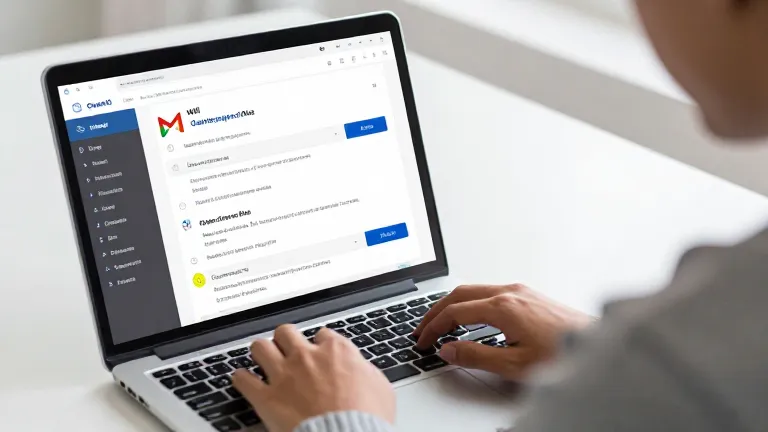
To enable templates on desktop, start by opening Gmail and clicking the gear icon in the top-right corner to access Settings. Select the 'See all settings' option to open the advanced settings menu. Scroll down to the 'Templates' section and check the box next to 'Enable Templates.' This allows you to save reusable email drafts for future use, which can be inserted into new messages with ease.
Setting Up Keyboard Shortcuts
Setting up keyboard shortcuts can help you navigate Gmail faster and reduce the need for mouse clicks. In the advanced settings menu, locate the 'Keyboard shortcuts' section and click 'Edit.' From here, you can add custom shortcuts for actions like sending emails, navigating through messages, or archiving conversations. Personalizing these shortcuts to match your workflow can make your email interactions more efficient and intuitive.
Customizing Conversation View
Customizing the Conversation View allows you to organize your inbox more effectively. Within the advanced settings, look for the 'Conversation View' option and ensure it is enabled. This feature groups related emails into a single thread, making it easier to follow conversations and manage multiple messages at once. You can also adjust the settings to control how conversations are displayed, such as whether to show all messages or only the latest ones, based on your preferences.
Which Gmail Features Work Best on Desktop Vs. Mobile
Understanding the differences between desktop and mobile Gmail experiences helps users leverage each platform effectively. While some advanced features are exclusive to desktop, mobile users can still optimize their workflow with alternative settings and tools.
Desktop-Specific Features
Desktop-specific features like templates and keyboard shortcuts are powerful tools for streamlining email management. Templates allow users to save and reuse common replies, reducing the time spent on repetitive messages. Keyboard shortcuts, such as Ctrl+Enter to send or Ctrl+Shift+T to create a new message, can significantly speed up daily tasks. These features are fully integrated into the desktop version of Gmail, making them ideal for users who spend most of their time at a computer.
Mobile-Friendly Alternatives
Mobile users can still enhance their Gmail experience through settings like conversation view. This feature organizes emails into threaded conversations, making it easier to follow discussions and manage multiple messages at once. While mobile does not support templates or advanced keyboard shortcuts, users can take advantage of built-in tools like quick replies, which allow for fast responses to common messages. By understanding the limitations of each platform, users can tailor their Gmail setup to suit their workflow, whether they're working from a desktop or on the go.
Tips for Maximizing Productivity with Gmail
Maximizing productivity with Gmail involves leveraging its built-in tools to streamline your workflow and reduce manual effort. By combining automation, customization, and efficient use of available features, you can save time and maintain focus on more important tasks.
- Use filters and actions to automate repetitive tasks.
- Take advantage of templates for common email responses.
- Regularly review and update your settings to adapt to changing needs.
- Customize your inbox to suit your workflow.
Automating Repetitive Tasks
Automating repetitive tasks in Gmail can significantly cut down on time spent on routine actions. Use the 'Filters' and 'Actions' feature to automatically sort, label, or forward emails based on specific criteria. For example, you can set up a filter to automatically label all emails from a particular client as 'Priority' or move emails with specific keywords to a designated folder. This not only saves time but also ensures consistency in your email management.
Customizing Your Inbox Layout
Customizing your inbox layout allows you to tailor Gmail to your specific workflow and preferences. You can adjust the number of messages displayed, choose which columns to show, and even add custom labels for better organization. By personalizing your inbox, you can reduce distractions and focus on the information that matters most to your daily tasks. Regularly reviewing and updating these settings ensures your inbox remains efficient as your needs evolve.
Frequently Asked Questions
How do I enable templates in Gmail?
To enable templates, go to Gmail settings > See all settings > Advanced > Enable the Templates option. Once enabled, create a template by saving a draft as a template under the Templates menu.
What are the best keyboard shortcuts for Gmail?
Use Ctrl + Enter (or Cmd + Enter on Mac) to send emails quickly. Ctrl + Shift + T opens the compose window, and Ctrl + L highlights the subject line for faster editing.
Can I use Gmail’s advanced features on mobile?
Most advanced features like templates and keyboard shortcuts are only available on desktop. Mobile users can use basic features and third-party apps for enhanced functionality.
Why are some Gmail features disabled by default?
Gmail prioritizes simplicity and ease of use. Features like templates and shortcuts are disabled by default to prevent overwhelming users, but they can be enabled in advanced settings for those who need them.
Final Thoughts
Gmail’s hidden features can significantly boost productivity, but they require some setup. Prioritize enabling templates and shortcuts on desktop for efficiency.
Review your settings and experiment with Gmail’s advanced tools to tailor your workflow. Start with the most useful features to streamline your email experience.





