
How to Use PcapAnalyzer to Detect and Fix Network Issues

If you're facing network issues and want to troubleshoot without relying on professionals, a pcap analyzer self-hosted pcap could be your key to faster resolution. Traditional tools often require cloud uploads, which can delay diagnosis and expose data. PcapAnalyzer offers a local solution, letting you analyze captures directly on your machine without sending data over the internet. This approach not only speeds up the process but also enhances security, making it ideal for home users and small businesses. In this article, we'll walk you through how to use PcapAnalyzer to detect and fix common network problems effectively.
PcapAnalyzer is a powerful tool designed to help users identify issues in network traffic by analyzing pcap files. It provides real-time insights into potential problems such as firewall blocks, DNS failures, and application errors. With its self-hosted model, you maintain full control over your data, ensuring privacy and reducing delays. Whether you're dealing with slow connections, intermittent outages, or security threats, PcapAnalyzer is a valuable addition to your troubleshooting toolkit.
We'll start by explaining what pcap files are and why local analysis is more reliable than cloud-based alternatives. Then, we'll guide you through setting up PcapAnalyzer, both via a web demo and a local installation. Finally, we'll cover how to interpret its results and take action to resolve network issues efficiently. By the end of this article, you'll have a clear understanding of how to use PcapAnalyzer to improve your network's performance and security.
What Is PcapAnalyzer and Why It Matters
PcapAnalyzer is a self-hosted pcap analyzer designed to help users identify and resolve network issues efficiently. It provides real-time detection of 27 common network problems, making it an invaluable tool for individuals and small businesses seeking to troubleshoot without external assistance. By running locally on your machine, PcapAnalyzer ensures that network captures remain private and secure, avoiding the risks associated with cloud-based solutions.

Understanding What Pcap Files Are and Their Role
Pcap files, short for Packet Capture, are collections of raw network data that record all traffic passing through a network interface. These files are essential for diagnosing network problems, as they provide a detailed view of what is happening on the network. PcapAnalyzer processes these files to detect anomalies, allowing users to understand the root cause of issues such as packet loss, retransmissions, and security vulnerabilities.
Why Local Analysis Is Better Than Cloud-Based Tools
Local analysis with PcapAnalyzer offers several advantages over cloud-based tools. By running on your own machine, it ensures data privacy and reduces the risk of exposure to external threats. This is particularly important for users concerned about sensitive information. Additionally, local analysis allows for immediate access to results without relying on internet connectivity, making it a reliable choice for troubleshooting network issues in any environment.
Setting Up PcapAnalyzer for Local Use
Setting up PcapAnalyzer for local use is straightforward and flexible, whether you prefer a quick web demo or a fully installed version. This section guides you through both options, ensuring you can start analyzing network captures without delay.
- Visit the web demo URL to analyze captures without installation.
- Download the tool for offline use or clone the repository.
- Ensure compatibility with your operating system.
- Set up the tool without an internet connection once installed.
How to Use the Web Demo Without Installing Anything
To use PcapAnalyzer without installation, simply visit the web demo URL provided. This allows you to upload your .pcap or .pcapng capture files directly through a browser. The web interface is user-friendly and requires no setup, making it ideal for quick analysis. This method is perfect for users who want to test the tool before committing to a local installation.
Downloading and Setting Up PcapAnalyzer Locally
For local use, download PcapAnalyzer from the provided link or clone the repository. The tool is compatible with Windows, macOS, and Linux, ensuring broad accessibility. Once downloaded, extract the files and run the application. No internet connection is needed once the setup is complete, allowing you to analyze network captures securely and privately. This setup is ideal for environments where internet access is restricted or where data privacy is a priority.
How PcapAnalyzer Works and What It Detects
PcapAnalyzer is designed to identify a wide range of network issues by running 27 dedicated detectors on every capture file. These detectors are tailored to detect common problems such as firewall blocks, DNS failures, and SSL issues, providing users with actionable insights to resolve them efficiently.

Common Network Issues PcapAnalyzer Can Detect
The 27 detectors in PcapAnalyzer cover various aspects of network performance and security. For example, the TCP detector identifies issues like firewall blocks, retransmissions, and duplicate ACKs, which can lead to packet loss and reordering. The Path detector checks for PMTUD black holes, low MSS, and IP fragmentation, which can affect the reliability of data transmission. The Name and Address Services detector monitors DNS and DHCP issues, such as unanswered queries or duplicate IPs, which can disrupt network connectivity. The Applications detector highlights HTTP errors, TLS alerts, and outdated SSL protocols, which can impact the security and performance of web services.
Understanding the Severity and Next Steps for Each Issue
PcapAnalyzer assigns severity levels to each detected issue, helping users prioritize their troubleshooting efforts. Each issue is accompanied by a next step, such as checking firewall rules or verifying DNS configurations, ensuring that users have clear guidance on how to address the problem. Additionally, the tool warns if the capture itself limits the results, such as when traffic is duplicated by a mirror port or when insufficient data is captured. This ensures that users are aware of potential limitations in their analysis and can take steps to improve the quality of their capture files for more accurate results.
Step-by-Step Guide to Using PcapAnalyzer
This section walks you through the process of using PcapAnalyzer to identify and resolve network issues. By following these steps, you can efficiently upload and analyze your capture files to pinpoint the root cause of connectivity problems.
- Visit the PcapAnalyzer web demo and upload your .pcap or .pcapng file. The tool will automatically start analyzing the capture and identifying potential issues.
- Review the results to understand the main issue. PcapAnalyzer provides detailed insights into each detected problem, including severity levels and recommended next steps.
- Use the next steps provided to address the identified problem. These steps guide you through specific actions to resolve the issue, such as checking firewall settings or verifying DNS configurations.
- Repeat the process for additional capture files if necessary. This helps ensure that all potential issues are thoroughly examined and resolved.
Uploading Your Capture File
Uploading your capture file is the first step in using PcapAnalyzer. Simply navigate to the web demo and click the upload button to select your .pcap or .pcapng file. The tool will process the file and begin analyzing the network traffic for any anomalies. This method allows you to quickly start the analysis without the need for installation.
If you prefer to use PcapAnalyzer locally, download the software and follow the setup instructions. Once installed, you can upload your capture files directly to the application for analysis. This approach is ideal for users who require more control over their data and prefer to keep captures within their network.
Reviewing the Results and Taking Action
After uploading your file, PcapAnalyzer will generate a detailed report highlighting any detected issues. The results include information on the severity of each problem and suggested actions to resolve them. For example, if the tool detects a firewall blocking TCP connections, it will recommend checking firewall rules and ensuring that the necessary ports are open.
Once you have reviewed the results, use the next steps provided to address the identified issues. These steps are designed to guide you through specific troubleshooting actions, such as verifying DNS configurations or checking for ARP spoofing. By following these steps, you can effectively resolve the problems and improve your network's performance.
Best Practices for Using PcapAnalyzer Effectively
To get the most out of PcapAnalyzer, it's essential to follow best practices that ensure accurate results and a more comprehensive understanding of your network's health. These tips will help you maximize the tool's potential and integrate it effectively into your troubleshooting workflow.
Tips for Capturing High-Quality Traffic
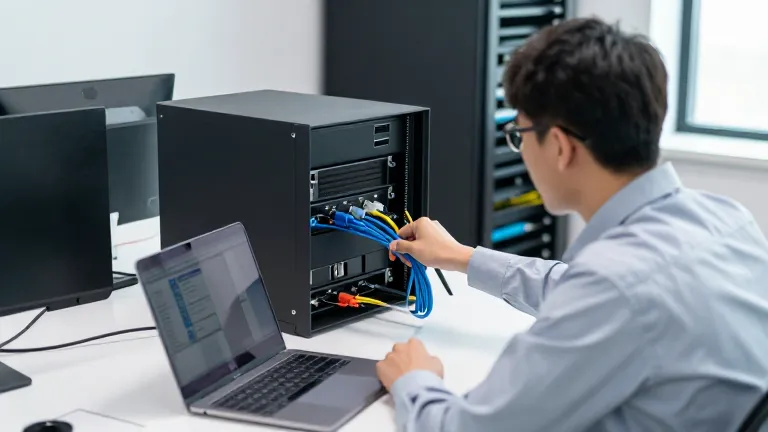
Capturing high-quality traffic is crucial for accurate analysis. Ensure your capture includes all relevant network activity by using the right hardware and software. Avoid capturing from mirrored ports or limited bandwidth sources, as these can distort results. Use tools like Wireshark or tcpdump to set up captures with specific filters to focus on relevant traffic. Always record traffic before and after an issue occurs to identify patterns and changes that may indicate the root cause.
How to Combine PcapAnalyzer with Other Network Tools
PcapAnalyzer works best when combined with other network tools to provide a more complete picture of your network's performance. Use tools like ping, traceroute, or netstat alongside PcapAnalyzer to validate findings and gather additional data. For example, if PcapAnalyzer detects a routing loop, use traceroute to trace the path and identify where the loop occurs. Integrating PcapAnalyzer with monitoring tools like Nagios or Zabbix can also help track network performance over time and detect issues before they escalate.
Frequently Asked Questions
Can I use PcapAnalyzer on my home computer?
Yes, PcapAnalyzer can be used on your home computer. It is self-hosted, meaning you can run it locally without relying on cloud services. This ensures your network data remains private and secure on your own machine.
What file formats does PcapAnalyzer support?
PcapAnalyzer supports .pcap and .pcapng file formats, including gzip-compressed files. This flexibility allows you to analyze a wide range of packet captures without needing to convert them beforehand.
How accurate are the results from PcapAnalyzer?
PcapAnalyzer provides accurate results by analyzing 27 predefined network issues. While it offers reliable insights, it's always best to cross-verify findings with other tools for a comprehensive understanding of your network's health.
What should I do if PcapAnalyzer doesn't find any issues?
If PcapAnalyzer doesn't find any issues, it may mean your network is functioning well. However, you can still review the capture quality and check if the capture was comprehensive enough to detect potential problems.
Next Steps for Network Analysis
PcapAnalyzer is a powerful tool for local network analysis, offering quick and accurate insights into potential issues. Its self-hosted nature ensures data privacy and control over your network traffic.
To get started, try the web demo or download the tool for local use. Combine it with other network diagnostic tools for a more complete analysis of your network's performance.





