
How to Fix Windows 11 Bluetooth Option Missing From Settings
If you're trying to connect a Bluetooth device to your Windows 11 laptop or desktop but can't find the Bluetooth option in Settings, you're not alone. Many users encounter this issue, which can be frustrating when they need to pair devices like headphones, speakers, or keyboards. The main keyword here is 'How to Fix Windows 11 Bluetooth Option Missing from Settings,' and this article will guide you through practical steps to restore the Bluetooth settings. Whether you're a home user or an office worker, the solutions provided are designed to be simple and effective, even for those with limited technical knowledge.
Understanding Why the Bluetooth Option Is Missing
If the Bluetooth option is missing from Windows 11 settings, it can be due to a variety of factors, including disabled services, driver issues, or system file corruption. Understanding the root cause is essential to resolve the issue effectively. This section explores the most common reasons behind the disappearance of the Bluetooth option and provides guidance on how to verify and address them.
Common Causes of Missing Bluetooth in Settings
Bluetooth might be disabled through the device manager or BIOS settings, preventing it from appearing in the settings menu. In some cases, users may have manually turned off the Bluetooth adapter or removed it from the list of devices. Additionally, certain BIOS configurations or firmware updates can affect Bluetooth functionality, especially on laptops or devices with built-in Bluetooth. Checking the device manager for any disabled Bluetooth-related hardware is a crucial first step.
How to Check Bluetooth Service Status
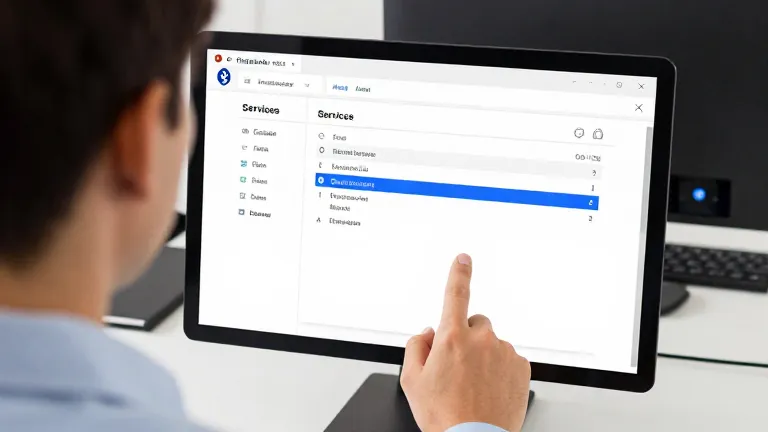
To check the Bluetooth service status, open the Services app by searching for 'services.msc' in the Start menu. Look for the 'Bluetooth Support Service' and ensure it is running. If it is not, right-click the service and select 'Start' to activate it. If the service fails to start, it may indicate a deeper issue such as corrupted system files or conflicts with other services. Restarting the service or the device itself can sometimes resolve the problem.
Checking for Bluetooth in Device Manager
Checking for Bluetooth in Device Manager is a crucial step to diagnose and resolve missing Bluetooth settings in Windows 11. This section guides you through locating and enabling Bluetooth through the Device Manager, ensuring your system recognizes the necessary hardware and drivers.
- Open Device Manager by right-clicking the Start menu and selecting 'Device Manager'.
- Expand the 'Bluetooth' section to locate any Bluetooth devices. If none are listed, Bluetooth may be disabled or missing drivers.
- Right-click on the Bluetooth device (or the 'Bluetooth' category if no device is listed) and select 'Enable Device' to activate it.
- If the device is not listed, right-click on the 'Bluetooth' category and select 'Update driver' to install or reinstall the necessary drivers.
How to Enable Bluetooth via Device Manager
To enable Bluetooth via Device Manager, start by opening the utility and expanding the 'Bluetooth' section. If a Bluetooth device is listed but disabled, right-click it and choose 'Enable Device'. This action reactivates the Bluetooth functionality on your system. If the device is not listed, it may indicate a missing or corrupted driver, requiring further action to reinstall or update the driver.
Steps to Update or Reinstall Bluetooth Drivers
Updating or reinstalling Bluetooth drivers through Device Manager ensures your system uses the latest firmware and software. Right-click the 'Bluetooth' category and select 'Update driver' to search for and install the latest available drivers. If the update fails or the device remains unrecognized, try uninstalling the driver first and then restarting your computer to prompt Windows to reinstall it automatically. This process helps resolve compatibility issues and restores Bluetooth functionality.
Reinstalling or Updating Bluetooth Drivers
Reinstalling or updating Bluetooth drivers is a crucial step in resolving missing Bluetooth options in Windows 11. This process ensures that your system has the latest firmware and software to support Bluetooth functionality. By manually installing the correct drivers from the manufacturer’s website and ensuring your system is up to date, you can address compatibility and performance issues.
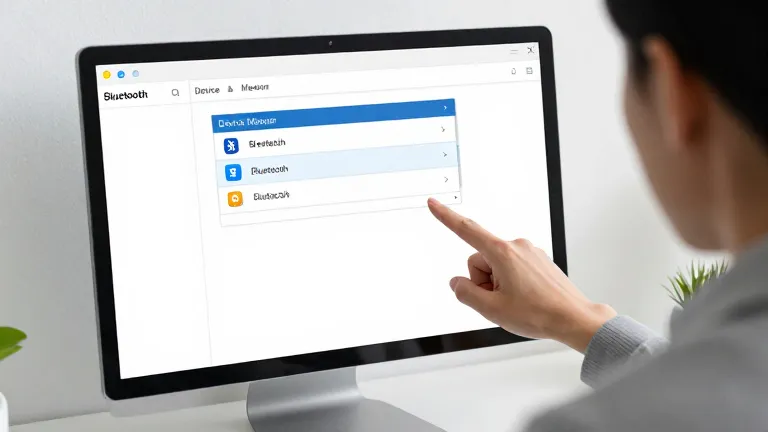
- Open Device Manager and locate the Bluetooth device. Right-click it and select 'Uninstall device' to remove the existing driver.
- Visit the manufacturer's website and search for the latest Bluetooth driver compatible with your hardware model.
- Install the downloaded driver and restart your computer to apply the changes.
- Use Windows Update to install all pending system updates, which may include Bluetooth-related fixes.
How to Uninstall and Reinstall Bluetooth Driver
To uninstall and reinstall the Bluetooth driver, open Device Manager and expand the 'Bluetooth' section. Right-click on the Bluetooth device and select 'Uninstall device'. Confirm the action and restart your computer. Once the system restarts, the Bluetooth device should be reinstalled automatically, or you can manually install the updated driver from the manufacturer’s website.
Using Windows Update to Fix Bluetooth Issues
After reinstalling the Bluetooth driver, it's essential to use Windows Update to ensure all system updates are current. Open Settings, navigate to 'Windows Update', and check for updates. Installing the latest updates can resolve underlying issues and improve Bluetooth compatibility. This step also ensures that your system benefits from the latest security patches and performance enhancements.
Testing Bluetooth via Command Prompt
Testing Bluetooth via Command Prompt offers a technical yet effective way to resolve missing Bluetooth settings. This method allows users to verify service status and reset network configurations without navigating through the settings menu.
How to Check Bluetooth Service Status via Command Prompt
To check the Bluetooth service status via Command Prompt, open it as an administrator and run 'services.msc'. This command opens the Services window, where you can locate the Bluetooth service. If it's not running, right-click it and select 'Start'. Ensuring the service is active can restore Bluetooth functionality in the Settings menu.
Resetting Network Settings to Fix Bluetooth Issues
If the Bluetooth service is running but the option is still missing, resetting network settings may help. Use 'netsh mbn reset' or 'netsh wlan reset' in Command Prompt to reset mobile broadband or wireless network settings. These commands can resolve conflicts that prevent Bluetooth from appearing in Settings. After running the reset command, restart your computer to apply the changes and verify if Bluetooth is now accessible.
Troubleshooting Bluetooth Connectivity Issues
Troubleshooting Bluetooth connectivity issues on Windows 11 involves a combination of software checks and hardware verification. By systematically testing and isolating variables, you can determine whether the problem lies with your system or the connected devices.

- Open the Settings app, go to System > Bluetooth, and ensure Bluetooth is turned on. If the option is missing, proceed with the troubleshooting steps outlined in this section.
- Use the Bluetooth troubleshooter to scan for and resolve potential issues. Access it through Settings > System > Bluetooth > Troubleshoot.
- Test Bluetooth connectivity with a known working device to determine if the issue is hardware or software. This helps isolate whether the problem is with the device or the system.
- Check for recent system updates or changes that may have affected Bluetooth functionality. Rolling back recent updates or reinstalling drivers can resolve compatibility issues.
How to Use the Windows Bluetooth Troubleshooter
The Windows Bluetooth troubleshooter is a built-in tool designed to identify and resolve common Bluetooth connectivity issues. To use it, open the Settings app, navigate to System > Bluetooth, and click the Troubleshoot button. This will run a diagnostic scan, checking for problems such as driver conflicts, service failures, or connectivity errors. If issues are found, the troubleshooter will attempt to fix them automatically, providing a straightforward way to resolve Bluetooth problems without manual intervention.
Testing Bluetooth with Different Devices
Testing Bluetooth with different devices is a crucial step in diagnosing connectivity issues. Start by pairing your device with a known working Bluetooth device, such as a wireless mouse or speaker, to see if the problem persists. If the device pairs successfully, the issue may be with the original device or its settings. If pairing fails, the problem may be with your Windows 11 system. Ensure the device is in pairing mode and within range, as Bluetooth devices typically have a limited range of about 30 feet. If the issue continues, consider resetting your Bluetooth settings or checking for hardware malfunctions.
Frequently Asked Questions
What should I do if Bluetooth is not showing up in settings?
If Bluetooth is not showing up in settings, check if the Bluetooth service is running and verify if Bluetooth is enabled through Device Manager. If not, try reinstalling the Bluetooth driver or resetting network settings.
How can I enable Bluetooth on Windows 11 if it's missing?
To enable Bluetooth on Windows 11 if it's missing, use Device Manager to enable the Bluetooth adapter, update or reinstall the Bluetooth driver, or run the Bluetooth troubleshooter for automatic fixes.
What if the Bluetooth driver is not working properly?
If the Bluetooth driver is not working properly, uninstall and reinstall the driver through Device Manager, or use Windows Update to install the latest Bluetooth driver updates.
Can I use the Bluetooth troubleshooter to fix this issue?
Yes, the Bluetooth troubleshooter can automatically detect and fix common Bluetooth issues. Run it through Settings > Network & Internet > Bluetooth > Troubleshoot.
Next Steps for Bluetooth Recovery
Fixing missing Bluetooth in Windows 11 involves checking services, updating drivers, and using built-in troubleshooters. These steps can restore Bluetooth functionality effectively.
To ensure Bluetooth works, always verify driver status, enable services, and use tools like Device Manager and the Bluetooth troubleshooter for reliable results.





