
How to Fix Audio Out of Sync on Smart TV
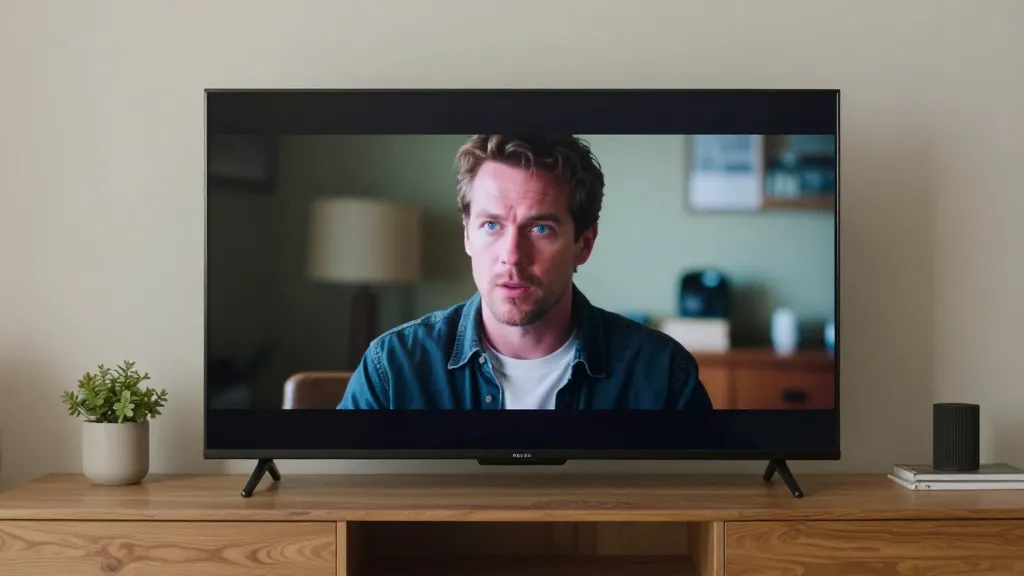
If you're experiencing audio out of sync on your smart TV, it can be frustrating to watch shows and movies with lip sync delay. This issue, commonly known as How to Fix Audio Out of Sync (Lip Sync Delay) on Smart TV, can disrupt your viewing experience and make it hard to enjoy content as intended. Audio delay can occur for various reasons, from HDMI connection problems to incorrect audio settings. Fortunately, there are several practical steps you can take to resolve this issue. In this article, we’ll guide you through understanding the causes of audio delay and provide clear, actionable solutions to fix it on your smart TV.
Understanding Audio Out of Sync on Smart TV
Audio out of sync, also known as lip sync delay, occurs when the sound from your smart TV lags behind the visual content. This issue can disrupt the viewing experience, especially during movies, shows, or live events. Understanding the causes and recognizing the symptoms can help you quickly address the problem and restore proper audio-video synchronization.
What Causes Audio Delay on Smart TV?
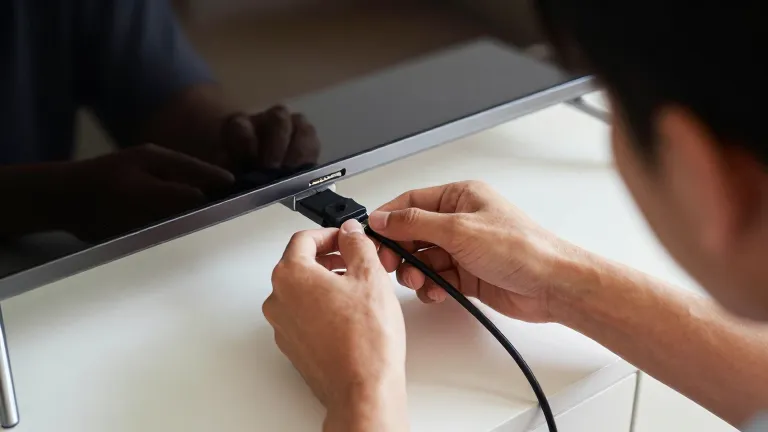
Audio delay on a smart TV can stem from several sources, including HDMI connection settings, audio format mismatches, or device compatibility issues. For instance, if your TV is connected via HDMI ARC (Audio Return Channel), incorrect settings might cause the audio to lag. Additionally, some audio formats, such as Dolby Digital or DTS, may not be fully supported by older devices, leading to delays. Compatibility problems between the TV and external devices like soundbars or AV receivers can also result in audio sync issues. Ensuring that all connected devices are properly configured and compatible is essential for resolving these problems.
How to Tell If Your TV Has Audio Sync Issues
Identifying audio sync issues on your smart TV can be done by watching for signs such as delayed dialogue, out-of-sync sound effects, or a noticeable lag between the video and audio. If you notice that characters' mouths move after the sound is heard, or if music and effects are out of step with the visuals, this is a clear indicator of audio delay. You can also test the issue by playing content with synchronized audio, such as a movie or a live stream, and observing whether the sound lags behind the video. Recognizing these symptoms early can help you pinpoint the cause and take the necessary steps to fix the problem.
Check HDMI ARC Settings for Audio Sync
HDMI ARC (Audio Return Channel) is a common cause of audio delay on smart TVs. This feature allows audio to be sent from the TV to an external audio device, such as a soundbar or home theater system, via the same HDMI cable used for video. If your TV and audio device are not properly configured for HDMI ARC, it can lead to lip sync issues where the audio lags behind the video. Ensuring both devices are set to use HDMI ARC can resolve this problem.
- Check that your TV and audio device support HDMI ARC. Not all HDMI ports are capable of this feature, and it's essential to confirm compatibility before proceeding.
- Navigate to your TV's audio settings and ensure HDMI ARC is enabled. This option is typically found under 'Sound' or 'Audio Settings' in the TV's menu.
- Verify that the audio device is also set to receive audio via HDMI ARC. This setting may be labeled as 'ARC' or 'Audio Return Channel' on the device's menu.
- Confirm that the HDMI port used is labeled as ARC or supports HDMI 2.0. Older HDMI ports may not support this feature, which could cause sync issues.
How to Enable HDMI ARC on Your TV
To enable HDMI ARC on your TV, start by accessing the TV's settings menu. Look for an option labeled 'Sound' or 'Audio Settings.' Within this section, you should find a setting for HDMI ARC. Toggle it on if it's disabled. Some TVs may require you to select the correct HDMI input port for ARC to function properly. If you're unsure which port to use, consult your TV's manual or look for an ARC label on the port.
Troubleshooting HDMI ARC Connection Issues
If HDMI ARC is enabled but you're still experiencing audio delay, check for connection issues. Ensure the HDMI cable is securely connected to both the TV and the audio device. A faulty or damaged cable can prevent proper communication between devices. Also, try using a different HDMI cable to rule out any physical damage. If the problem persists, test the HDMI port on your TV by connecting a different device to see if the issue is specific to the port or the audio device.
Adjust Audio Settings on Smart TV
Adjusting the audio settings on your smart TV can help resolve audio out of sync issues by fine-tuning the timing between video and sound. Most smart TVs offer options to adjust audio delay or lip sync correction, which can be accessed through the settings menu. This section guides you through locating and using these settings to synchronize audio with your video content.
Locating Audio Delay Settings on Your TV
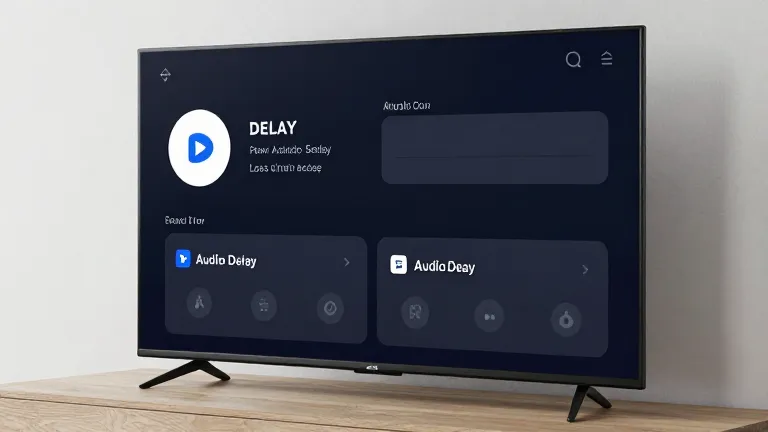
To locate audio delay settings, navigate to the TV's settings menu and look for options related to audio, sound, or lip sync. These settings are often found under the 'Sound' or 'Audio Settings' section. Some TVs may label this feature as 'Audio Delay,' 'Lip Sync Correction,' or 'Audio Sync Adjustment.' If you're unsure, consult your TV's user manual for specific terminology.
How to Use Manual Audio Delay Adjustment
Once you've located the audio delay settings, you can manually adjust the delay time to match your external device's audio latency. Use the on-screen slider or input a value in milliseconds to fine-tune the delay. Typically, delays range from 0 to 150 milliseconds, though this can vary by TV model. Experiment with small increments until the audio aligns perfectly with the video. If your TV doesn't offer manual adjustment, consider using an external audio device that supports delay settings.
Test Different Audio Formats and Output Settings
Testing different audio formats and output settings can help resolve audio sync issues by identifying compatibility problems or incorrect configurations. By adjusting these settings, you can ensure that your smart TV and audio devices communicate properly, reducing or eliminating delays.
- Access your TV's audio settings menu to change the audio format from Dolby Digital to PCM.
- Select an alternative audio output method such as Optical, HDMI, or Bluetooth to test for sync issues.
- Verify that your external audio device supports the selected format and output type.
- Restart your TV and audio device after making changes to apply the new settings.
How to Change Audio Format on Your Smart TV
To change the audio format on your smart TV, navigate to the Settings menu and look for an option labeled 'Audio Format' or 'Sound Output.' From there, you can select between various formats like Dolby Digital, DTS, or PCM. PCM is a basic format that is universally supported and can help eliminate compatibility issues that might cause audio delay.
Testing Audio Output Options for Sync Issues
Testing audio output options involves connecting your TV to different audio devices using various ports like Optical, HDMI, or Bluetooth. Each connection type may handle audio signals differently, and switching between them can help identify if the issue lies with the output method. For example, using HDMI ARC might provide better synchronization than a Bluetooth connection, depending on your setup.
Use External Devices to Fix Audio Sync
If your smart TV continues to experience audio out of sync after trying other fixes, using an external audio device or soundbar can help bypass the TV’s internal audio processing. These devices often offer better synchronization and more control over audio settings, which can resolve persistent lip sync delays.
Choosing the Right External Audio Device
When selecting an external audio device, prioritize models with HDMI ARC or optical input capabilities, as these connections provide more reliable synchronization. Look for soundbars or home theater systems that allow manual adjustment of audio delay, which can fine-tune the timing between video and sound. Some high-end devices also support advanced audio formats like Dolby Atmos, which can improve both sound quality and synchronization.
Connecting Soundbar to Fix Audio Delay
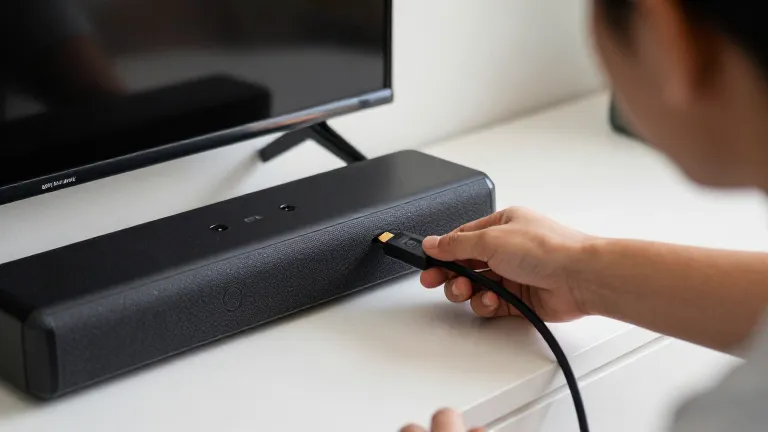
To connect your soundbar, use an HDMI ARC cable for the best sync performance. Plug one end into the TV’s HDMI ARC port and the other into the soundbar’s HDMI ARC input. Ensure both devices are set to the correct input source and that the HDMI ARC feature is enabled on both the TV and the soundbar. If HDMI ARC is not available, an optical cable can be a suitable alternative, though it may not offer the same level of synchronization precision.
Frequently Asked Questions
Why is my TV audio out of sync with the video?
Audio out of sync on a smart TV is usually caused by delays in the audio signal, often due to HDMI ARC settings, audio format mismatches, or external device connections. These issues can create a noticeable delay between the video and audio.
How do I fix audio delay on my smart TV?
To fix audio delay, check HDMI ARC settings, adjust manual audio delay options, test different audio formats, or use an external soundbar. Ensuring all devices are properly connected and configured can resolve the issue.
Can HDMI ARC cause audio out of sync?
HDMI ARC can cause audio out of sync if not properly configured. Ensure that HDMI ARC is enabled and that your devices are compatible. Also, check for any interference or connection issues.
What should I do if my TV audio delay won't reset?
If your TV audio delay won't reset, try power cycling the TV and connected devices. If that doesn't work, consult the TV's manual or contact customer support for further assistance.
Final Thoughts
To resolve audio out of sync on your smart TV, start by checking HDMI ARC settings, adjusting audio delay options, and testing different audio formats. If the issue persists, consider using an external soundbar or consulting the TV's manual for advanced settings.
If you're still experiencing audio delay after these steps, it's best to contact the TV manufacturer's support for further troubleshooting. Regular maintenance and proper configuration of your audio settings can help prevent future sync issues.





