
How to Fix Fire TV Stick Stuck on Loading Logo Screen
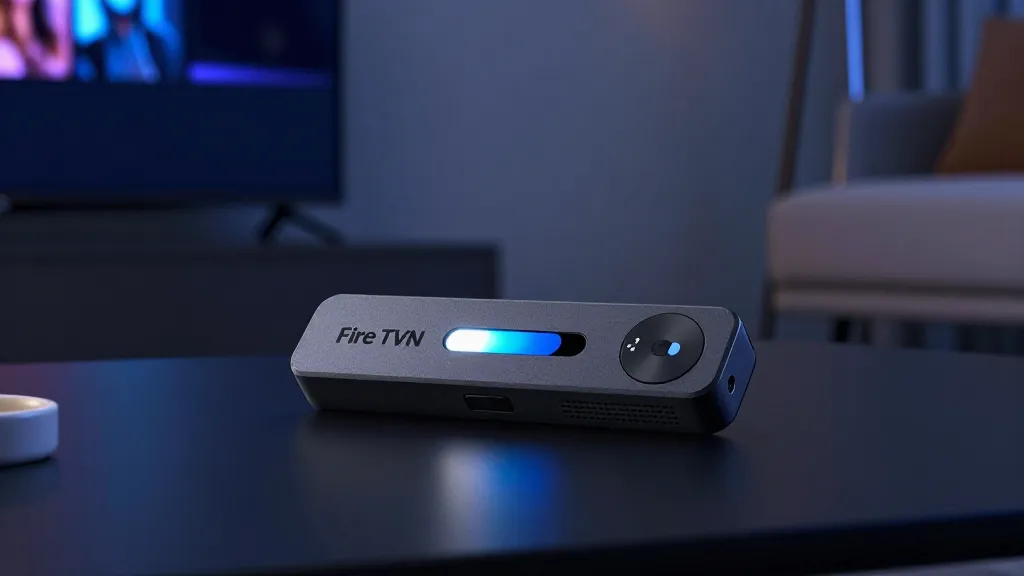
If your Fire TV Stick is stuck on the loading logo screen, it can be frustrating and disrupt your entertainment experience. This issue may stem from a boot loop, software glitch, or hardware problem, leaving you unable to access your favorite apps or content. The main keyword for this article is 'How to Fix Fire TV Stick Stuck on Loading Logo Screen,' and we'll guide you through practical steps to resolve the issue. Whether you're a home user or tech-savvy individual, these solutions are designed to help you troubleshoot and fix the problem without needing professional assistance. Our approach covers basic and advanced fixes, ensuring you have multiple options to try before considering replacement.
The first section of this article explains the common causes behind the Fire TV Stick loading issue, such as software corruption or connectivity problems. Understanding these root causes can help you identify the most effective solution for your situation. Next, we'll walk you through basic troubleshooting steps, including restarting the device and checking physical connections, which can often resolve minor issues. These steps are simple and can be done in minutes, making them a great starting point for anyone facing this problem.
For more persistent issues, we'll cover advanced fixes like resetting your Fire TV Stick and updating its firmware. These methods can restore default settings and ensure your device is running the latest software, which may resolve the loading screen problem. If these steps don't work, we'll also discuss when it's time to seek professional help or consider replacing your Fire TV Stick. By following this guide, you can confidently troubleshoot and potentially fix the issue without needing to contact a technician.
Understanding Why Your Fire TV Stick Gets Stuck on the Loading Logo
A Fire TV Stick stuck on the loading logo can be frustrating, but it often stems from specific issues that can be resolved with the right approach. Understanding the root cause is the first step toward finding a solution, whether it’s a software problem, a hardware malfunction, or a power supply issue. By identifying the underlying reason, you can take targeted steps to restore your device to full functionality.
Common Causes of the Fire TV Stick Loading Issue
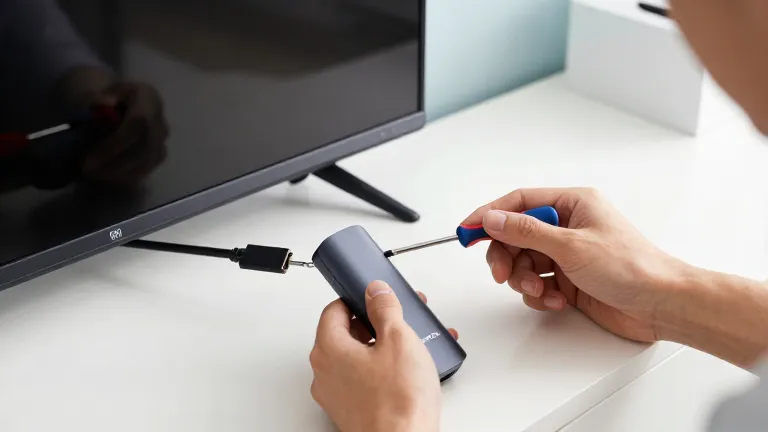
Common causes of the Fire TV Stick loading issue include software glitches, corrupted system files, or an incomplete firmware update. These problems can prevent the device from properly initializing its operating system, leading to a persistent loading screen. Additionally, an unstable power connection or a faulty power adapter can cause the Fire TV Stick to fail during startup. If the device is not receiving a consistent power supply, it may struggle to complete the boot process, resulting in the logo screen being stuck.
Recognizing a Boot Loop on Your Fire TV Stick
A boot loop occurs when the Fire TV Stick repeatedly restarts without successfully loading the main interface. This is often a sign of deeper software or hardware issues, such as a corrupted system file or a malfunctioning internal component. If you notice the device cycling through the loading logo and restarting multiple times, it’s likely experiencing a boot loop. This behavior can be caused by recent firmware updates that failed to install correctly or by physical damage to the device’s internal hardware.
Basic Troubleshooting Steps for Fire TV Stick Stuck on Logo
Basic troubleshooting steps can often resolve the issue of your Fire TV Stick getting stuck on the loading logo. Starting with a simple restart is usually the first and most effective solution. If the problem persists, checking your connections and ensuring proper power delivery can also help identify and fix the issue.
- Unplug the Fire TV Stick from the power source for 30 seconds, then plug it back in.
- Verify that the Fire TV Stick is connected to the correct HDMI port on your TV.
- Ensure the remote is properly paired with the Fire TV Stick.
- Use the original Amazon power cable to avoid power instability.
How to Restart Your Fire TV Stick
A simple restart is often the first step in resolving the Fire TV Stick loading issue. Unplug the device from the power source for at least 30 seconds to allow the internal systems to fully reset. This can clear temporary glitches that might be causing the device to hang on the loading screen. After waiting, plug the Fire TV Stick back in and attempt to power it on. If the issue persists, move to the next troubleshooting step.
Power Cable and HDMI Port Checks
Ensure that the Fire TV Stick is connected to the correct HDMI port on your TV. Some TVs have multiple HDMI ports, and using the wrong one can result in the device not initializing properly. Additionally, check that the HDMI cable is securely connected at both ends. If the remote is not responding, it may not be properly paired with the Fire TV Stick. Test the remote with another device to confirm it is functioning correctly. If the remote is faulty, it could be preventing the Fire TV Stick from completing its boot process.
How to Reset Your Fire TV Stick and Restore Default Settings
Resetting your Fire TV Stick is a straightforward method to resolve persistent loading issues. This process will restore the device to its original factory settings, which can eliminate software glitches and corrupted configurations. However, it's important to note that this action will erase all personal data, installed apps, and custom settings, so it's crucial to back up any important information before proceeding.
Resetting Your Fire TV Stick
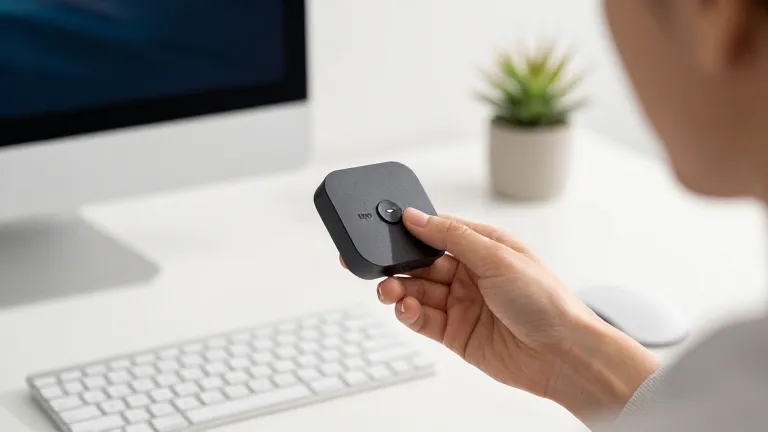
To reset your Fire TV Stick, locate the small reset button on the back of the device. Use a paperclip or similar tool to press and hold the button for approximately 15 seconds until the LED indicator starts blinking. This signal confirms that the reset process has initiated. Once completed, the Fire TV Stick will reboot and begin the setup process as if it were new.
Reinstalling Apps After a Factory Reset
After the reset, you'll need to re-pair your remote control and reconfigure the Fire TV Stick. This includes reconnecting to your Wi-Fi network, setting up your profile, and re-installing any essential apps. While this process requires some time and effort, it ensures a clean slate and can resolve many of the issues that caused the initial loading problem. If you have a backup of your app preferences or subscriptions, you can restore them manually after the reset.
Advanced Fixes for Fire TV Stick Not Loading Past the Logo
If your Fire TV Stick remains stuck on the loading logo after basic troubleshooting, consider advanced steps to resolve the issue. These include checking your HDMI and TV connections, updating the firmware, and reinitializing the device if a microSD card is installed.
- Try a different HDMI port on your TV or use a different TV to rule out display issues.
- Check for firmware updates through the Fire TV Stick menu or manually download the latest version from Amazon.
- If a microSD card is installed, remove and reinsert it to reinitialize the device.
- Ensure the HDMI cable is securely connected and try a different cable if available.
Testing Different HDMI and TV Ports
Testing different HDMI and TV ports can help identify if the issue is related to the connection. If your Fire TV Stick is connected to a specific HDMI port, try another port on the same TV or use a different television altogether. This helps eliminate problems with the TV's HDMI input or the cable itself. A faulty HDMI port or cable can prevent the Fire TV Stick from initializing properly, so ruling out these factors is essential.
Updating Fire TV Stick Firmware
Updating the Fire TV Stick firmware can resolve software-related issues causing the loading screen problem. Navigate to the Settings menu and check for system updates. If no update is available through the menu, visit Amazon's official website to download the latest firmware version. Follow the installation instructions carefully to ensure the update is applied correctly. Keeping the firmware up to date ensures compatibility with the latest features and security patches.
When to Seek Professional Help or Replace Your Fire TV Stick
If all troubleshooting steps fail, it's possible your Fire TV Stick has a hardware issue that requires professional attention. Faulty components such as a damaged motherboard or malfunctioning internal parts can prevent the device from loading properly. In such cases, replacing the Fire TV Stick may be the most practical solution.
Signs of a Hardware Failure
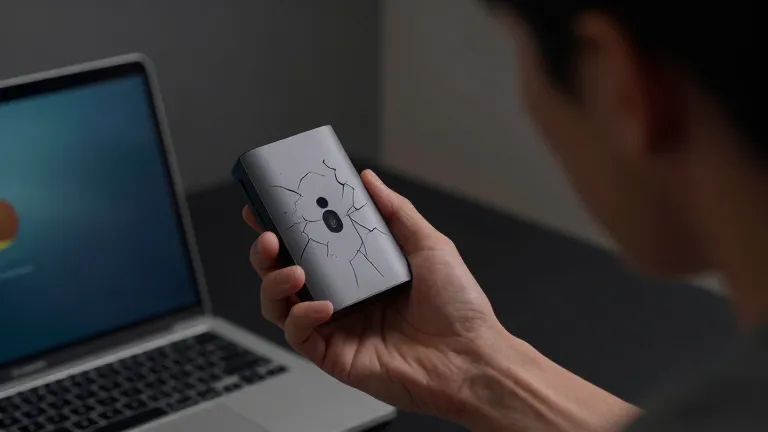
Signs of a hardware failure include persistent loading issues even after a factory reset, unresponsive buttons, or physical damage to the device. If the Fire TV Stick fails to power on or shows no reaction to input, it may indicate a more serious internal problem. In these situations, attempting to repair the device yourself is not recommended due to the complexity of internal components.
Contacting Amazon for Support or Replacement
If your Fire TV Stick is still under warranty, contact Amazon support for assistance or replacement. Amazon offers customer support through its website and may provide a replacement unit if the device is found to be defective. Refurbished units can also be a cost-effective option if the original device is no longer functional. Before contacting support, ensure you have the purchase receipt and product details ready to expedite the process.
Frequently Asked Questions
What should I do if my Fire TV Stick is stuck on the loading logo and won’t reset?
If your Fire TV Stick is stuck on the loading logo and won’t reset, try using the original power cable and unplugging the device for 30 seconds. If that doesn’t work, attempt a factory reset by holding the power button for 30 seconds. If the issue persists, consider contacting Amazon for support or replacement.
Can a third-party power cable cause my Fire TV Stick to get stuck on the logo?
Yes, a third-party power cable can cause your Fire TV Stick to get stuck on the logo. Always use the original power cable to ensure stable power delivery. Faulty cables can lead to power fluctuations or insufficient charging, resulting in boot loops or loading issues.
How long does it take for a Fire TV Stick to reset and load after a factory reset?
After a factory reset, your Fire TV Stick typically takes between 3 to 5 minutes to reboot and load. During this time, the device will restart and reinstall default settings. If it doesn’t load within this timeframe, check your HDMI connection and power source.
What are the signs that my Fire TV Stick has a hardware issue rather than a software problem?
Signs of a hardware issue include a completely unresponsive Fire TV Stick, no power output from the USB port, or physical damage to the device. If the device doesn’t react to any reset attempts or power cycles, it may be a hardware failure requiring professional repair or replacement.
Next Steps and Support
The key to resolving a Fire TV Stick stuck on the loading logo is to systematically address both software and hardware factors. Start with basic troubleshooting, such as power and connection checks, then move to factory resets and advanced diagnostics. If all else fails, consider professional help or a replacement.
If your Fire TV Stick remains unresponsive after following these steps, contact Amazon support or a certified technician. Ensuring you use the original power cable and HDMI port is crucial for maintaining device stability.





