
How to Fix Samsung Smart TV Black Screen With Sound Still Playing
Encountering a black screen on your Samsung Smart TV while still hearing sound can be frustrating. This issue can stem from various causes, such as software glitches, backlight problems, or connectivity issues. If you're facing this problem, you're not alone, and there are several practical steps you can take to resolve it. The main keyword, 'How to Fix Samsung Smart TV Black Screen With Sound Still Playing,' highlights the core of this guide, which aims to help you troubleshoot and fix the issue effectively.
This article walks you through a structured approach to diagnose and resolve the black screen problem. Starting with basic checks like power and connections, it moves on to more advanced solutions, such as firmware updates and system reinstallation. Each step is designed to be user-friendly, making it accessible for both home users and tech-savvy individuals.
By following the outlined troubleshooting steps, you can identify whether the issue lies with the display, settings, or software. The guide also emphasizes when to seek professional help, ensuring you don't attempt complex fixes without proper guidance. Whether you're looking for a quick fix or a more in-depth solution, this article provides the tools you need to restore your Samsung Smart TV to full functionality.
Understanding the Black Screen Issue on Samsung Smart TV
A black screen on a Samsung Smart TV that still plays sound is a common issue that can be frustrating for users. This problem often stems from either a hardware malfunction or a software glitch. Understanding the root cause is essential to determine the most effective solution. Whether the issue is related to the power supply, backlight, or system software, identifying the cause can help users avoid unnecessary troubleshooting steps.
Common Causes of Black Screen on Samsung TVs
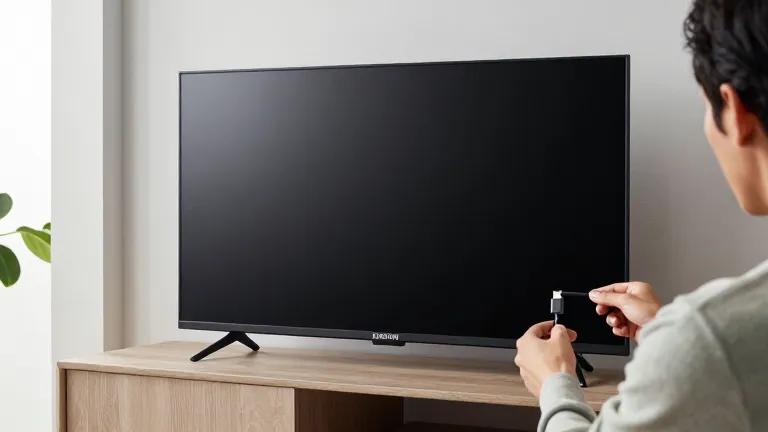
The black screen issue on Samsung Smart TVs can be attributed to several factors. One common cause is a power supply problem, which may result from a faulty power cable, an unstable power source, or a damaged internal power unit. Another potential cause is a malfunction in the backlight system, which is responsible for illuminating the screen. If the backlight fails, the screen may appear dark even when the TV is on. Additionally, software glitches, such as corrupted system files or outdated firmware, can also lead to a black screen while audio continues to play. These issues can be intermittent or persistent, depending on the underlying cause.
How to Differentiate Between Black Screen and No Picture
Differentiating between a black screen and no picture is crucial for accurate troubleshooting. A black screen with sound typically means the TV is on but not displaying any image, whereas no picture implies the TV is off or not receiving a signal. To determine which scenario applies, check if the TV is powered on by looking for indicator lights or using the remote control. If the TV is on but the screen is black, the issue is likely hardware or software-related. If the TV is off or not responding, the problem may be with the power supply or the connection to the source device. Accurately identifying the situation can help narrow down the possible causes and guide the next steps in resolving the issue.
Troubleshooting Steps for Samsung Smart TV Black Screen
Troubleshooting a Samsung Smart TV with a black screen but working sound involves checking the most common and easily fixable issues. Starting with the basics can often resolve the problem without needing advanced tools or professional help.
- Verify that the TV is properly powered and all cables are securely connected.
- Try using a different power outlet or power strip to rule out electrical issues.
- Ensure that the HDMI, AV, or other input cables are firmly plugged into both the TV and the source device.
- Check if the TV is set to the correct input source, such as HDMI 1, AV, or USB.
Check Power and Physical Connections
Begin by confirming that the TV is receiving power. Look for the power indicator light or a subtle hum from the internal fan. If the TV is not turning on, try plugging it into a different outlet or using a surge protector. If the TV turns on but displays a black screen, the issue may be with the power supply or internal components.
Factory Reset Samsung Smart TV
If basic power and connection checks fail, a factory reset can resolve software-related black screen issues. This process will restore the TV to its original settings, removing any potential software conflicts. To perform a factory reset, navigate to the Settings menu, select General, and choose Reset. Follow the on-screen prompts to complete the reset. Note that this will erase all personal data and installed apps, so ensure you have backed up any important information.
Testing the Backlight and Brightness Settings
Testing the backlight and brightness settings on your Samsung Smart TV is a crucial step in diagnosing a black screen issue. A faulty backlight can cause the screen to appear dark, even when the TV is functioning normally. Adjusting brightness settings can help determine if the problem lies with the backlight or other display-related components.
How to Access the Backlight Test on Samsung TV
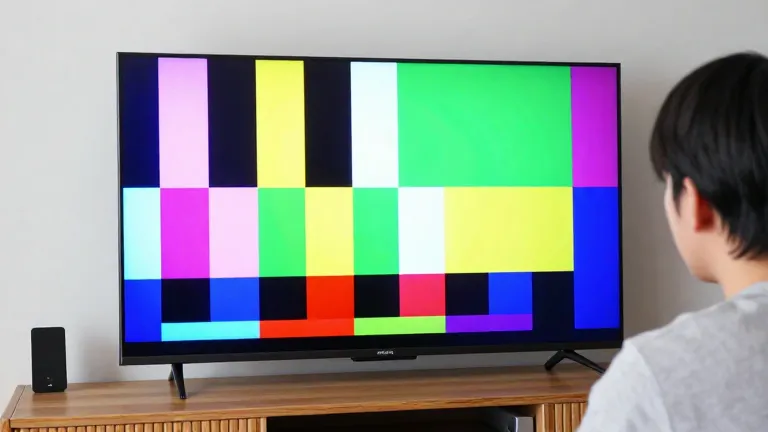
To access the backlight test on your Samsung Smart TV, navigate to the Settings menu and select 'Support'. From there, choose 'Troubleshoot' and then 'Backlight Test'. This feature is designed to help identify issues with the backlight by displaying test patterns on the screen. If the backlight test is not available, consult your TV's manual or Samsung's support website for specific instructions for your model.
Interpreting Backlight Test Results
During the backlight test, the TV will display various patterns to assess the brightness and uniformity of the screen. If the test patterns are visible, it indicates that the backlight is working, and the issue may be related to brightness settings or external factors such as ambient light. If the screen remains black during the test, it suggests a potential hardware issue with the backlight. In such cases, further diagnostic steps or professional assistance may be required.
Advanced Fixes for Samsung Smart TV Black Screen
Advanced fixes for a Samsung Smart TV black screen with sound often involve addressing software or system-level issues. These steps are suitable for users who have already tried basic troubleshooting and are looking for deeper solutions.
- Check for firmware updates through the TV's settings menu.
- Perform a factory reset if the issue persists after updating firmware.
- Reinstall the operating system using Samsung SmartThings or official tools.
- Monitor for overheating and ensure proper ventilation.
Updating Samsung TV Firmware
Updating the firmware can resolve software bugs that cause the black screen issue. To do this, navigate to the TV's settings, select 'Support,' and look for the 'Software Update' option. The TV will check for available updates and install them automatically if found. This process typically takes a few minutes and should not affect the audio functionality.
Reinstalling Operating System on Samsung Smart TV
Reinstalling the operating system is a more involved process and should be attempted only after other solutions have failed. This can be done through the Samsung SmartThings app or by using the TV's recovery mode. Follow the official instructions carefully to avoid data loss. Reinstalling the OS can restore the TV to its original state and may resolve persistent black screen issues caused by corrupted system files.
When to Seek Professional Help for Samsung Smart TV
If all troubleshooting steps fail and the black screen issue persists, it may indicate a hardware problem that requires professional attention. Internal components such as the backlight, motherboard, or power supply could be faulty, making it difficult to diagnose or repair without specialized tools and expertise. Attempting to fix these issues yourself can lead to further damage or safety risks, especially if there are signs of physical damage, electrical faults, or overheating.
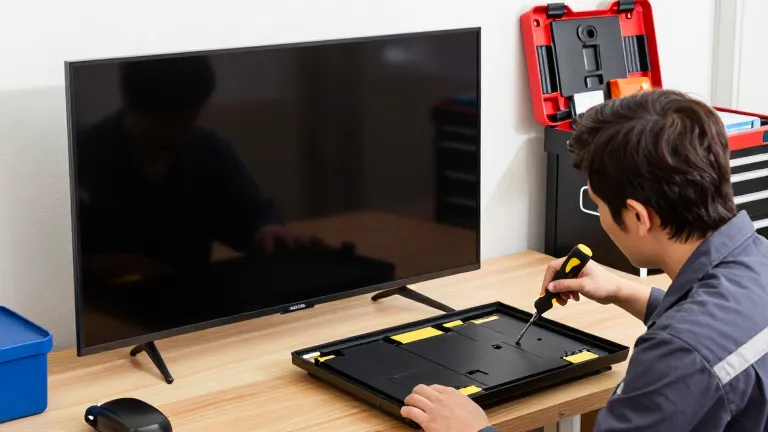
Professional repair services have the necessary equipment to test and replace faulty hardware components accurately. Technicians can assess the condition of the backlight, check for loose connections, and evaluate the motherboard for any signs of failure. This level of diagnosis ensures that the root cause of the problem is identified and resolved effectively, avoiding unnecessary replacements or repairs.
If your Samsung Smart TV shows a black screen with sound but no visible physical damage, it is still advisable to consult a professional if basic troubleshooting does not resolve the issue. Some hardware problems, such as a failing power supply or internal short circuits, can be complex to address without proper training. A certified repair service can provide a thorough inspection and recommend the most appropriate solution.
Avoid self-diagnosis when dealing with potential electrical or physical damage, as this can lead to incorrect assumptions and unsafe interventions. If your TV has been dropped, exposed to moisture, or shows signs of overheating, it is best to seek professional help to prevent further complications. A qualified technician can ensure the repair is done safely and correctly, extending the lifespan of your device.
Frequently Asked Questions
What should I do if my Samsung Smart TV is black but still playing sound?
If your Samsung Smart TV is black but still playing sound, start by checking the power and physical connections. Ensure the TV is properly connected to the power source and the audio output. If the issue persists, try a factory reset or test the backlight.
Can a backlight issue cause a black screen on a Samsung TV?
Yes, a backlight issue can cause a black screen on a Samsung TV. The backlight is responsible for illuminating the screen, so if it fails, the screen may appear dark even if the image is present. A backlight test can help identify this issue.
How do I perform a factory reset on my Samsung Smart TV?
To perform a factory reset on your Samsung Smart TV, go to the Settings menu, select General, then Factory Reset. Follow the on-screen prompts to complete the process. This will restore the TV to its original settings.
What if all troubleshooting steps fail and the screen remains black?
If all troubleshooting steps fail and the screen remains black, it may indicate a hardware issue. In such cases, it is advisable to seek professional help from a technician or contact Samsung support for further assistance.
Next Steps for Resolution
Addressing a black screen on a Samsung Smart TV requires a systematic approach, starting with basic checks and moving to more advanced troubleshooting. If the issue persists, it may be necessary to seek professional assistance.
Follow the outlined steps to diagnose and resolve the black screen issue. If all else fails, contacting Samsung support or a qualified technician is the best course of action.





