
How to Fix Bluetooth Headphones Connected But No Sound Playing
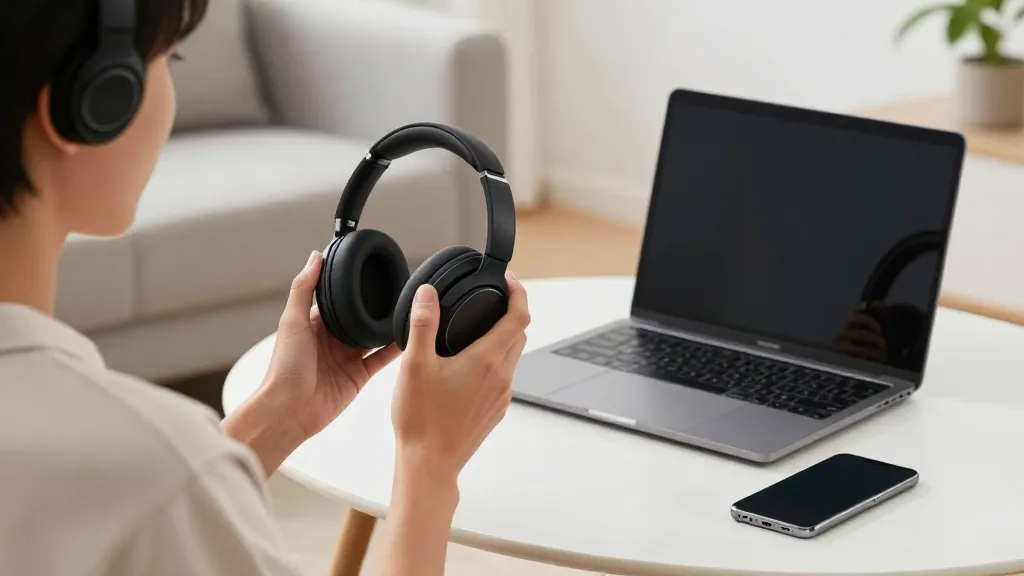
If your Bluetooth headphones are connected but no sound is playing, it can be frustrating—especially when you're trying to work or enjoy media. This issue often stems from simple misconfigurations or minor glitches in the audio settings. The main keyword here is How to Fix Bluetooth Headphones Connected But No Sound Playing, and this article will guide you through practical, step-by-step solutions to resolve the problem. Whether you're at home or in the office, these fixes are designed for users with basic technical knowledge who want to troubleshoot audio issues without professional help. By following this guide, you can quickly restore sound to your Bluetooth headphones and get back to using them seamlessly.
The first step is to check basic connections and settings, such as ensuring your headphones are properly charged and in pairing mode. Sometimes, even if the devices are connected, the audio output might not be directed to the headphones. We'll walk you through verifying these essentials and adjusting settings to ensure your audio is routed correctly.
If basic checks don’t resolve the issue, we’ll explore more advanced troubleshooting steps, including restarting devices, re-pairing headphones, and resetting them to factory settings. These methods are tailored to address common causes of no sound while maintaining simplicity for users who prefer DIY solutions. By the end of this article, you should have a clear plan to fix your Bluetooth audio problem effectively.
Check Basic Connections and Settings
Before diving into more complex troubleshooting steps, it's essential to start with the basics. Many Bluetooth audio issues can be resolved by ensuring that your headphones are properly charged, turned on, and in the correct pairing mode. This section covers fundamental checks that can quickly identify and resolve common connectivity problems.
Verify Headphone Power and Charge
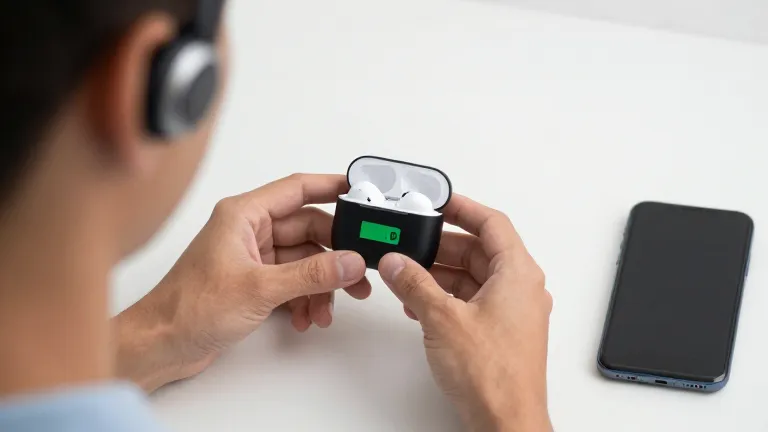
Ensure your Bluetooth headphones are fully charged and turned on. A low battery or completely dead battery can prevent the headphones from functioning correctly, even if they're connected. Check the charging indicator on the headphones or the accompanying charging case. If the battery is low, charge the headphones fully before proceeding. Also, make sure the headphones are in an active state—some devices may not work if they're in a power-saving mode or standby.
Confirm Bluetooth Pairing Mode
Verify that your device is in Bluetooth pairing mode. To do this, go to your device's Bluetooth settings and look for an option to 'Pair' or 'Add Device.' Some devices automatically enter pairing mode when you open the Bluetooth settings, while others require you to press and hold a specific button on the headphones or the device. If your headphones are already paired with another device, they may not be discoverable. Make sure to remove any existing pairings or ensure your device is set to scan for new connections.
Troubleshoot Bluetooth Audio Output
When Bluetooth headphones are connected but no sound is playing, the issue often lies with the audio output settings or the Bluetooth connection itself. Verifying that the headphones are correctly selected as the audio output device is a critical first step. This section outlines practical steps to ensure the device is properly recognizing and using the headphones for sound playback.
- Go to the device's Bluetooth settings and manually select the headphones.
- Test the headphones with a different device to rule out a device-specific issue.
- Restart the device and the headphones to refresh the Bluetooth connection.
- Ensure that no other Bluetooth devices are interfering with the connection.
Manually Select Headphones in Bluetooth Settings
If your headphones are connected but not playing sound, start by checking the Bluetooth settings on your device. Navigate to the Bluetooth options and look for a list of paired devices. Ensure that your headphones are selected as the default audio output. Some devices allow you to choose between multiple Bluetooth devices, so manually selecting the correct one can resolve the issue.
Restart the Device and Headphones
Restarting both the device and the headphones can help reset any temporary glitches in the Bluetooth connection. Power off your device, wait a few seconds, and then turn it back on. Similarly, turn off your headphones and wait a minute before turning them back on. This process can clear any software conflicts and re-establish a stable connection.
Fix Audio Output Switching Issues
Audio output switching issues can prevent Bluetooth headphones from playing sound, even when connected. This section guides you through checking and adjusting your device’s audio settings to ensure the sound is routed correctly to your headphones.
Verify Audio Output Settings
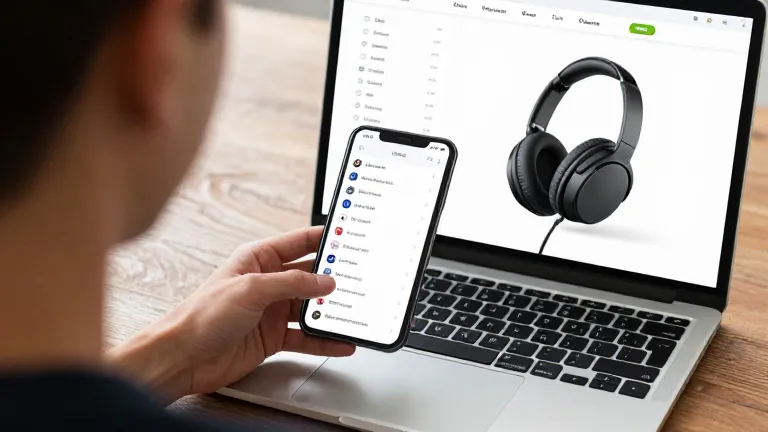
Begin by checking your device’s audio output settings to confirm that the headphones are selected as the default playback device. On Windows, click the volume icon in the taskbar, then select ‘Sounds’ and navigate to the ‘Playback’ tab. On macOS, click the Apple menu, select ‘System Settings’, then ‘Sound’, and choose your headphones from the output options. For Android or iOS devices, go to ‘Settings’, then ‘Bluetooth’, and ensure your headphones are listed as the active audio device.
Switch Audio Output to Bluetooth
If the audio output is already set to your headphones, try manually switching the output to Bluetooth. On Windows, right-click the volume icon and select ‘Sounds’, then choose ‘Bluetooth’ from the playback devices list. On macOS, click the speaker icon in the menu bar and select your headphones from the dropdown. For mobile devices, tap the volume or Bluetooth settings and ensure the audio is routed to Bluetooth instead of wired outputs. If sound still doesn’t play, close any background apps that might be using the audio output, as they can interfere with the playback.
Re-Pair and Reset Bluetooth Headphones
Re-pairing and resetting your Bluetooth headphones can resolve persistent connectivity and audio issues. These steps help eliminate interference or corrupted data that may be causing no sound. By forgetting the device and re-pairing, you create a clean connection. Resetting the headphones also clears any stored settings that might be disrupting the audio output.
- Go to your device’s Bluetooth settings and select 'Forget this device' for the headphones.
- Turn off the headphones and put them back into pairing mode by pressing and holding the power button.
- Re-pair the headphones by selecting them from the Bluetooth device list on your device.
- Hold the power button on the headphones for 10–15 seconds to reset them to factory settings.
- Check the manufacturer’s website for any firmware updates for the headphones.
- After resetting, re-pair the headphones again and test the audio output.
Forget and Re-Pair Headphones
Forgotten devices are removed from your Bluetooth list, which helps eliminate any interference or data corruption. Re-pairing the headphones ensures that the connection is fresh and properly configured. This process is especially useful if the headphones have previously connected to multiple devices, which can cause conflicts.
Reset Headphones to Factory Settings
Resetting the headphones to factory settings restores default configurations, which can resolve software glitches or misaligned settings. This is a more thorough fix than simply forgetting the device, as it clears all stored data and settings. Always refer to the manufacturer’s instructions for the exact reset procedure, as it can vary between brands.
Advanced Fixes for Persistent No Sound
If basic troubleshooting fails, updating your device's operating system and Bluetooth drivers can resolve compatibility issues. Manufacturers often release updates that fix known bugs or improve Bluetooth performance. Check for system updates through your device's settings and install any available patches. For Windows users, updating Bluetooth drivers via Device Manager can also help, while macOS users should ensure they're running the latest version of the operating system.
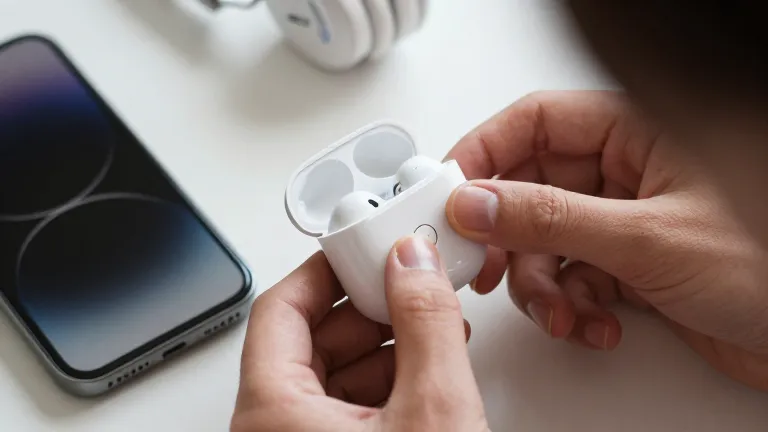
Some devices have audio routing settings that might be misconfigured. Check for any audio-related options in your system preferences or control panel, such as 'Sound Settings' or 'Audio Devices.' Ensure that your headphones are set as the default playback device. If your system has a 'Speaker' or 'Headset' option, confirm it's set to the correct Bluetooth device. Some apps or media players might override system settings, so test playback through different applications to isolate the issue.
If the problem persists, try disabling and re-enabling Bluetooth on your device. This can refresh the connection and resolve minor glitches. If your headphones still aren't producing sound, consider using a third-party Bluetooth audio analyzer tool to diagnose the issue. These tools can detect connection problems or signal interference that might be affecting audio transmission. Additionally, ensure that no other Bluetooth devices are interfering with the connection by keeping them at a distance or switching them off.
As a last resort, you can use a wired audio cable to test if the headphones work with another device. If they do, the issue is likely with your Bluetooth connection or device settings. If the problem continues, contact the manufacturer's support team for further assistance. They may provide specific troubleshooting steps or confirm if there's a known issue with your particular model.
Frequently Asked Questions
Why are my Bluetooth headphones connected but no sound is coming through?
Bluetooth headphones may not produce sound due to incorrect audio output settings, interference, or a mismatch in the audio source. Ensure the correct device is selected as the audio output and check for any ongoing Bluetooth connectivity issues.
How do I force my device to switch audio output to Bluetooth headphones?
Manually select your Bluetooth headphones in the audio output settings of your device. If this fails, restarting both the device and headphones can help reset the audio routing.
What should I do if my Bluetooth headphones are not producing sound after re-pairing?
After re-pairing, ensure the headphones are set as the default audio output. If sound still doesn't play, try resetting the headphones or checking for software updates on your device.
Can Bluetooth interference cause no sound on my headphones?
Yes, Bluetooth interference from other devices can disrupt the audio signal. Move closer to your device, reduce nearby Bluetooth devices, or switch to a less congested frequency if possible.
Next Steps for Resolving No Sound
Bluetooth headphones connected but no sound can often be resolved by checking audio output settings, restarting devices, or re-pairing. Ensure your headphones are selected as the default audio output and that the connection is stable.
If the issue persists, resetting the headphones or updating your device's software may help. Follow these steps to ensure a seamless audio experience with your Bluetooth devices.





