
How to Fix External Monitor Showing No Signal via HDMI or DisplayPort
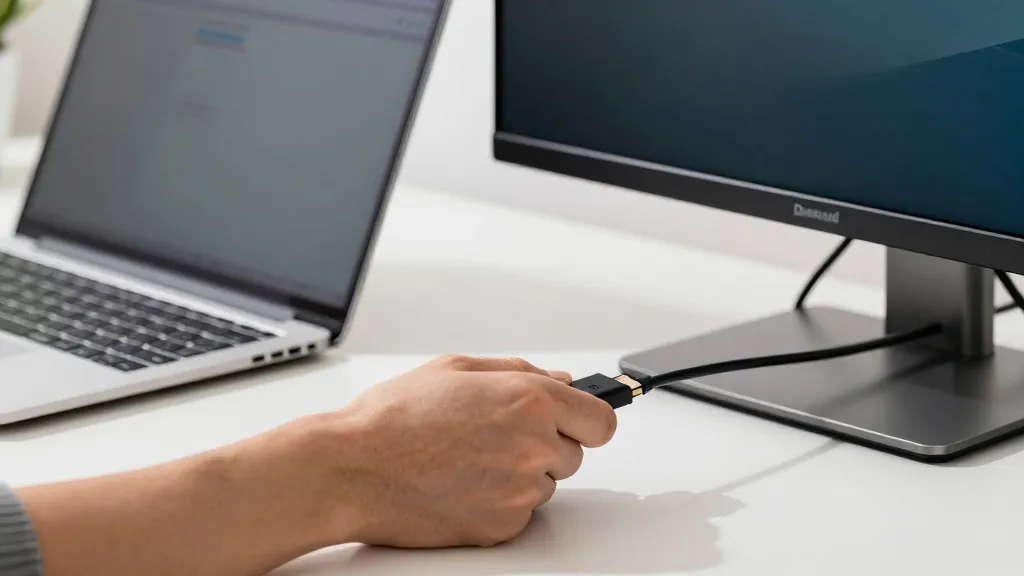
If your external monitor is displaying 'No Signal' via HDMI or DisplayPort, it can be frustrating, especially when you're relying on a second display for work or entertainment. This error often points to a simple connection issue or a misconfiguration, but it can also stem from more complex hardware or software problems. The main keyword here is 'How to Fix External Monitor Saying 'No Signal' via HDMI or DisplayPort,' and this article walks you through practical steps to resolve the issue without needing professional help. Whether you're a tech-savvy home user or a professional, these troubleshooting methods will help you identify and fix the problem efficiently.
Check the Physical Connections
The first step in resolving an external monitor displaying 'No Signal' via HDMI or DisplayPort is to ensure all physical connections are secure and undamaged. Loose or faulty cables are a common cause of display issues, so a thorough inspection and verification of the connection is essential before proceeding to more complex troubleshooting steps.
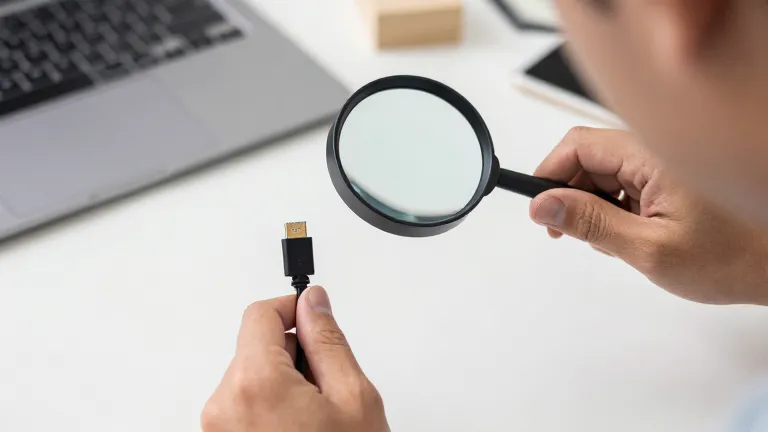
Inspect the Cable for Damage
Begin by inspecting the HDMI or DisplayPort cable for any visible signs of damage, such as fraying, bending, or broken connectors. A damaged cable can prevent the signal from being transmitted properly, leading to the 'No Signal' error. Look for any cracks or exposed wires that might interfere with the connection. If the cable appears worn or has been subjected to physical stress, consider replacing it with a new, high-quality cable.
Verify the Cable Is Properly Connected
Once you've confirmed the cable is undamaged, ensure it is fully inserted into both the monitor and the computer. Loose connections can result in an unstable or complete loss of signal. Gently push the cable in until it clicks into place, making sure there is no gap between the cable and the port. If you're using a DisplayPort or HDMI cable, double-check that it is inserted into the correct port on both devices. If the cable is not seated properly, the monitor may not receive a signal, resulting in the 'No Signal' message.
To further diagnose the issue, you can test the cable with another device, such as a different monitor or a laptop. This helps determine whether the problem lies with the cable itself or with the connected device. If the cable works with another monitor but not your current one, the issue is likely with the display settings or the monitor. If it fails to work with any device, the cable is probably faulty and should be replaced.
Verify the Monitor Input Source
Verifying the monitor's input source is a critical step in resolving the 'No Signal' issue. Many external monitors have multiple input ports, and the display may not work if the monitor is set to an incorrect source. Confirming that the input source matches the connected port ensures the device can receive and display the signal properly.
Check the Monitor's Input Settings
Use the monitor’s on-screen menu to confirm it is set to the correct input source. Most monitors have a settings menu accessible via a button on the back or side panel. Navigate through the options to locate the input source selection, which may be labeled as HDMI 1, DisplayPort 2, or similar. If the menu does not appear, check the monitor’s manual for specific instructions on accessing the settings.
Use the Monitor's Remote or Buttons to Switch Sources
Some monitors have physical buttons or a remote to change the input source. Locate the input source button on the monitor’s front panel or remote control and cycle through the available options. If the monitor uses a remote, ensure the remote is functioning and paired correctly. If the input source is not displayed on the screen, try pressing the source button repeatedly until the correct port is selected.
Restart the Monitor and Computer
Restarting the monitor and computer can resolve temporary glitches that cause the external display to show 'No Signal.' This process resets the connection and refreshes the system’s display settings, which may fix the issue without requiring deeper troubleshooting.
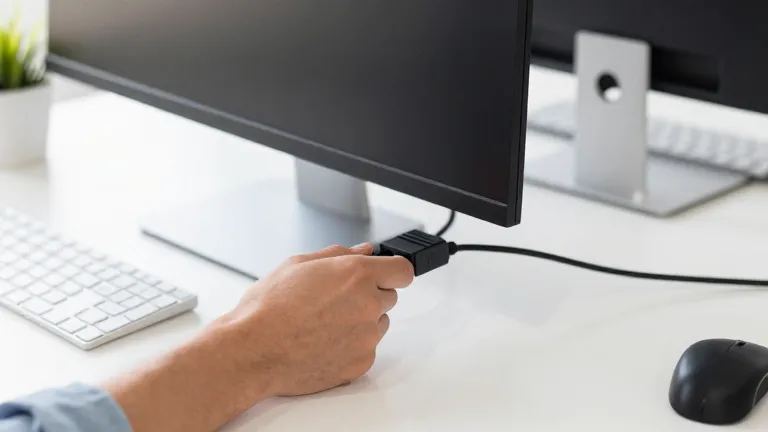
Power Cycle the Monitor
Power cycling the monitor is a simple yet effective step to reset its internal systems. Turn off the monitor using the power button, then unplug the power cable from the outlet. Wait for 30 seconds to allow any residual charge to dissipate. After the wait, plug the cable back in and power on the monitor. This process can resolve power-related issues that might interfere with the signal.
Restart Your Computer
Restarting your computer can refresh the graphics drivers and re-establish the connection with the external monitor. Close all open applications and click the Start menu, then select 'Power' and choose 'Restart.' Alternatively, use the keyboard shortcut Ctrl + Alt + Del and select 'Restart' from the options. Once the computer restarts, check if the monitor is detected and if the 'No Signal' error persists. If the issue remains, proceed to the next troubleshooting steps.
Re-seat the GPU Cable
For users with dedicated graphics cards, a loose or improperly seated GPU can lead to display issues, including the 'No Signal' error. Ensuring the GPU is securely connected to both the motherboard and the monitor is crucial for stable video output.
Check GPU Connections for Dedicated Graphics Cards
Begin by turning off your computer and unplugging the power cable to avoid electrical risks. Locate the PCIe slot on your motherboard where the GPU is installed. Gently lift the retention arm if present, then carefully remove the GPU. Inspect the slot for debris or damage, then reinsert the GPU firmly, ensuring it clicks into place. Reconnect any power connectors attached to the GPU, and secure it with screws if necessary.
Re-seat the HDMI/DisplayPort Cable From the GPU
If your GPU has an HDMI or DisplayPort output, check the cable connecting it to the monitor. Unplug the cable from both the GPU and the monitor, then reseat it firmly. Ensure the cable is fully inserted and not bent or damaged. Some GPUs have multiple ports; try a different port if available. After reseating, power on your system and check if the monitor detects the signal. If the issue persists, consider replacing the cable or testing with a different monitor to isolate the problem.
Troubleshoot Software and Drivers
Software and driver issues can often be the root cause of an external monitor displaying 'No Signal'. Ensuring your graphics drivers are up to date and that your operating system recognizes the monitor are critical steps in resolving this problem.
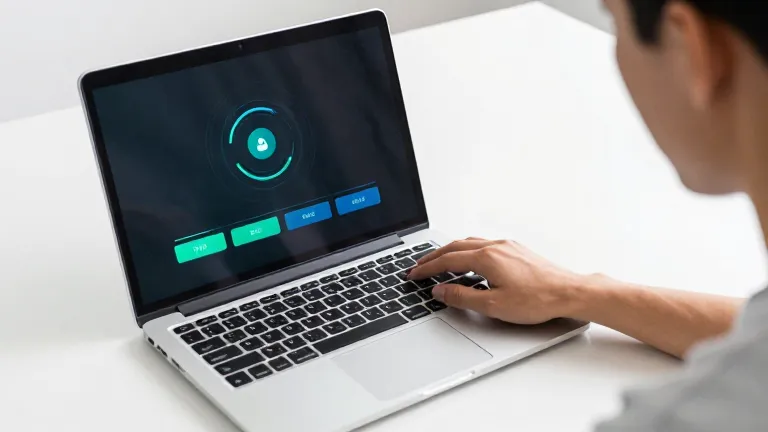
Update Graphics Drivers
Updating your graphics drivers can resolve compatibility issues and improve the connection between your computer and external monitor. Visit the manufacturer’s website to download the latest drivers for your GPU. For NVIDIA, AMD, or Intel graphics, ensure you install the correct version for your system. Some operating systems automatically check for driver updates, but manually checking ensures you get the most recent version.
Check Display Settings for Monitor Detection
Use your operating system’s display settings to detect and configure the external monitor. On Windows, right-click the desktop and select 'Display settings', then click 'Detect' to see if the monitor appears. On macOS, go to 'System Settings' and select 'Displays' to check for new displays. If the monitor is not detected, try reconnecting the cable or restarting the display settings. System updates can also address underlying issues that prevent the monitor from being recognized.
Frequently Asked Questions
Why is my external monitor not showing any signal after connecting via HDMI?
Ensure the HDMI cable is securely connected at both ends. Check for physical damage on the cable. Verify that the monitor is set to the correct input source. If issues persist, try a different HDMI port or cable.
What should I do if my monitor keeps saying 'No Signal' even with a working cable?
Restart both the monitor and your computer. Check the monitor's input settings and ensure it's set to the correct source. If the problem continues, test with a different display or graphics card.
How do I reset my external monitor to the correct input source?
Use the monitor's remote or buttons to cycle through input sources. Look for a menu option to reset or auto-detect the input. If the monitor has a default source, ensure it's set to HDMI or DisplayPort.
Can a faulty GPU cable cause a 'No Signal' error on my monitor?
Yes, a faulty or loose GPU cable can lead to 'No Signal' errors. Inspect the connection and reseat the cable. If the cable is damaged, replace it with a new one to resolve the issue.
Final Steps to Resolve 'No Signal' Issues
To resolve 'No Signal' issues, start with physical connections and input sources, then move to software and hardware checks. If problems persist, consider hardware faults or driver updates.
Ensure all cables are secure and the monitor is set to the correct input. If you're still experiencing issues, consult a technician for further diagnosis.





