
How to Fix PS5 or Xbox No Signal on TV HDMI Port
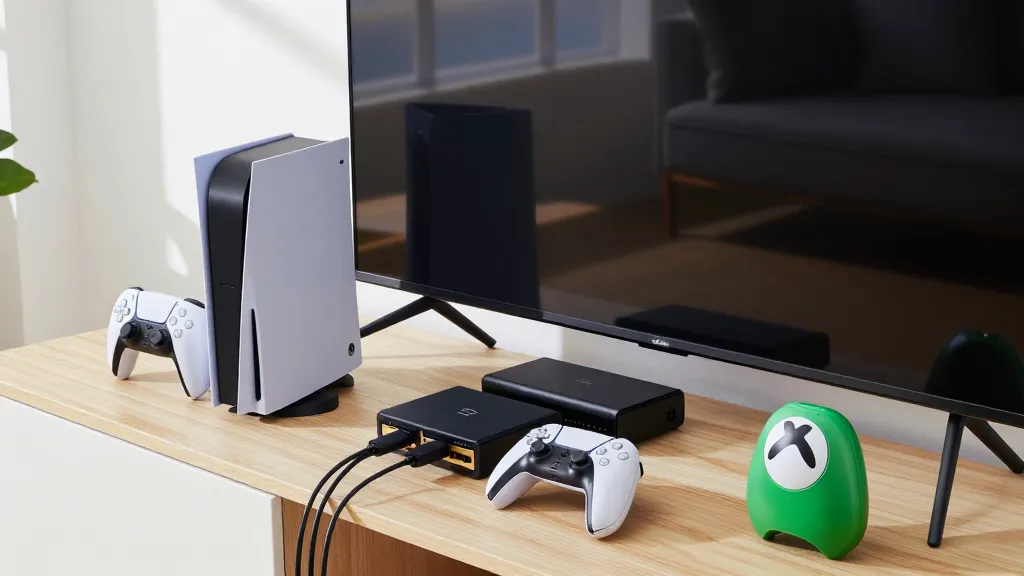
If you're trying to connect your PS5 or Xbox to your TV via HDMI and are met with a black screen or no signal error, you're not alone. This common issue can be frustrating, especially when you're eager to play your favorite games or stream content. The problem may stem from a simple connection error, an incompatible resolution setting, or even a faulty HDMI cable. This article provides a clear, step-by-step guide to help you troubleshoot and resolve the 'no signal on TV HDMI port' issue without needing professional assistance. From checking basic connections to advanced hardware checks, we'll walk you through the most effective solutions to get your console working again. Whether you're a casual gamer or a tech-savvy user, these practical tips will help you fix the problem and enjoy your entertainment seamlessly.
Check Basic Connections and Settings
The first step in resolving a 'no signal' issue on your TV's HDMI port involves verifying the basic connections and settings. This includes checking the physical connections, ensuring the TV is set to the correct input, and confirming the console is powered on. These simple checks often resolve the issue without requiring advanced troubleshooting.
Verify HDMI Cable and Port Connections
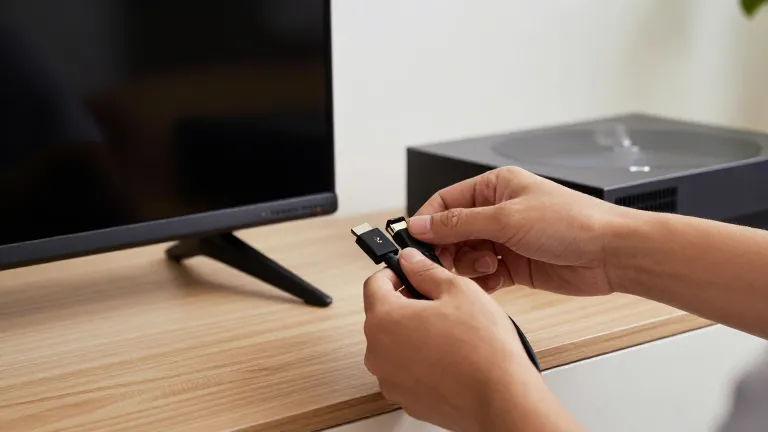
Ensure the HDMI cable is firmly connected to both the console and the TV. Loose or damaged cables can prevent the signal from reaching the TV. Inspect the cable for any visible damage, such as frayed ends or bent pins, which can disrupt the connection. If the cable appears intact, try reseating it in both the console and TV ports to ensure a secure connection.
Confirm TV Input Settings
Check that the TV is set to the correct HDMI input source. Use the TV remote to navigate through the input options and confirm that the correct HDMI port is selected. If the TV has multiple HDMI ports, try switching to a different port to rule out any port-specific issues. Some TVs may require pressing the 'Input' button repeatedly to cycle through the available sources.
Test with a Different HDMI Cable
Testing with a different HDMI cable is a crucial step in diagnosing a no signal issue. A faulty or low-quality cable can disrupt the signal between your console and TV, making it essential to use a known working cable to rule out this possibility.
- Use a high-quality HDMI cable that supports the required resolution and bandwidth for your console.
- Ensure the cable is not damaged, frayed, or bent, as physical damage can cause signal loss.
- Connect the new cable to the same HDMI ports on both the console and TV to isolate the issue.
- If the problem persists, the issue likely lies with the console or TV rather than the cable.
How to Choose a Reliable HDMI Cable
When selecting a reliable HDMI cable, prioritize cables that are certified for high-speed transmission and support resolutions up to 4K. Avoid cheap or generic cables that may lack the necessary conductors or shielding, which can lead to signal degradation or loss. Look for cables with gold-plated connectors to ensure a stable and durable connection.
Testing the New Cable in the Same Setup
Once you have a reliable HDMI cable, connect it to the same ports on both the console and TV as before. This helps determine if the original cable was the source of the problem. If the console now displays a signal, the previous cable was likely faulty. If the issue remains, move on to further troubleshooting steps to identify the root cause.
Adjust Console Settings and Output Resolution
Adjusting the console's output settings can resolve compatibility issues that cause no signal on the TV's HDMI port. By modifying resolution and output preferences, you can align the console's settings with the TV's capabilities, which often fixes the problem without further hardware intervention.
Accessing the Console's Output Settings
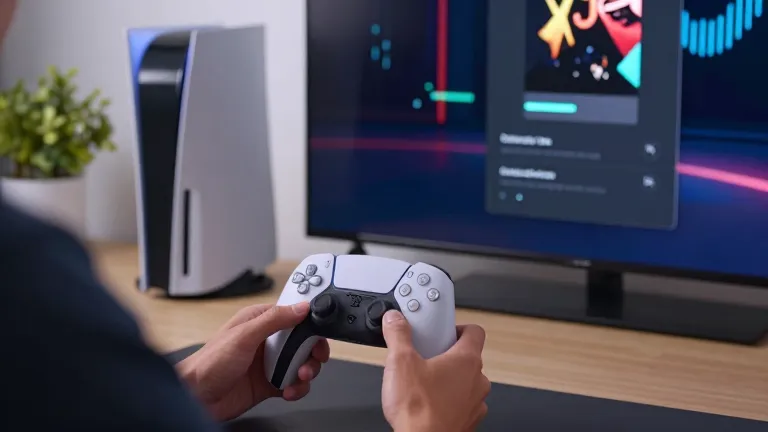
To access the console's output settings, navigate to the settings menu on the PS5 or Xbox. For the PS5, go to 'Sound and Screen' > 'HDMI Output Resolution'. On the Xbox, select 'Display & Sound' > 'HDMI Output Resolution'. Here, you can manually adjust the resolution to one that your TV supports. If unsure, select 'Auto' to let the console detect the optimal setting.
Troubleshooting Resolution Compatibility
If the TV does not support the console's default resolution, the no signal error may persist. Lower the resolution to a value compatible with your TV, such as 1080p or 720p, and test the connection again. Some TVs may not support higher resolutions like 4K or 1440p, so ensuring the console's output matches the TV's maximum capability is crucial. If the issue remains, try different resolution settings to find a working combination.
Use Safe Mode to Reset Resolution
Safe mode is a troubleshooting tool that allows you to reset display settings without affecting game data or system features. By entering safe mode, you can bypass startup issues and adjust resolution settings to match your TV’s capabilities, which can resolve no signal errors.
How to Enter Safe Mode on PS5 and Xbox
To enter safe mode on the PS5, press and hold the power button until the console beeps twice. For the Xbox, press and hold the power button until the console beeps twice and the power light turns off. This will boot the console into safe mode, which is a minimal startup state. Once in safe mode, the console will automatically detect your TV and attempt to connect.
Adjusting Resolution in Safe Mode
In safe mode, navigate to the display settings to adjust the resolution. Choose a resolution that matches your TV’s maximum supported capability, such as 1080p or 720p. This ensures compatibility and reduces the risk of signal issues. After making the changes, save the settings and restart the console to apply them. This process can help resolve display-related errors without affecting other console functions.
Advanced Troubleshooting and Hardware Checks
If basic troubleshooting steps fail, advanced checks can help identify deeper issues with your console or TV. Firmware and software updates can resolve compatibility problems, while testing the TV with other devices can isolate whether the issue lies with the console or the display.
Checking for Firmware and Software Updates
Check for firmware updates on both your PS5 or Xbox and your TV. For consoles, go to the system settings and look for software updates. On TVs, consult the manufacturer’s website or settings menu for firmware updates. These updates often address known bugs and improve HDMI compatibility, which can resolve signal issues.
Testing TV with Other Devices
Connect other devices, such as a gaming PC, Blu-ray player, or streaming box, to the same HDMI port on your TV. If these devices work without issues, the problem likely lies with your console. If the TV still shows no signal with other devices, the HDMI port or TV hardware may be faulty. This step helps determine whether the issue is specific to your console or a broader TV malfunction.
Frequently Asked Questions
What should I do if my PS5 or Xbox shows no signal on the TV even after checking the connections?
If the issue persists, try using a different HDMI cable and test the TV with other devices. If the problem remains, you may need to reset the console's resolution settings or check for firmware updates.
Can a faulty HDMI cable cause a no signal error on the TV?
Yes, a faulty HDMI cable can prevent the console from sending a signal to the TV. Always test with a known-working HDMI cable to rule out this issue.
How do I enter safe mode on my PS5 or Xbox to fix the resolution issue?
To enter safe mode on the PS5, press and hold the power button until it beeps twice. For the Xbox, press and hold the power button until it beeps twice, then select 'Safe Mode' from the menu.
What if my TV works with other devices but not with my PS5 or Xbox?
This suggests a problem with the console or its HDMI port. Try resetting the console, updating its firmware, or testing with a different HDMI cable and TV.
Next Steps and Support
Fixing a no signal issue on your PS5 or Xbox often involves checking connections, testing cables, and adjusting settings. If these steps don't resolve the problem, consider entering safe mode or updating the console's firmware.
If all else fails, ensure your TV is compatible with the console's output resolution and try using a different HDMI port. For persistent issues, contacting customer support may be necessary.





