
How to Fix Soundbar Not Playing Audio via HDMI ARC
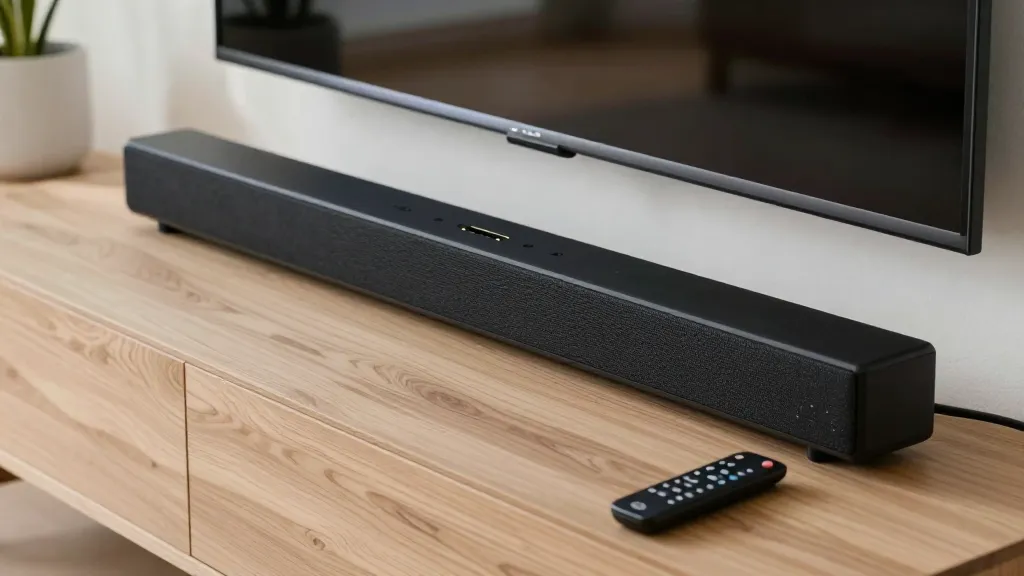
If your soundbar isn't playing audio through HDMI ARC, you're not alone. Many users face this issue when setting up a home theater system, especially when trying to stream audio from a TV or other devices. The main keyword for this problem is How to Fix Soundbar Not Playing Audio via HDMI ARC, and it's often related to incorrect settings, faulty connections, or compatibility issues. This article provides a step-by-step guide to help you resolve the issue and get your soundbar working properly with HDMI ARC.
We'll start by checking the HDMI ARC connection, which is crucial for audio transmission. Ensuring the correct port and cable are used can make a big difference. Next, we'll walk you through enabling HDMI ARC on both your TV and soundbar, as this feature must be activated on both devices.
After confirming the settings, we'll explore troubleshooting steps, including HDMI-CEC and resetting your devices. Following these practical steps can help you identify and fix the problem, so you can enjoy high-quality audio through your soundbar without any interruptions.
Check the HDMI ARC Connection
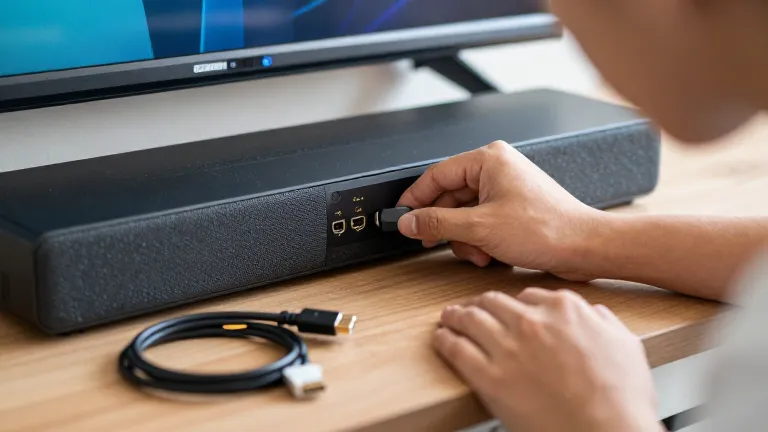
A faulty HDMI connection is often the root cause of soundbar audio issues via HDMI ARC. Ensuring the physical and technical compatibility of the connection is the first step toward resolving the problem. This section outlines how to properly verify the HDMI port compatibility and test the connection with a reliable cable.
Verify HDMI Port Compatibility
Begin by confirming that both your TV and soundbar have HDMI ports labeled as 'HDMI ARC' or 'HDMI eARC.' These ports are specifically designed to support audio return channel functionality, which is essential for HDMI ARC to work. If the ports are not clearly marked, consult the device manuals or look for symbols like 'ARC' or 'eARC' near the HDMI ports.
Test with a Different HDMI Cable
If the HDMI ports are correctly labeled, double-check that the cable is securely connected to both the TV and soundbar. A loose connection can prevent the audio signal from passing through. Additionally, ensure that the HDMI cable is of high quality and supports ARC. Older or low-quality cables may not transmit the necessary audio data, leading to no sound output. If you are unsure about the cable’s compatibility, replace it with one that explicitly states it supports HDMI ARC or eARC.
Enable HDMI ARC on Both Devices
Enabling HDMI ARC on both your TV and soundbar is essential for audio to pass through the HDMI connection. This feature allows your TV to send audio signals to the soundbar, creating a seamless home theater experience. Follow these steps to ensure both devices are properly configured for HDMI ARC.
How to Enable HDMI ARC on Your TV
To enable HDMI ARC on your TV, navigate to the settings menu and look for an option labeled 'HDMI ARC' or 'Audio Return Channel.' This setting is typically found under the 'Sound' or 'Audio Settings' section. Once located, toggle the option to 'On' to activate the feature. Some TVs may require you to select the correct HDMI port for ARC, so ensure the soundbar is connected to the designated ARC port.
How to Enable HDMI ARC on Your Soundbar
On your soundbar, access the settings menu and search for an option related to HDMI ARC or HDMI audio. This may be labeled differently depending on the brand, but it usually appears under 'Audio Settings' or 'Connection Settings.' Enable the option to allow the soundbar to receive audio from the TV. Some soundbars may also have a physical HDMI-CEC button on the back or remote control; pressing this can help activate the feature if it's not working as expected.
Verify Audio Settings on the TV
Ensuring your TV is configured to output audio through the HDMI ARC port is essential for soundbar compatibility. Many TVs have multiple audio output options, and if not set correctly, audio may not reach your soundbar. Review your TV's settings to confirm that HDMI ARC is selected as the preferred audio output method.

Check Audio Output Settings on Your TV
Navigate to your TV's audio settings menu to locate the audio output options. Look for settings labeled 'HDMI Audio,' 'Digital Output,' or 'Audio Output Mode.' These options may be found under a section like 'Sound,' 'Audio Settings,' or 'Output Settings.' Confirm that HDMI ARC is the selected option, as this ensures audio is routed through the HDMI port to your soundbar.
How to Switch Between Audio Output Options
Some TVs may default to other audio outputs like optical or Bluetooth, so it's important to manually switch to HDMI ARC. If your TV has a 'Source' or 'Input' selection, ensure it's set to the HDMI port connected to your soundbar. Additionally, check for an 'Audio Output' or 'Audio Mode' setting that allows you to choose between HDMI ARC, optical, or other options. Selecting HDMI ARC ensures the soundbar receives the audio signal correctly.
Troubleshoot HDMI ARC with CEC
HDMI-CEC, or Consumer Electronics Control, allows your TV and soundbar to communicate and control each other, which can simplify audio routing via HDMI ARC. If your soundbar isn't receiving audio, enabling CEC on both devices might resolve the issue. However, some users may need to disable CEC if it conflicts with HDMI ARC settings.
How to Enable HDMI-CEC on Your TV
To enable HDMI-CEC on your TV, navigate to the settings menu and look for an option labeled 'HDMI-CEC' or 'Consumer Electronics Control.' This option is typically found under a section like 'Network & Connections' or 'Advanced Settings.' Once located, toggle the setting to 'On' to activate CEC. Some TVs may require you to press and hold the power button for a few seconds to confirm the change.
How to Enable HDMI-CEC on Your Soundbar
Enabling HDMI-CEC on your soundbar can be done through its menu settings. Refer to the user manual for specific instructions, as the location of the CEC option may vary. Look for a setting labeled 'HDMI-CEC,' 'CEC,' or 'HDMI Control.' Set it to 'On' to allow communication with your TV. If your soundbar does not have a direct CEC setting, check for an option related to 'HDMI Audio' or 'Audio Output Settings' that might include CEC functionality.
Reset and Reconfigure Soundbar Setup
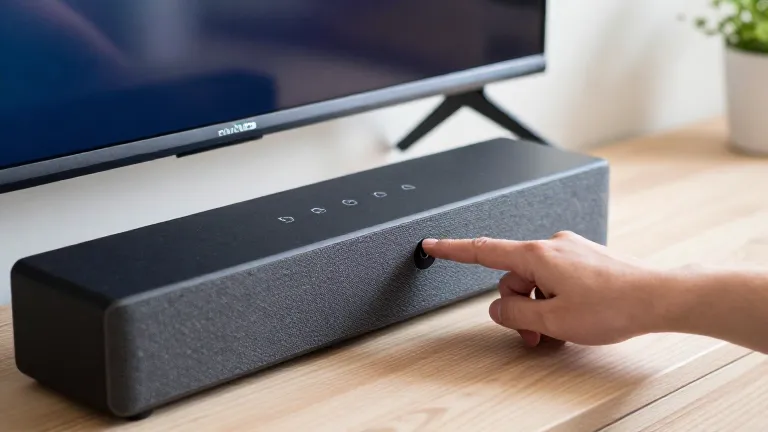
If your soundbar still isn't playing audio via HDMI ARC after checking connections and settings, a simple restart can resolve temporary software glitches. Rebooting both your TV and soundbar can help reset the system and restore proper communication between devices.
How to Restart Your TV and Soundbar
To restart your TV, locate the power button and turn it off for about 30 seconds before powering it back on. Similarly, turn off your soundbar, wait a minute, and then power it back up. This process can clear minor software issues and re-establish the HDMI ARC connection.
How to Reset Your Soundbar to Factory Settings
If restarting doesn't work, you may need to reset your soundbar to factory settings. This will restore default configurations and can eliminate any misconfigurations that might be affecting HDMI ARC functionality. Consult your soundbar’s user manual for specific reset instructions, which typically involve pressing and holding a reset button or accessing the setup menu and selecting the factory reset option. Note that this process will erase any custom settings, so be prepared to reconfigure your soundbar afterward.
Frequently Asked Questions
Why isn't my soundbar producing any audio through HDMI ARC?
Ensure the HDMI ARC port is correctly connected and both devices are set to HDMI ARC mode. Check if the audio output settings on your TV are configured to send sound through the soundbar.
How do I know if my HDMI cable supports ARC?
Look for HDMI 1.4 or higher on the cable packaging. ARC requires a high-speed HDMI cable with Ethernet support. Test the cable with another device to confirm compatibility.
What should I do if my TV isn't sending audio to the soundbar via HDMI?
Verify that HDMI ARC is enabled on both the TV and the soundbar. Check the audio output settings on your TV to ensure it's set to send audio through the HDMI ARC port.
Can I use HDMI ARC with a soundbar that doesn't support it?
No, HDMI ARC requires both the TV and the soundbar to support the feature. If your soundbar lacks ARC support, consider using a different audio connection method like optical or Bluetooth.
Final Thoughts
Fixing HDMI ARC audio issues often involves checking connections, enabling settings, and verifying compatibility. Start with the basics like cable and port checks, then move to settings and advanced troubleshooting.
If you're still experiencing issues, resetting your devices or consulting the user manuals can provide additional guidance. A well-configured HDMI ARC setup enhances your audio experience with minimal effort.





