
How to Fix USB Flash Drive Asking to Format Before Using
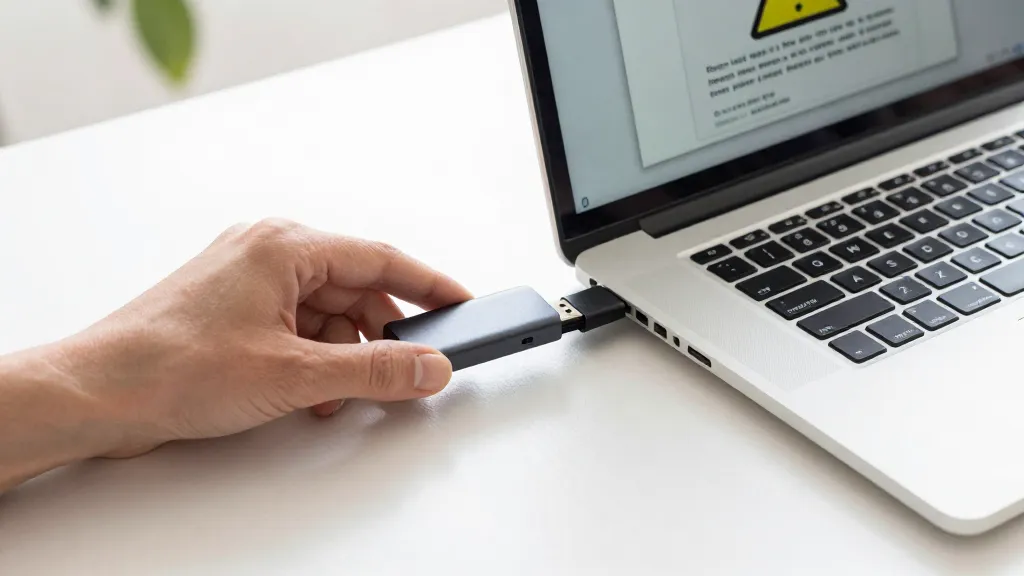
If your USB flash drive is asking to format before you can use it, it can be frustrating, especially if you need to access important data. This error often appears when the drive's file system is damaged or corrupted, which can happen due to sudden power loss, improper removal, or malware. The main keyword here is 'How to Fix USB Flash Drive Asking to Format Before Using,' and this article provides clear, step-by-step solutions to help you resolve the issue without needing professional help. Whether you're trying to recover files or fix the drive itself, the right approach can save your data and restore functionality.
Before formatting, it's crucial to recover any data that might be lost. This article explains how to safely recover files using reliable tools and methods, ensuring you don't lose valuable information. We'll guide you through practical steps that even non-technical users can follow with confidence.
Once you've recovered your data, the next step is to fix the underlying issues causing the formatting prompt. This includes running diagnostic tools like CHKDSK, using Disk Management, and testing the drive on another computer. These methods are designed to help you understand and resolve the problem effectively, allowing you to use your USB drive again without further complications.
Understanding Why Your USB Flash Drive Is Asking to Format
When your USB flash drive prompts you to format it before use, it's usually a sign that something is wrong with the drive's file system or structure. This issue can range from simple incompatibility to more complex problems like data corruption or hardware failure. Understanding the root cause is the first step in resolving the issue without losing valuable data.
Common Causes of USB Formatting Prompts
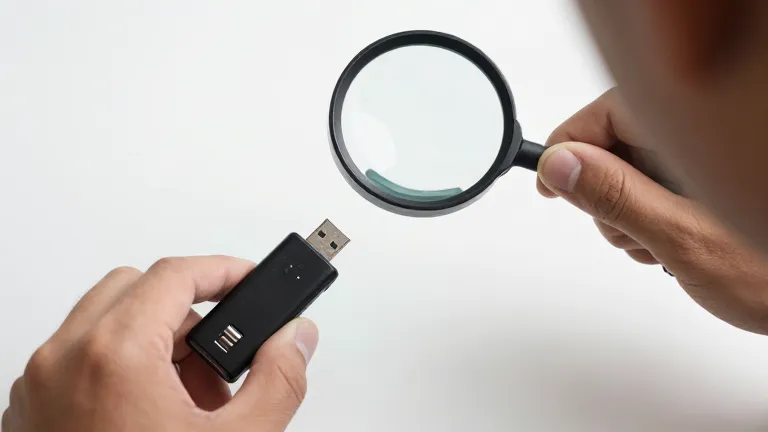
Common causes of USB formatting prompts include improper ejection, which can leave the file system in an unstable state. If you've used the drive with multiple operating systems, such as Windows and macOS, the file system may become incompatible. Additionally, sudden power loss or abrupt removal of the drive can lead to file system errors. These issues can cause the operating system to flag the drive for reformatting to ensure data integrity.
How File System Corruption Affects USB Drives
File system corruption occurs when the internal structure of the drive is damaged, which can happen due to virus infections, software glitches, or physical wear. This corruption can prevent the operating system from accessing files properly, leading to the drive being marked as faulty. In some cases, bad sectors—physical areas of the drive that can't be read or written to—can also contribute to the formatting prompt. Repairing or recovering data from a corrupted file system often requires specialized tools or manual intervention.
How to Recover Data From a USB Drive Before Formatting
Before formatting your USB drive, it's crucial to recover any important data to avoid losing files permanently. Using reliable data recovery software can help retrieve lost or inaccessible data, but the process requires careful steps to ensure success.
- Use data recovery software to extract files before formatting.
- Ensure the drive is not connected to any other device during recovery.
- Avoid writing new data to the drive to prevent overwriting.
- Follow the software's instructions to scan and recover files.
Best Data Recovery Tools for USB Drives
Several data recovery tools are available for USB drives, including tools like Recuva, EaseUS Data Recovery Wizard, and DiskDigger. These programs can scan for deleted files, damaged partitions, or corrupted file systems. Choose a tool that supports your USB drive's file system, such as FAT32 or NTFS, to increase the chances of successful recovery.
Step-by-Step Guide to Recovering Files
To recover files, connect the USB drive to your computer and launch the chosen recovery tool. Select the drive from the list of available storage devices, then initiate a deep scan to locate lost files. Once the scan is complete, preview the recoverable files and select the ones you need. Avoid saving new files to the drive during this process to prevent overwriting existing data.
Using CHKDSK to Repair USB Drive Errors
CHKDSK is a built-in Windows utility designed to scan and repair file system errors on storage devices, including USB flash drives. It can identify and fix issues such as bad sectors, corrupt file systems, or inconsistencies in the drive’s directory structure. Running CHKDSK can often resolve the formatting prompt without the need to erase data, making it a valuable tool for non-technical users.

How to Run CHKDSK on Windows
To run CHKDSK on Windows, open the Command Prompt with administrative privileges. Then, type `chkdsk X:` (replace `X` with the drive letter of your USB flash drive) and press Enter. CHKDSK will prompt you to schedule the scan the next time the system starts. Confirm by typing `Y` and pressing Enter. The scan will automatically begin during the next reboot, repairing any detected errors.
Interpreting CHKDSK Results
After CHKDSK completes, review the results to understand what issues were found and resolved. The tool will display messages such as 'No errors were found' or 'Errors were found and fixed.' If errors were detected, CHKDSK may have repaired them automatically. If not, you may need to repeat the process or consider additional steps like using Disk Management or data recovery tools. Always ensure the USB drive is safely connected and not in use during the scan to avoid interruptions or data loss.
Fixing USB Formatting Errors with Disk Management
Disk Management is a built-in Windows tool that allows you to manage storage devices, including USB flash drives. It can help you identify issues such as unallocated space, drive errors, or misconfigured partitions, which may be causing the formatting prompt. By using Disk Management, you can troubleshoot and resolve these issues without needing external software.
- Open Disk Management by right-clicking the Start menu and selecting 'Disk Management'.
- Look for your USB drive in the list of disks. If it shows as 'Unallocated' or has errors, this may explain the formatting request.
- Right-click the USB drive and select 'Format' if it's still not working. Choose the file system (e.g., NTFS or FAT32) and allocate space as needed.
- Ensure the drive is properly recognized in the tool. If it's not listed, try reconnecting the USB drive or using a different port.
How to Access Disk Management in Windows
To access Disk Management, right-click the Start menu and select 'Disk Management'. This will open a window displaying all connected storage devices, including your USB flash drive. If the drive is not listed, it may not be properly recognized by the system. In such cases, try reconnecting the USB drive or using a different USB port.
Formatting a USB Drive Through Disk Management
Once your USB drive is visible in Disk Management, right-click it and select 'Format' to proceed. This will erase all data on the drive and create a new file system. Choose the appropriate file system, such as NTFS for larger files or FAT32 for compatibility. Be aware that formatting will delete all existing data, so ensure you have already recovered any important files before proceeding.
Alternative Fixes for USB Flash Drive Formatting Issues
If your USB flash drive keeps asking to format before use, trying alternative fixes can help identify and resolve the issue without losing data. Testing the drive on a different computer and considering professional recovery services are effective methods to troubleshoot and recover valuable files.
Testing the USB Drive on a Different Computer
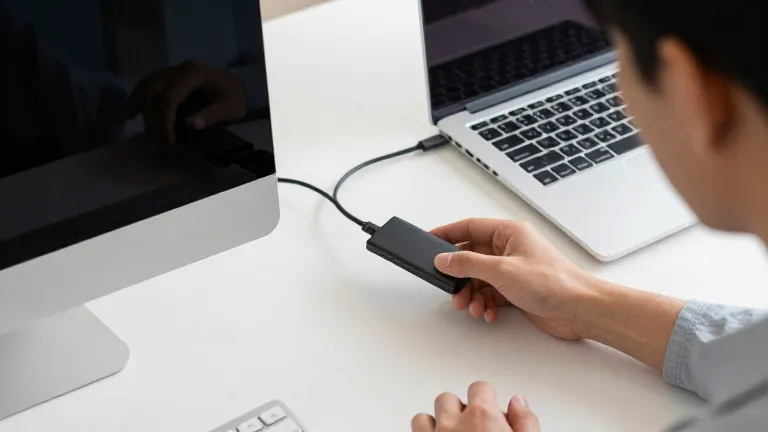
One of the simplest ways to determine if the issue is with the USB drive itself is to connect it to another computer. If the drive works properly on a different machine, the problem might be with the original computer’s system or drivers. This step helps isolate whether the issue is hardware-related or software-specific. If the drive functions normally elsewhere, you can proceed with formatting or data recovery on the working system.
Professional Data Recovery Options
If the data on the USB drive is extremely valuable and you’re unable to recover it through basic methods, consider using a professional data recovery service. These services specialize in retrieving data from damaged or corrupted storage devices, including USB drives. They use advanced tools and techniques to access files that may not be recoverable through standard software. While this option can be more expensive, it’s often the best choice when the data is critical and cannot be easily replaced.
Frequently Asked Questions
Can I recover files from a USB drive that is asking to format?
Yes, you can recover files from a USB drive that is asking to format. Use data recovery tools or the built-in Windows recovery options before attempting to format the drive. These methods can help retrieve lost or inaccessible files.
What is CHKDSK and how does it help with USB formatting issues?
CHKDSK is a Windows utility that checks for and repairs file system errors on storage devices. It can help resolve USB formatting issues by identifying and fixing disk errors that may be causing the formatting prompt.
Why does my USB drive keep asking to format even after I tried to repair it?
Your USB drive may still be asking to format due to persistent file system errors, physical damage, or incompatible file systems. If repairs don't resolve the issue, the drive may be faulty and require replacement.
Is it safe to format a USB drive if I still need the files on it?
No, it is not safe to format a USB drive if you still need the files on it. Formatting will erase all data on the drive. Always attempt to recover files first using recovery tools or Windows recovery options before formatting.
Final Tips and Next Steps
To avoid data loss, always recover files before formatting a USB drive. Use data recovery tools or CHKDSK to fix errors and prevent the need for formatting. If the drive is still faulty, consider replacing it.
If your USB drive keeps asking to format, follow the steps outlined in this article to diagnose and resolve the issue. Prioritise data recovery before any formatting actions to protect your important files.





